


💻 How Does The Portal Work?
Firstly the organisation that you are working with will set up your access.
Access is provided on a per-user basis.

You will be notified of your login details via a welcome email and/or via an alternative agreed method of communication.
The first step is to navigate to the portal whether that is via the welcome email or by the details provided to you by the organisation.
Below is an example of a login page:

- Select 'Forgot Password'.
This should be your very first action & you should follow the steps to create your own unique and secure password - If you have any questions about your username or it isn't working, please speak to the organisation you are working with
- Log in with your username and password.
📋Jobs List
If you would like to view a job that has been shared with you as an agency, you can locate it using the Jobs list.
Whilst on your jobs list, from the sidebar within the Agency Dashboard you can:
- Access all jobs that have been shared with your agency
- View jobs across different statuses (including active, closed, or expired)
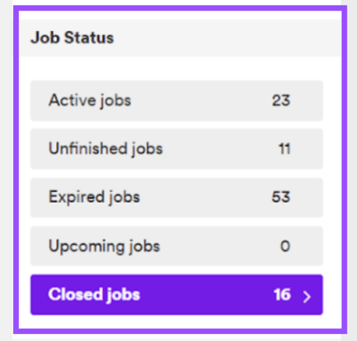
- Continue working with previously shared roles where required
Once you have navigated to the Dashboard, you will see a page that looks like this:
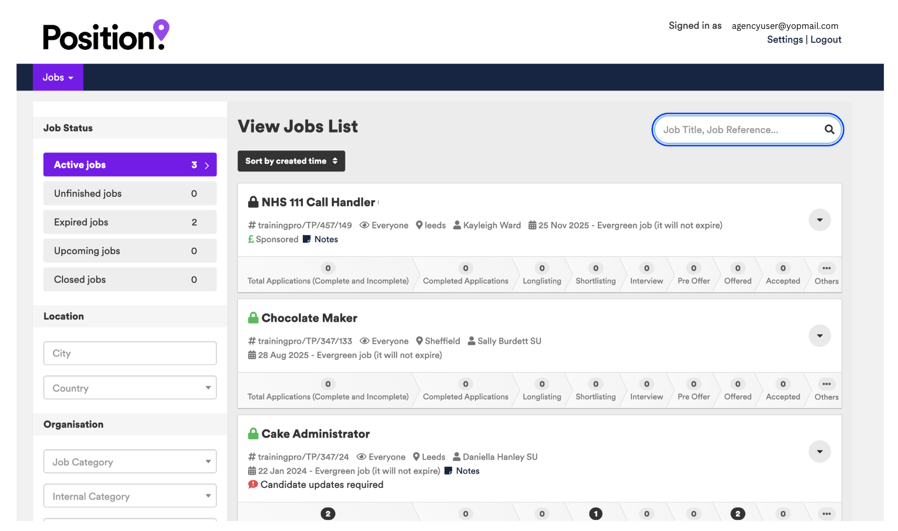
If you click into the job, you will see a screen that looks like this:

Items on this page include:
- Drop-down icon
Allows you to view the job advert - Profile icon
Allows you to navigate to candidates that have been rejected and withdrawn from the process - Search field
The search field allows you to search for candidates by entering their name


- Recruitment Stages
The stages below allow you to process the candidate and also see how the organisation is processing the candidate. - Options
Select the checkbox to the left of the candidate name and the 'Options' menu becomes available. The options menu may allow you to carry out specific processing actions against a candidate.

- Apply New Candidate
This option should be used if the candidate already exists in your portal (the candidate may have been previously uploaded and aligned to a different job).

- Upload New Candidate
This option should be selected if you are uploading a candidate to the agency portal for the first time. (More on this further down the page.)


- Download List
Allows you to download the list of candidates presented on the current screen. - Candidate name/Candidate Profile
Select the candidate name or the candidate profile to navigate to the candidate's profile.

👁️ Viewing Job Details
Once you have been shared into a job, to see the job details, you can simply click on the job title (1):
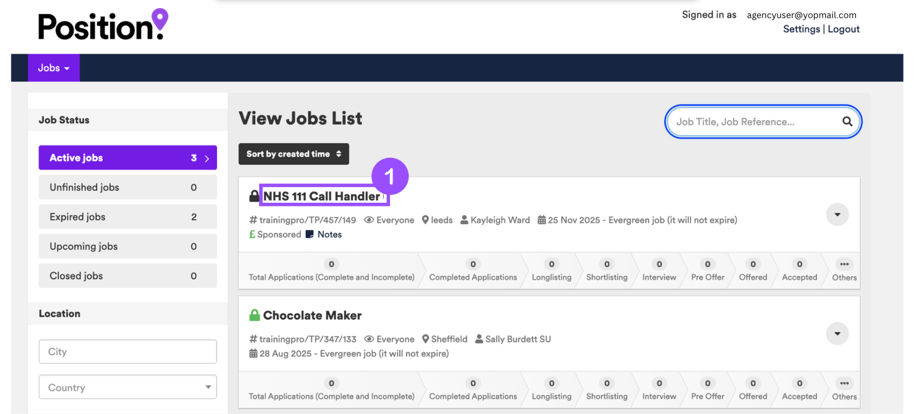
You will now be directed to a page that looks a little like this:


The following information for each job post will be displayed:
- Job Title
- Job Category
- Location
- Date Posted
- Expiry Date
- Applicants
You will find all information you need to inform the candidate on this page. You can also share the URL (highlighted below) with the candidate so that they can view this too.

🔙 How Do I Go Back To The Dashboard?
To go back to your dashboard you must select the "Jobs" tab followed by the "Jobs List".

We hope that these guidelines have helped to support you when using the Agency Portal.
If you have any further questions, please speak directly with your contact at the organisation you are working with.