


🔒Preparation
Ensure you have the application IDs for the application records you would like to update. We would recommend using either the application data capture full/short reports or a custom report to catch this information.

Application Status ID's
|
Status |
ID |
|
In-review / Longlisting |
8 |
|
Shortlist |
1 |
|
Interview |
4 |
|
Pre Offer |
6 |
|
Offer |
5 |
|
Accepted |
7 |
|
Hired |
3 |
|
Withdrawn |
9 |
|
rejected |
2 |
Interview Sub Status IDs
|
Stage |
ID |
|
Interview Stage 1 |
401 |
|
Interview Stage 2 |
402 |
|
Interview Stage 3 |
403 |
|
Interview Stage 4 |
404 |
|
Interview Stage 5 |
405 |
🔮 Creating A CSV
Bulk updates are performed by uploading a CSV of the application you would like to update.
You should include the following headers as per the screenshot below.
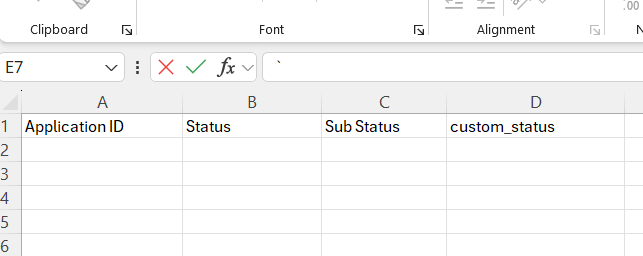
Application ID: This is the ID for the application you want to update. Every application ID is unique. You need to be careful not to confuse this with the job or candidate IDs.
Status: This field requires you to add the application stage you want to move the candidate to, for example, adding 1 would move the application to shortlisted.
Sub Status: This refers to the interview stages, not the custom statuses you create in the Manage Tool. We would recommend that you refer to your interview workflows to determine the correct ID for the stage you are moving a candidate to.

Custom_status: To set a custom sub status, you would add the corresponding ID from your custom sub statuses to this field. This is normally a 4-digit ID.