


➕ How To Add Tribepad Assessments To A Job

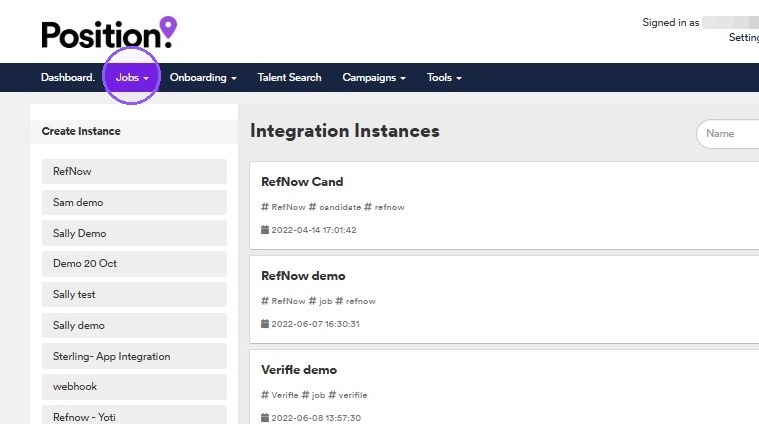
Start by clicking on "Jobs".
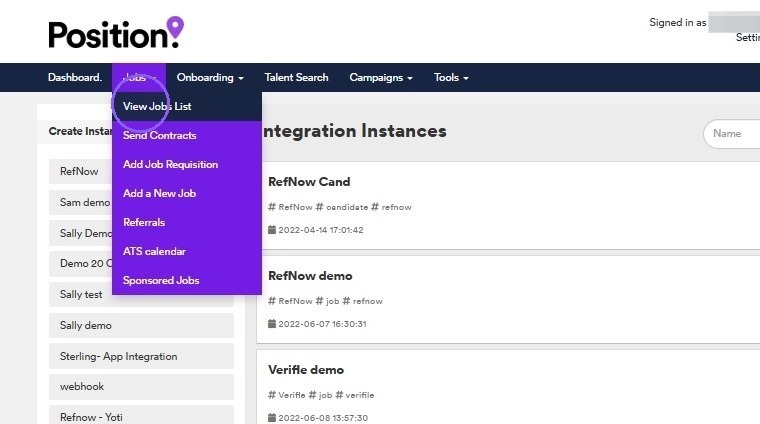
Followed by clicking on "View Jobs List".
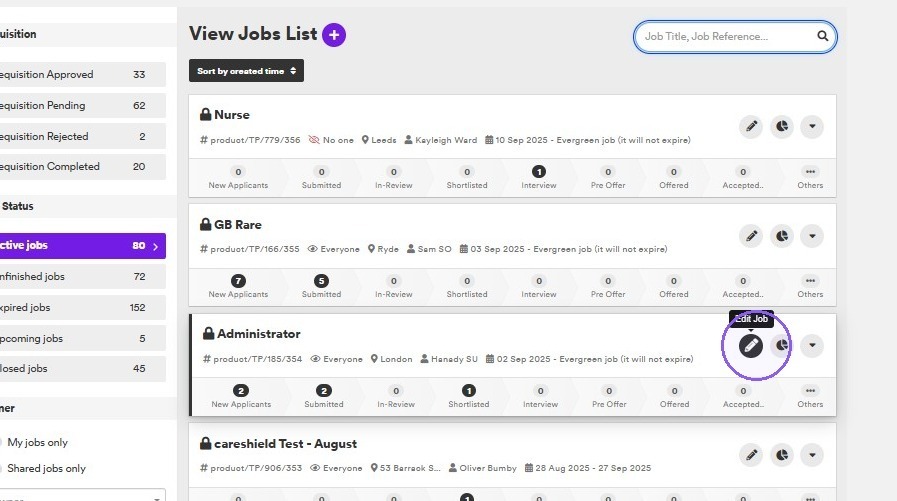
From here you will be taken to the jobs list. Click on the pencil icon next to the relevant job that you would like to edit.
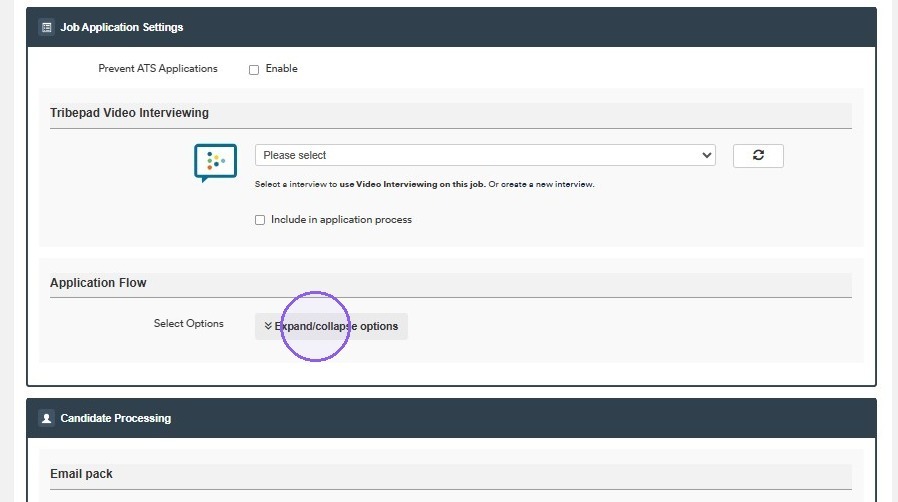
You will now be taken to the job edit page, where you will need to scroll down to the "Job Application Settings" - From here click "Expand/collapse options" under the "Application Flow".
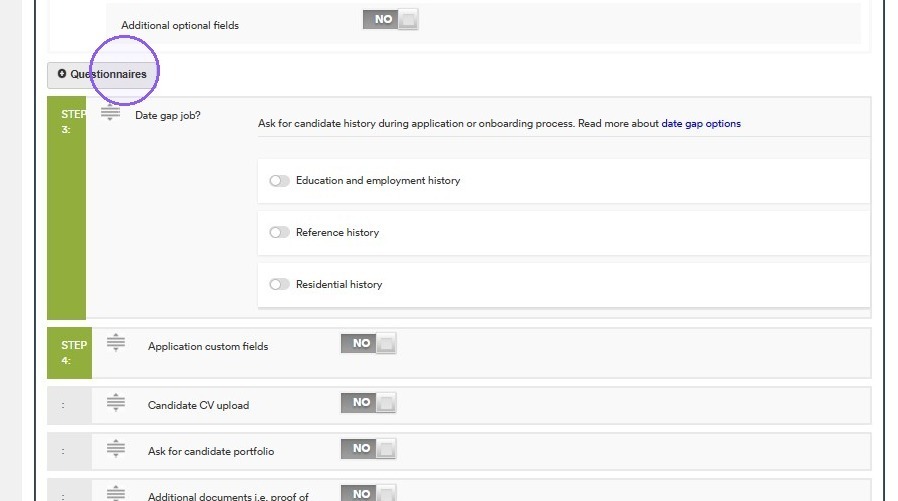
Now click on "Questionnaires".
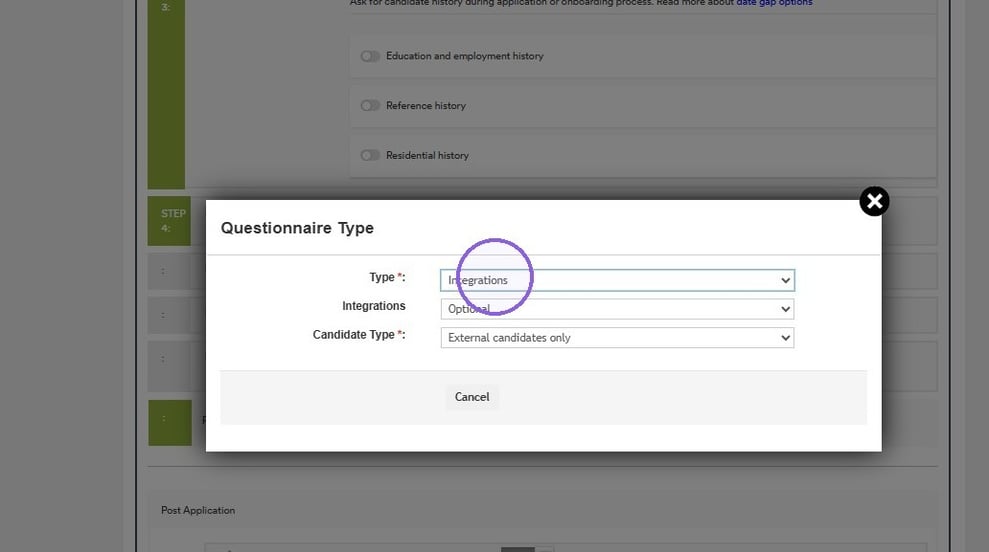
Under "Type", select the "Integrations" option from the drop-down menu.
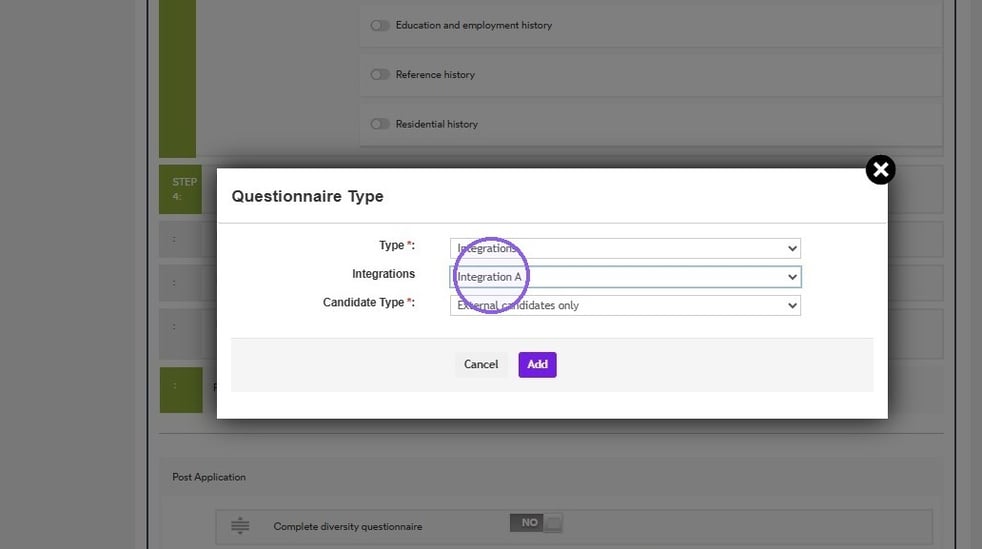
Now, from the "Integrations" option, select the integration you would like to add from the drop-down menu. In this example we have selected the "Integration A" option.
Under the "Candidate Type" option, select the "Both external and internal candidates" option.
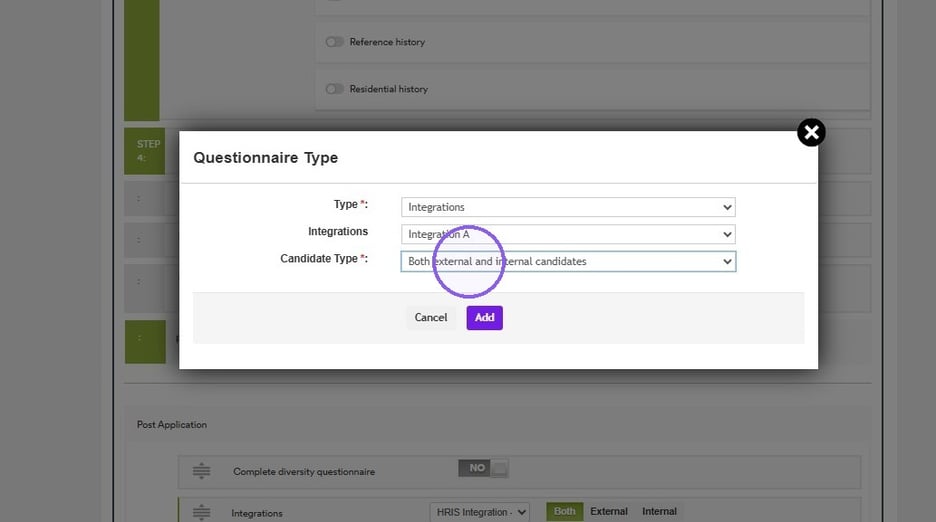
Click "Add" to finalise this process.
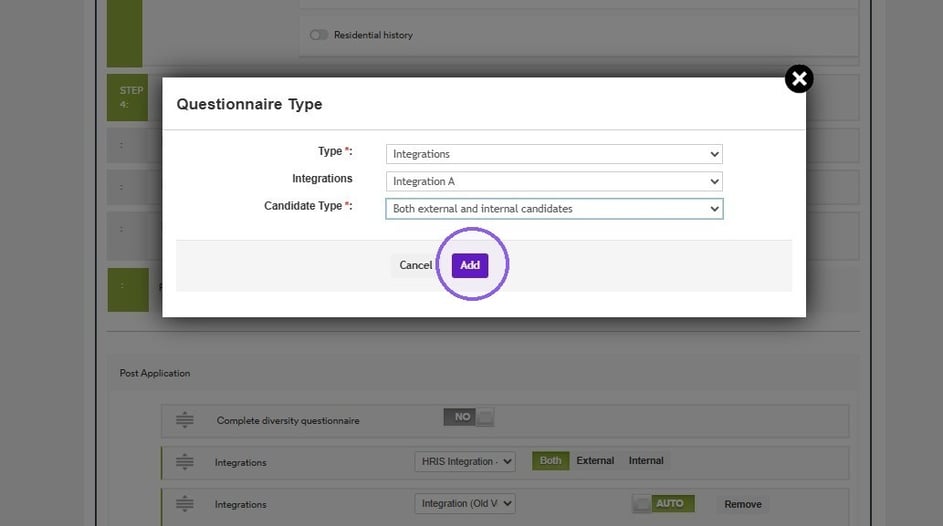
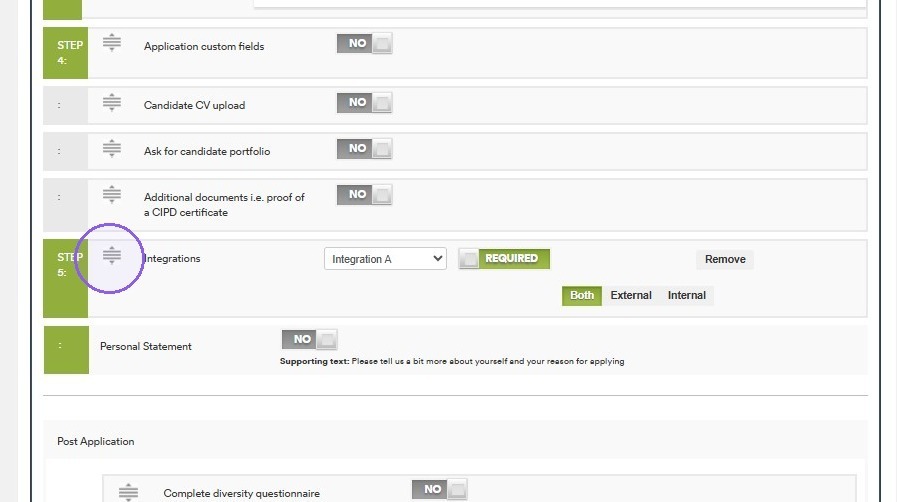
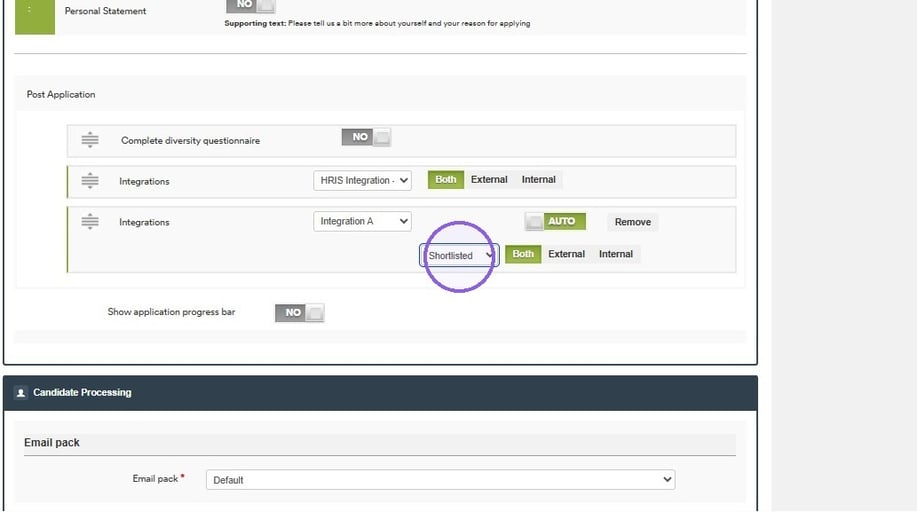
Depending on the use case for your integration, you can keep it in the main Application Flow or move it to the Post Application flow, using the drag function.
To choose whether to automatically trigger this integration at a certain part of the application process click the following toggle to set this as either "Manual" or "Auto".
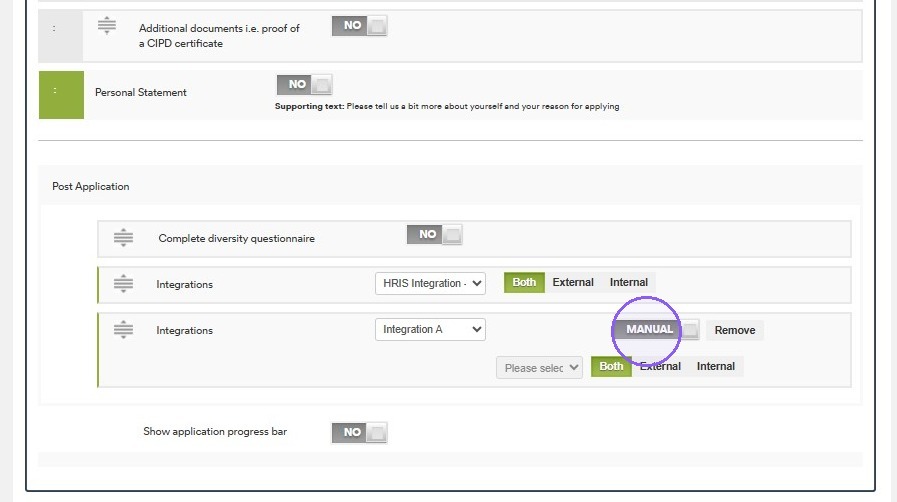
To choose exactly which stage you would like to trigger this integration, click on the drop-down and select the relevant option from the list.
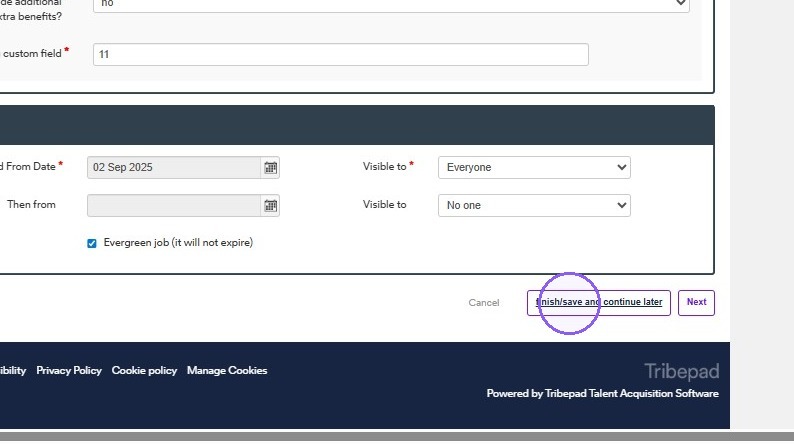
Once you have completed the above, click on "finish/save and continue later".
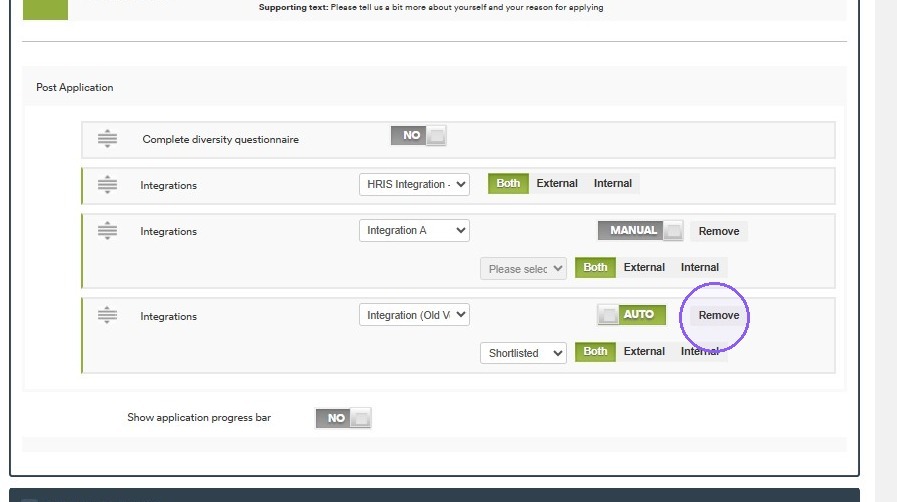
If needed, you can click here to "Remove" this integration.
🔍 How To Trigger Tribepad Assessments & View Results
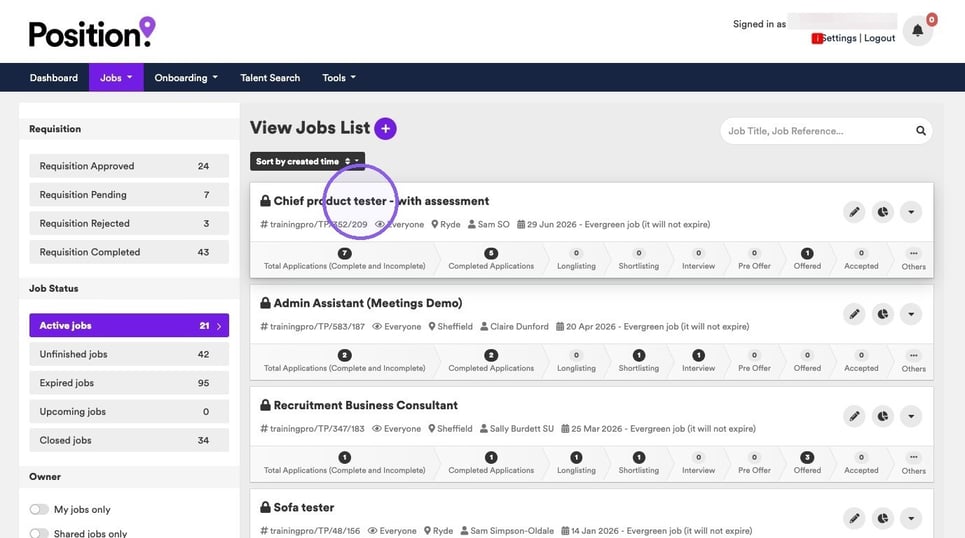
From the jobs list, select the relevant job that the integration has been added to. In this example we are going to select the "Chief product tester - with assessment" role.
Once your job is live, the assessment will be triggered according to the stage you selected when setting up the integration.
In this example, the assessment is triggered when a candidate applies for the role, so they will automatically be asked to complete the selected assessment as part of their application.
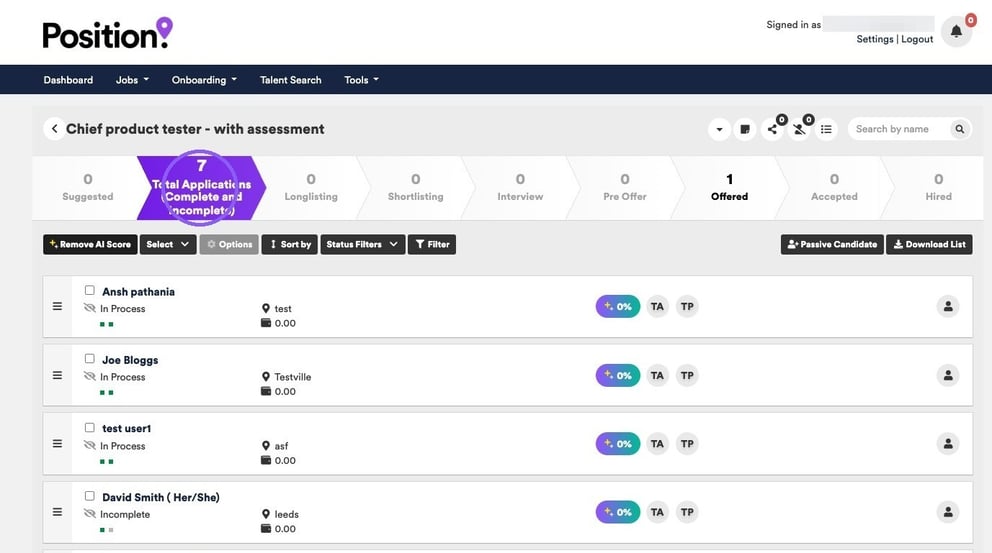
Once a candidate has completed their assessment, you'll see the integration initials displayed next to their name.
Hover over the initials to open a pop-up showing a summary of the candidate's assessment results and any additional information available from the integration.
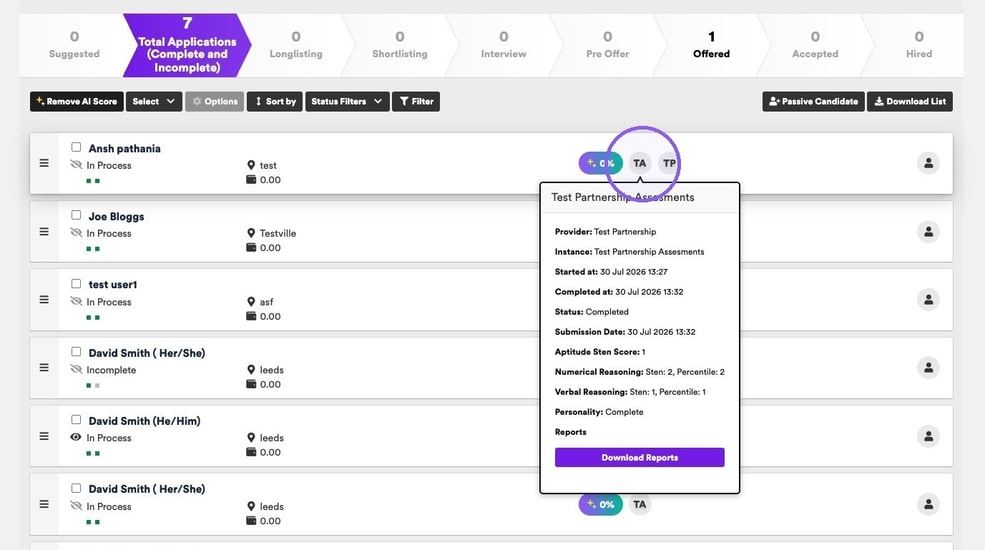
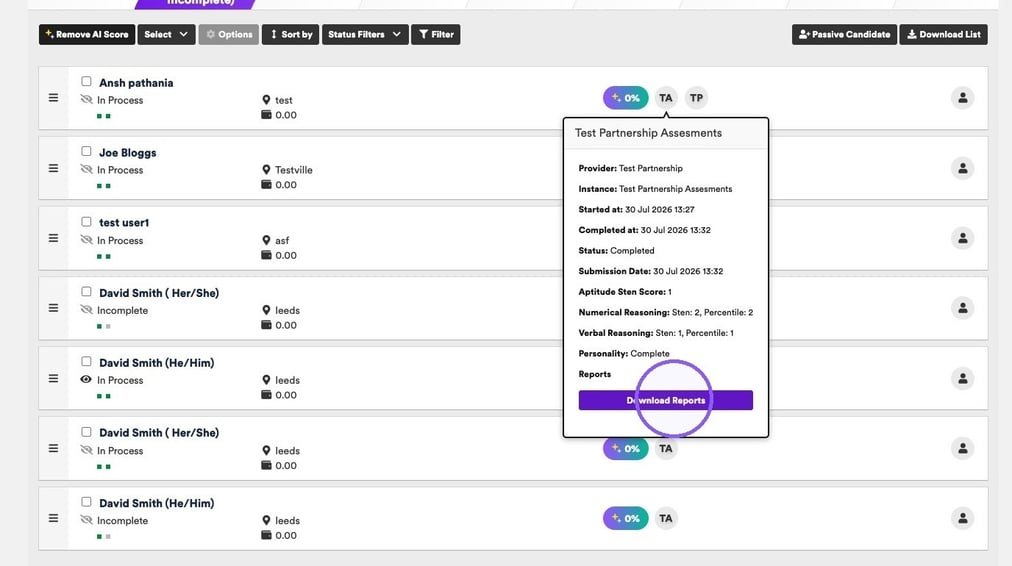
Click the Download Reports button to download a PDF report containing the candidate's assessment results and a detailed explanation of their outcome.
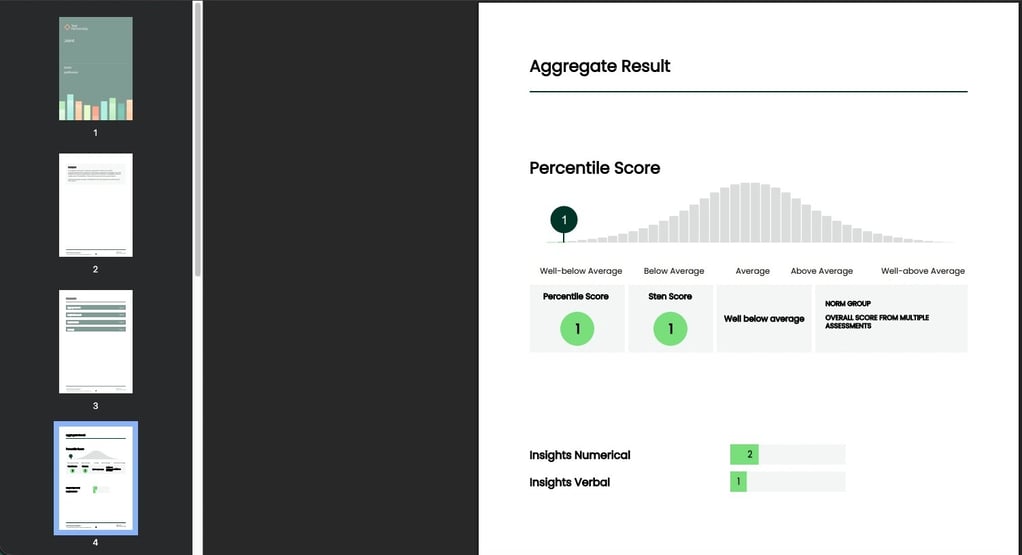
Here is an example of a full PDF report.
👤 Candidate View Of Tribepad Assessment
As a candidate you will apply for a job via the standard application flow.
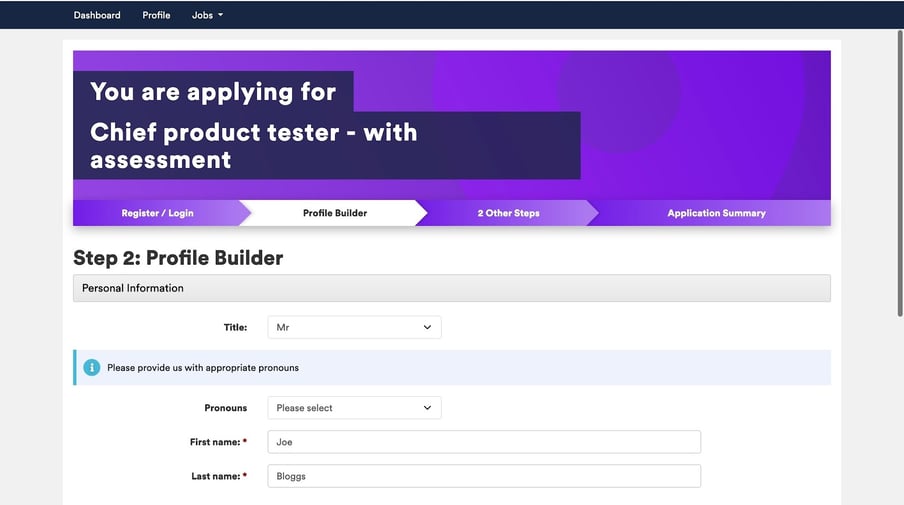
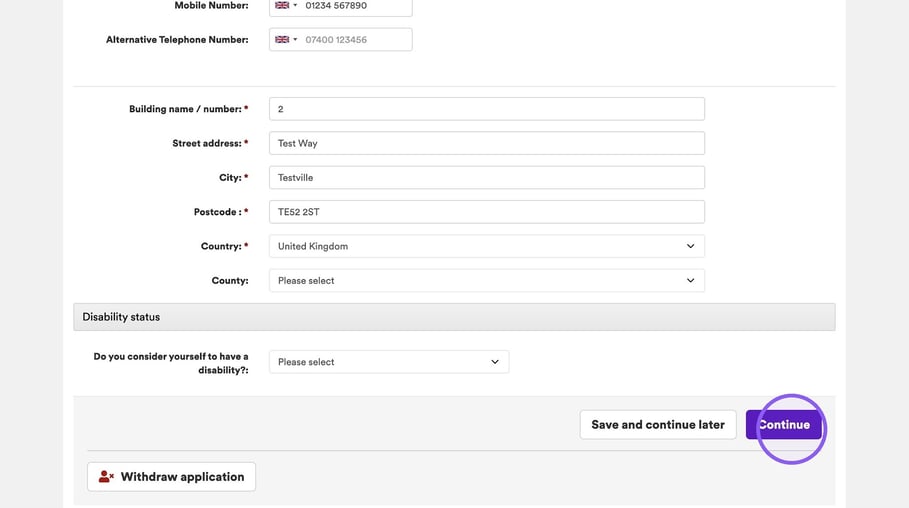
Once you have completed the personal information section, click "Continue" at the bottom of the page.
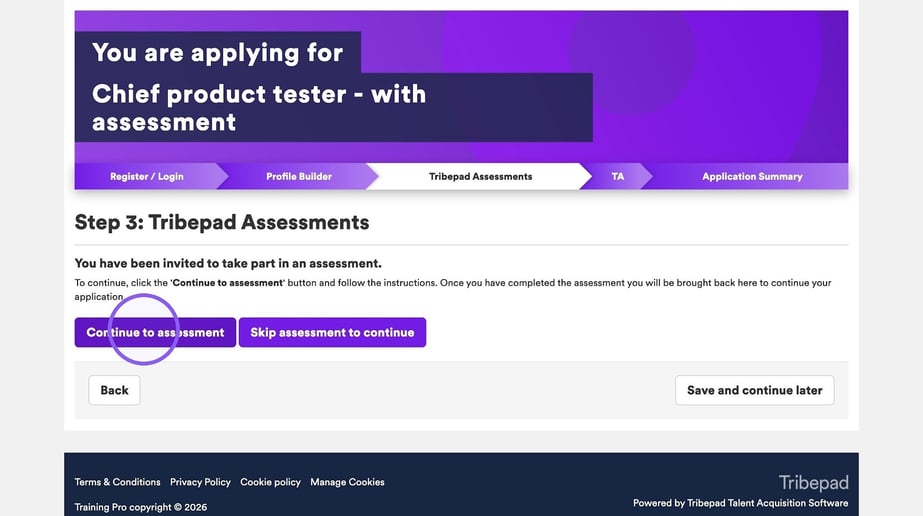
You will now see the following page where you will be asked to take part in an assessment. To get started click "Continue to assessment".
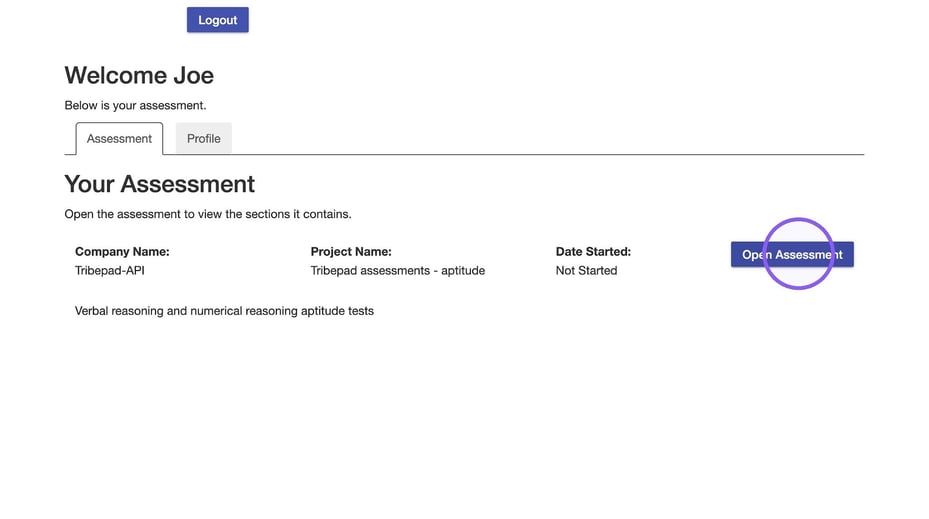
Now, click "Open Assessment".
Continue through the assessment introduction steps.
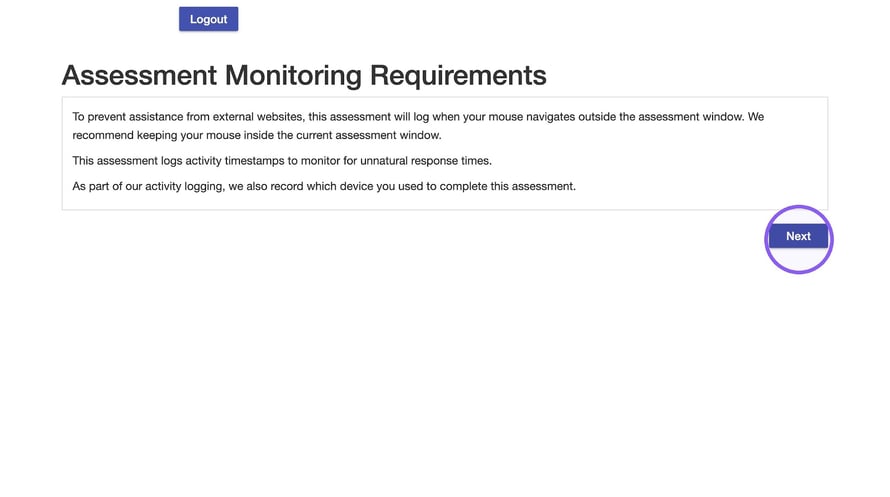
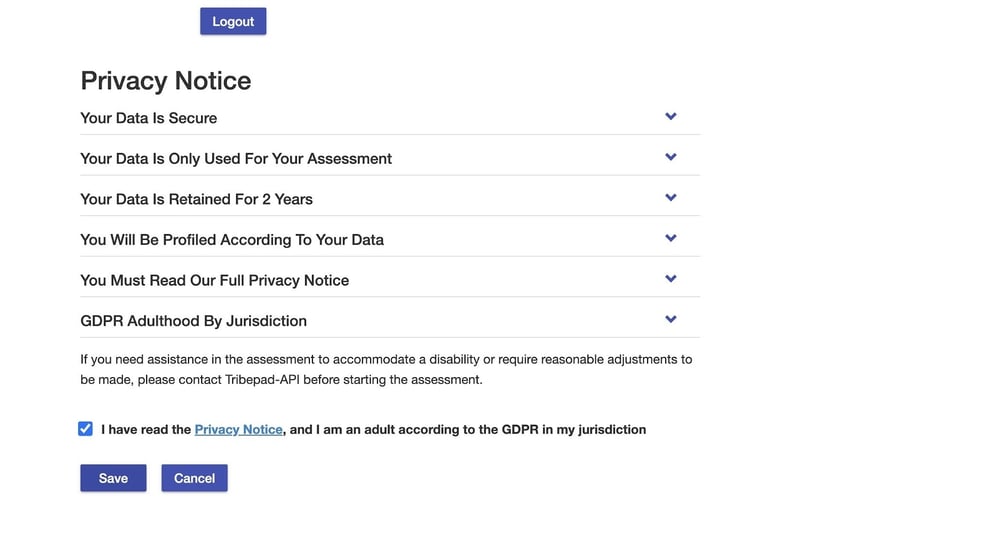
Acknowledge the privacy notice, making sure to click the tick box and click save to move to the next part of the process.
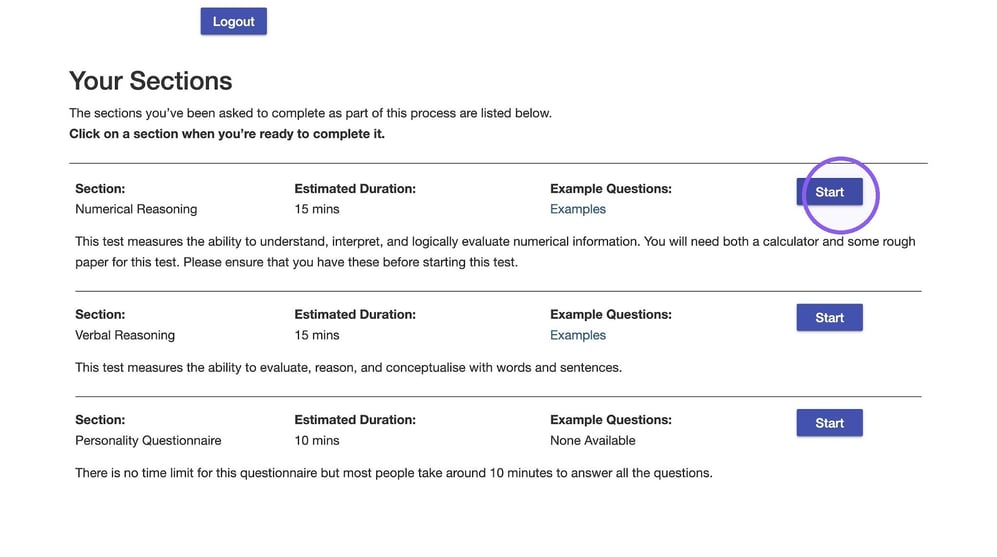
Click to "Start" the assessment(s) required as part of the application.
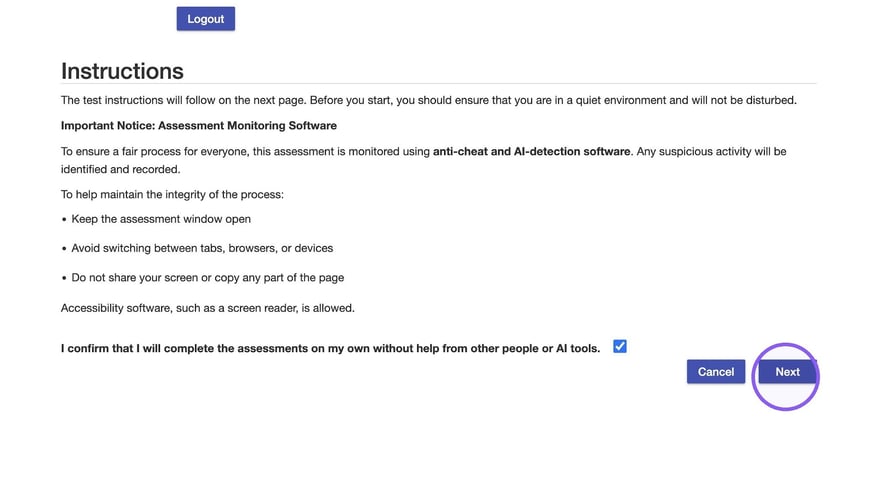
Make sure to read through any assessment instructions.
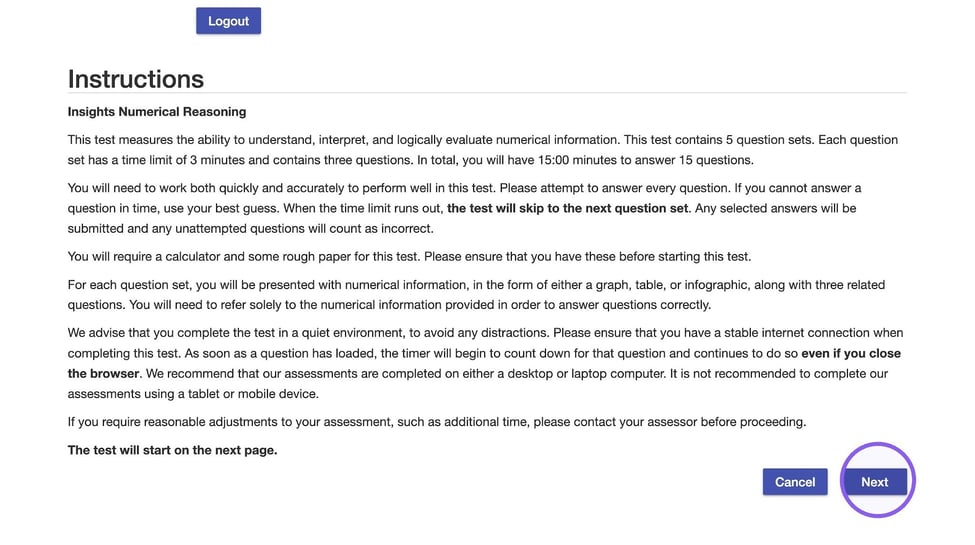
You will now be taken to the full assessment - in this example, we are showing you an aptitude assessment.
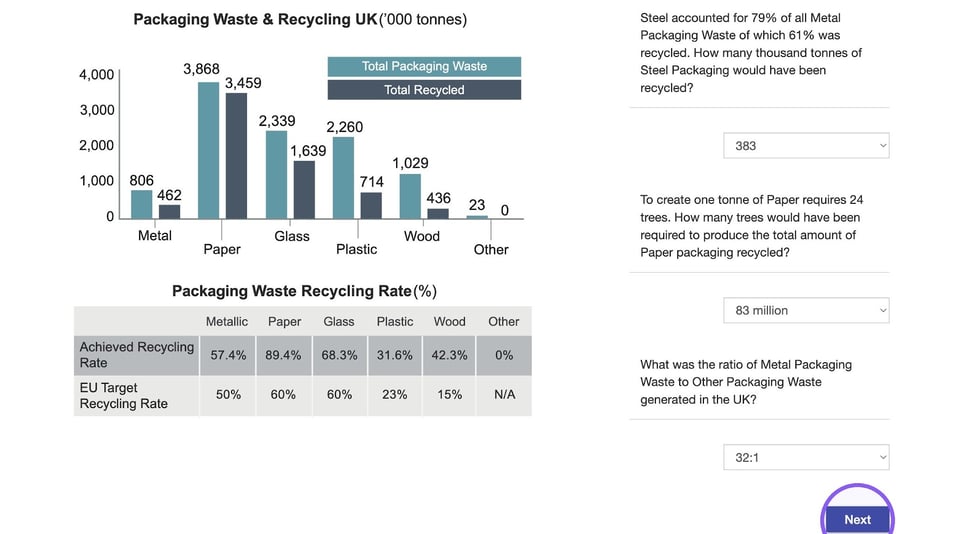
In this further example, we are showing you a personality assessment.
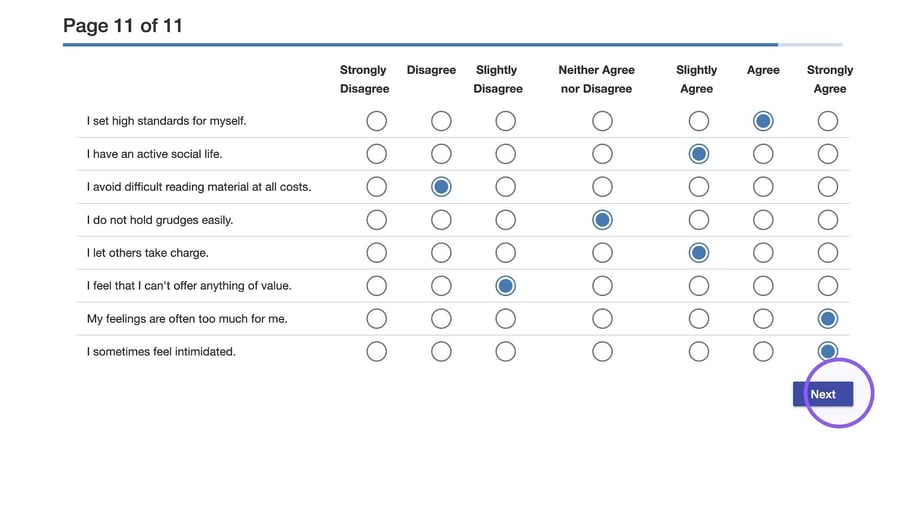
Once you are happy with your answers, click on submit assessment.
Once you have completed your assessment, you will be taken back to the main job application, Click “submit” to complete this job application in full.
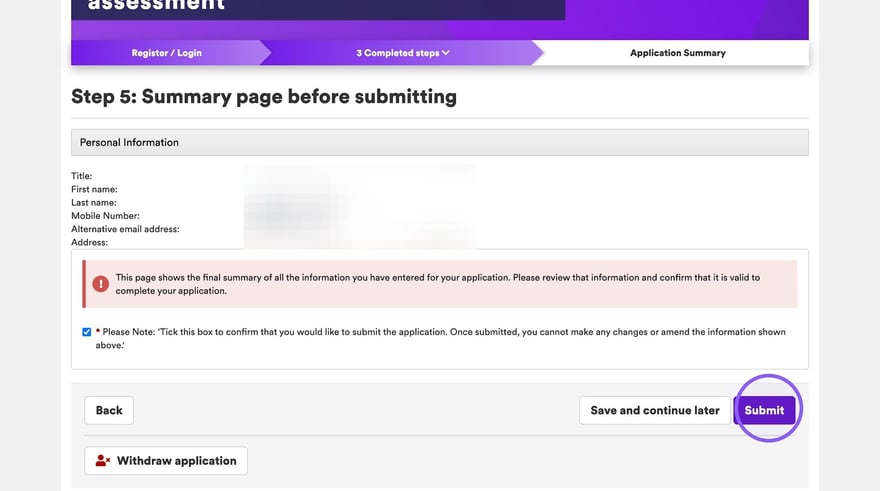
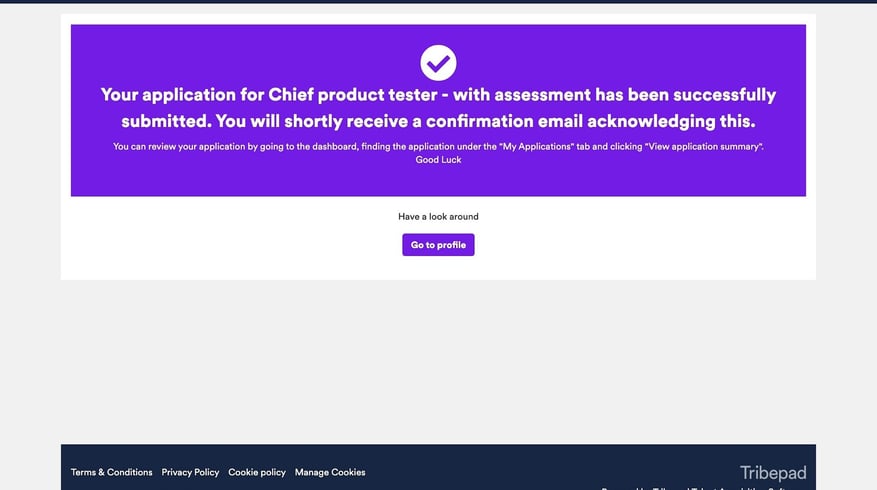
Once you have submitted your application, you will see the following screen confirming your successfully completed application.