



🛠️ System Setup
Instances are a set of rules that are created in the integration section of the Jobs or Tools menu. The rules are pre-set, but we can dictate how and when we want the checks to trigger.
➡️Creating an Instance
Go to the Jobs or Tools menu and select Integrations. Followed by “create instance” and select “Tribepad Checks”.
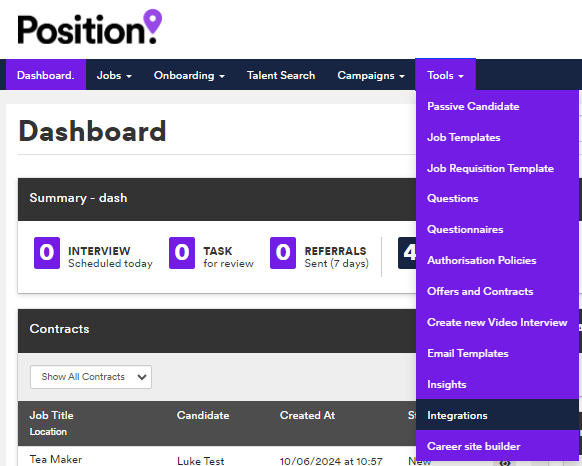
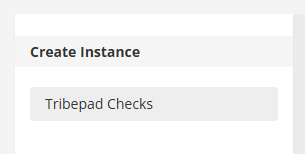
Next choose the instance type from the following:
- Job: Specific to a single application.
- Candidate: Stored against the candidate profile (details collected once).
- Onboarding: Triggered during onboarding workflows.

➡️ Configuration Fields
You will now need to complete the following fields:
- Name: System name (e.g., Right to Work & Basic DBS).
- Display Name: Candidate-facing name (e.g., Right to Work Checks).
- Icon Text/Icon: The visual indicator used in the ATS (e.g., RT for Right to Work, DB for DBS).
- Allow pop up form PDF download: Must be ticked to enable the RTW attestation form.
- Kill integration when rejected: Toggle On.
- Company Name: Your legal company name (appears on government documents).
- Branches: Select the service required (e.g., RTW Only, Basic DBS). Create separate instances for different service types.
- Type of Assessment: This determines the validation forms. Ensure this matches the Branch selected above (e.g., if Branch is RTW Only, Assessment must be No DBS).
➡️ Configuration Guide: TrustID Rule Sets
General Configuration Notes:
- Scope: These rule sets must be added to every instance created.
- Recruiter Visibility: All actions are logged in the ATS menu via the integration icon.
- Pop-up Builder: This is a critical step for specific statuses (Alert, Time Limited, Continuous) to ensure managers acknowledge specific outcomes.
Your final steps are to create “Integration Rules” by clicking on the purple “+” icon or the “Create Rule” button:
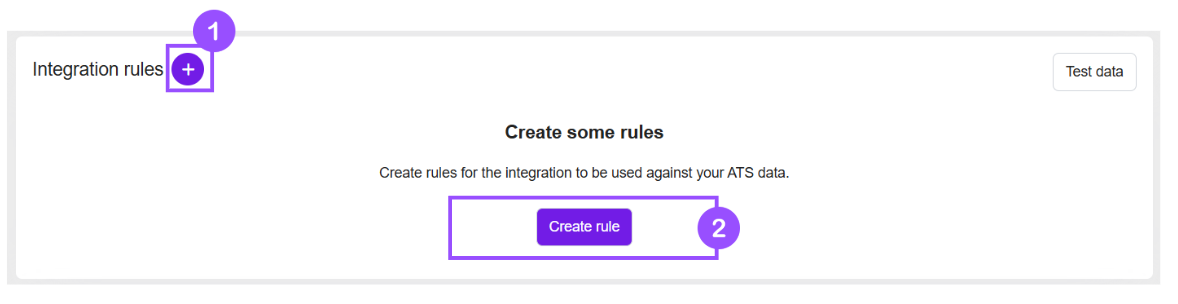
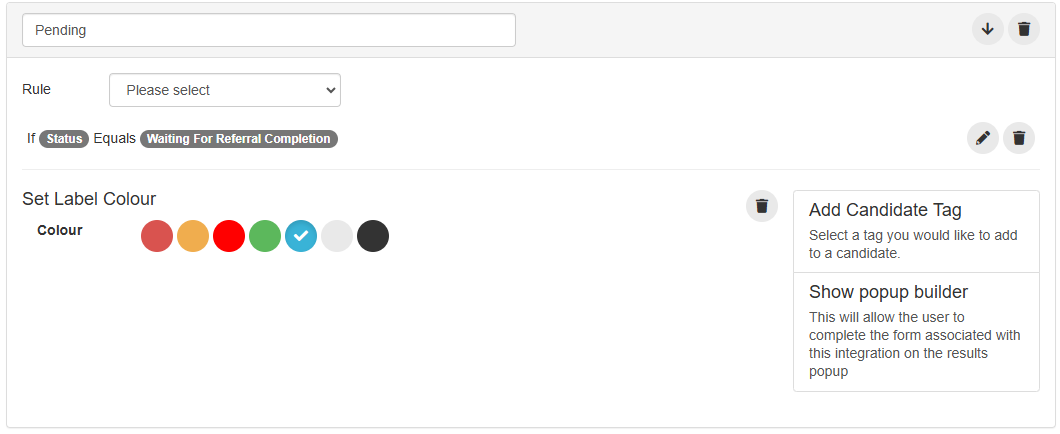
To start adding your new rule, create a name for it.
You will then need to add your conditions, for this example we are setting up: “If Status > Equals > Waiting for Referral Completion” followed by “Set Label Colour”.
1. Rule Sets: Right to Work (RTW) Only
These rules manage the candidate's eligibility status. Note the specific requirements for the Pop-up Builder.
|
Status |
Definition |
Configuration / Action Required |
|
Check In Progress |
Submitted by candidate; under review by TrustID or manual team. |
No specific action required. |
|
Rejected |
Check completed; RTW invalid. |
Recruiter Action: Reject candidate or restart integration if the error is rectifiable. |
|
Alert |
Validation failed (e.g., face match, liveness) or requires in-person review. |
[!] Enable Pop-up Builder: Manager must confirm they have reviewed the report and understand next steps (Restart or Reject). |
|
Time Limited |
Valid RTW, but not continuous (Expiry date + Share code provided). |
[!] Enable Pop-up Builder: Manager must confirm follow-up actions and review the Home Office document details. |
|
Continuous |
Valid and eligible for permanent work. |
[!] Enable Pop-up Builder: Manager/Recruiter must review and confirm eligibility to proceed. |
2. Rule Sets: DBS Only
DBS rules are linear. The results are strictly tracked as follows:
|
Status |
Definition |
Configuration / Action Required |
|
In Progress |
Check incomplete; results outstanding. |
Wait for result. |
|
Rejected |
Process completed, but the certificate was rejected. |
Review rejection reason. |
|
Completed |
Process completed; result returned successfully. |
Proceed as per internal policy. |
|
Withdrawn |
Candidate withdrew the check. |
Recruiter Action: Contact candidate to understand why before re-triggering or rejecting. |
3. Rule Sets: RTW + DBS Combined
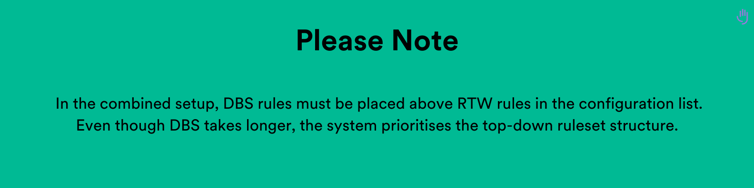
DBS Rules (Top Priority)
- DBS - Withdrawn: Candidate withdrew. Contact candidate.
- DBS - Rejected: Certificate rejected.
- DBS - Complete: Result returned successfully.
- RTW - Check In Progress: Under review.
- RTW - Rejected: Invalid RTW.
- Note: Candidates cannot progress, regardless of DBS status.
- RTW - Alert: Validation failed.
- [!] Enable Pop-up Builder.
- Note: Handle immediately. Do not wait for DBS results; restart integration or reject.
- RTW - Time Limited: Valid but temporary.
- [!] Enable Pop-up Builder.
- RTW - Continuous: Eligible.
- [!] Enable Pop-up Builder.
🙋The Candidate Experience
Candidates can complete checks via email or the candidate dashboard.
Notification: The candidate will receive either an email or will see a call-to-action button on their application profile dashboard.
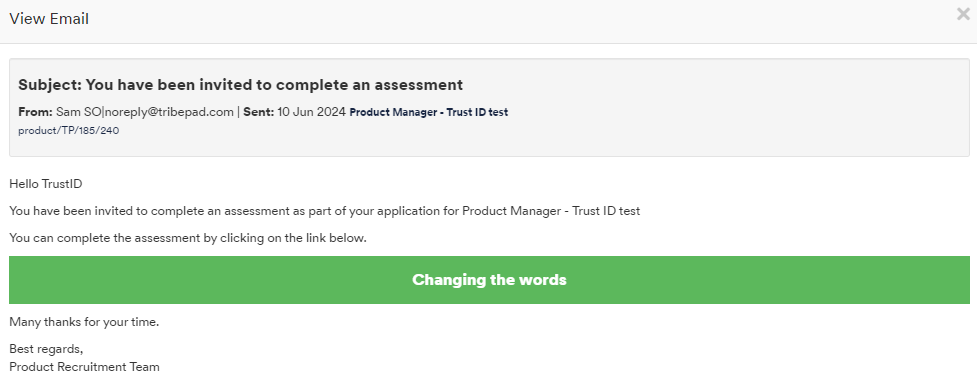


Access: Once the candidate clicks the link either via the email or their profile this will redirect them to the TrustID portal.
Submission: They will now see a QR code. They must scan this with their mobile phone to open the browser, complete the ID check, and take a selfie.
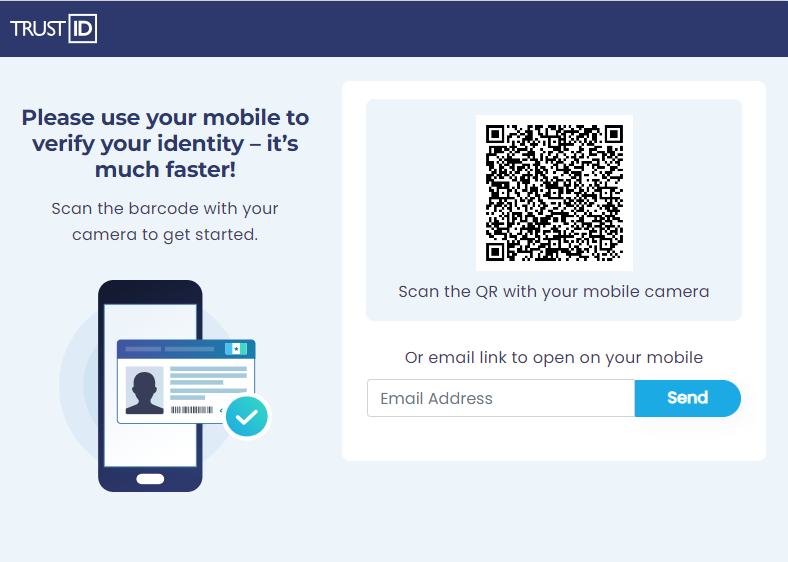
Completion: Once finished, the candidate can close the window.
💼 The Recruiter Experience
See the following video to view the full process:
➡️ Dashboard Overview
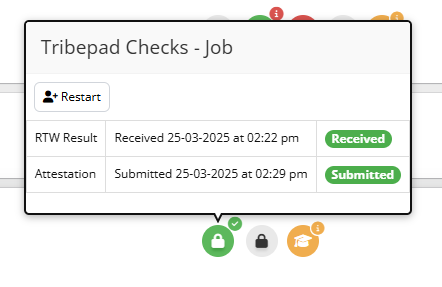
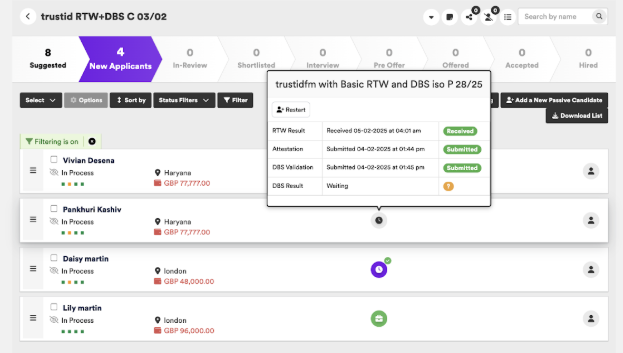
An icon will appear next to the candidate’s application. Hovering over this icon displays the current status:
- RTW/DBS Result: Indicates if the result is with TrustID or ready for review.
- Attestation/Validation: Indicates if the recruiter has completed the necessary manual forms.

Once the candidate has completed their check, when you hover over the icon you will now see the following information.
Below is a RTW only example:
➡️Reviewing Results & Validating Checks (The Drawer View)
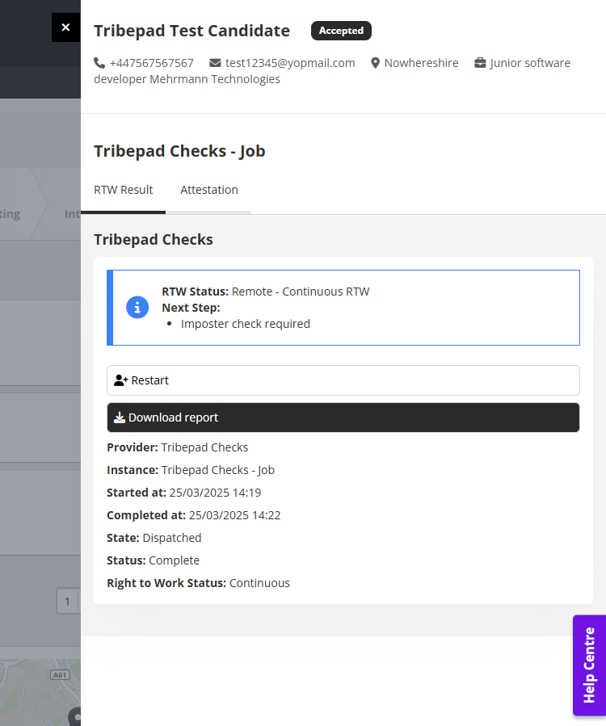
Click the integration icon to open the drawer view. Here you can:
- View Summary: See key information and status.
- Download Report: Download the full TrustID PDF report.
- Restart: Trigger a new check (useful if a candidate misses the deadline or makes an error).
- Complete Actions: Access the Attestation or DBS Validation tabs.
📌 Reviewing The Right to Work (RTW) Results In The Drawer View
Step A: Reviewing Results
- Location: Navigate to the RTW Result tab.
- Key Actions:
- View Summary: Immediate key stats displayed below the buttons.
- Download Report: Required for detailed review.
- Restart Integration: Use if the check failed due to rectifiable errors.
- Guidance: Follow the ‘Next Step’ prompt displayed (dynamic based on Rejected, Time Limited, or Continuous status).
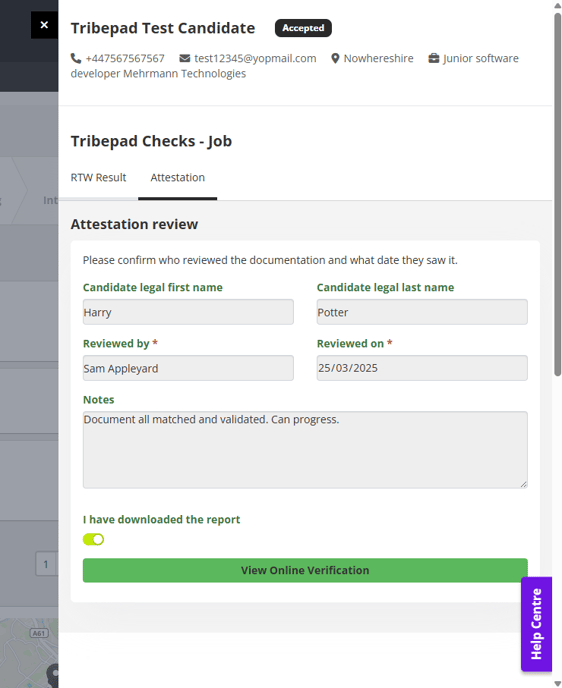
Step B: Completing Attestation
- Location: Navigate to the Attestation tab.
- Action: Recruiter must validate the check by completing the form fields:
- Candidate Legal Name (First & Surname).
- Reviewed By (Recruiter Name).
- Reviewed On (Date).
- Notes (Optional results commentary).
- Toggle On: Confirm "Report Downloaded."
- Finalise: Click Save.
- Output: A "View Online Verification" button appears. Download this file for external auditing.
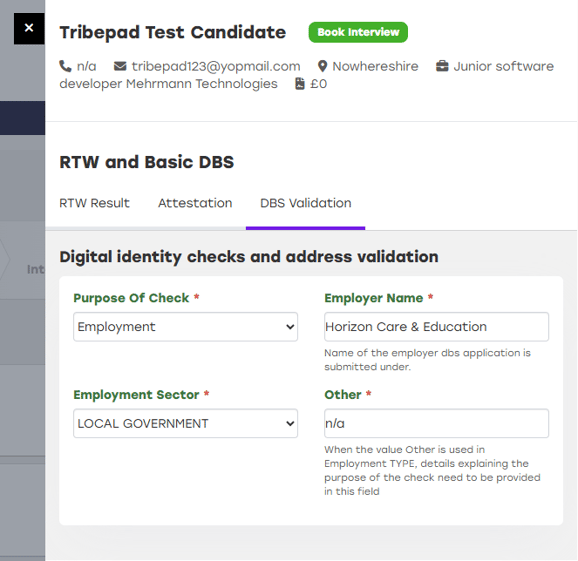
📌DBS Validation Form In The Drawer
Step A: Initiating the Check (Validation)
- Location: Navigate to the DBS Validation tab.
- Action: Complete the form to trigger the process with TrustID.
- Form Types:
- Basic DBS: Simplified form with fewer fields.
- Standard/Enhanced DBS: Complex form.
- Critical: Ensure logic consistency. (e.g., Selecting "Adult Workforce" but saying "Yes" to "Working with Children" will cause a system error and block submission).
- Finalise: Click Save to send the application to TrustID.
Example of a Basic DBS:
Example of a Standard/Enhanced DBS:

Step B: Processing & Results
Once submitted, the application goes to the TrustID counter-signatory.
- Rejections: If data is invalid, the status updates to Rejected automatically.
- Success: If valid, the check processes within the following timelines:
|
Check Type |
Estimated Turnaround |
|
DBS Basic |
1 - 2 Working Days |
|
DBS Standard |
1 - 5 Working Days |
|
DBS Enhanced |
7 - 12 Working Days |
Within the ATS the pop-up will display as so:
Results will then appear in the drawer view as displayed below:
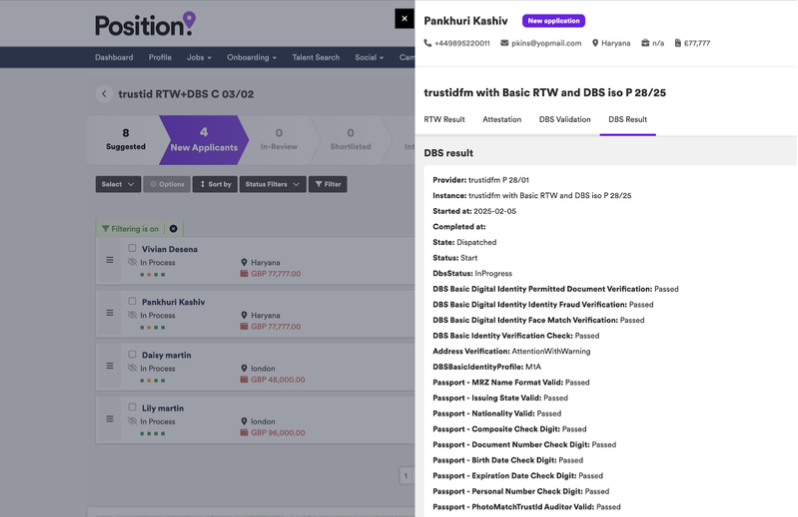
Recruiters can then review all check results and process the candidate as needed.