


✏️ Introduction
This guide walks through the end-to-end process of using “Meetings”, the updated way to book and manage interviews within the Tribepad ATS.
Meetings brings together Tribepad’s existing Interview functionality with calendar integrations, allowing you to schedule interviews more efficiently by using real-time availability from your connected calendar.
This feature combines the core Interview module with optional integrations such as Office 365 and Microsoft Teams, enabling a more streamlined and flexible booking experience.
All other areas of the ATS remain unchanged. Any functionality linked to interviews, such as Process Questionnaires and Onboarding Workflows will continue to work as expected.
If you’d prefer to view guidance on using Meetings without calendar integrations, 🖱️click here.
If you would like to watch the full end-to-end process, see this video 📹 below:
💻 Initial Set-Up: How To Connect Your Calendar & Set Your Availability
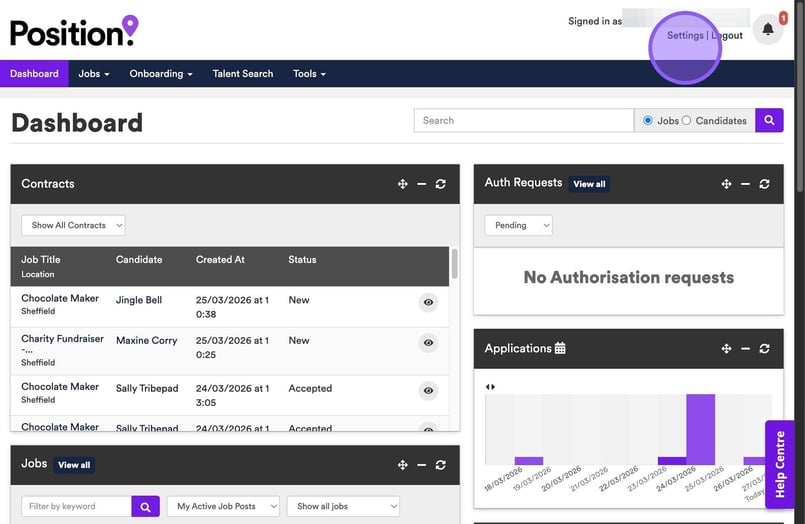
From your dashboard, click on settings.
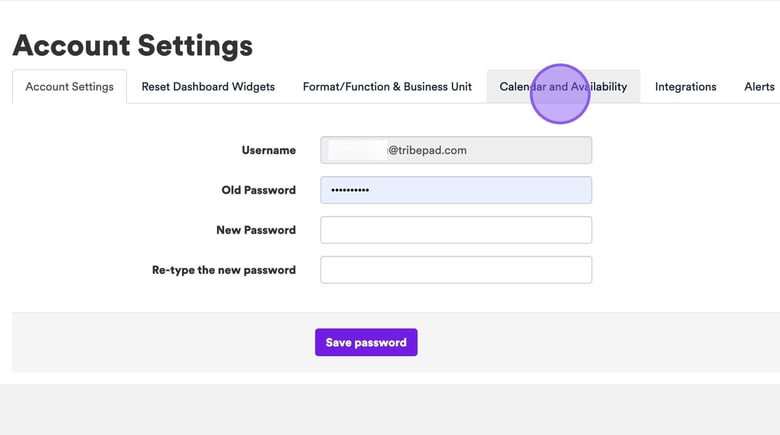
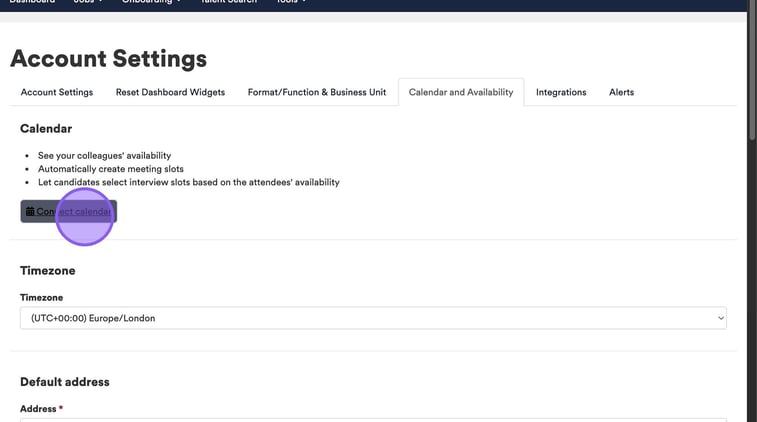
From the account settings page, click "Calendar and Availability".
Now, click "Connect calendar".
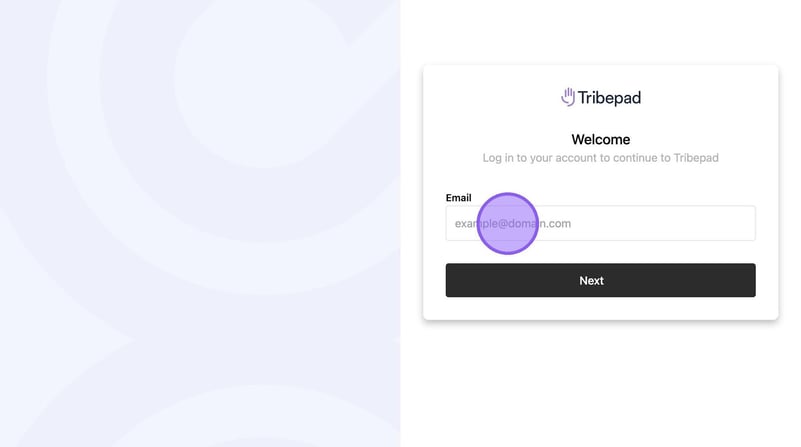
You will be taken to the following page, where you will need to type your email into the following field.
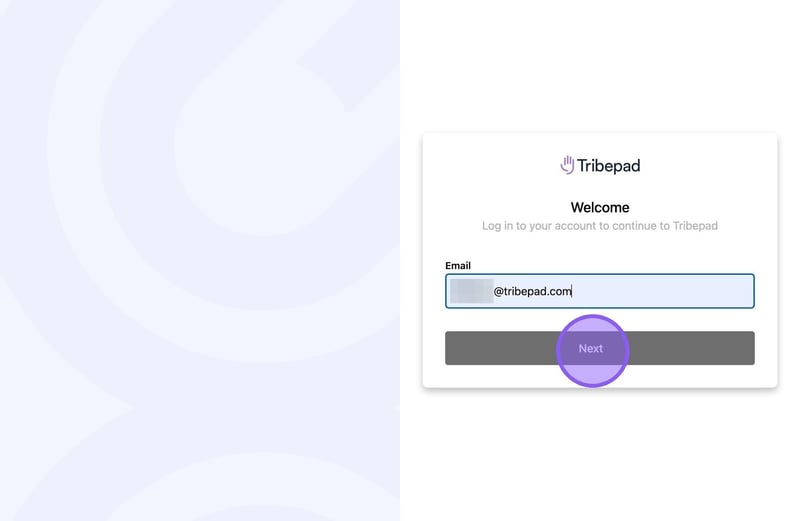
Once you have entered your email address, click "Next".
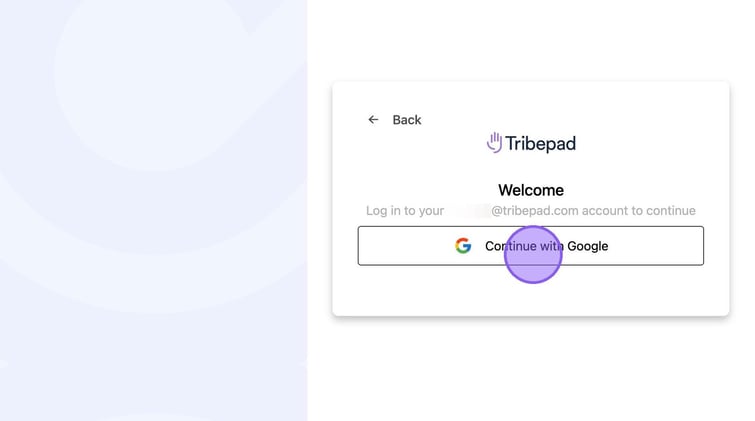
Click "Continue with Google".

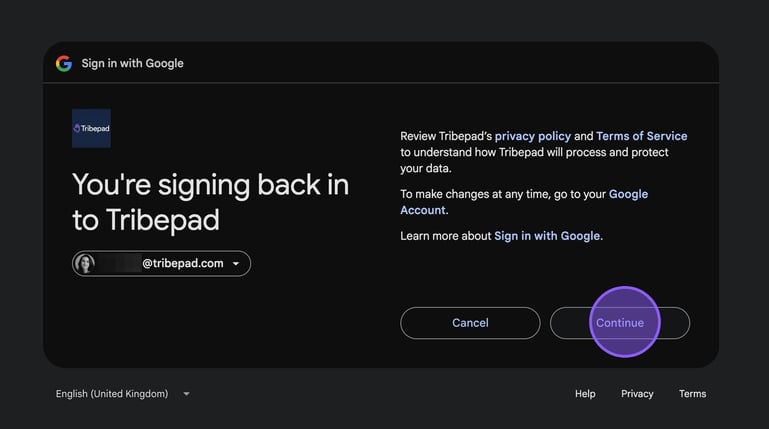
Click "Continue". Depending on whether you are using Microsoft or Google will determine how this page looks.
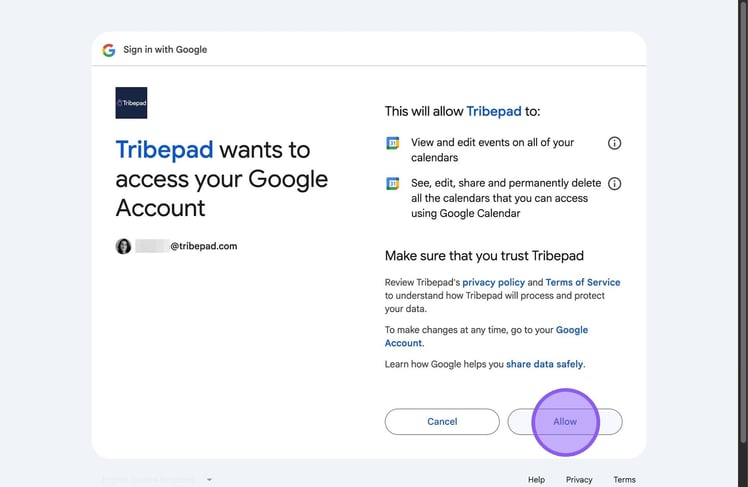
To finish linking your calendar, click "Allow".
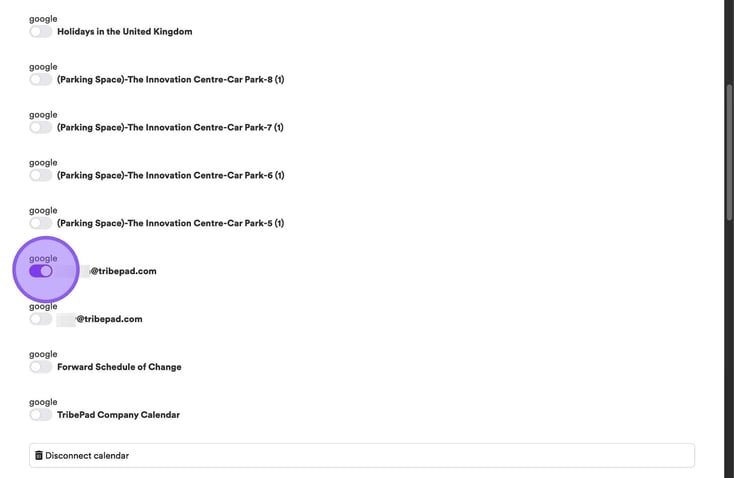
You will now be taken to a list of other calendars that you have access to. In order to link those, you simply need to click on the relevant toggle next to each one.
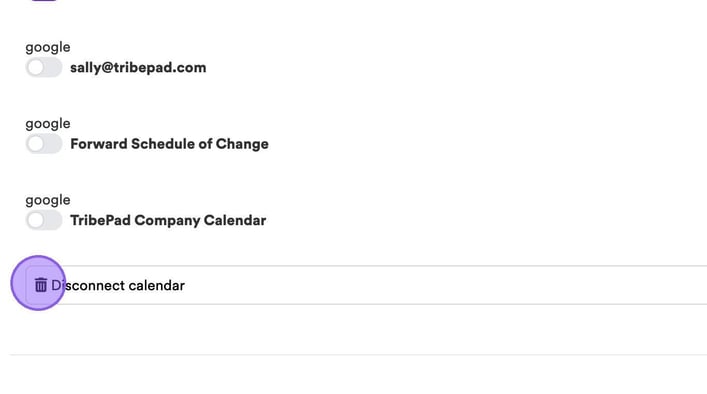
If you need to disconnect your calendar at any point, you can do this by clicking here.
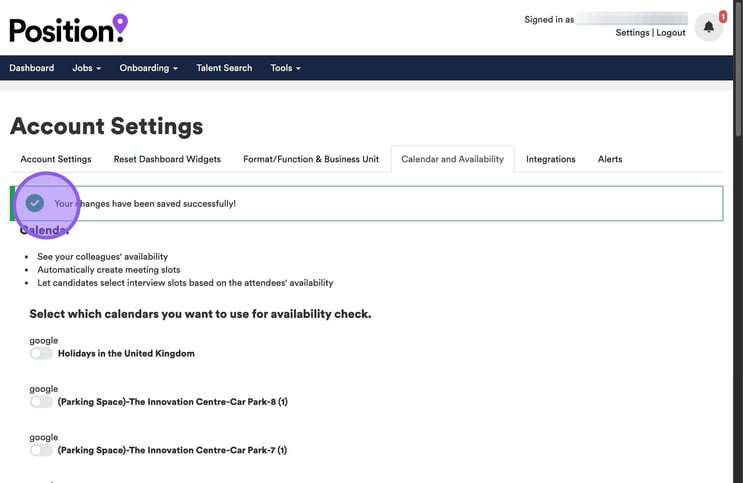
Once you have completed the above settings, you will see the following message confirming that your changes have been saved successfully.
Depending on your organisation’s calendar settings (for example, company-wide events or shared calendars like birthdays), you may appear unavailable when booking interviews.
To resolve this, you can update the status of any non-relevant events in your calendar to show as ‘Free’. This ensures you are visible as available when scheduling interviews in the ATS.
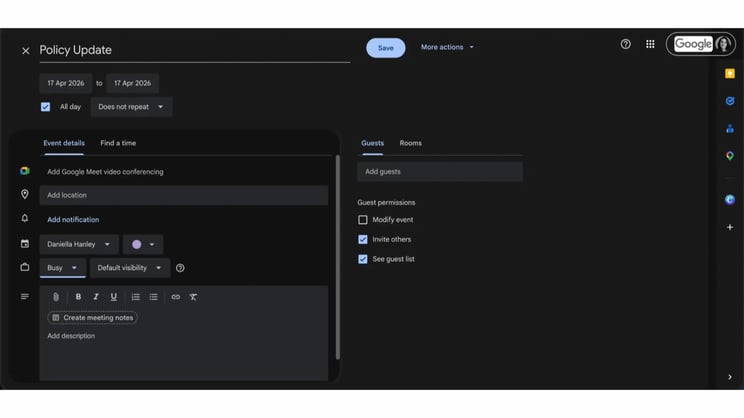
Once updated, you will appear as available for interview bookings within the ATS.
🟣Setting Your Regular Availability
Before leaving the account settings page you may also want to set your regular availability. To do this, scroll to the bottom of the page, where you will see the following.
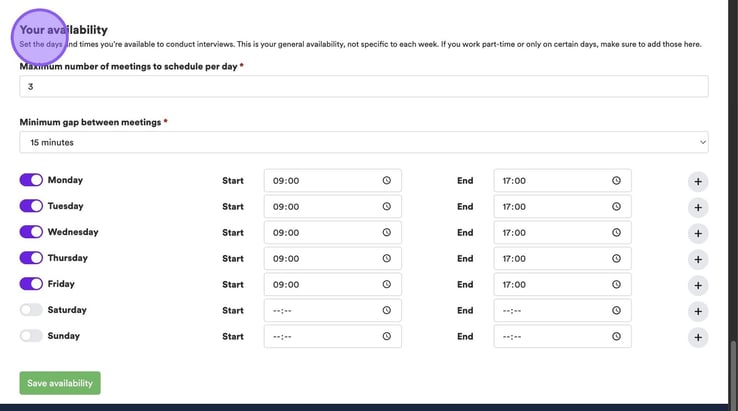
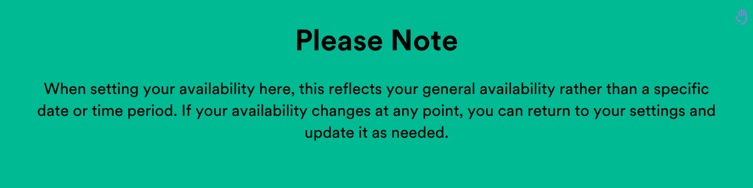
Here you can set the maximum number of meetings to schedule per day and the minimum gap between meetings. If you set these here, these selections will pull through automatically when you're setting up an interview.
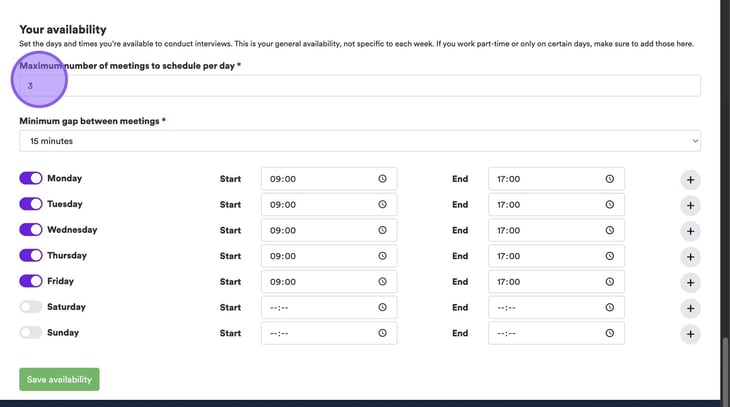
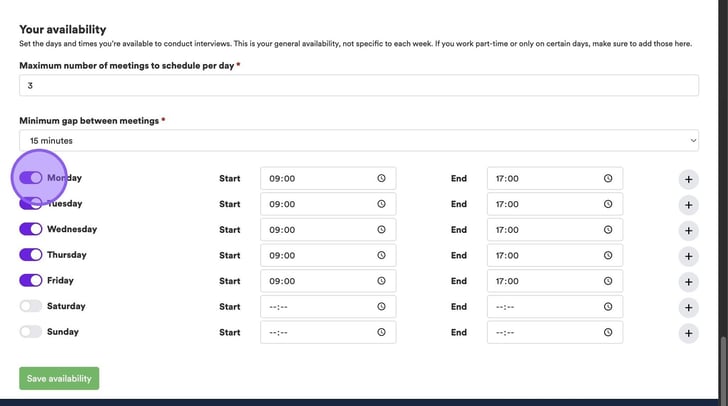
If you have a regular working pattern, you can also set this here by clicking on the appropriate toggles for each day, followed by entering your start and end times. Again, this information will factor in when you book interviews.
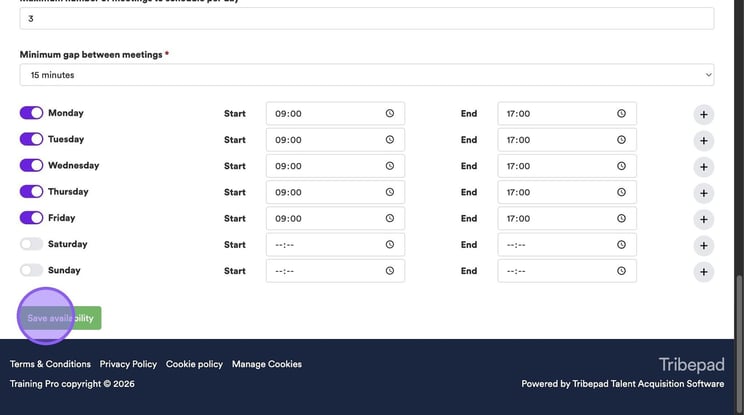
Once you are happy with the above, click "Save availability".
🟣Setting Organisation Wide Availability
We also recommend setting availability at an organisation-wide level. This can be configured in Manage and is a self-serve option, allowing you to update it whenever needed.
To do this, head to Manage 🖱️, and select Platform Configuration from the top menu followed by selecting ‘Default working Days’ from the drop-down list:
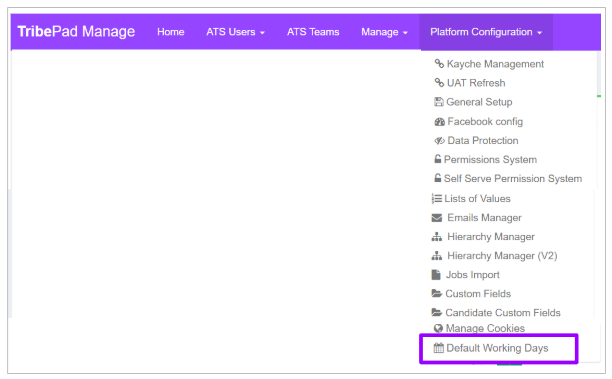
Once the page refreshes, you’ll be taken to a screen like the one shown below.
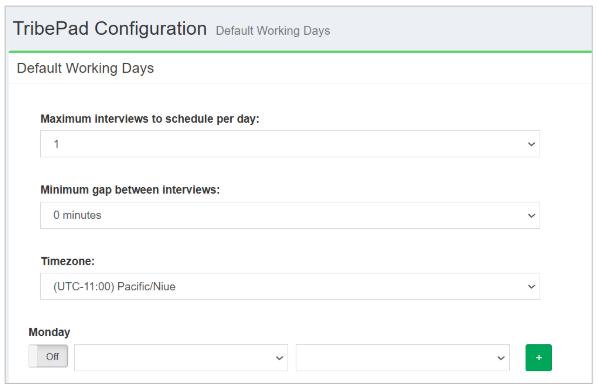
You can then set up your availability for your organisation as a whole.
- This is done in the same way as detailed above on the ATS.
- Again, it may be good practice to set this as your standard working hours for your organisation, if this suits your requirements.
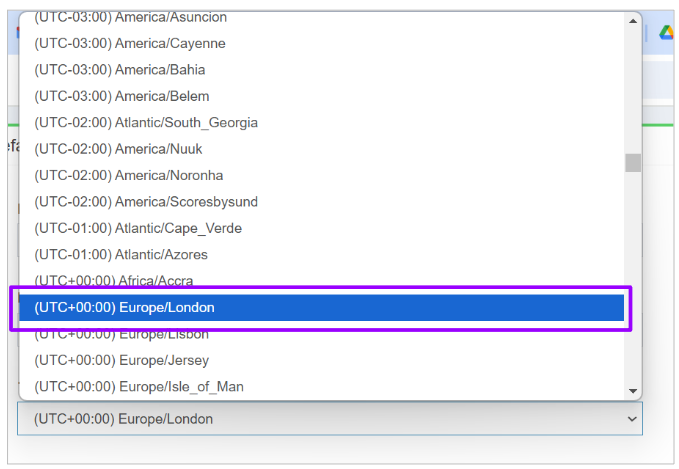
- Make sure you select the right Timezone as this could have a knock-on effect if you are booking Phone / Teams / Google Meet interviews later on:
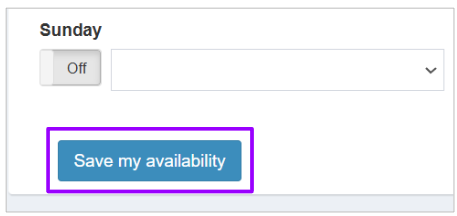
Make sure you select ‘Save my availability’ in Manage once you are done:
Once you have set up your calendar and availability, you are ready to start booking interviews!
📆 Arrange An Interview
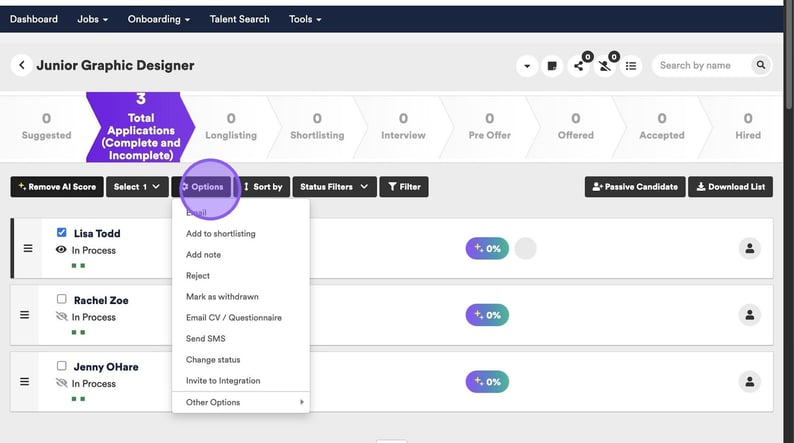
To arrange an interview in the ATS for a candidate, you should start by selecting the tick box next to their name.
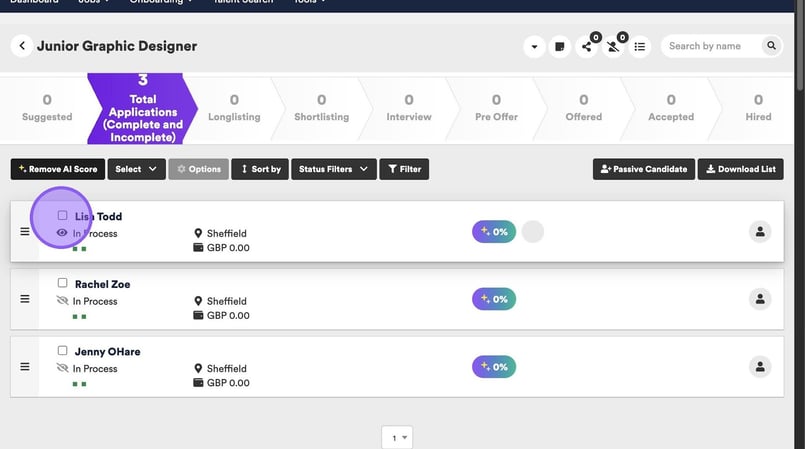
Now, click "Options".
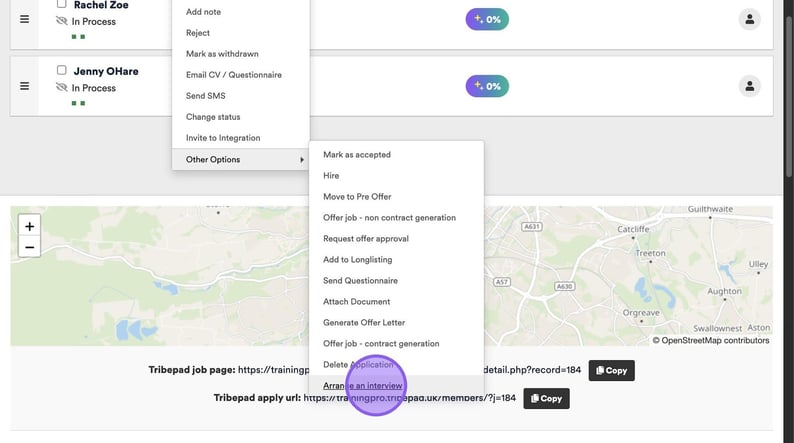
Followed by clicking "Arrange an interview".
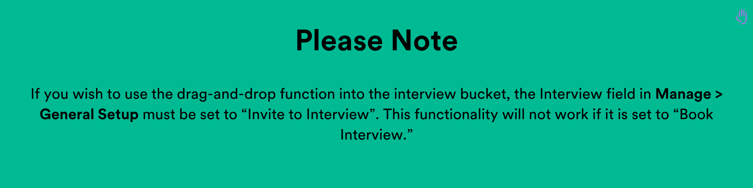
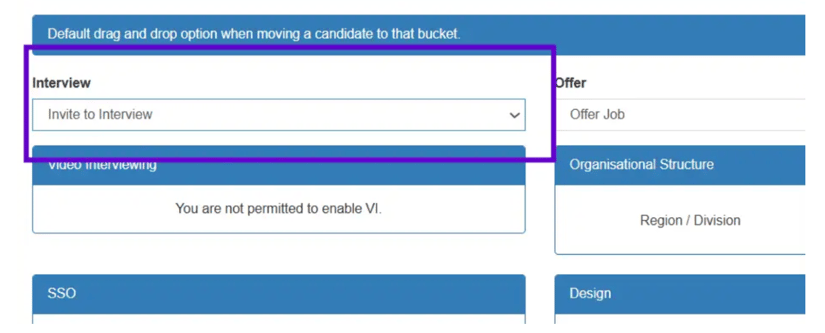
After moving your candidate, you will see the following page allowing you to either book an interview or invite a candidate to book. ‘Book Interviews’ allows you to book a specific slot for a candidate, for example 10am on Tuesday. ‘Invite to Book’ allows you to set up a number of slots for the candidate to then choose from.
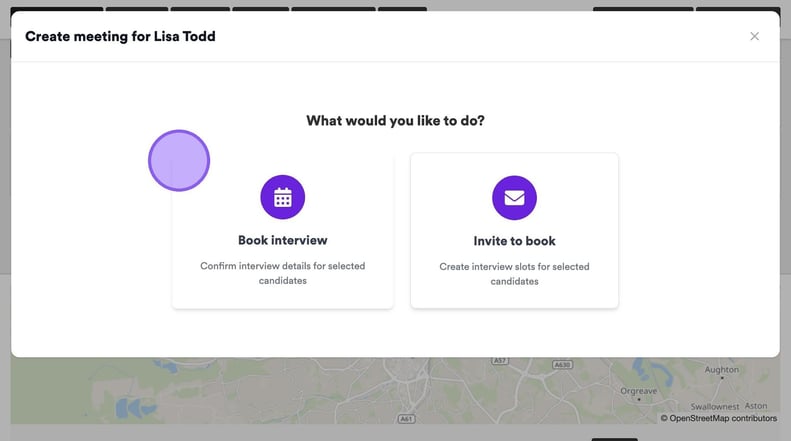
✅ Book Interviews
In this section we are going to show you how to book an interview.
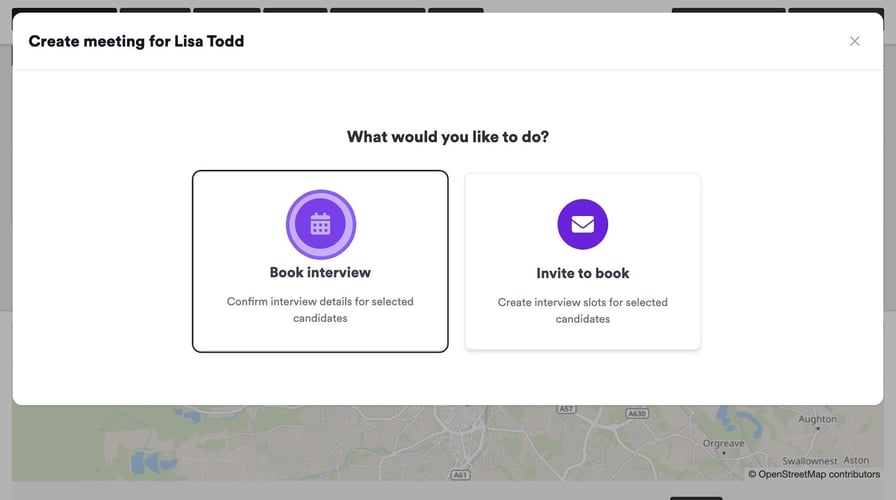
You will now be taken to the following page.
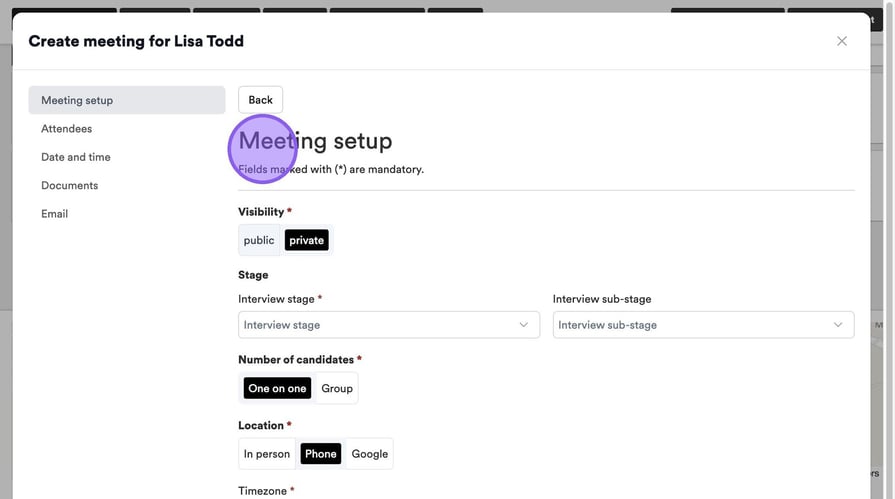
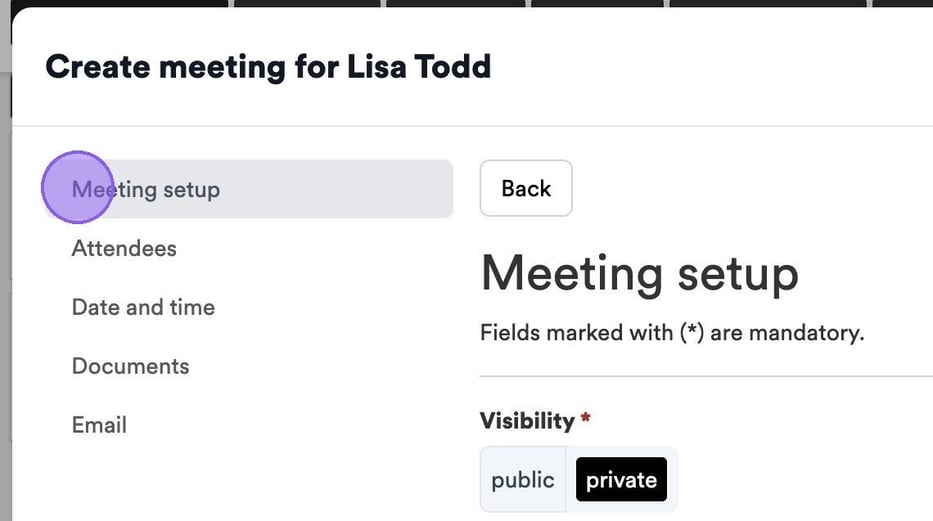
On the left-hand side of the page, you will see a set of tabs. These are steps in the Interview creation process, and you will not be able to move to the next one until you have completed the necessary actions on the tab in front of you.
To get started, set your visibility. This refers to how you would like the interview to appear in your calendar.
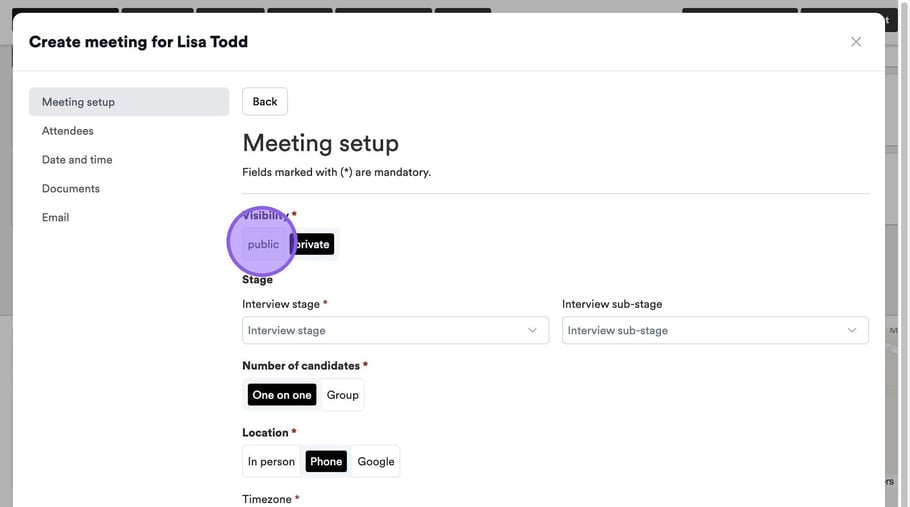
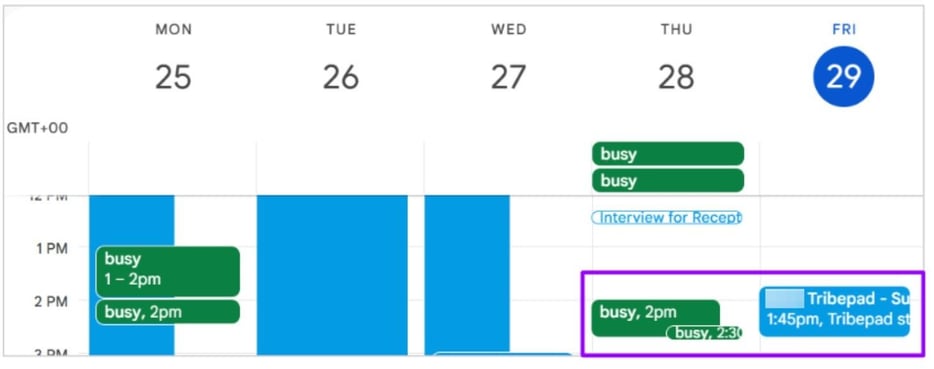
If you choose ‘Public’, anyone viewing your calendar will be able to see details of the interview, e.g. ‘John Smith, Tuesday 10am November 26th, Recruitment Administrator role.’ If you choose ‘Private’, the interview will just show you as ‘Busy’ in your calendar.
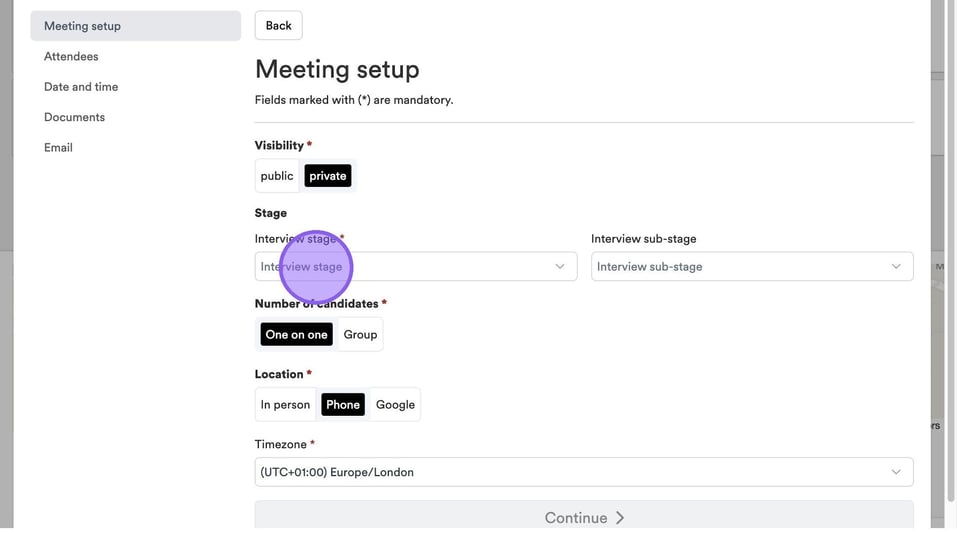
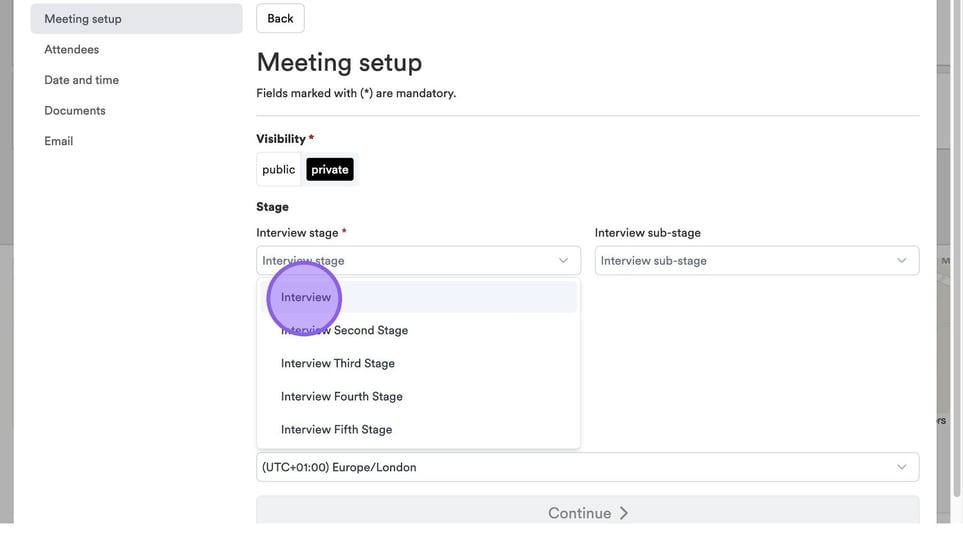
Next, you need to select the stage of interview you are booking from the drop-down list.
The stages you see here are pre-populated based on how you set up your interview workflow in manage.
🟣Workflow Editor Options In Manage
If you would like to change the names of your interview stages in your platform, you can do this via the ‘Workflow Editor’ drop-down under ‘Platform Configuration’ in Manage.
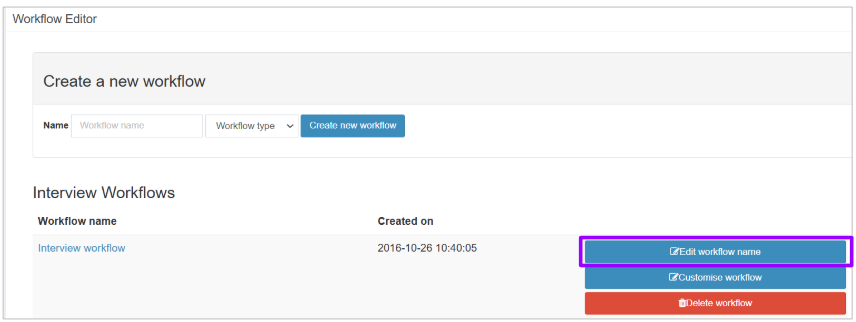
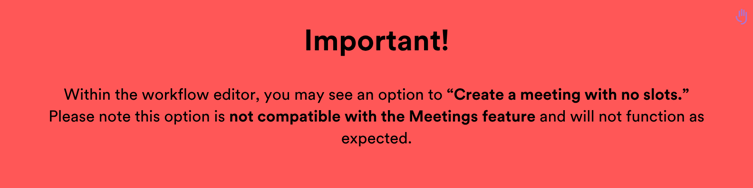
This option will remain visible in the workflow editor while some customers continue to use both the legacy Interviews feature and the new Meetings feature.
However, when setting up an interview using Meetings, we recommend that this option is not selected.
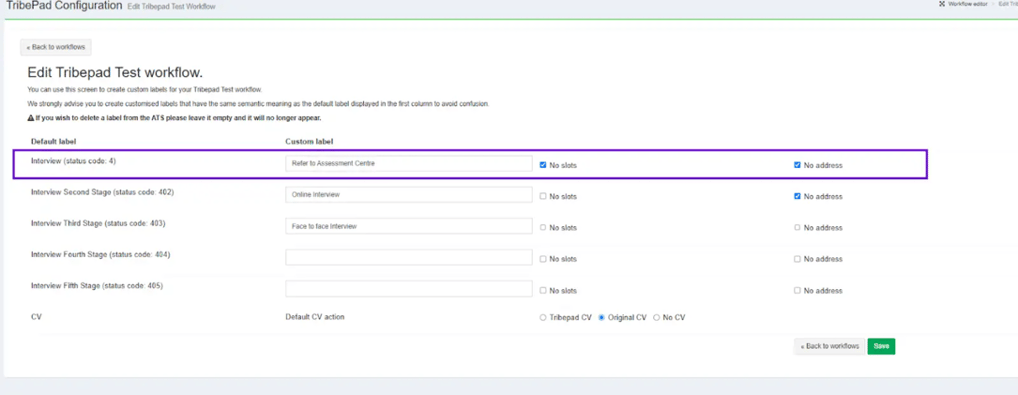
For more information about the Workflow editor see this page here 🖱️.
To continue your meeting set-up, see the next steps.
If you have set up the use of interview sub-stages you will also be able to select those from here.
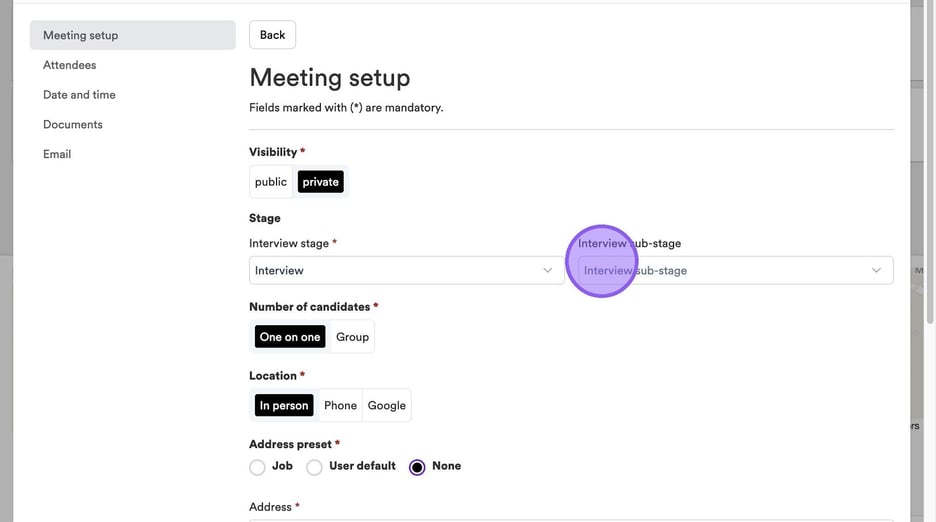
Next, choose if your interview is for a single candidate, i.e. a one-on-one (or panel-style) interview, or if it is for a group, e.g. an assessment centre.
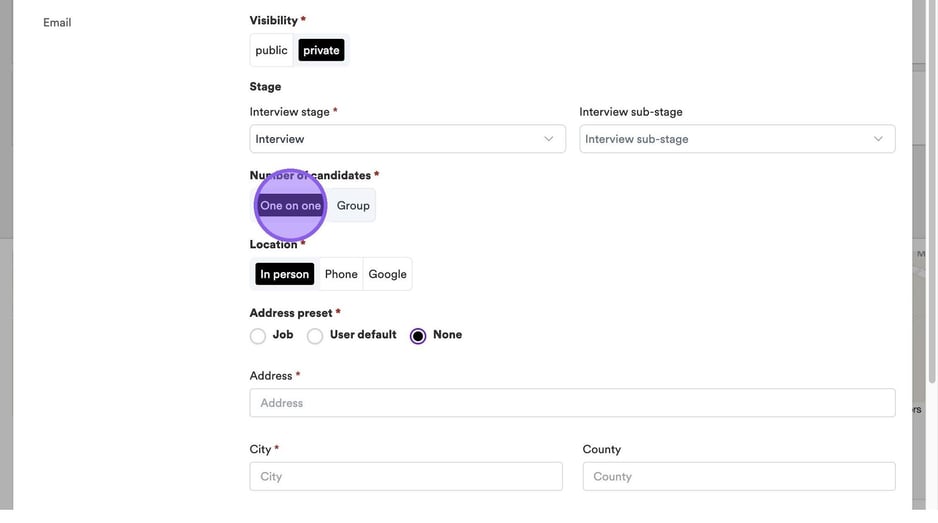
If you click on "Group" you will now see the option to set the maximum number of candidates who can attend the interview. To do this, simply click in the box and type the relevant number.
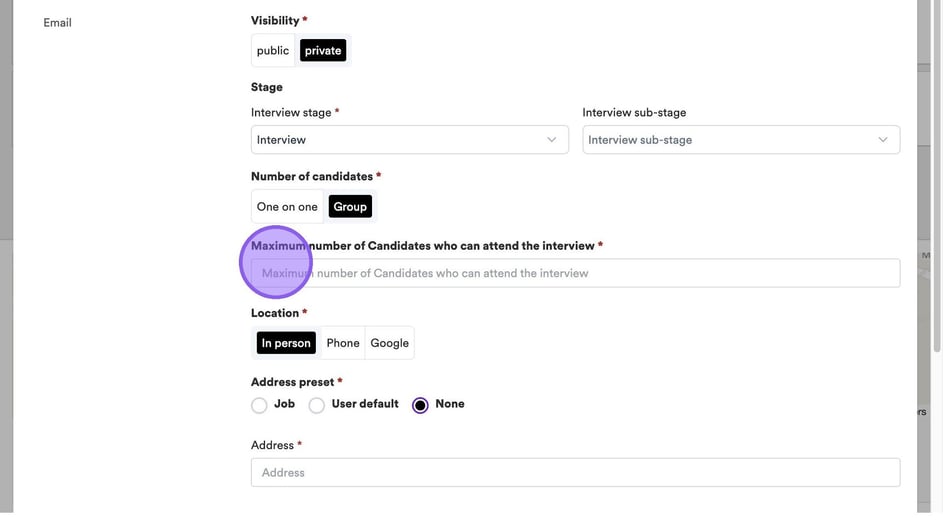
Finally, you can choose what kind of interview you wish to book for the candidate.
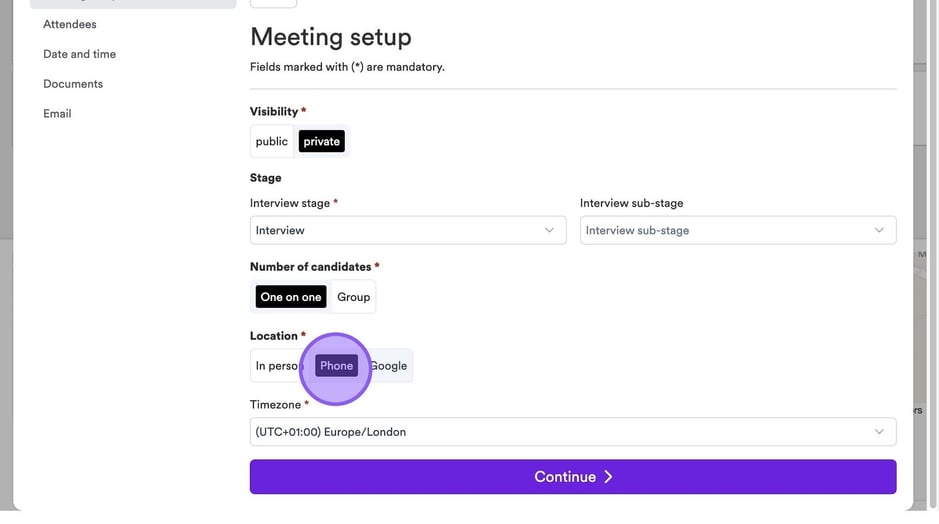
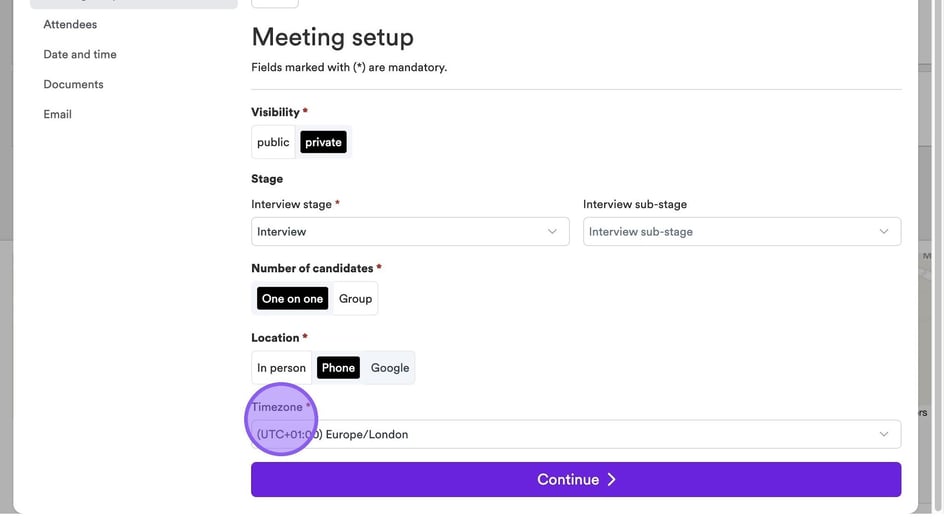
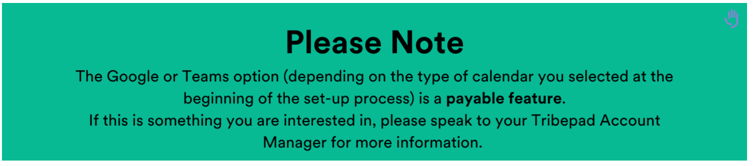
If you select the ‘Phone’ option in the location field, you will be able to select from a timezone. This is the same for the 'Google' and/or 'Teams' option also.
If you wish to set up an in-person interview, select the first option. You will then see further options to include the relevant address for the interview.
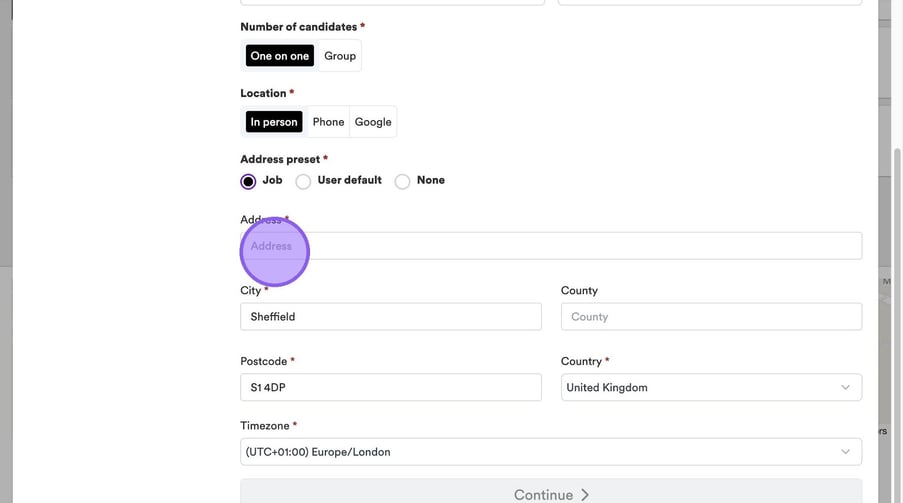
If you select the ‘Job’ option, this will pull through the address that has been added to a job. The first line of the address will always be blank so that you can add in any additional information if you wish. If you select the ‘User default’ option, this will default to the address that you have saved under your calendar settings. Finally, if you select the ‘None’ option, the address field will be blank and you can add in any address you wish.
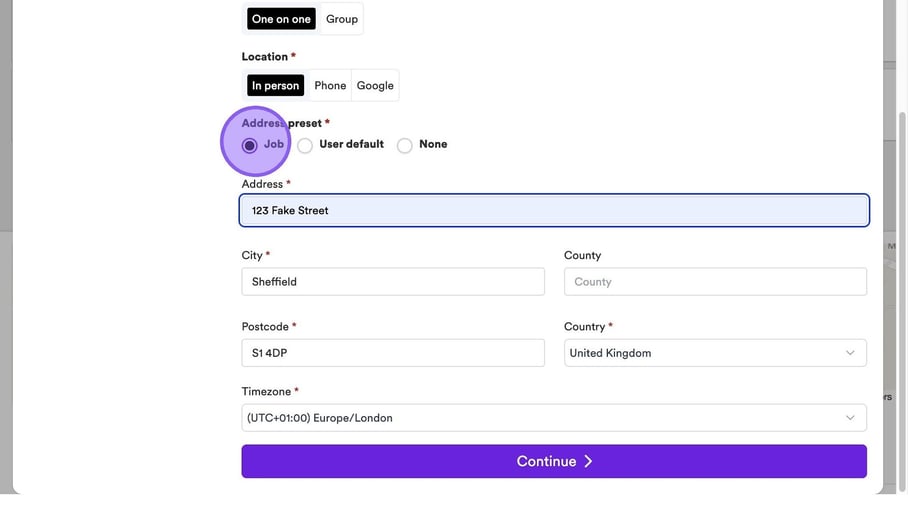
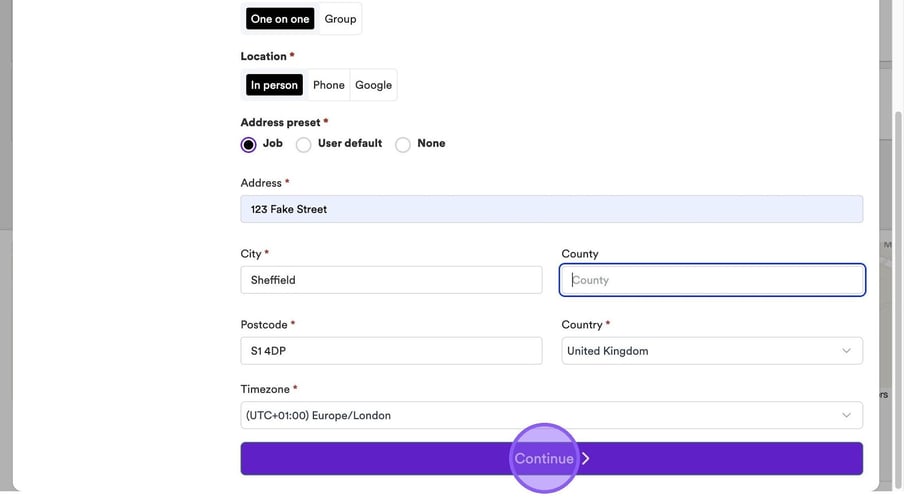
Once you're happy with the above, click continue.
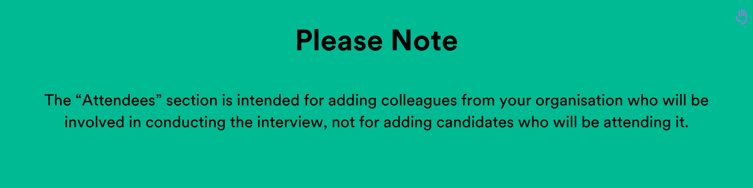
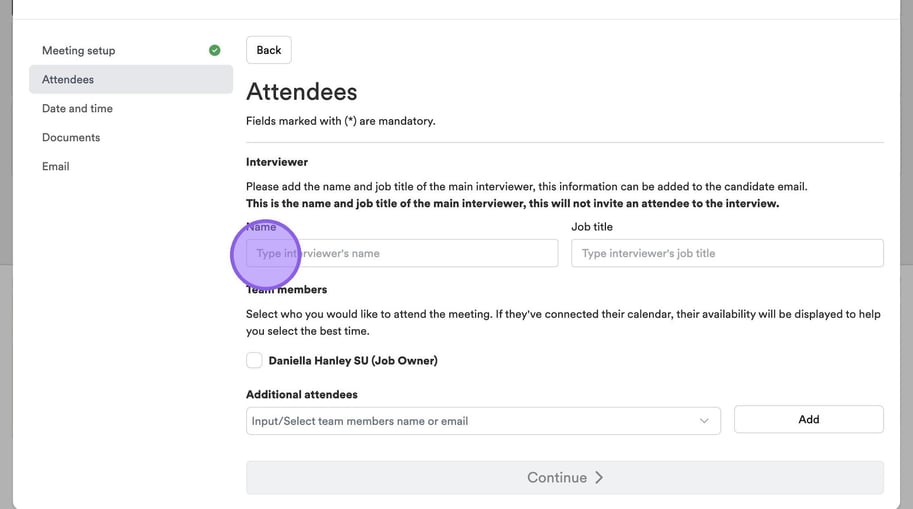
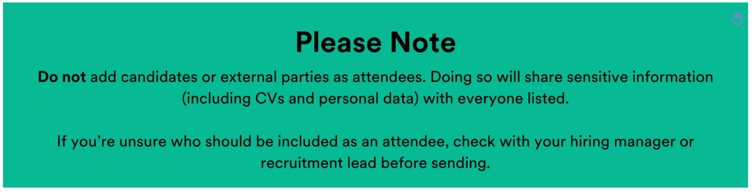
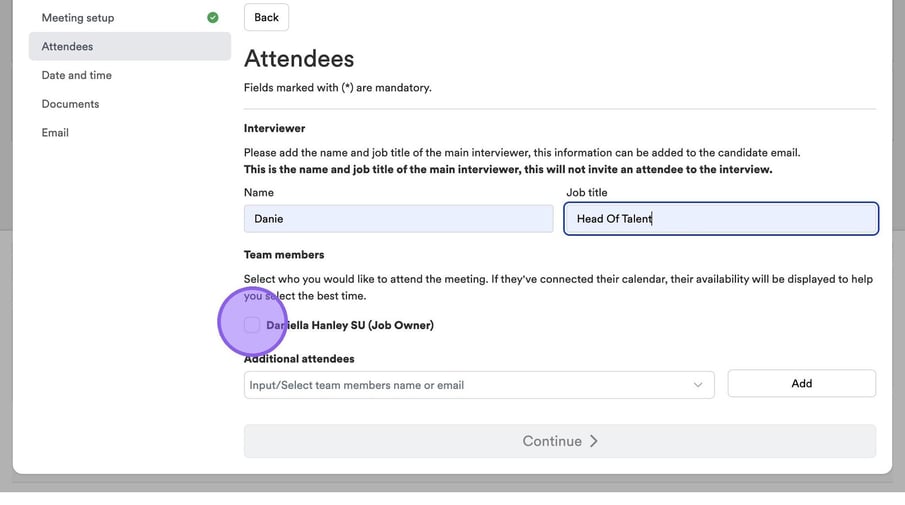
You will now be taken to the "Attendees" part of this process. To get started type in the name of who will be conducting the interview.
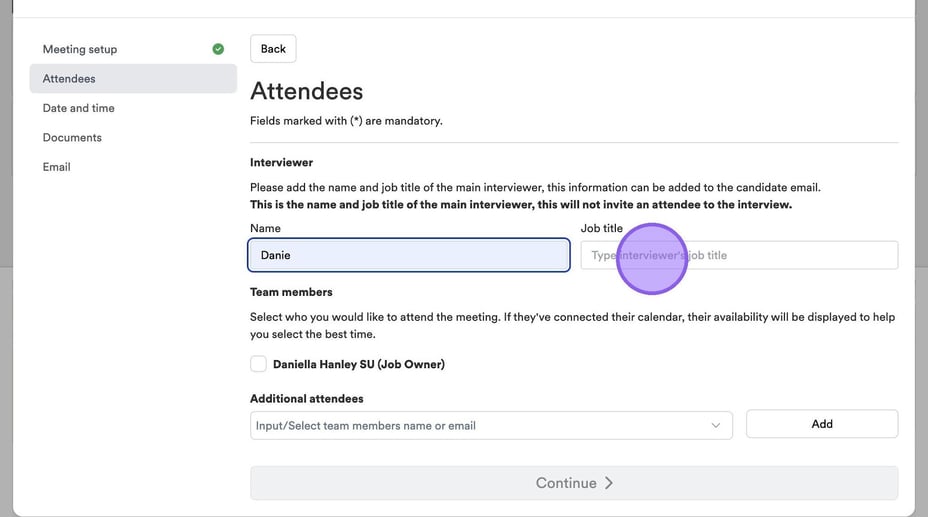
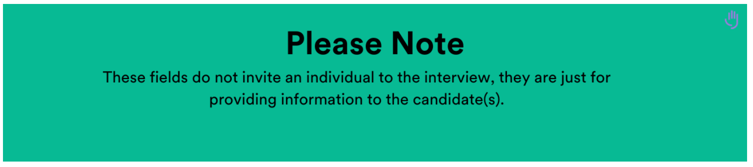
You also have the option to add a job title for the main interviewer, by typing it into this field here.
It's now time to add in any additional team members who will be attending your interview. If other colleagues have connected their calendar, you will see them here and be able to select a check box next to their names.
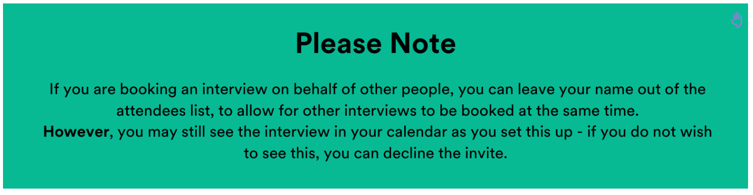
You also have the option to add additional attendees who are existing ATS users by clicking here.
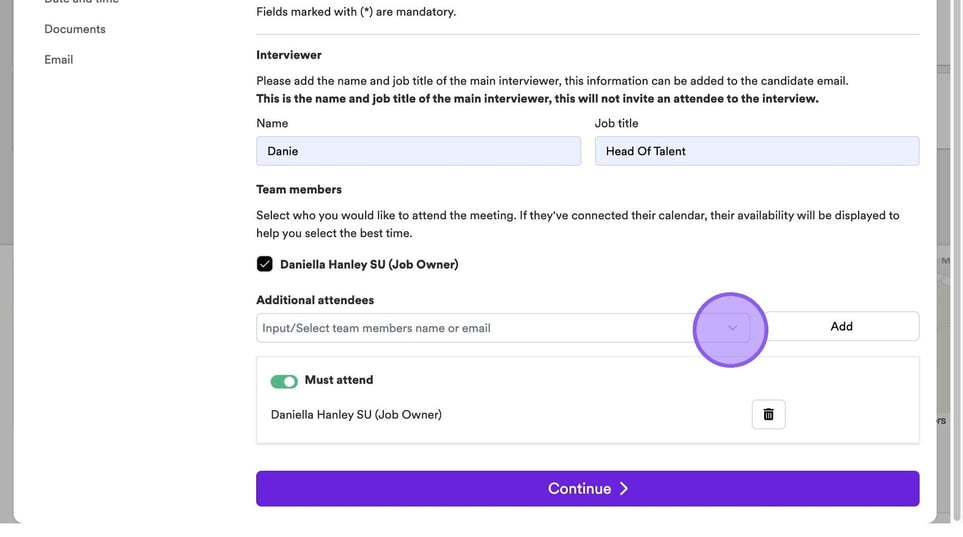
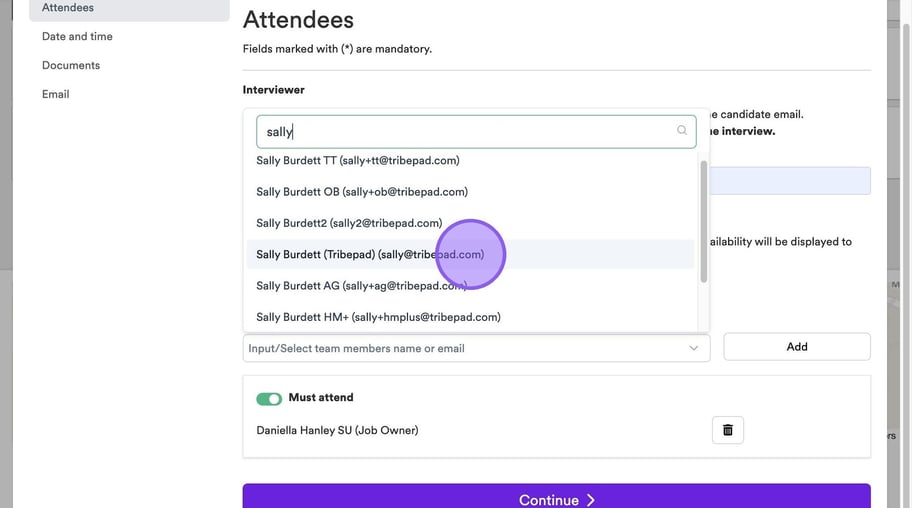
Now type the name of the colleague you are wanting to add in this field here.
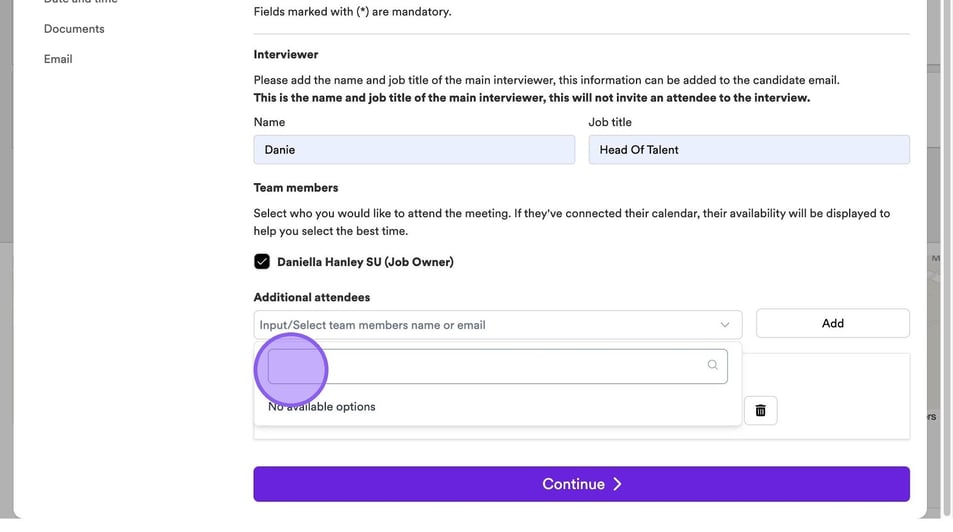
From the list, select any additional colleagues you would like to add.
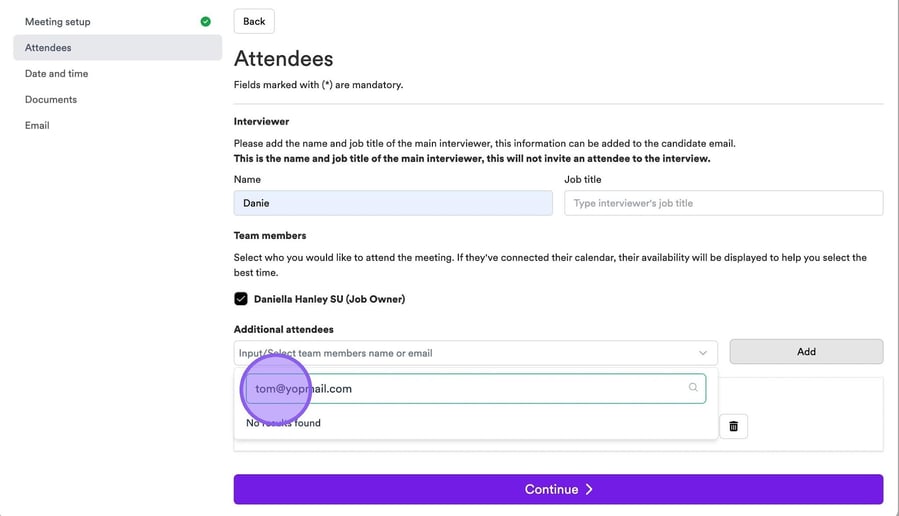
Alternatively, if you would like to add a colleague who is not an ATS user, you can simply type their email address into the following field and select ‘Add’ on the right-hand side.
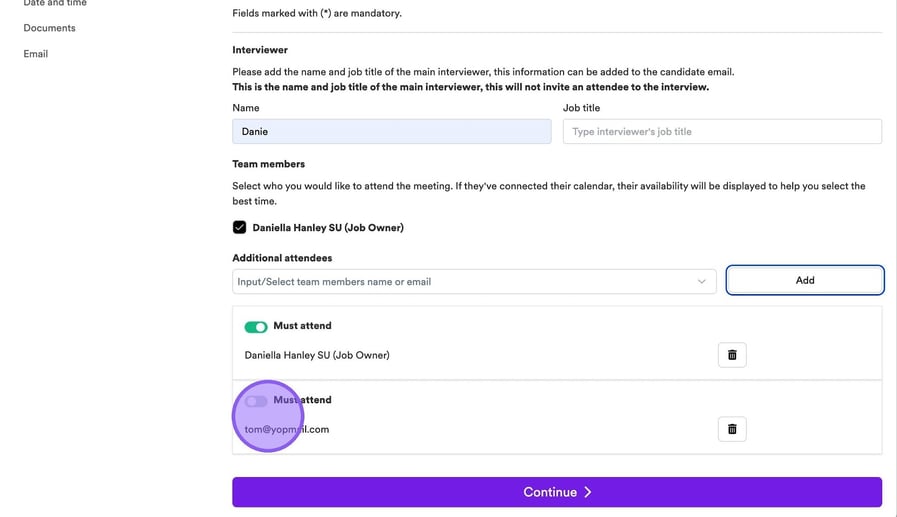
You will now see your additional colleague added as an attendee.
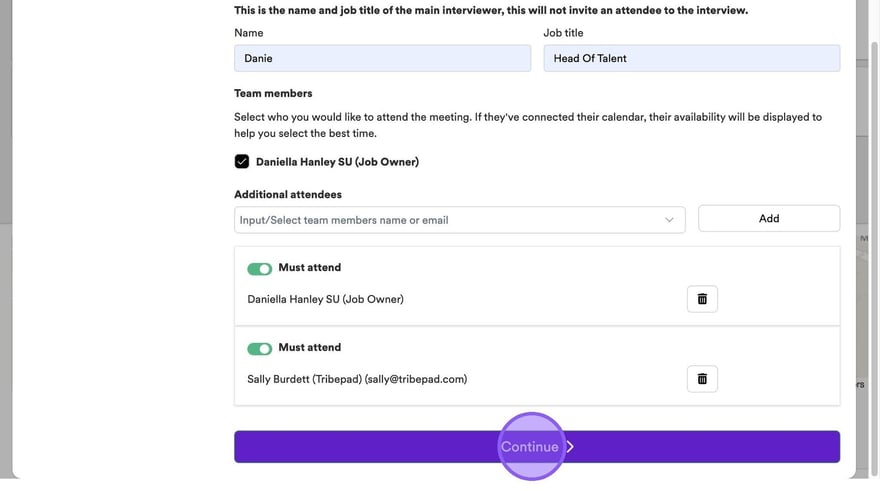
Once you are happy with the above, click "Continue".
Once again, your screen will refresh and you will be moved onto the next tab - ‘Date and Time’. The first section to complete is the number of slots you would like to set up.
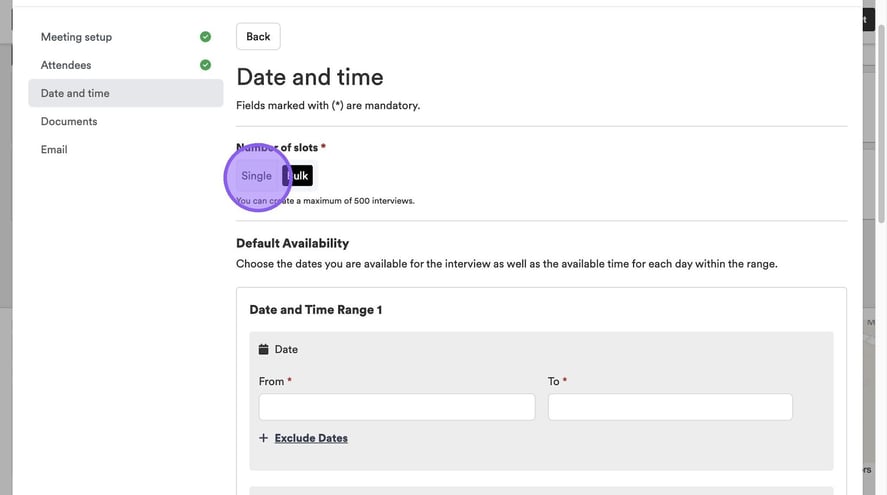
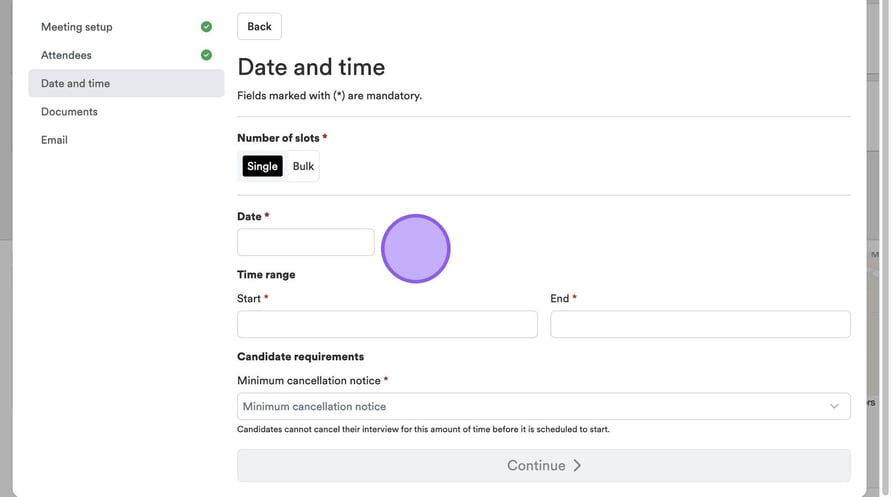
If you choose ‘Single’ here, this allows you to set up just 1 single slot.
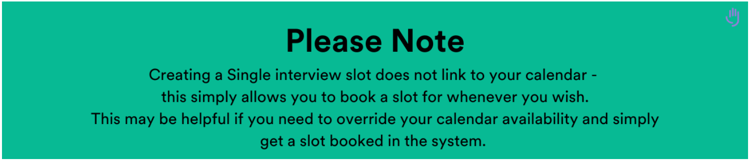
Alternatively, if you select ‘Bulk’ here, you will see a screen that looks like this. Click here to add your date range and time range.
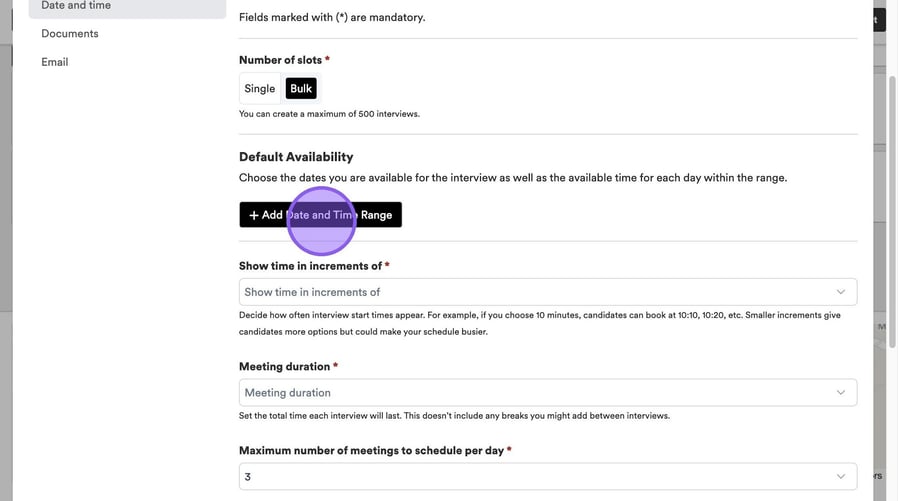
To get started click this text field.
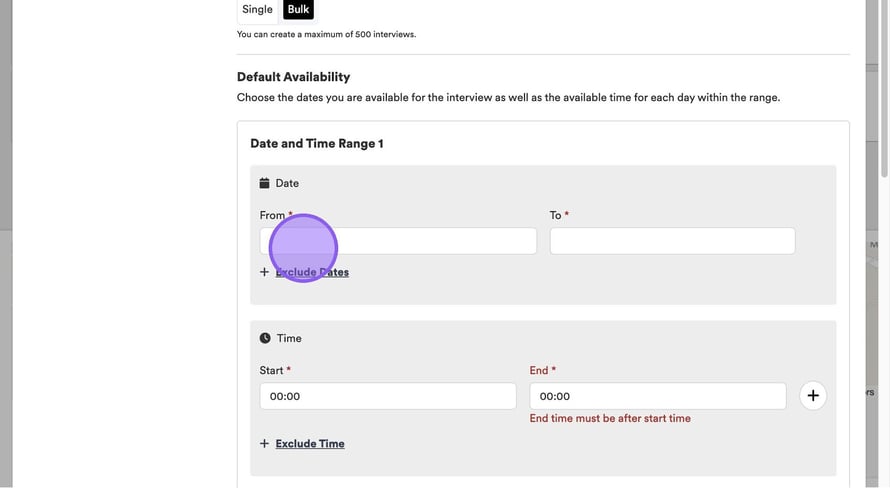
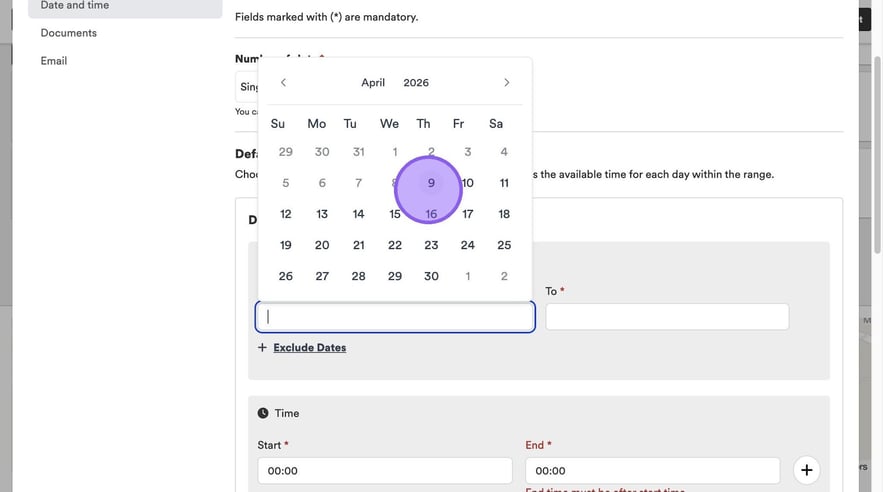
Select your relevant "from" date from the pop-out calendar.
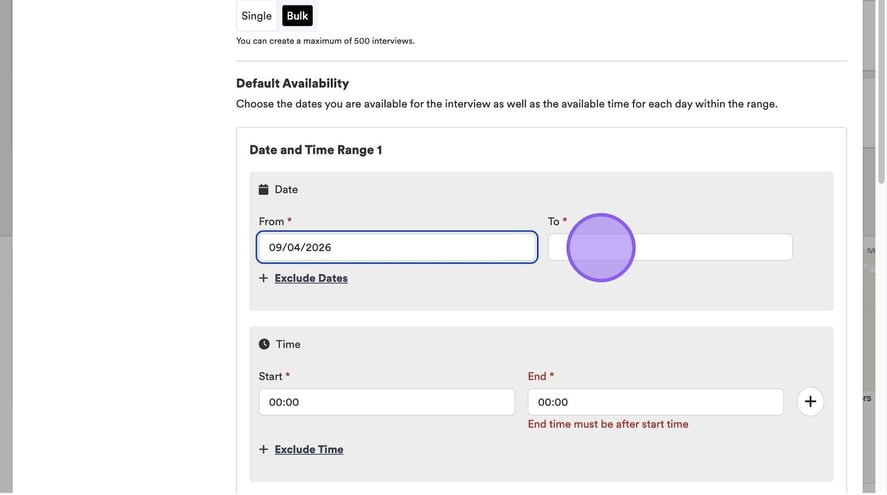
Repeat this step for the "to" date.
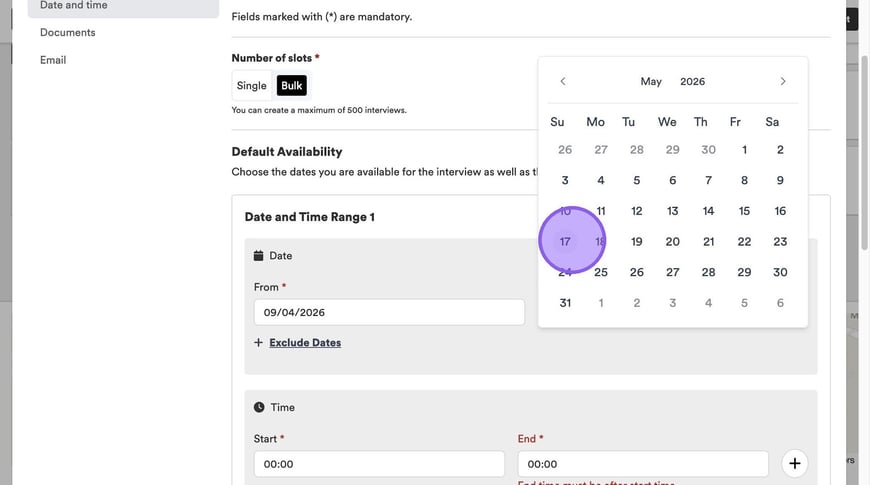
Again selecting the relevant date from the pop-out calendar.
If you would like to exclude any specific dates from your "from" and "to" block of time, click the "Exclude Dates" text here.
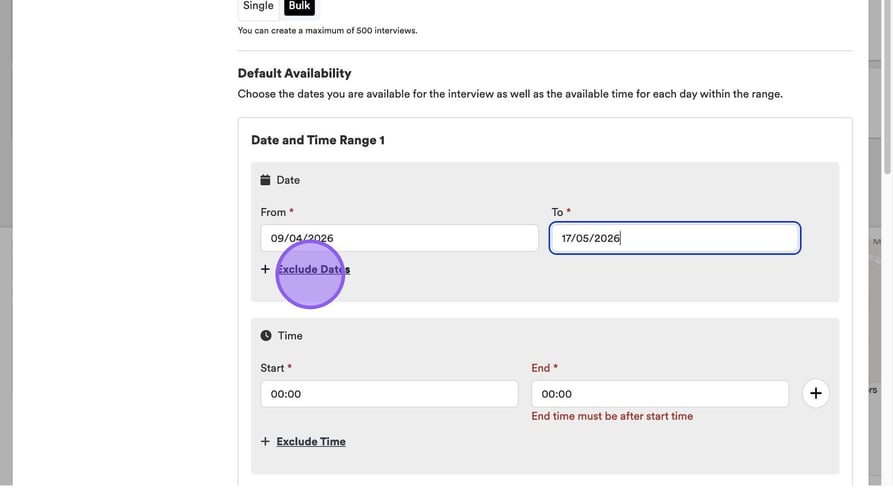
Again you will see a pop-out calendar to select from.
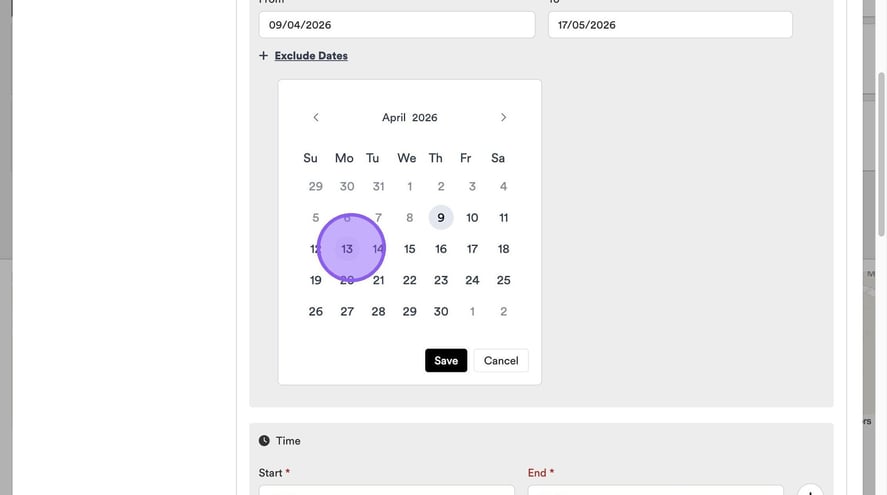
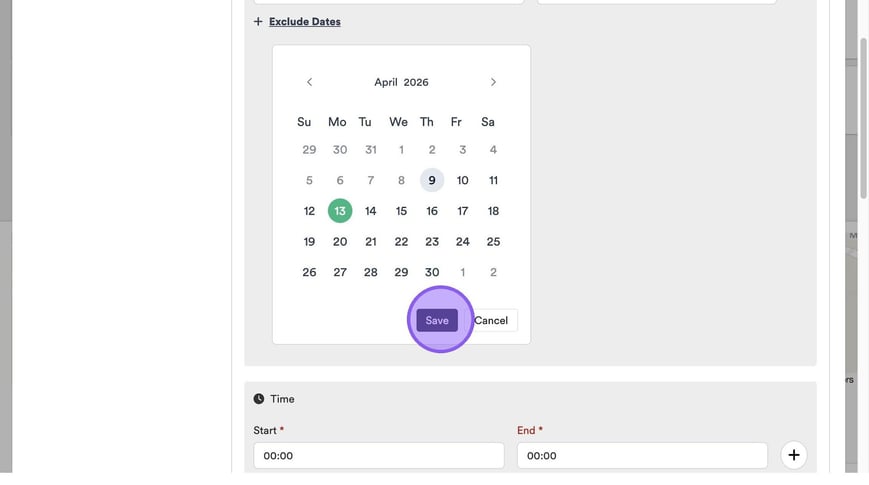
Once you are happy with your selection, click "Save".
Now you will need to set your available times to interview by clicking this field.
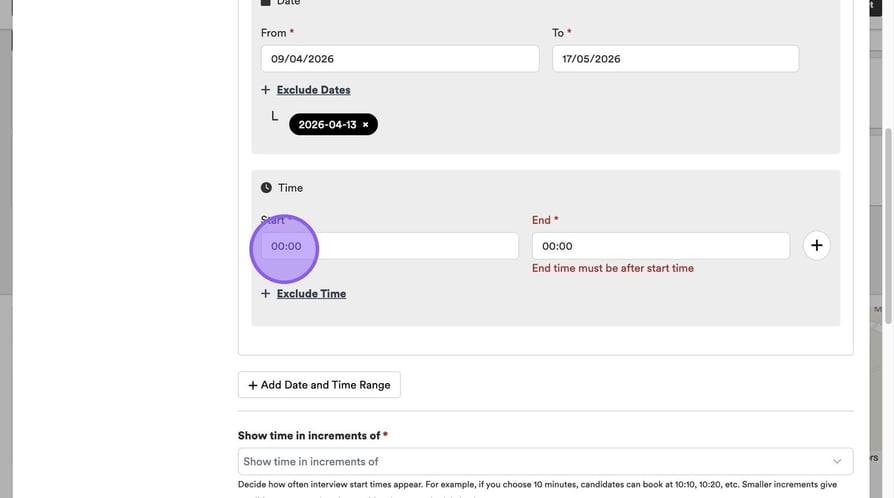
To select a time, you have the option to either type this, or to click on the arrows above & below the numbers.
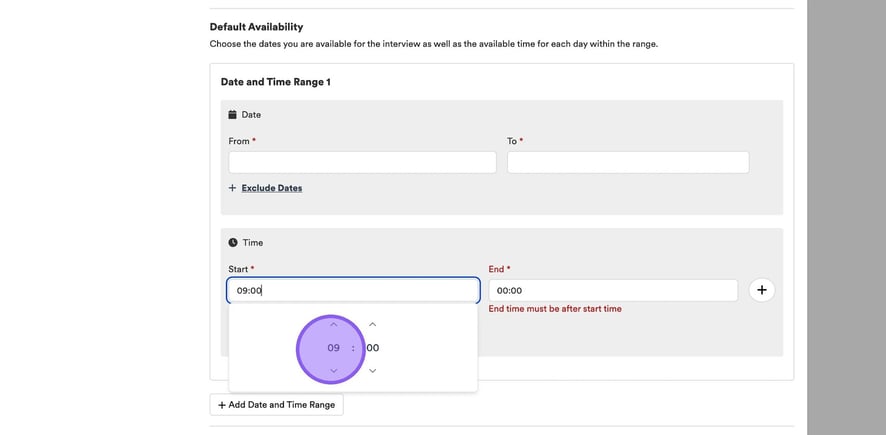
Repeat this step to set your end time.
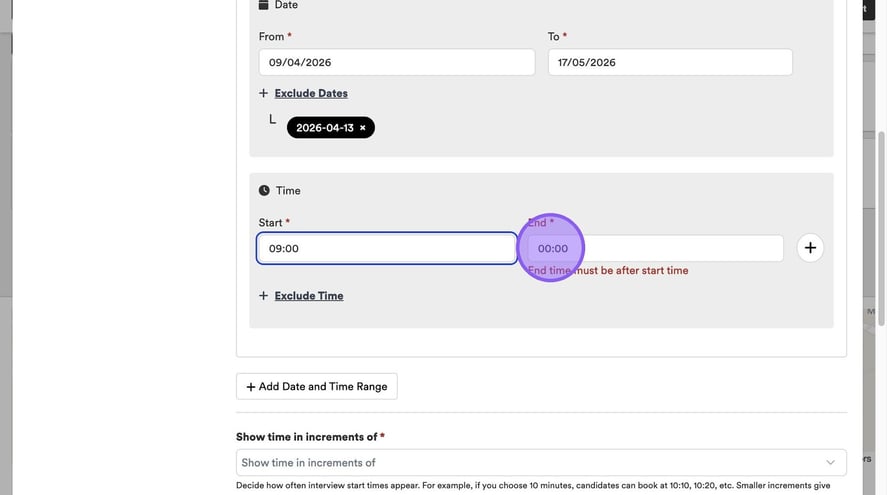
If you would like to exclude a certain time, for example your lunch break, click "Exclude Time" here.
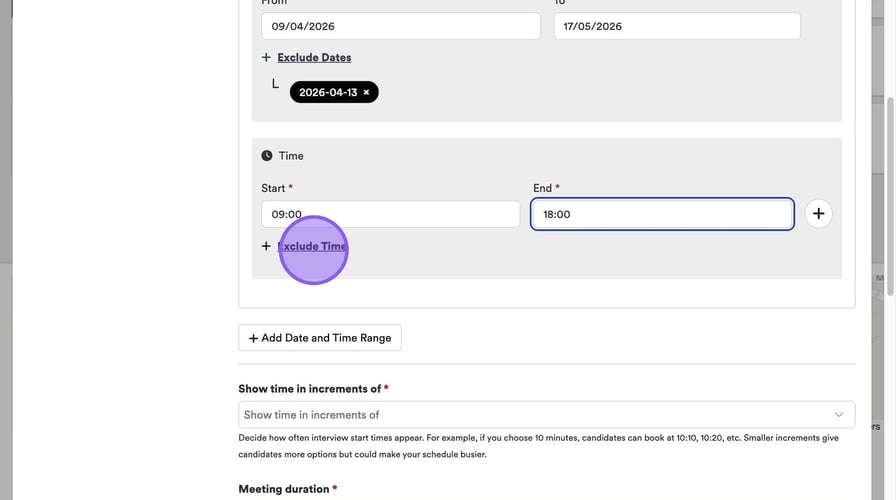
To set your excluded time, repeat the same process as setting your start and end time, by clicking this field and typing a time or using the arrows.
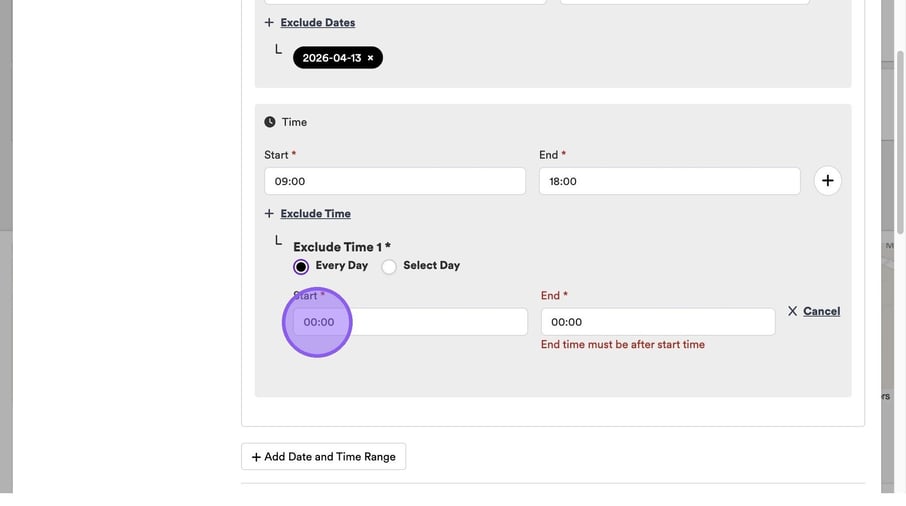
And again for your end time.
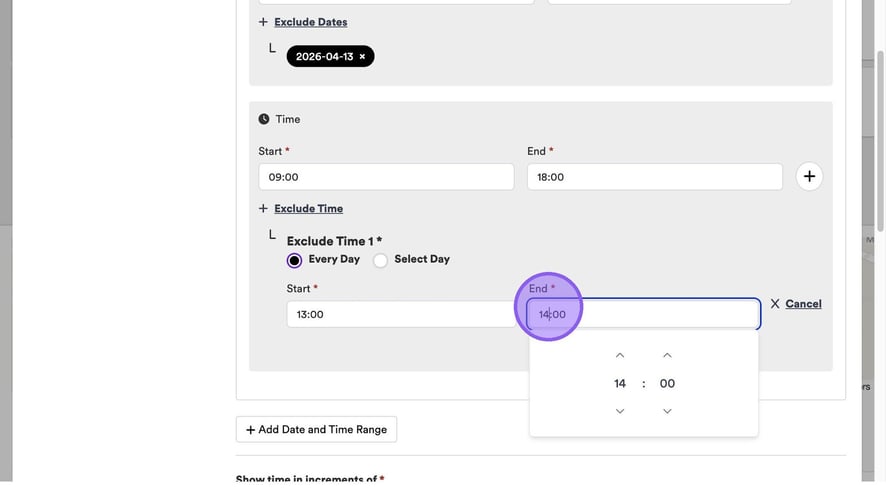
If required, you have the option to add a further date and time range by clicking this button here.
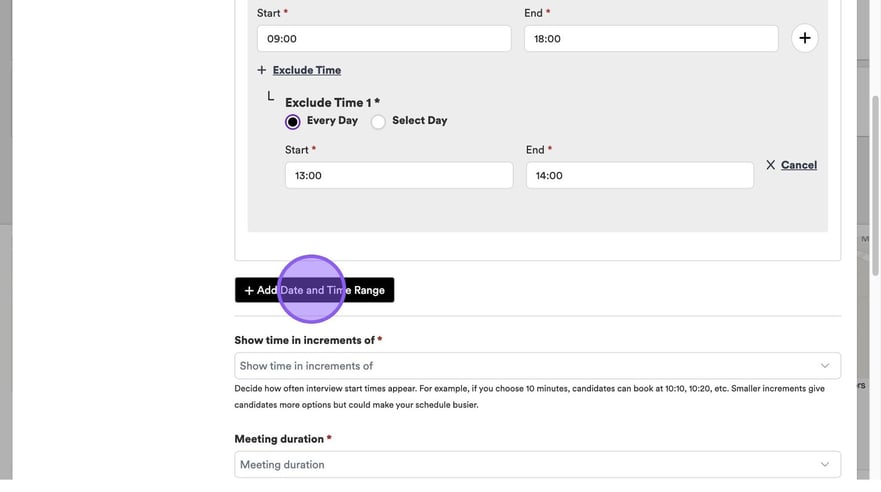
This will create a "Date and Time Range 2". If you no longer need this, or added it in error, simply click "Remove".
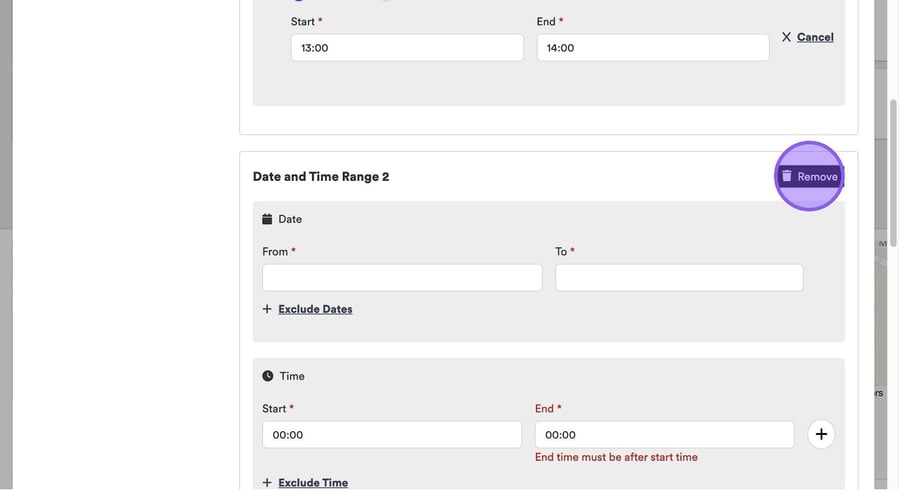
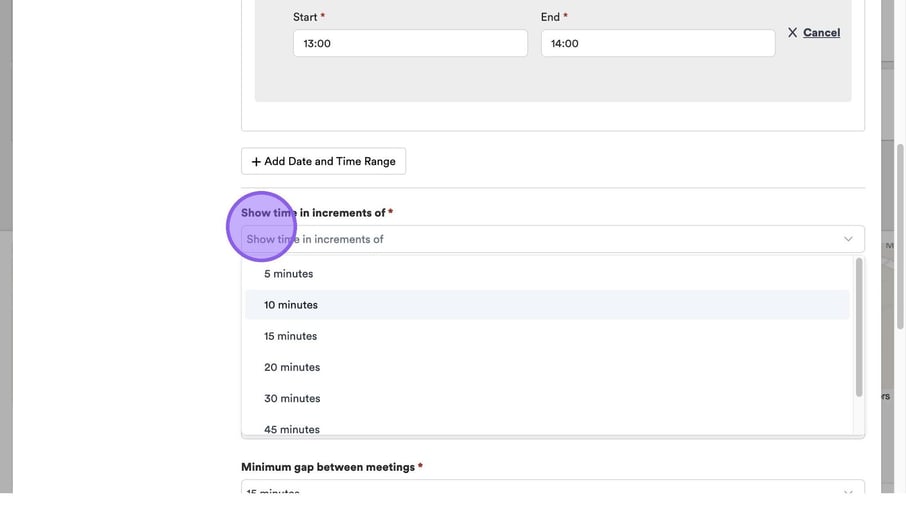
You now need to decide how you would like to show your interview start times, by clicking this drop-down here.
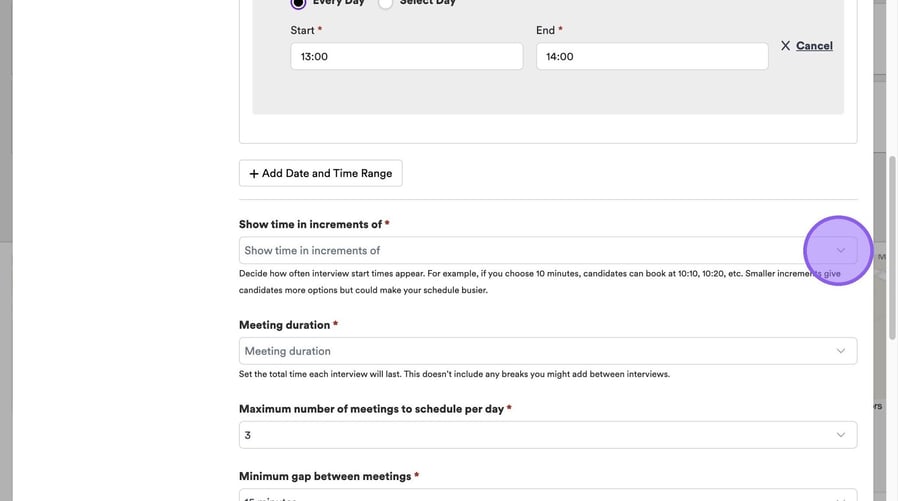
You will see a list of options to select from. For example, when choosing how often your start times will appear, be aware that a 10-minute interval allows bookings at 10:10, 10:20, and so on. Be aware that shorter intervals offer more flexibility for candidates but may result in a busier schedule for you.
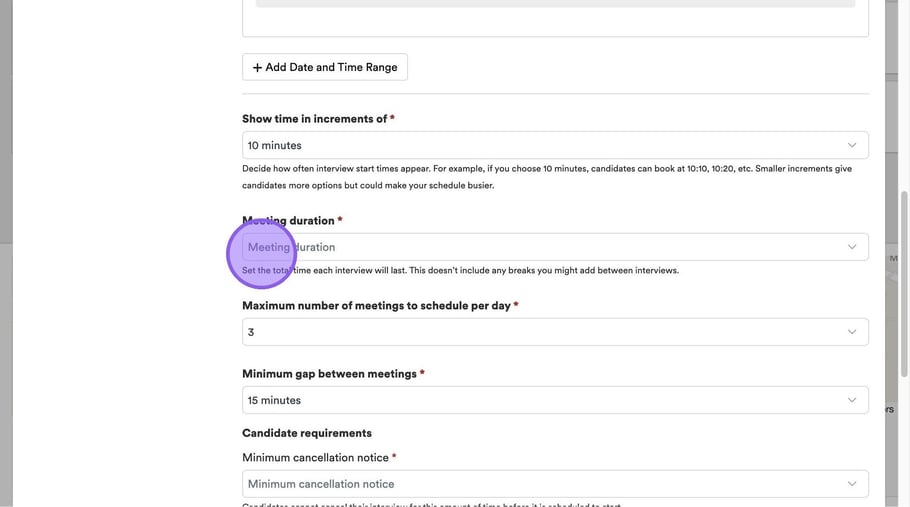
Now choose your meeting duration by clicking here.
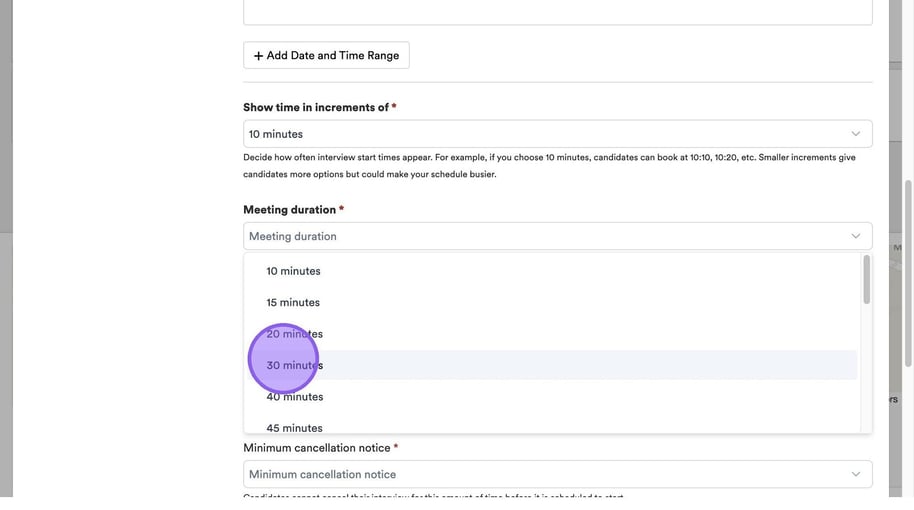
You will see a drop-down menu for you to select a duration from.
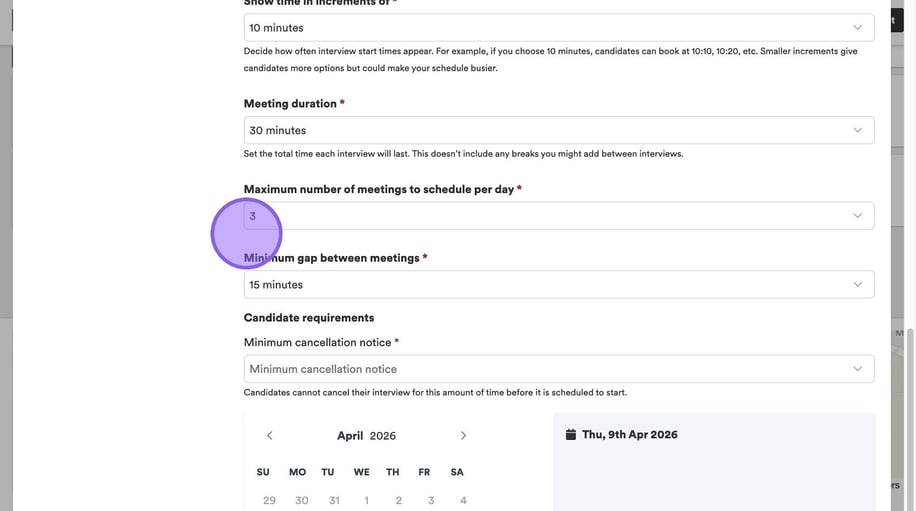
Choose the maximum number of meetings you would like to schedule per day by clicking here. This may already be pre-populated if you have already set this in your ATS settings.
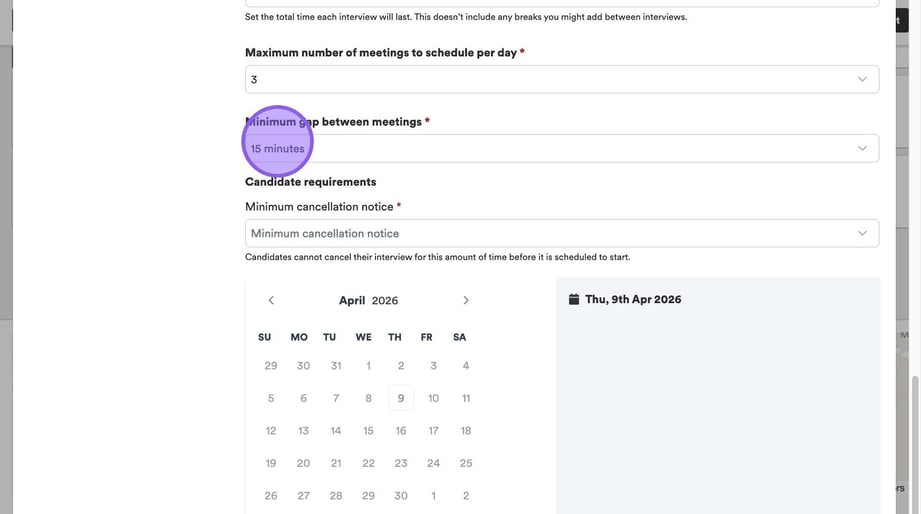
You now need to choose the minimum gap between meetings, by clicking here. Again depending on your earlier settings this may already be pre-populated for you.
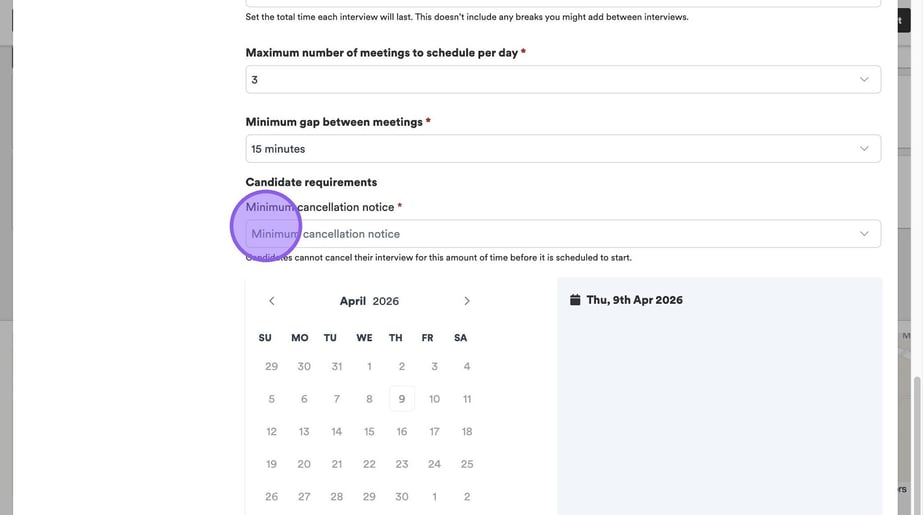
Click "Minimum cancellation notice" to set a period of time that a candidate can cancel their interview before it is due to start.
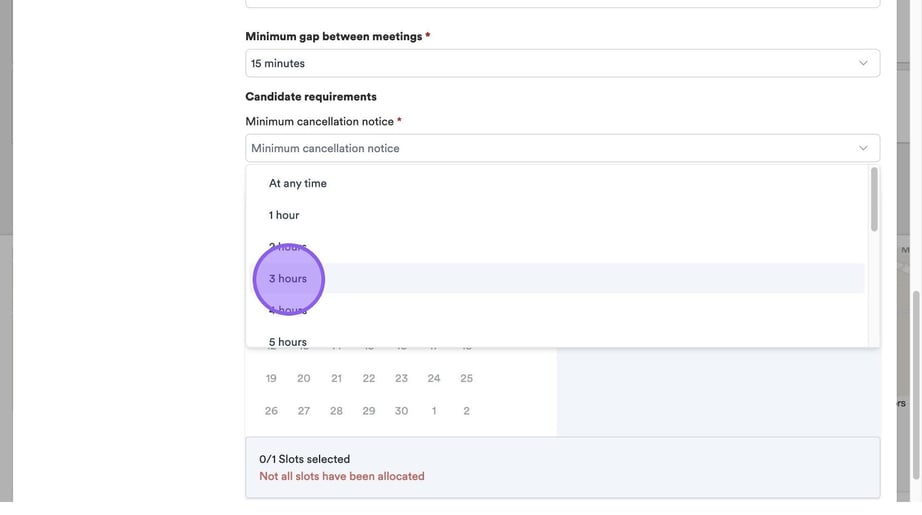
Select the relevant option from the drop-down menu.
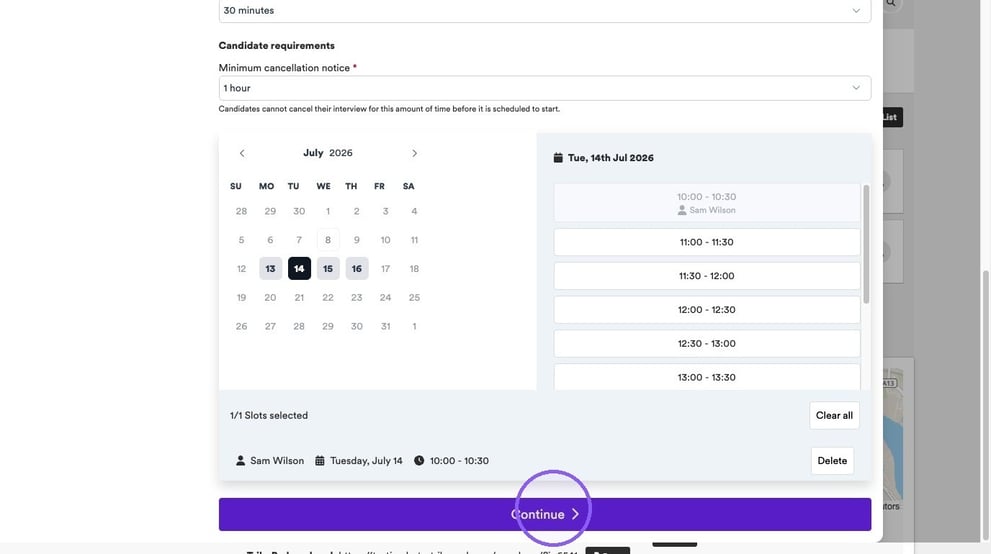
Based on the information you have entered in the previous steps, your linked calendar and any availability settings, you will now see available dates & times for you to book your interviews.
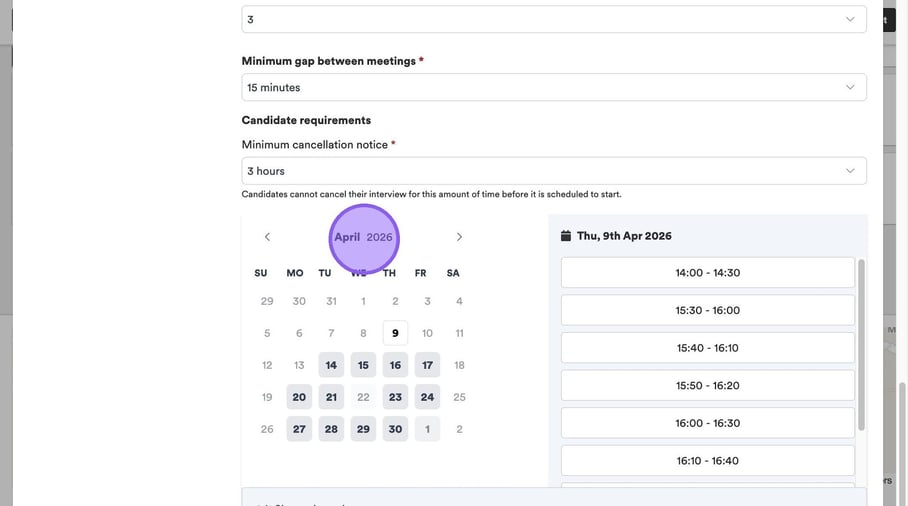

You will also see any dates that you have excluded in your block, greyed out.
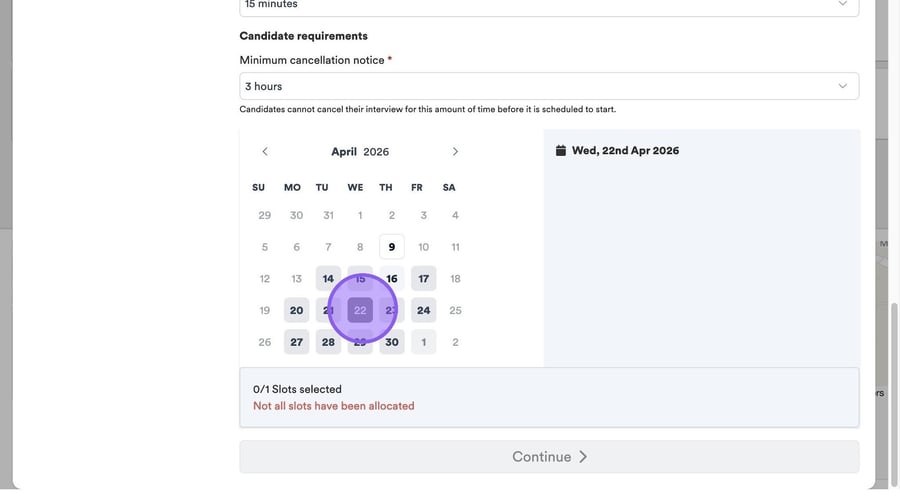
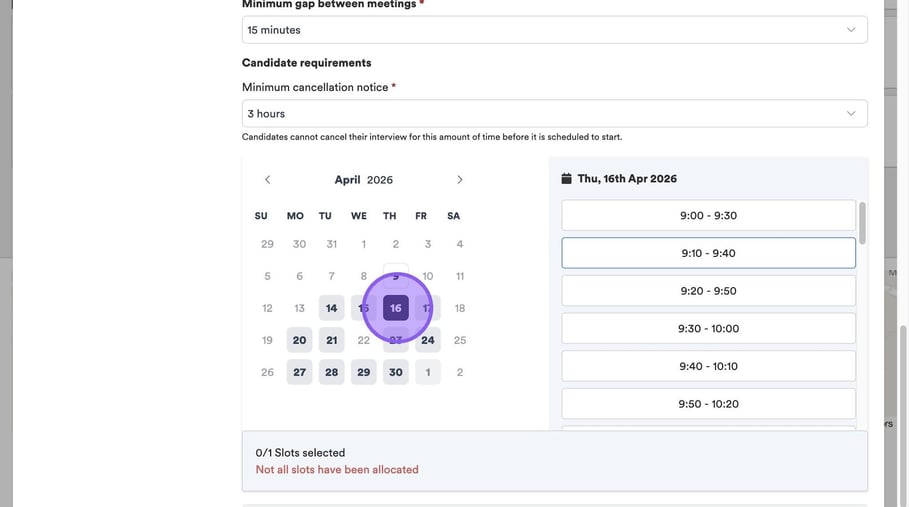
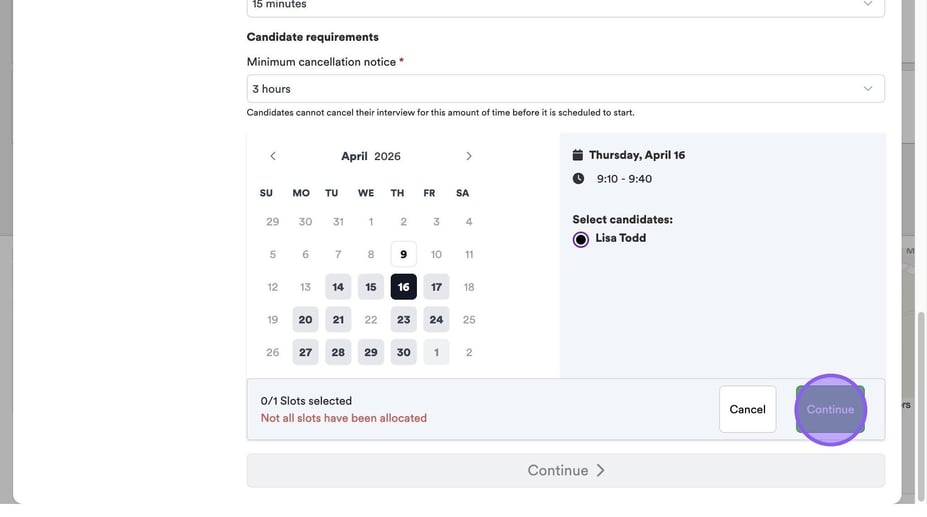
To book an interview slot click the relevant date and time from the available options.
Select the relevant candidate from the list that you would like to add to this slot.
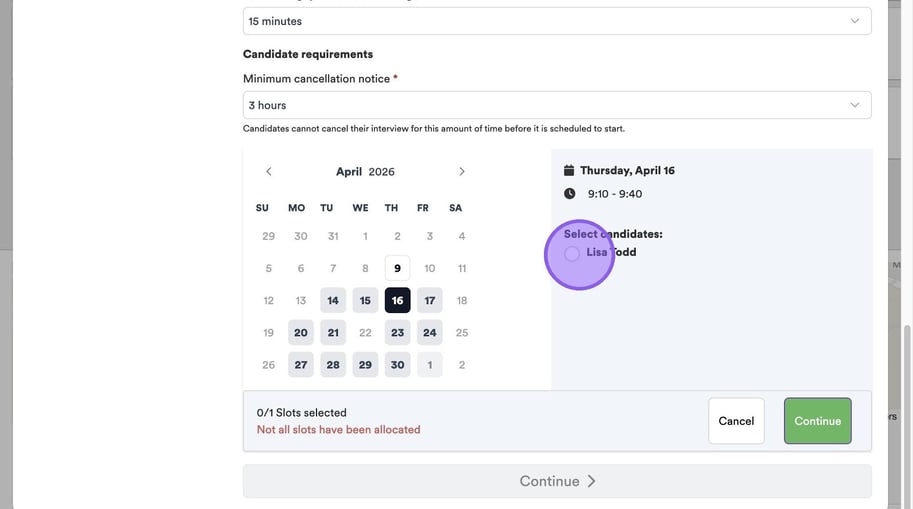
Once you are happy with your selections click continue.
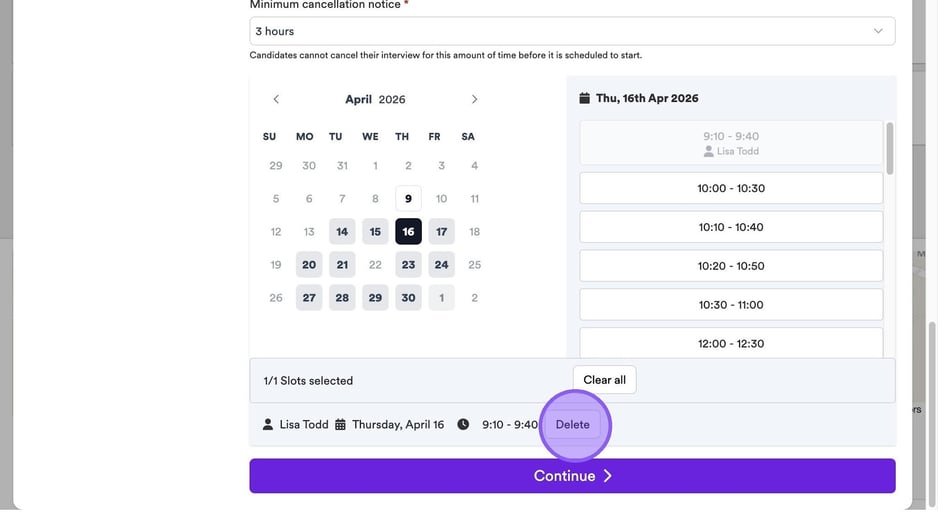
You will now see the options to either clear all of your selected slots, or to delete individual slots for candidates if you would like to amend any of your previous selections.
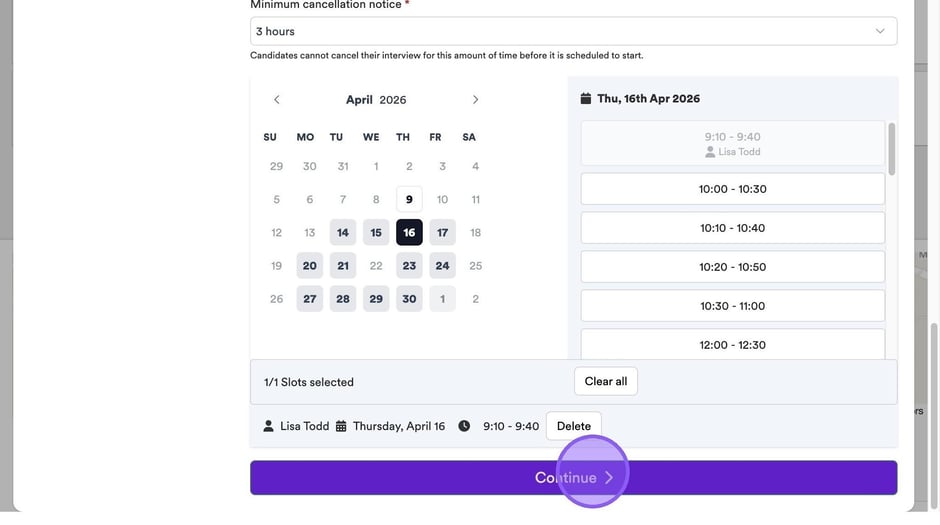
Once you are happy with the above, click continue.
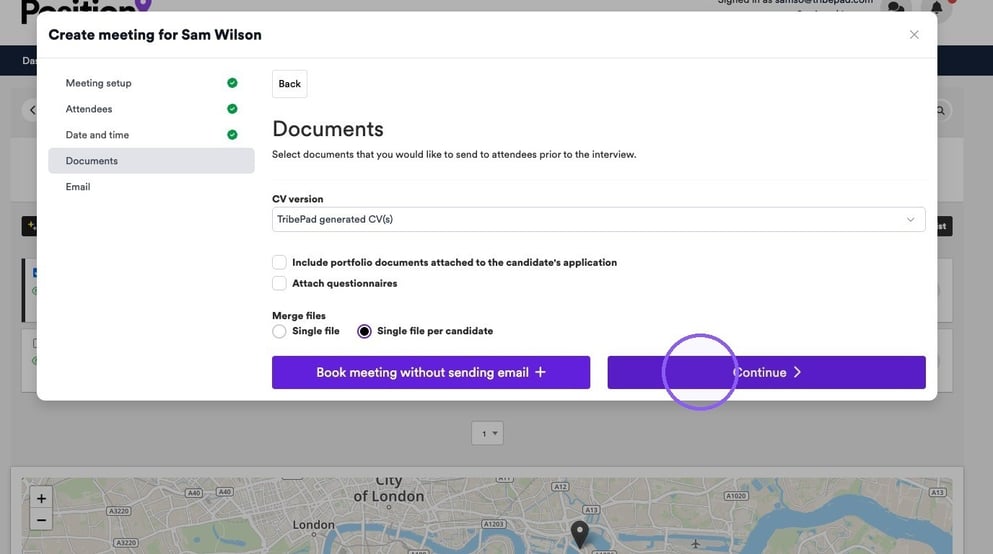
You will now be taken to the "Documents" part of the process.
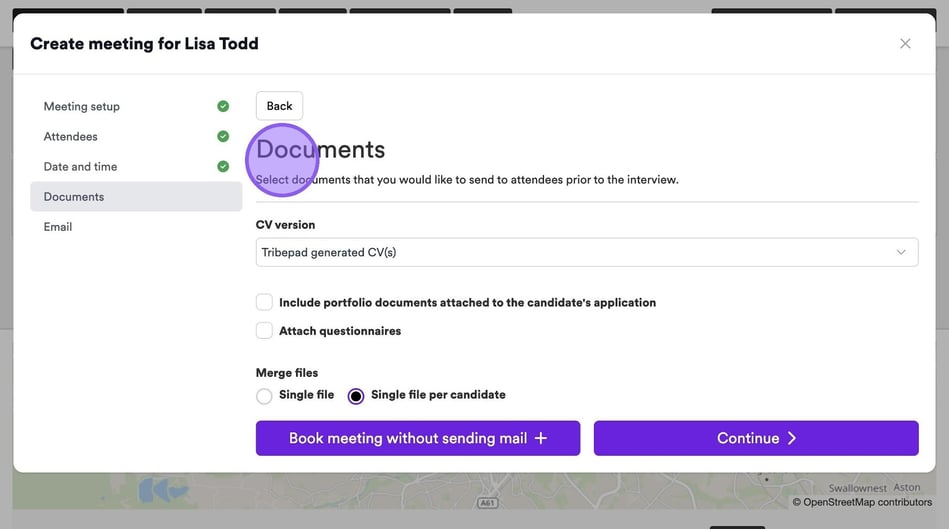
If you would like to send a candidate's CV to attendees prior to an interview, click the drop-down menu here and select the relevant option from the list.
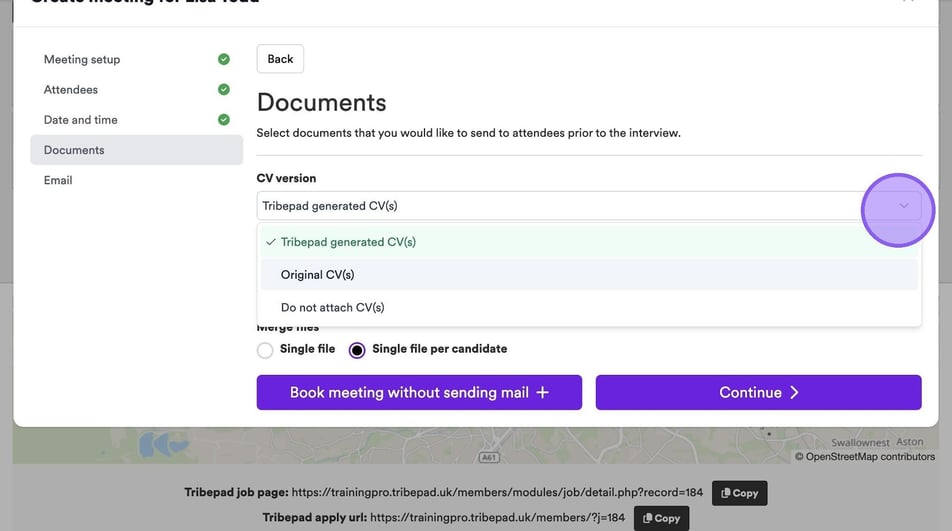
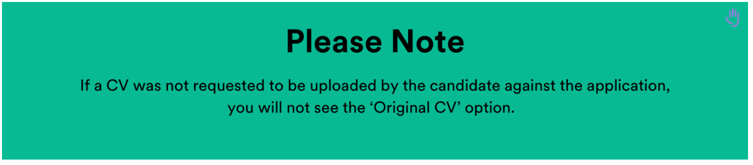
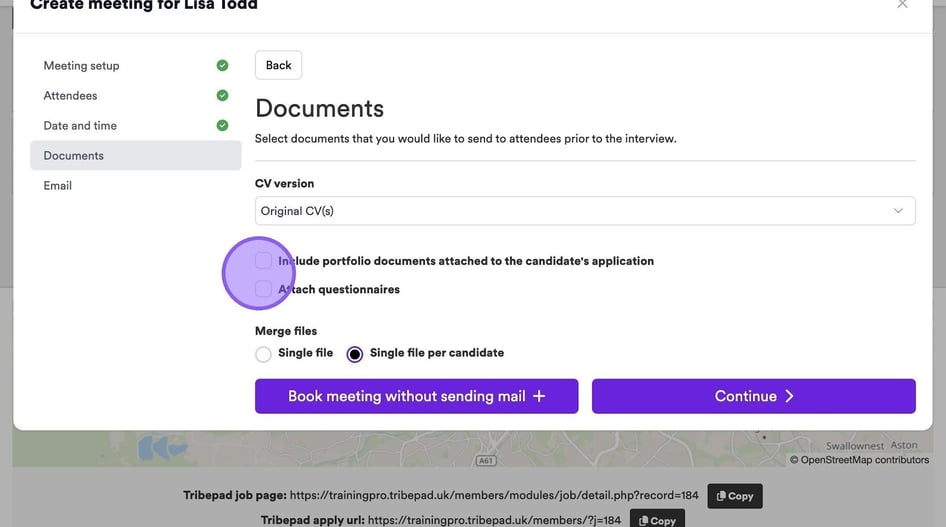
If you would also like to include any portfolio documents and/or questionnaires simply select the relevant checkboxes here.
Now decide how you would like these files to be sent and downloaded by either selecting the "single file" option or "single file per candidate".
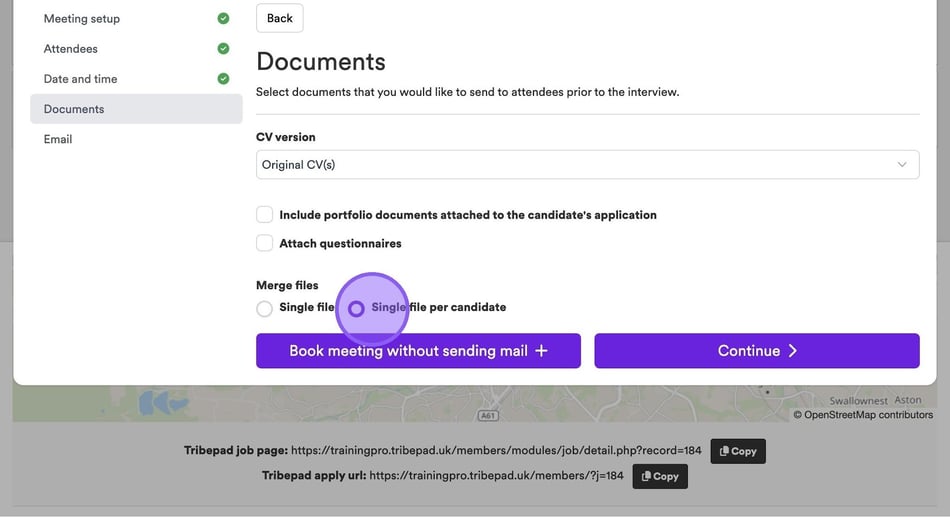
Once you are happy with the above you have the option to save your meeting slots or to continue.
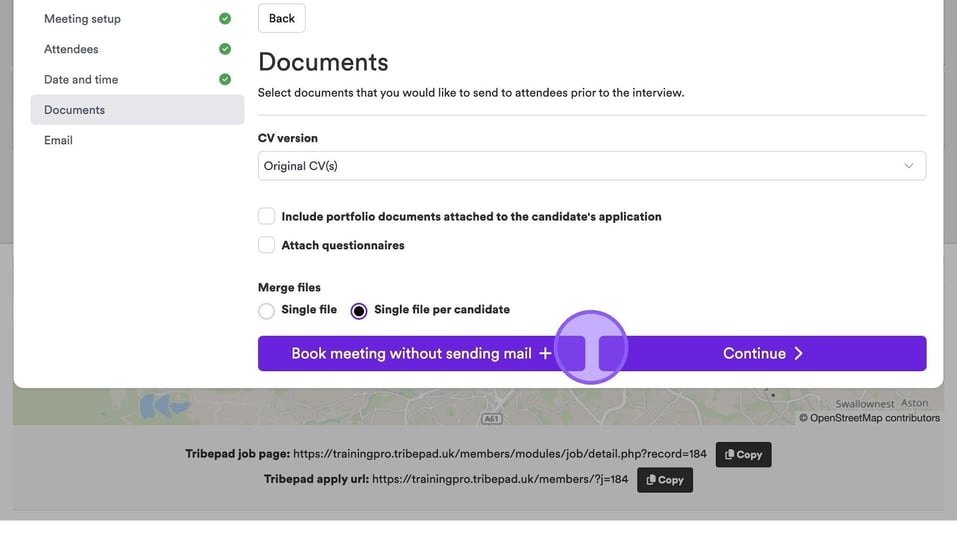
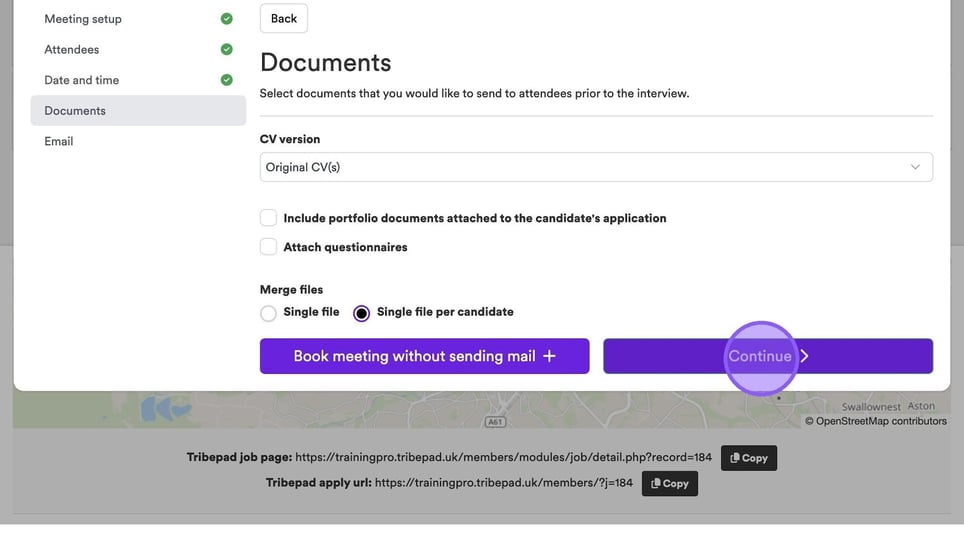
If you would like to complete the process in full, click "Continue".
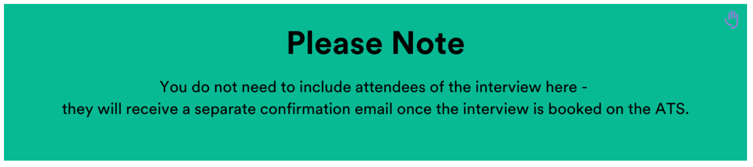
You will now be taken to the final stage of the process, where you are able to set-up any emails that will be sent to the candidate. To get started add any email addresses of any colleagues you have that will not be attending the interview, but need visibility on who you are inviting here.
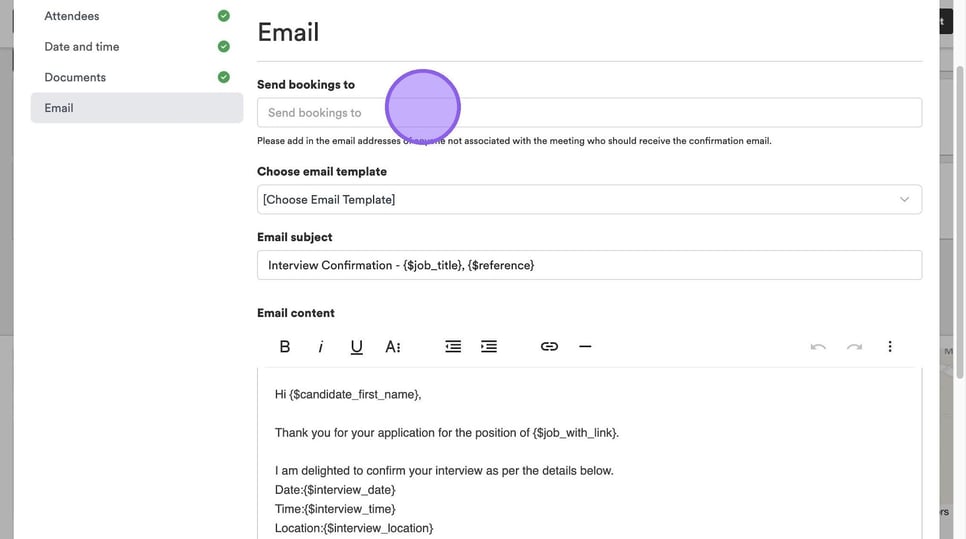
You also have the option to select an existing email template, amend the email subject and the content if required.
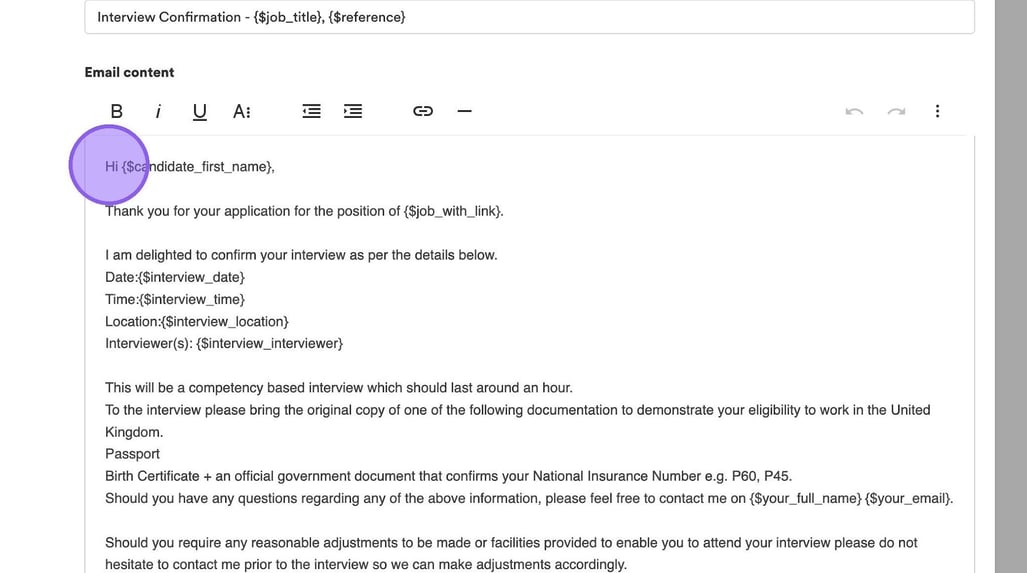
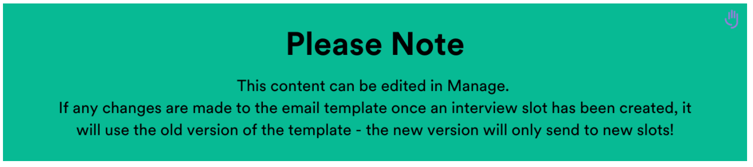
If you would like more information on how to edit email templates in Manage, see this page here 🖱️.
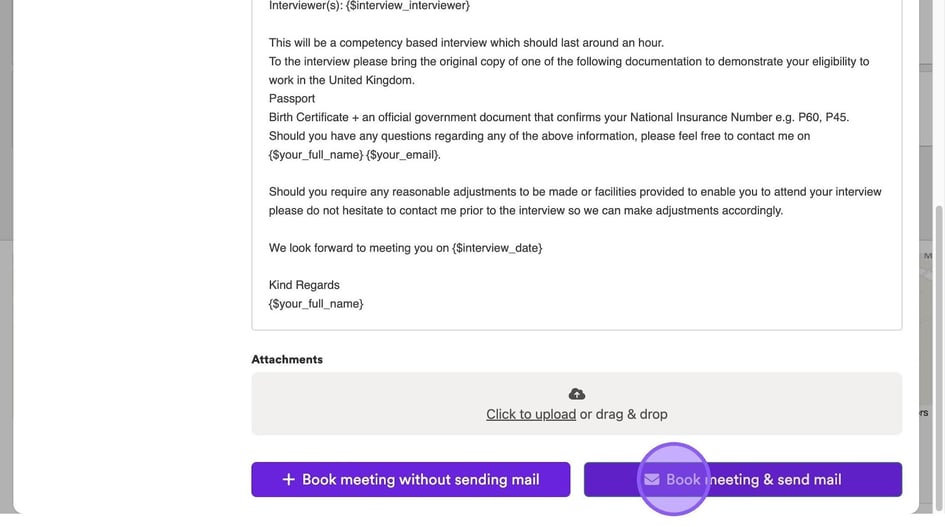
Once you're happy with the above, click "Book meeting & send mail".
📩 Invite To Book
If you prefer to set up a number of slots and allow your candidate to select whichever slot is most convenient for them, you are able to do this via the following method. Select the checkbox next to the candidate that you would like to invite to interview.
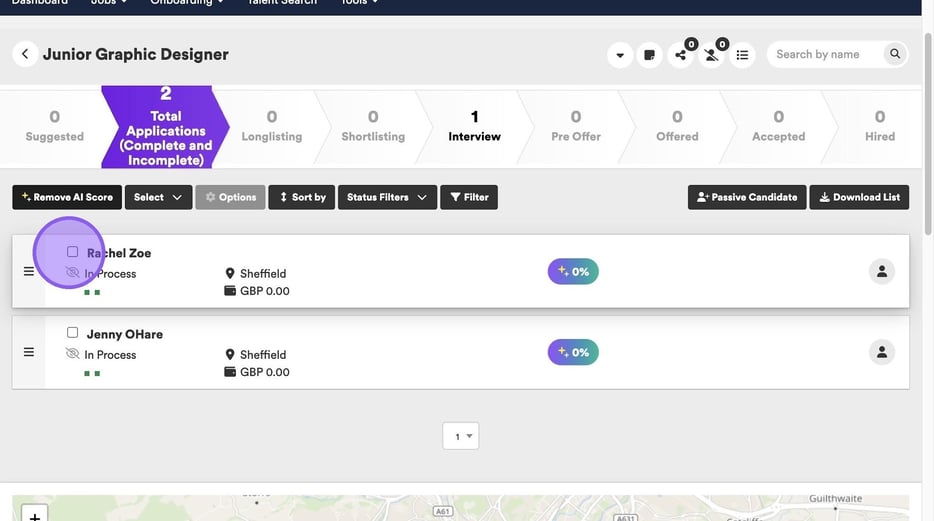
Click "Options".
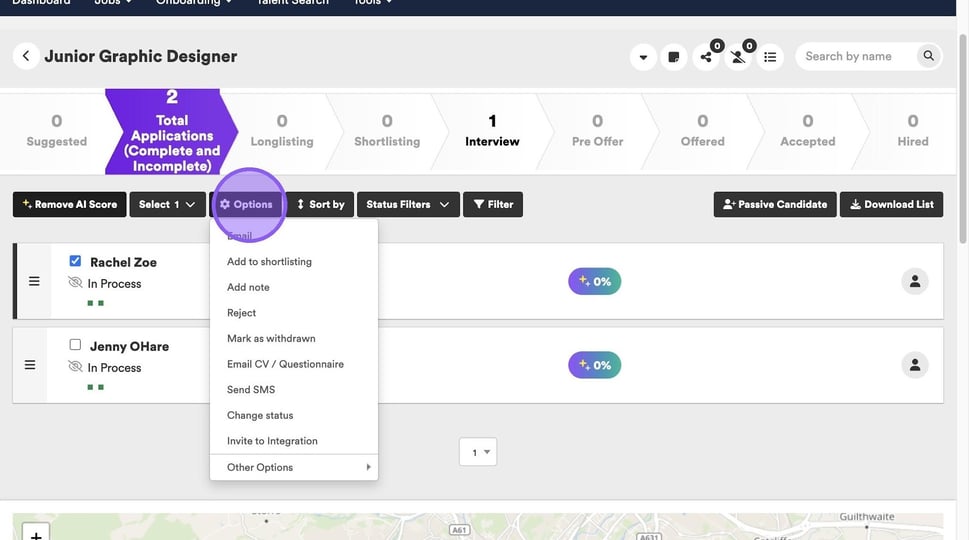
Followed by clicking "Arrange an interview".
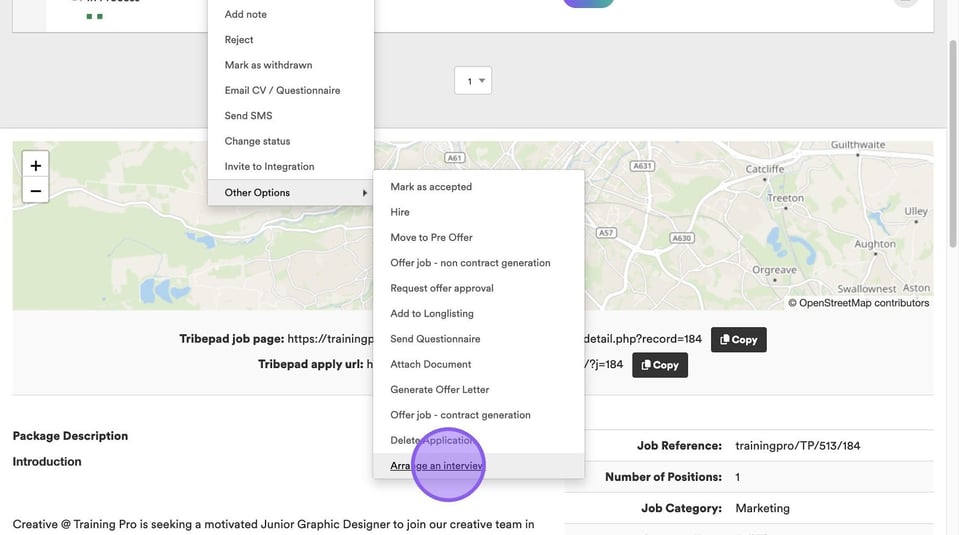
Click "Invite to book".
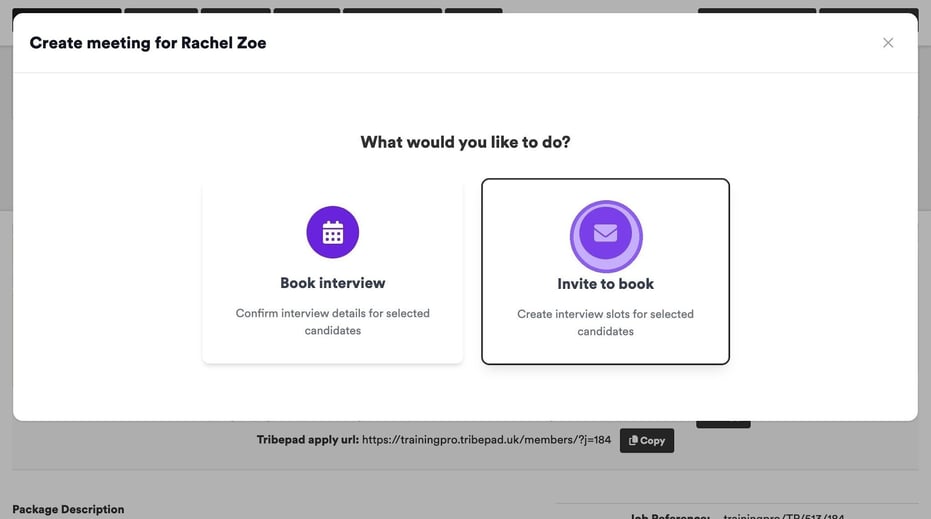
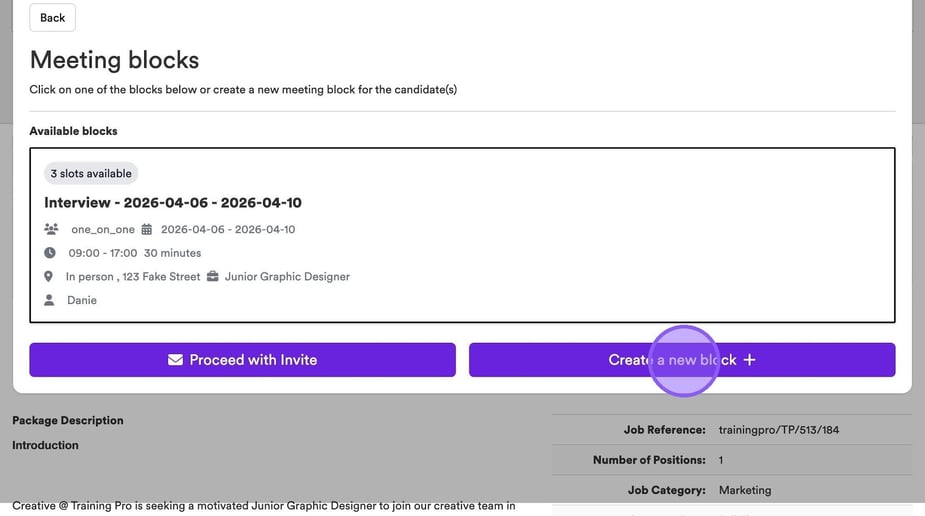
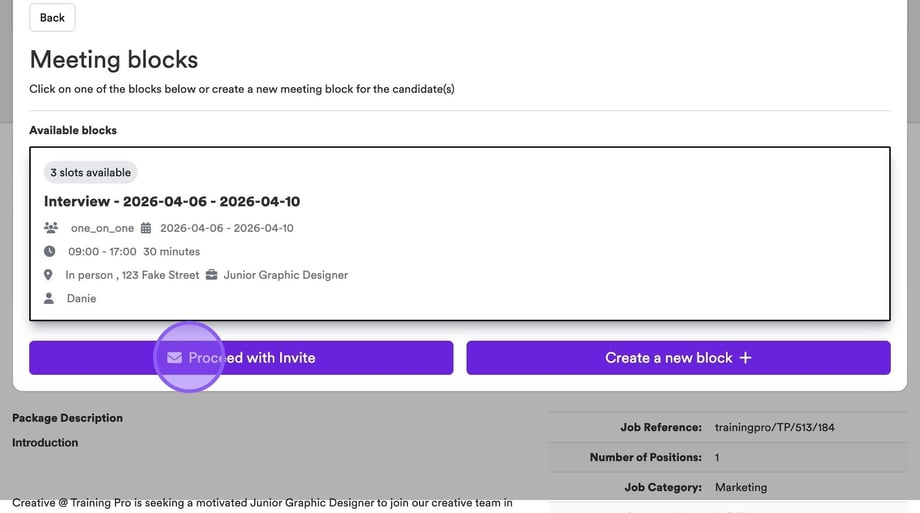
You will now see available blocks based on your linked calendar and any availability pre-filled in under settings here.
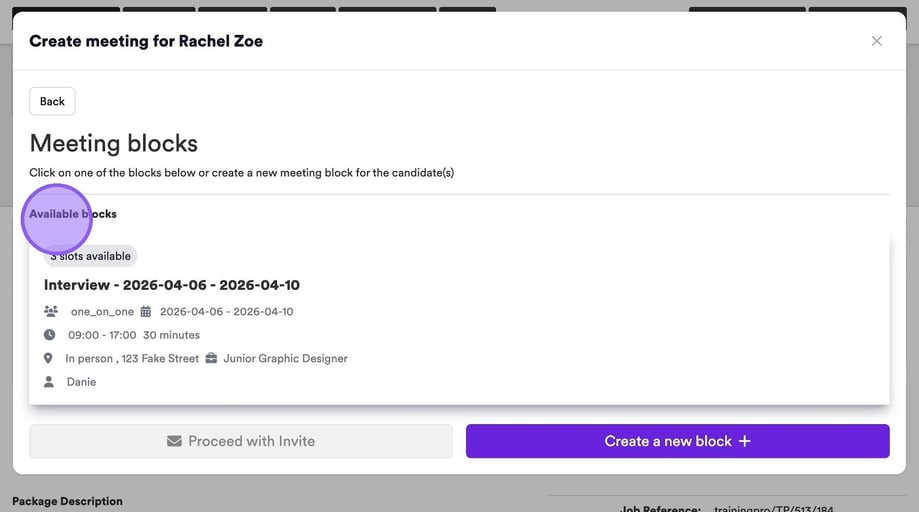
If you would like to create new availability blocks you can do so by clicking here.
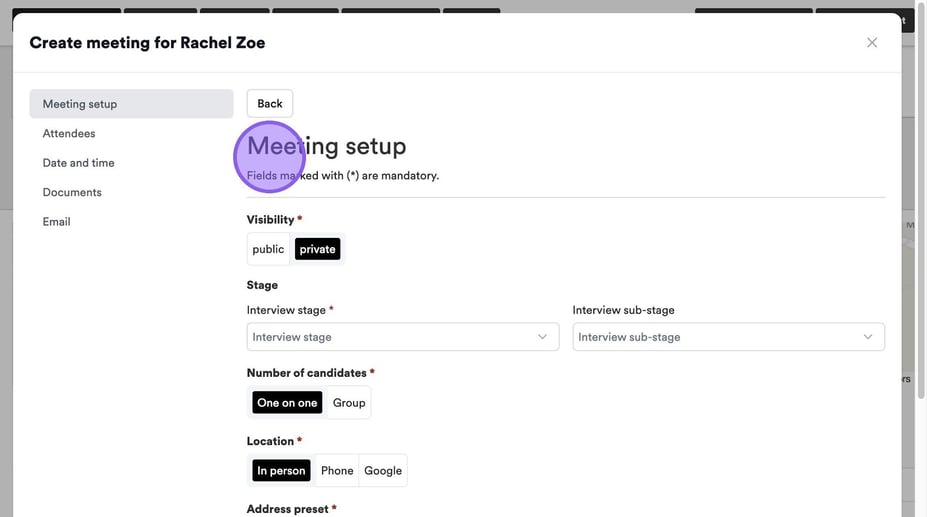
This will then take you to the meeting set-up page, that we previously covered.
If you are happy with the available blocks, simply click "Proceed with invite".
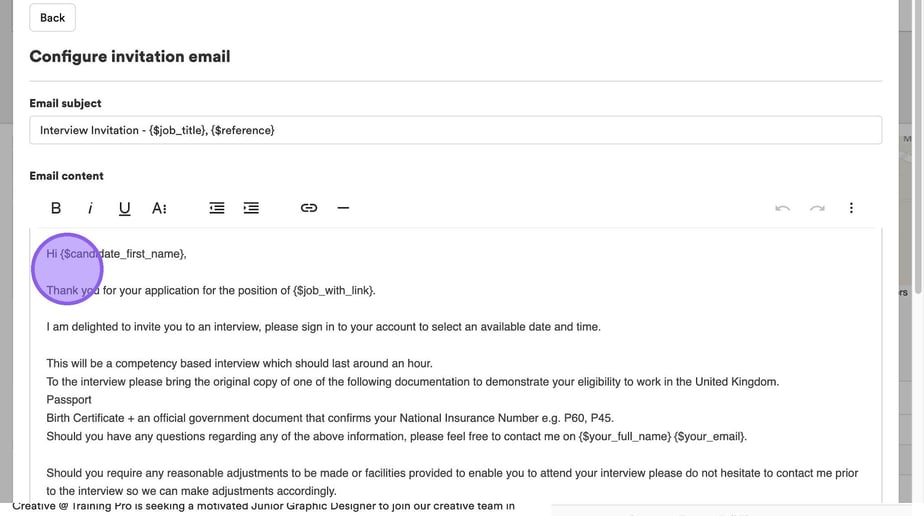
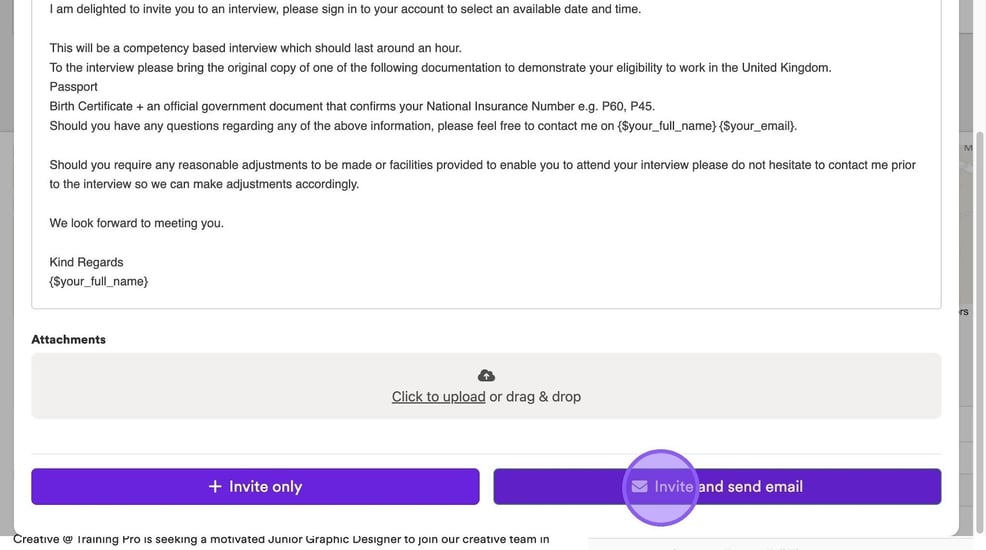
You will now be taken to the following page, where you will see an email template that will be sent to the candidate.
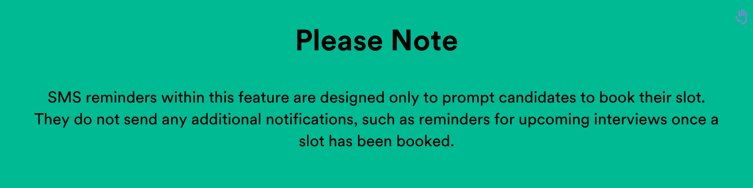
For this next step, if you’d like to add SMS reminders, you’ll first need to make sure SMS is enabled for your job, to do this 🖱️see this page here.
If you would like to enable SMS reminders to remind candidates to book their slot, at the bottom of the following pop-up click the "Send SMS reminders" field.
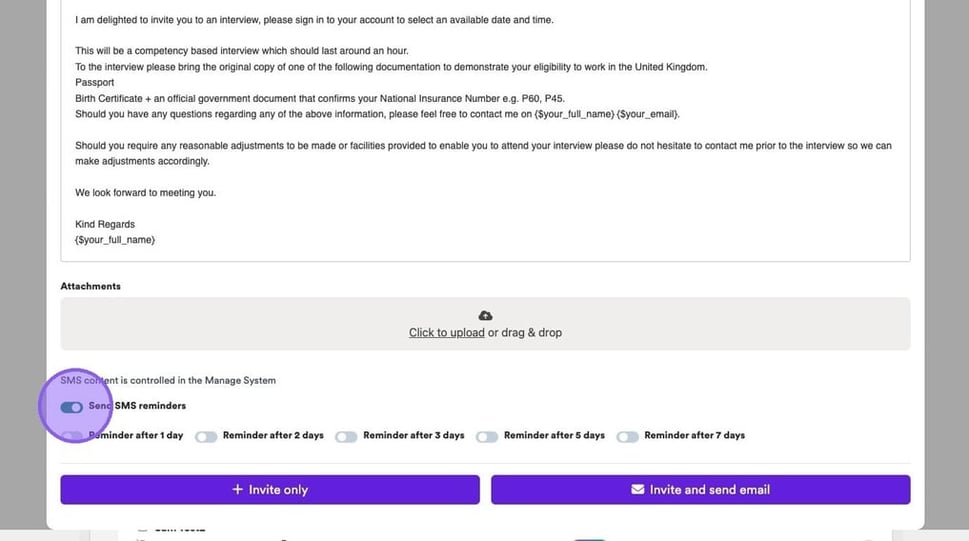
You will also see the option to set a reminder after so many days. In this example we have selected the "Reminder after 2 days" option.
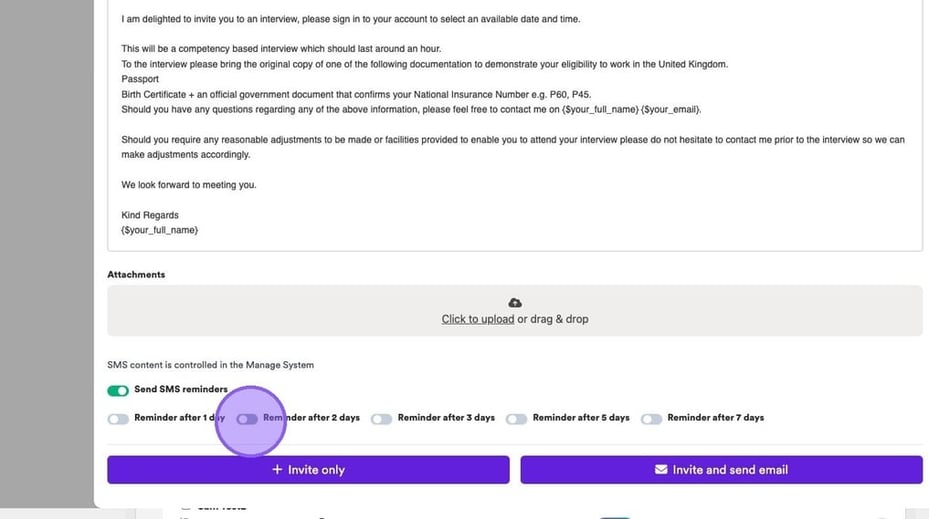
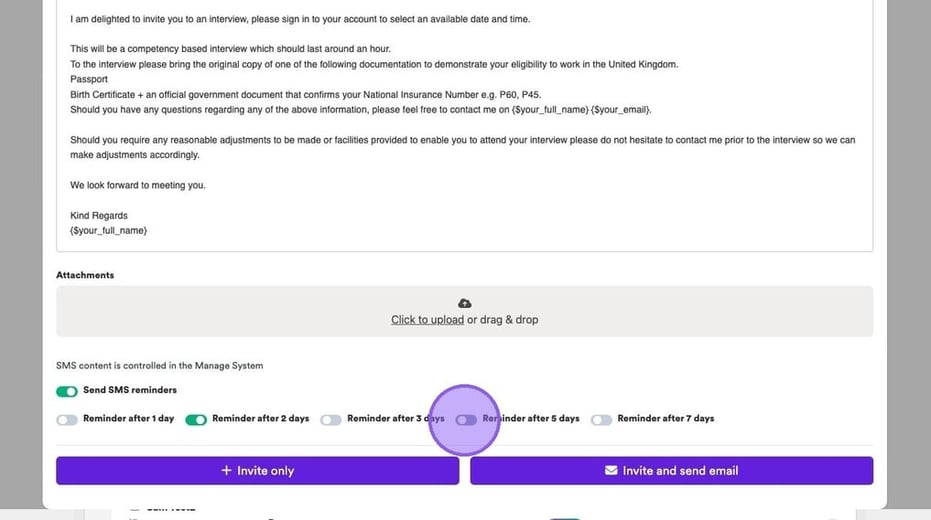
If required you can select more than one option.
To complete the process, click "Invite and send email".
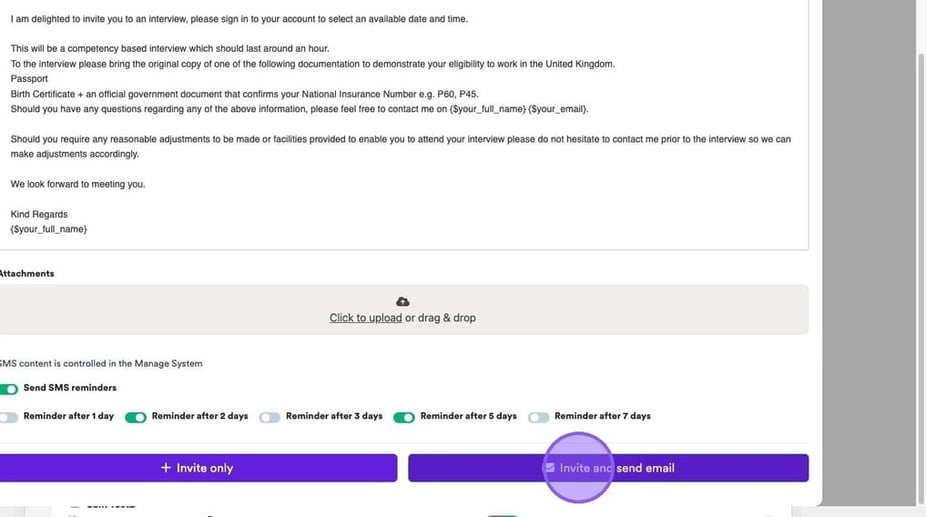
Once you are happy with your email, click "Invite and send email". You also have the option to simply "Invite only".
❌ Cancelling An Interview
If you wish to cancel a Meeting or interview in the ATS, you are able to do this from 3 places. The first being via the main Dashboard and Interview widget. To start click on the following icon.
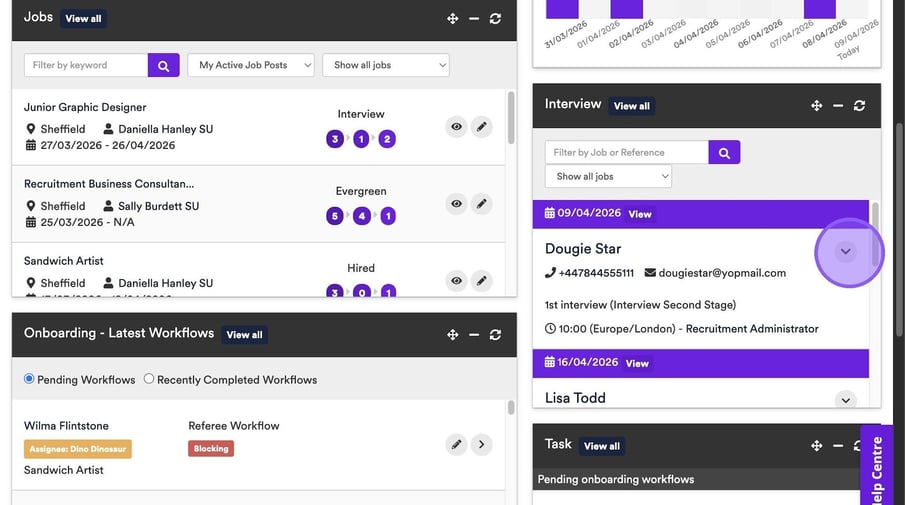
Followed by clicking on "Interview Cancel".
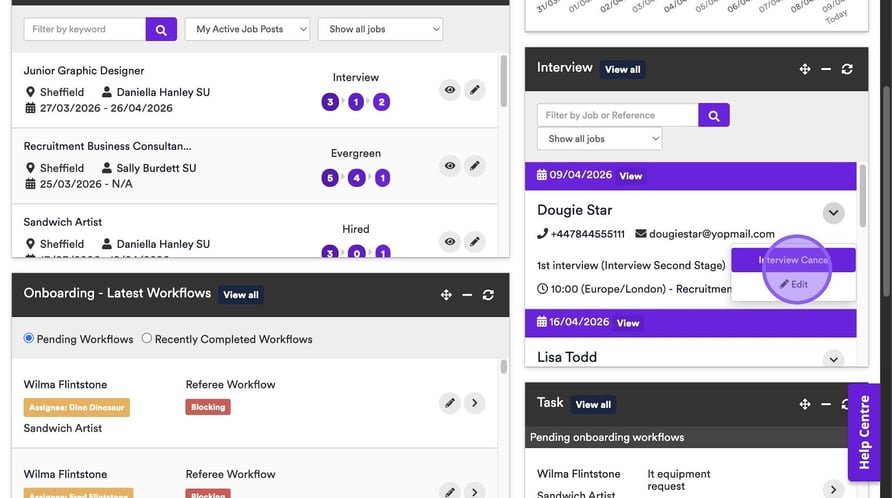
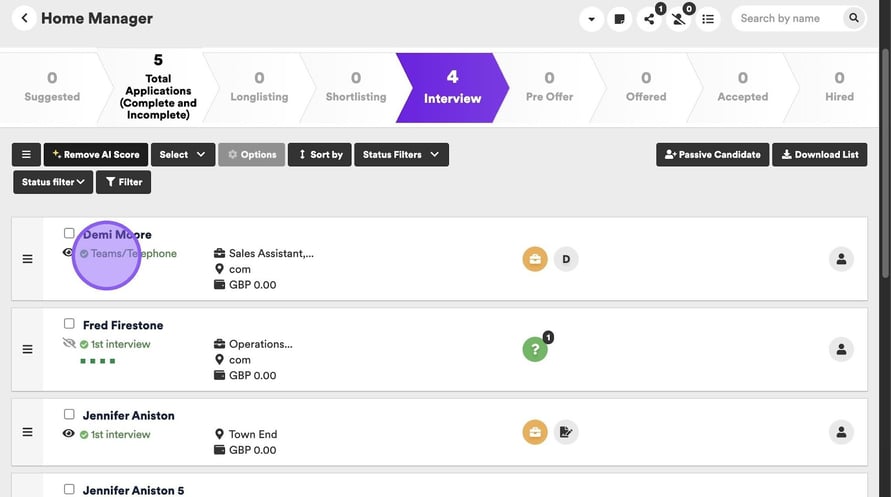
You can also cancel an interview from within a job. To do this, hover over the interview details under the candidates name.
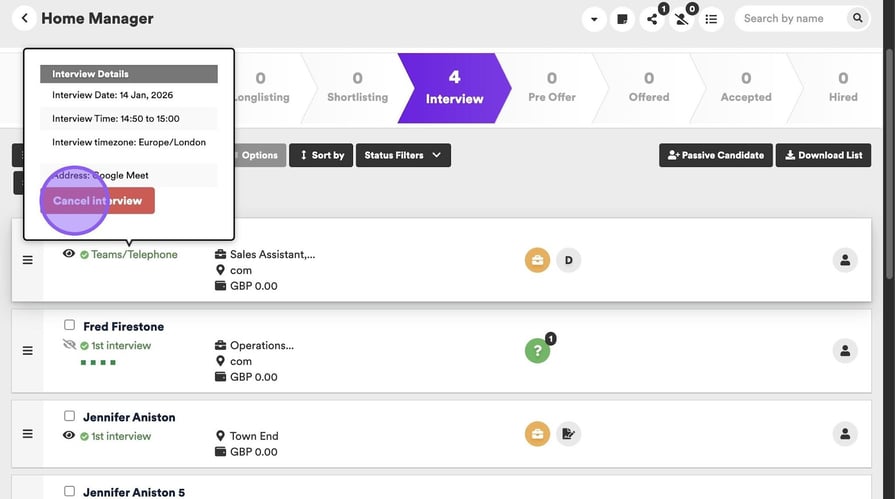
Followed by clicking on ‘Cancel interview’.
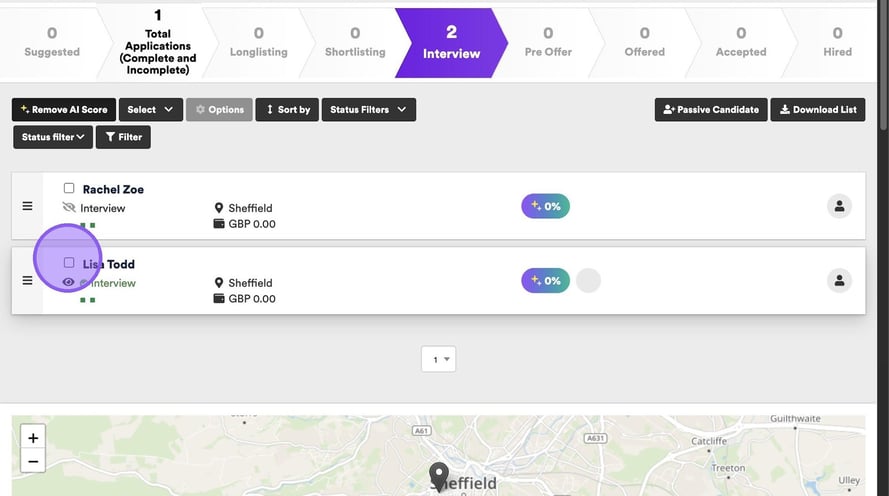
Lastly you are able to cancel an interview via the candidate options menu. Start by clicking the check box next to their name.
Click on "Options".
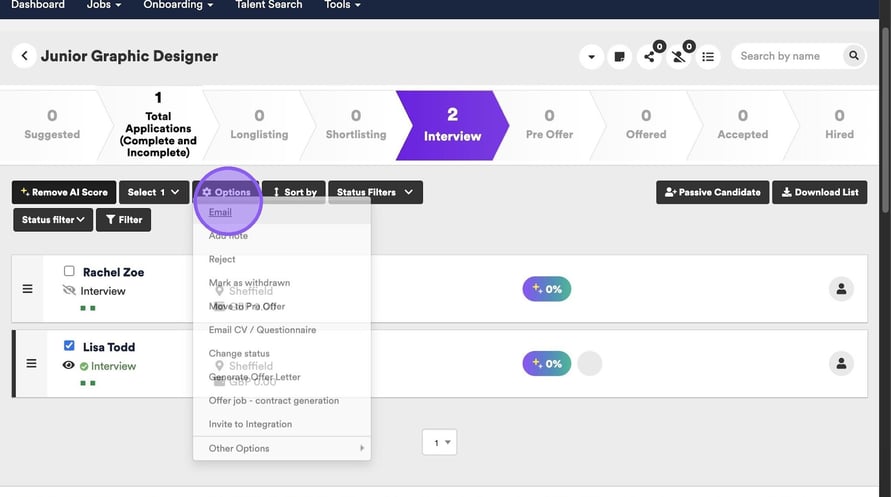
Followed by clicking on "Cancel interview".
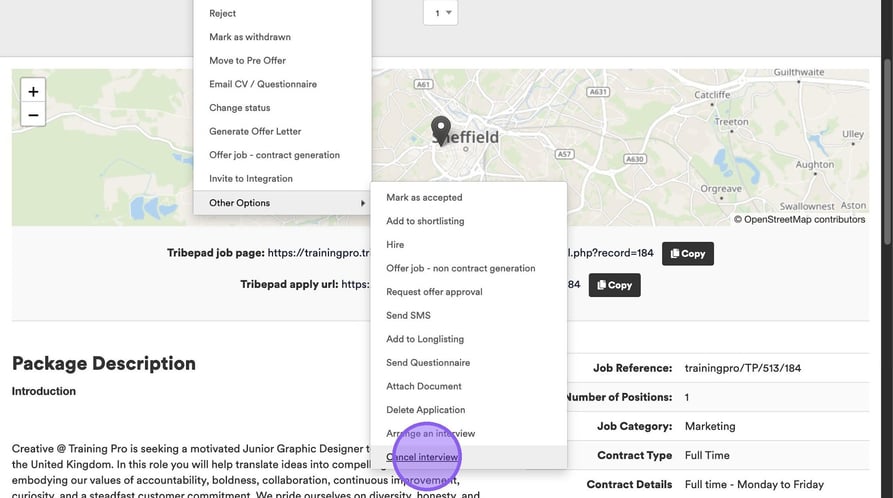
Clicking ‘Cancel Interview’ via any of the three options, will refresh your screen and you will see the following pop-up with an email template that will be sent to the candidate.
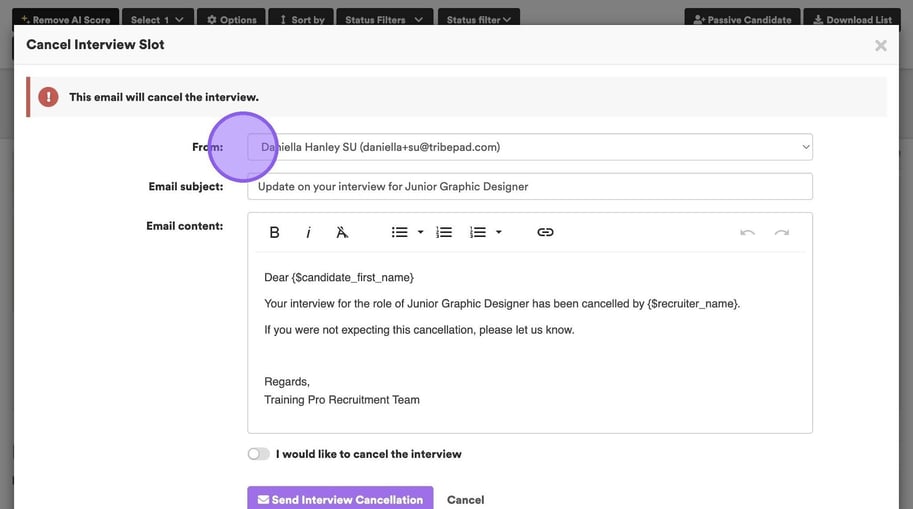
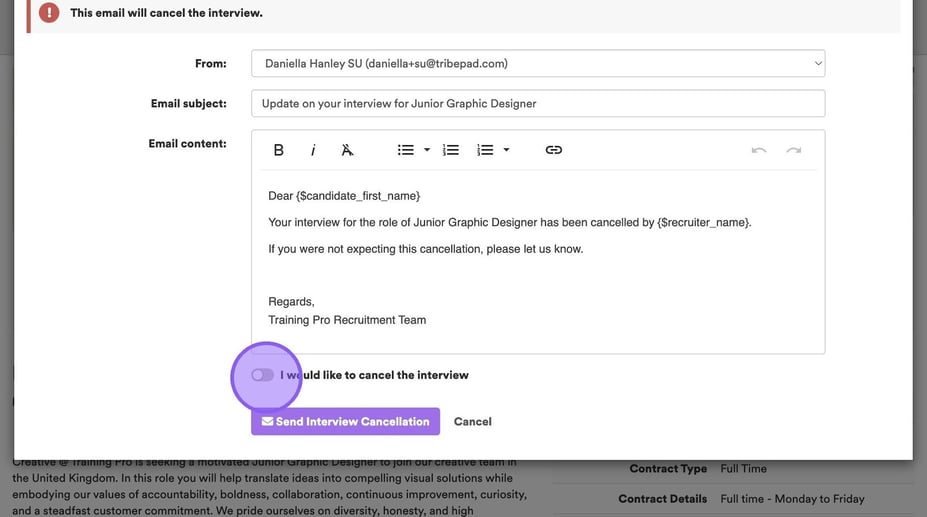
Click this toggle here to confirm that you would like to cancel the email.
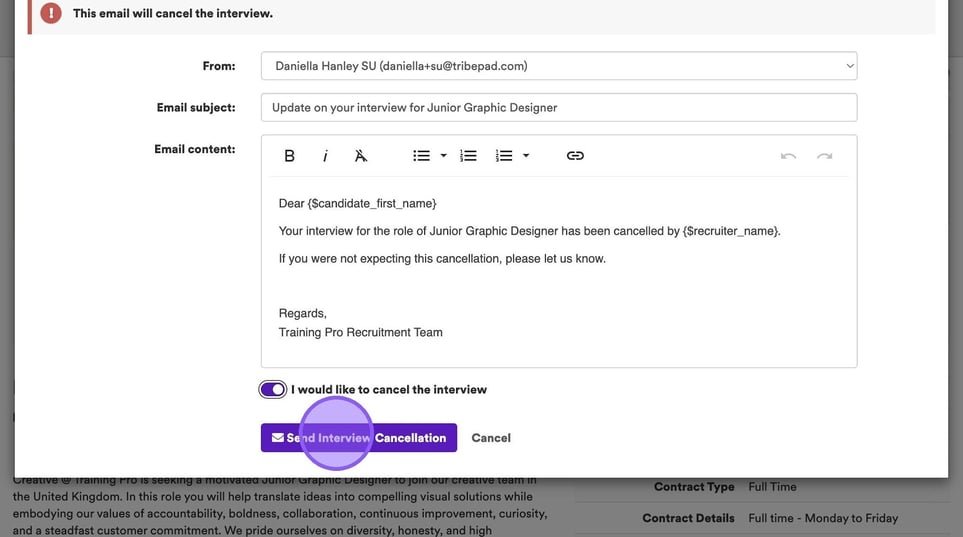
Now click the "Send Interview Cancellation" button.
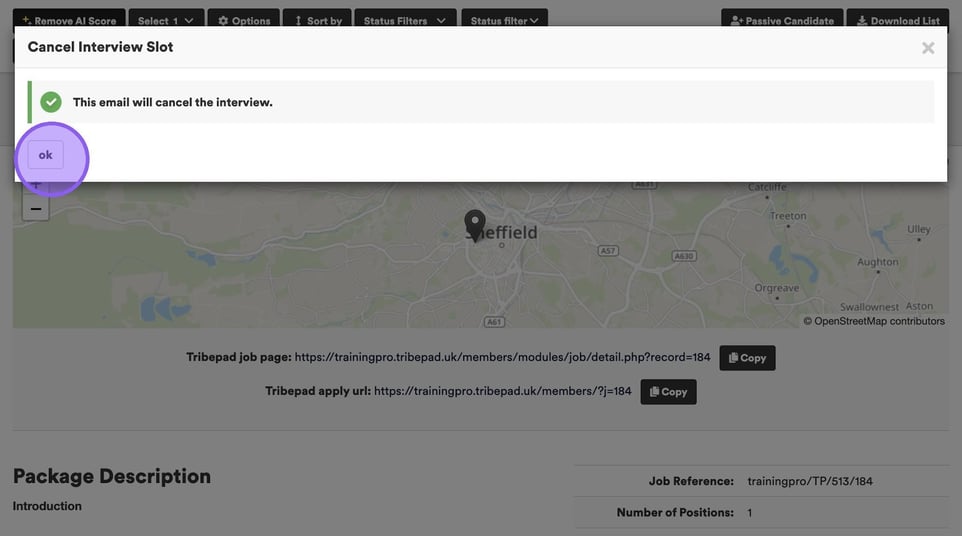
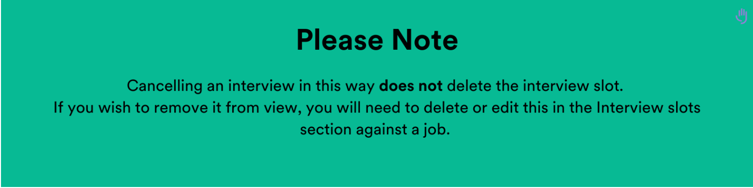
You will see the following message, confirming that this action has been completed. Click the "ok" button to close this.
👀 Viewing Meetings In The ATS
Once you have booked Meetings in the ATS, you are able to view them in a list.
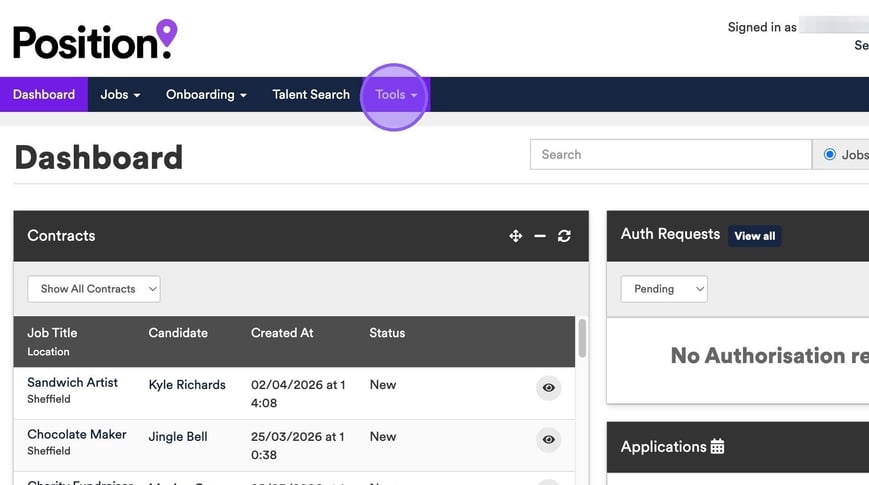
To do this, go to the Tools menu and click on ‘Meetings’.
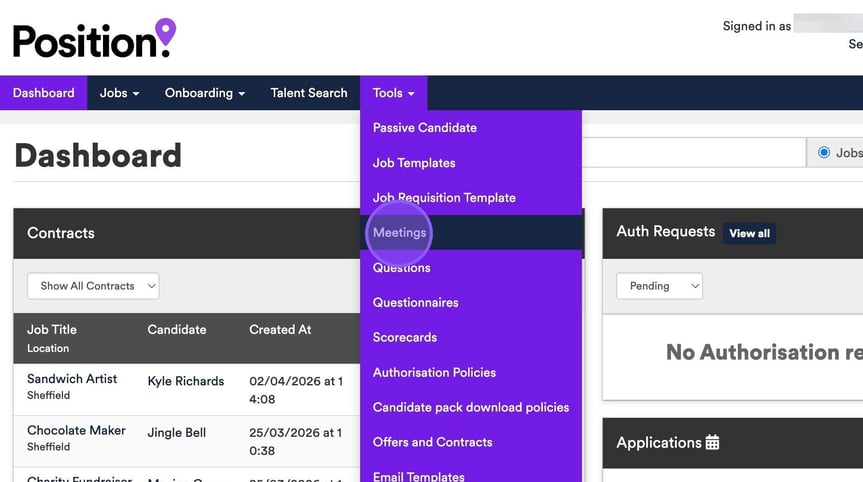
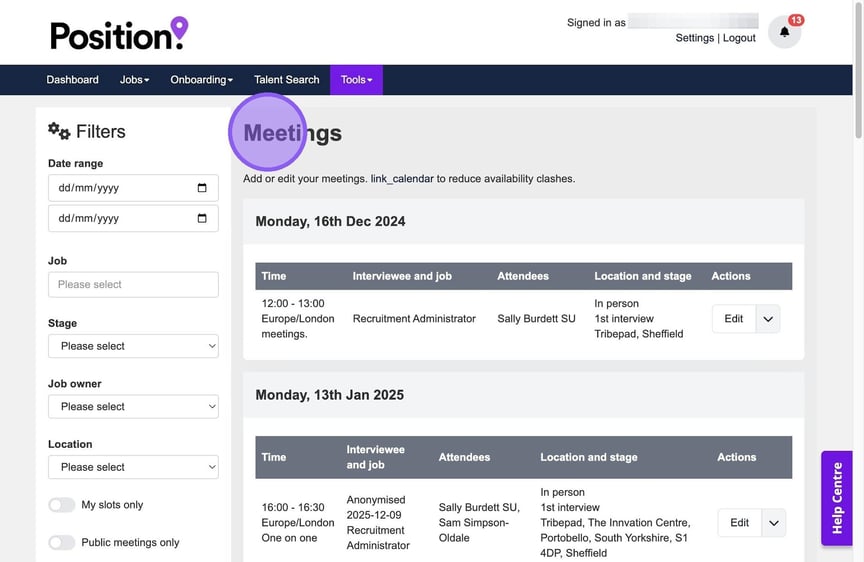
Your screen will refresh and you will see a screen that looks like this. Here you can see a list of any interviews that have been booked in the platform.
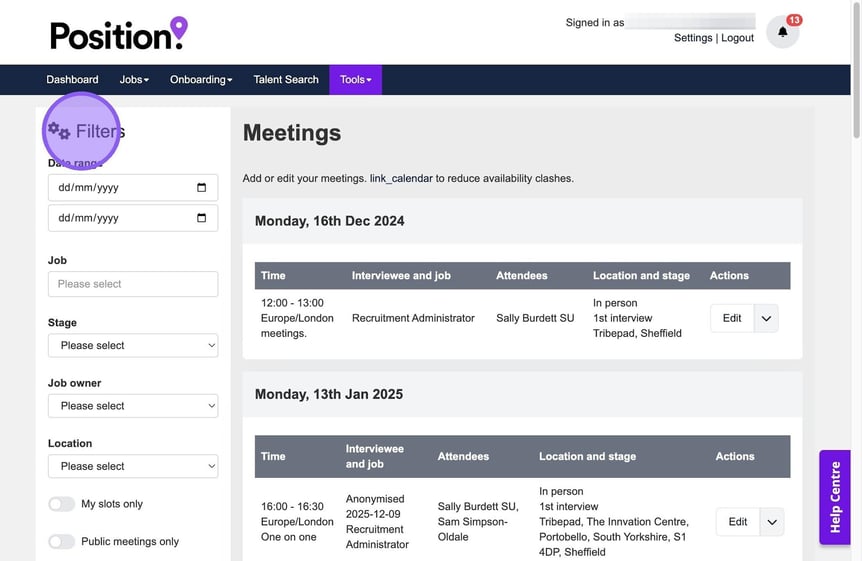
You can filter against the interviews using the options on the left-hand side of the page.
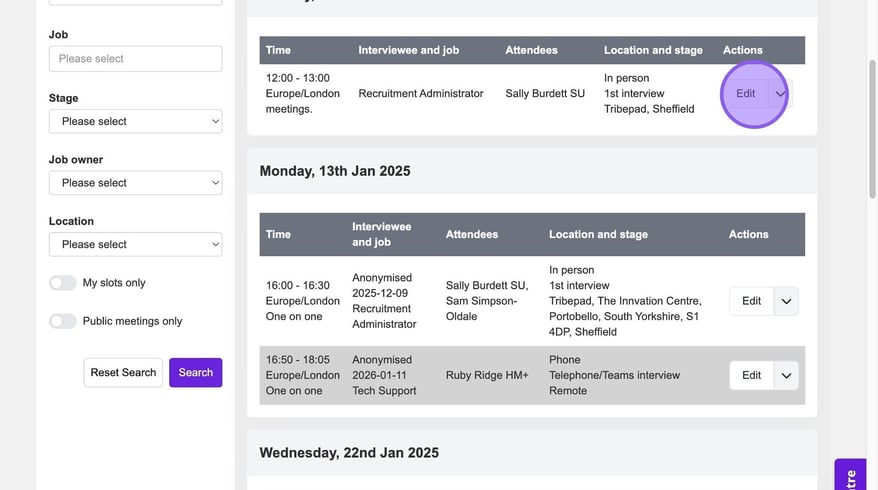
You have the option to edit any of your booked interviews by clicking the "Edit" button.
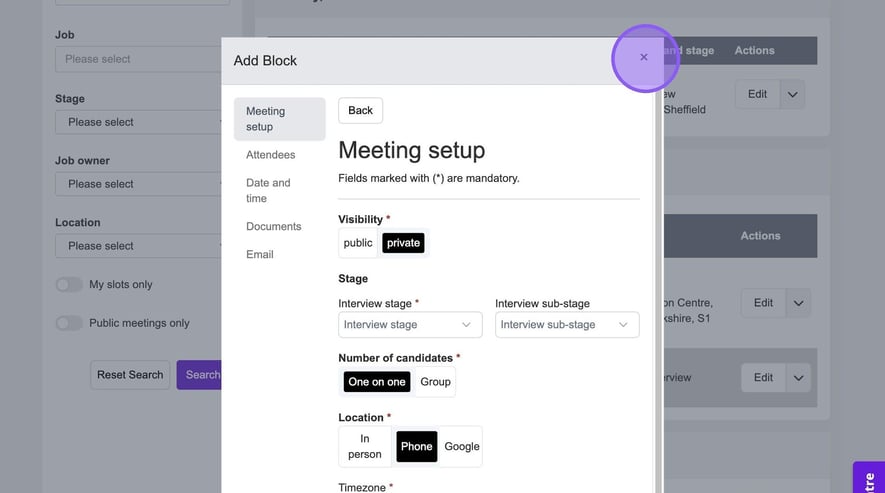
This will take you to a pop-out of the meeting setup page.
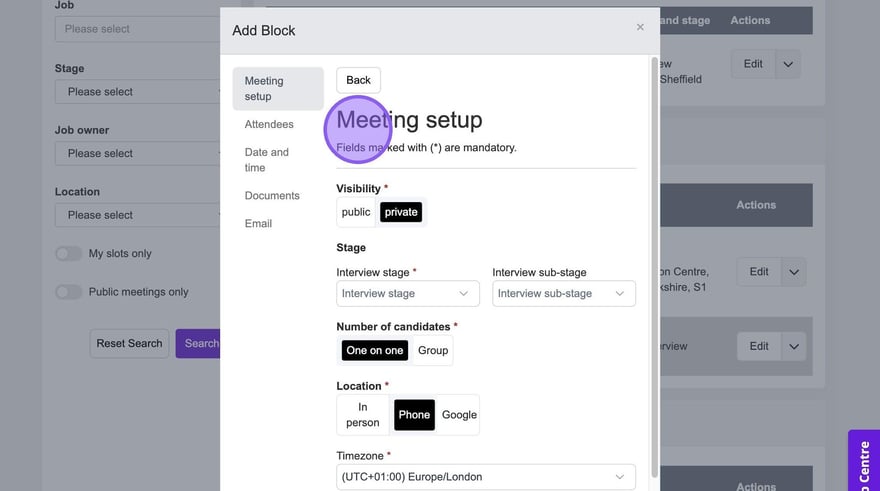
To go back to the main Meetings menu, simply click here.
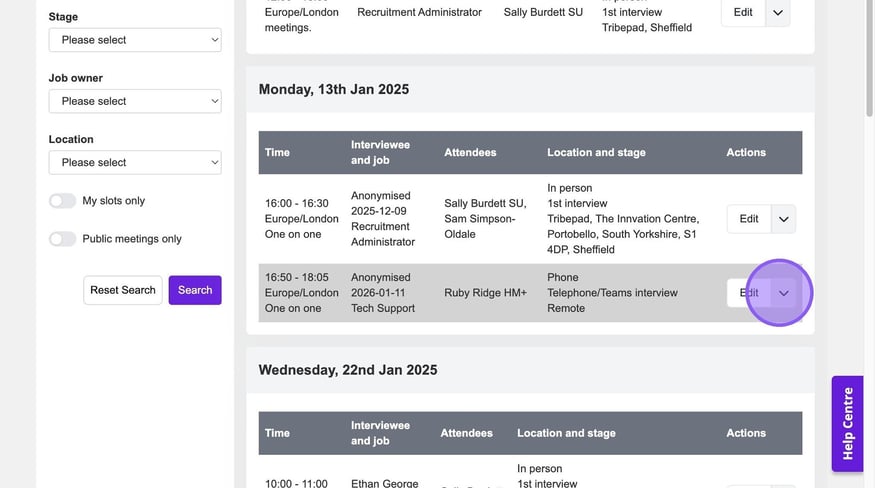
If needed you can also cancel interviews, to do this click here.
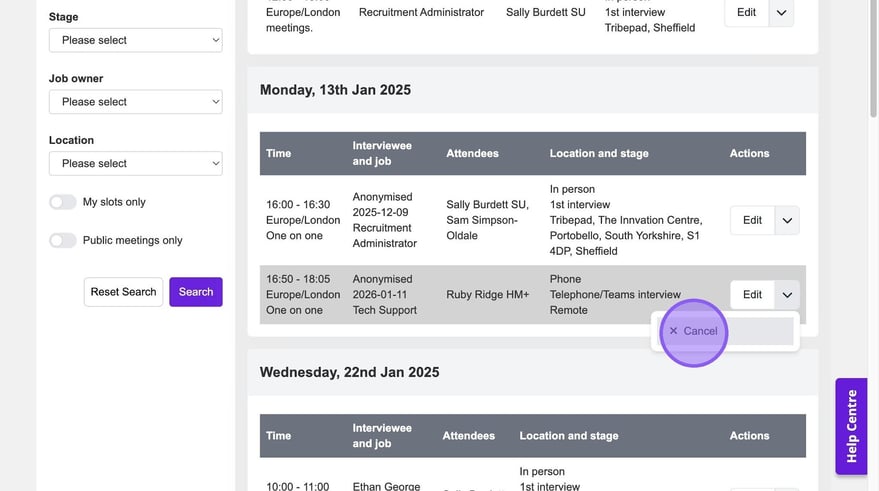
Followed by clicking "Cancel".
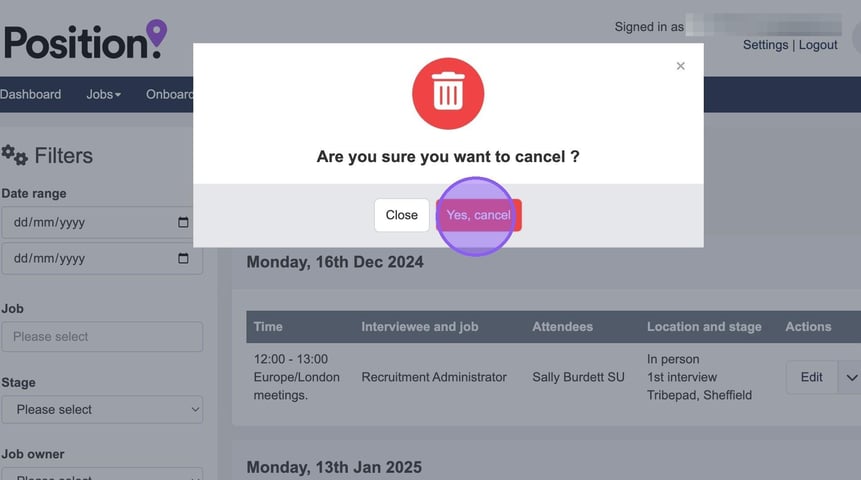
You will now see the following pop-out asking you to confirm this action. Click "Yes, cancel" to complete this action.
✏️ Setting Up Interview Slots Against A Job
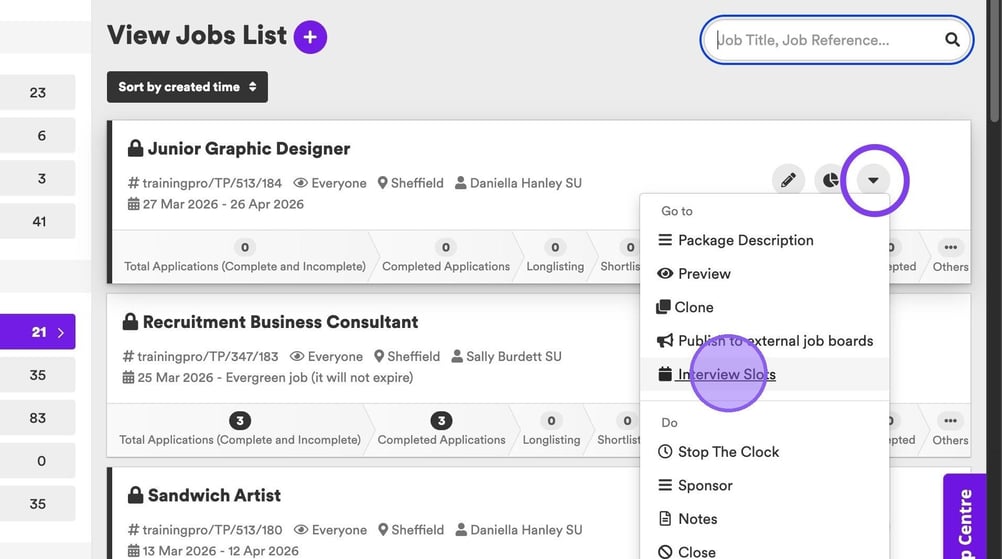
If you would like to pre-set up interview slots, to be used with the "Invite To Book"🖱️ functionality, from the jobs list, on the relevant job, click the downwards facing triangle, followed by "Interview Slots".
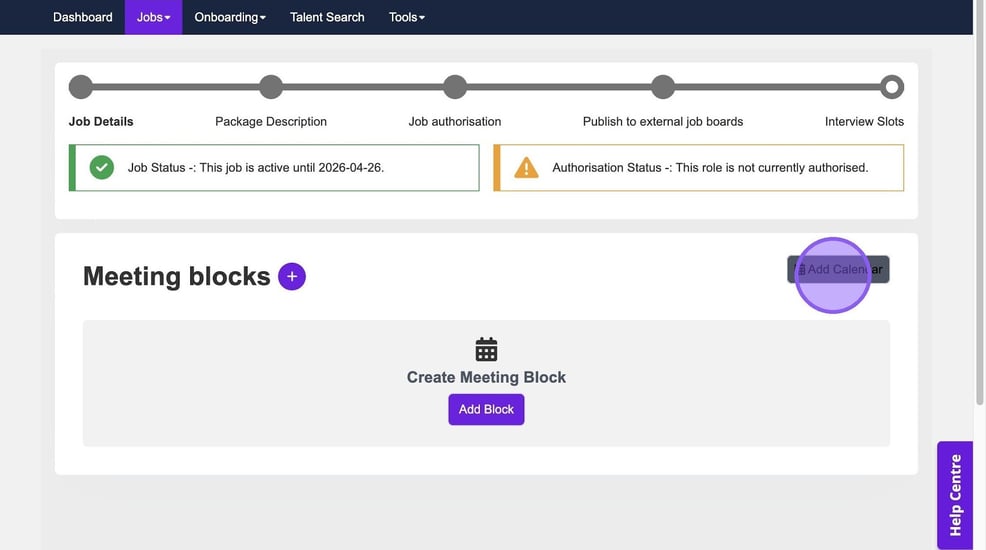
You will be taken to the following page, where you are able to set up your meeting blocks for your interview. Please note, you can also add your calendar from this page by clicking the highlighted button.
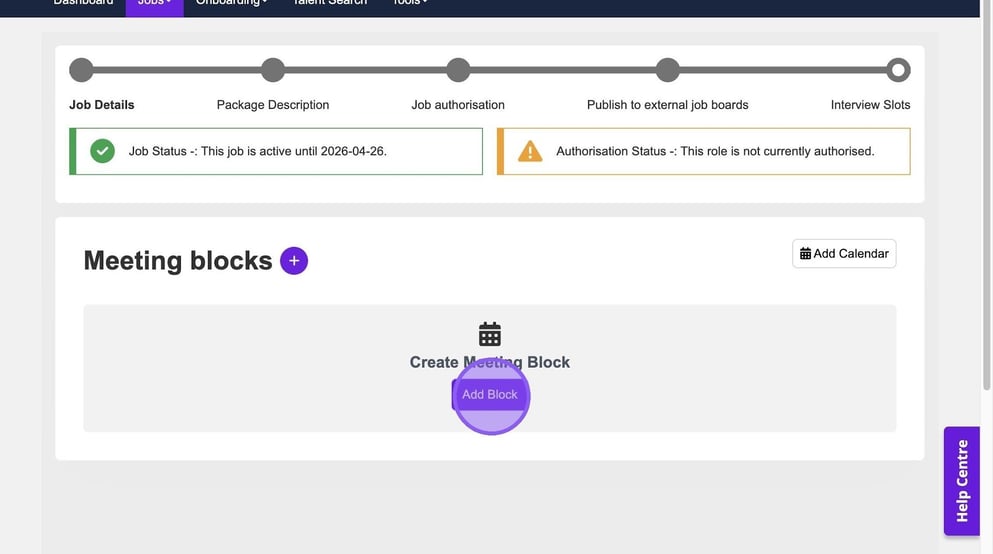
Click "Add Block".
You will now be taken to the following page, this will allow you to complete your "Meeting Setup" details.
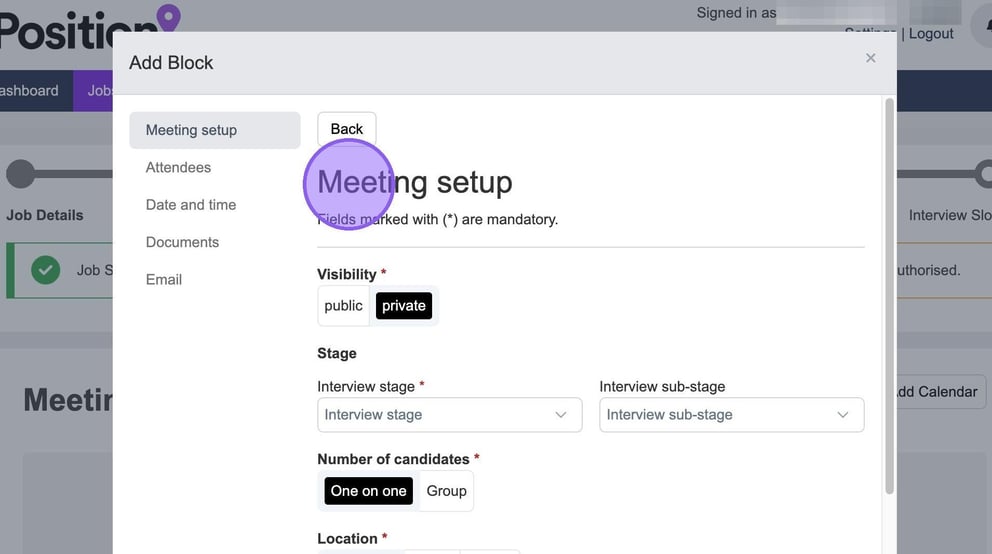
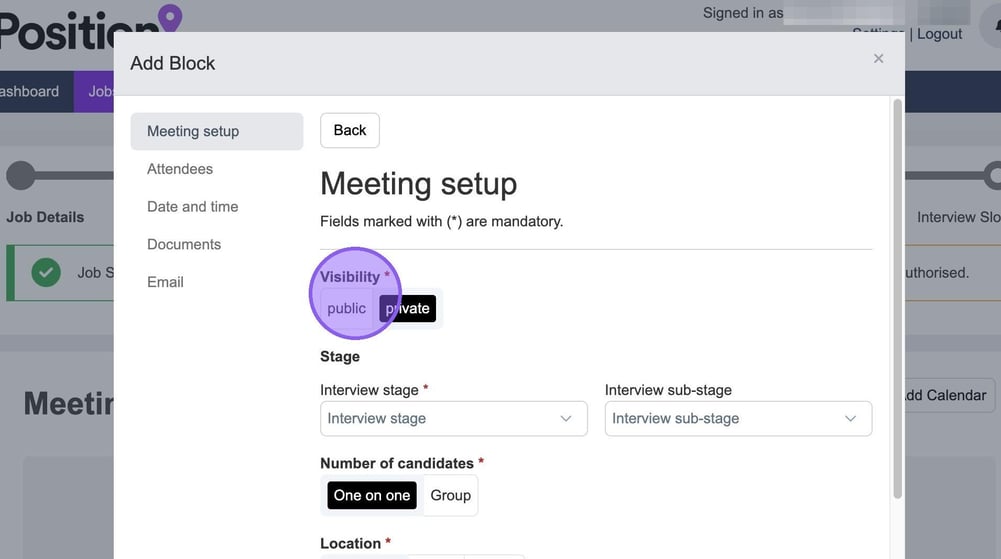
To set your visibility select either "public" or "private". If you set your visibility to public then it will show that you are conducting an interview on your calendar, if you set this to private the slot in your calendar will show as "busy" instead.
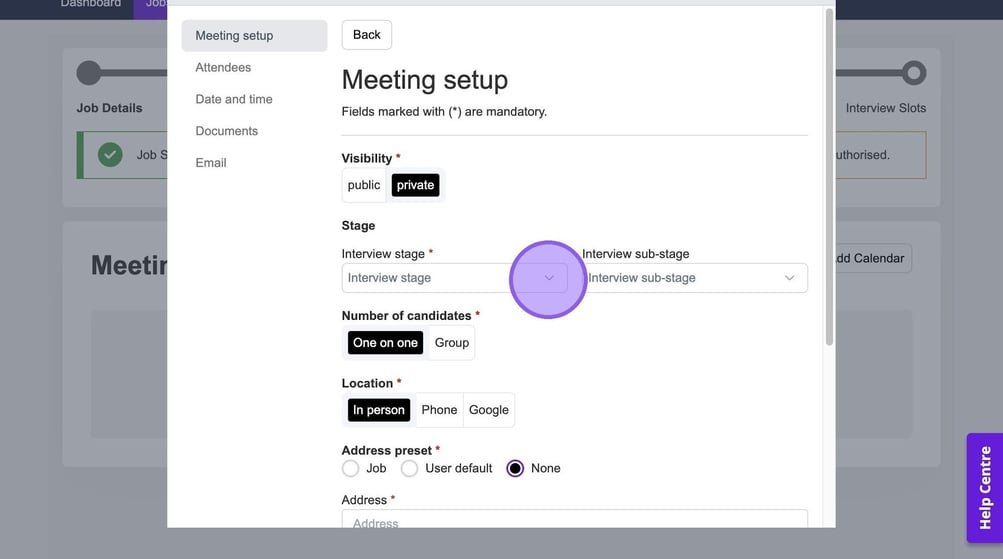
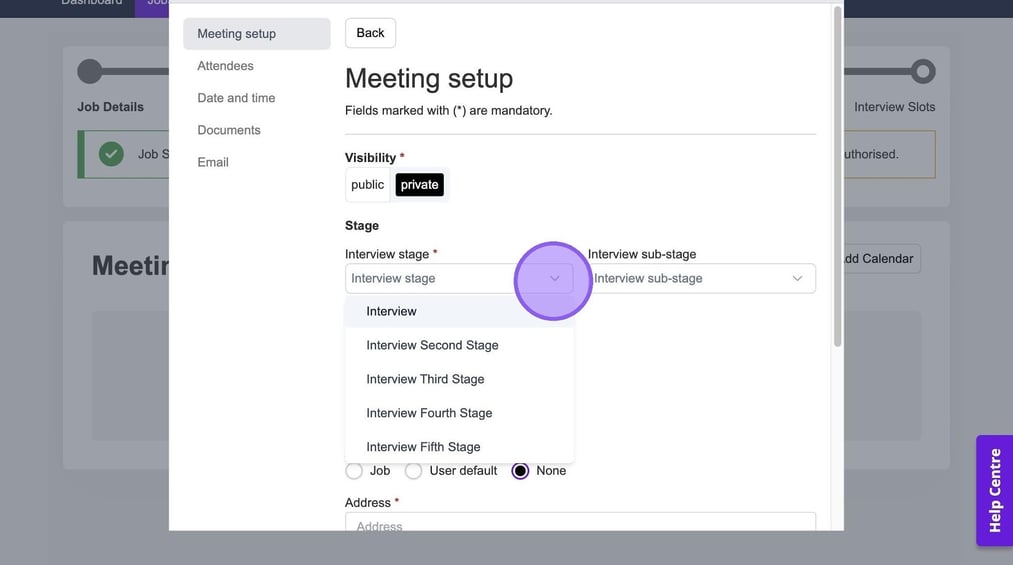
Now choose your Interview Stage, by selecting from the drop-down menu.
The options you see here are determined by any "workflows" you have created in Manage, and set on the job.
If needed, you also have the option to select an interview sub-stage.
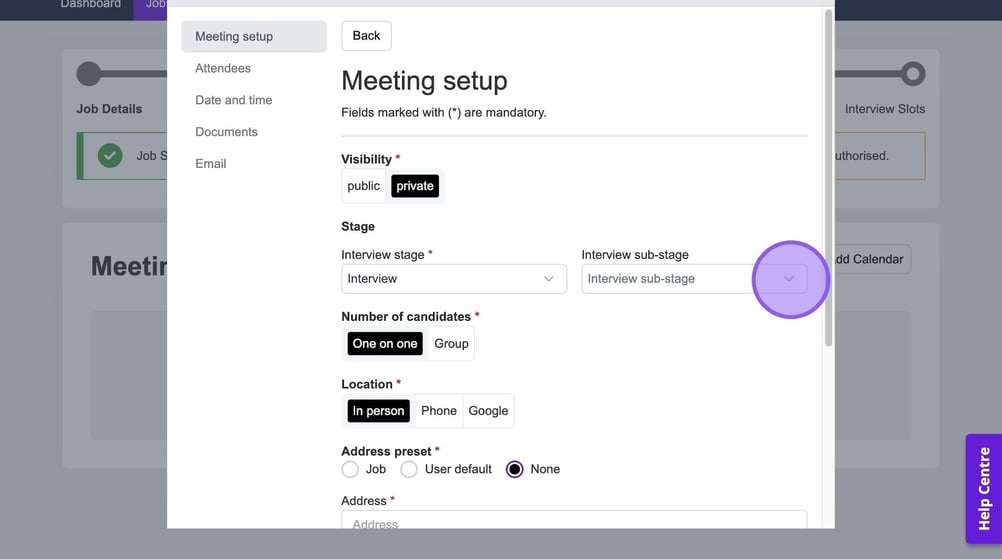
Now decide whether you will be conducting a one on one or group interview, by clicking the relevant option.
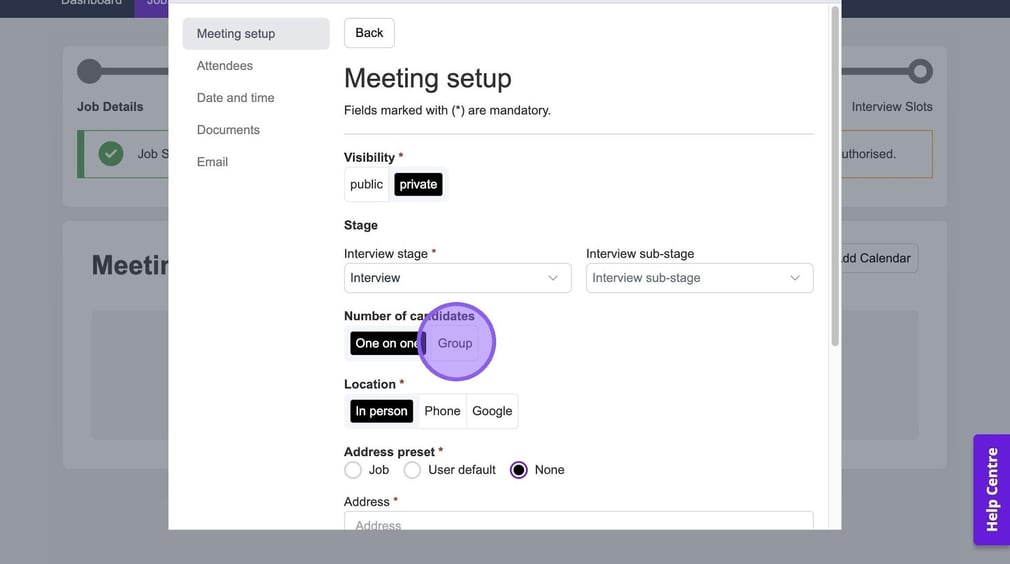
If you choose to conduct a group interview you will see the following option, where you are able to enter the maximum number of candidates who can attend your interview.
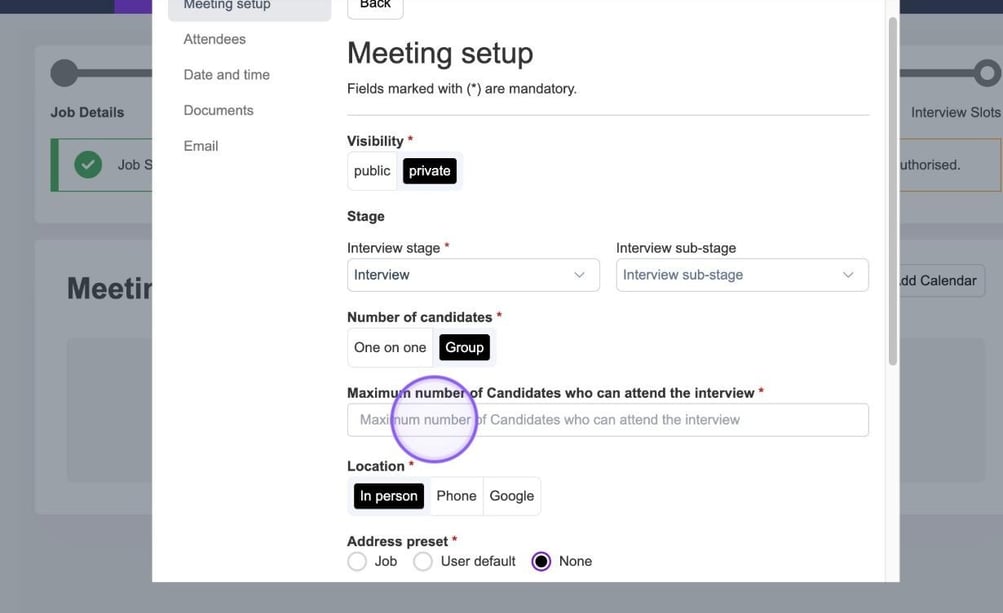
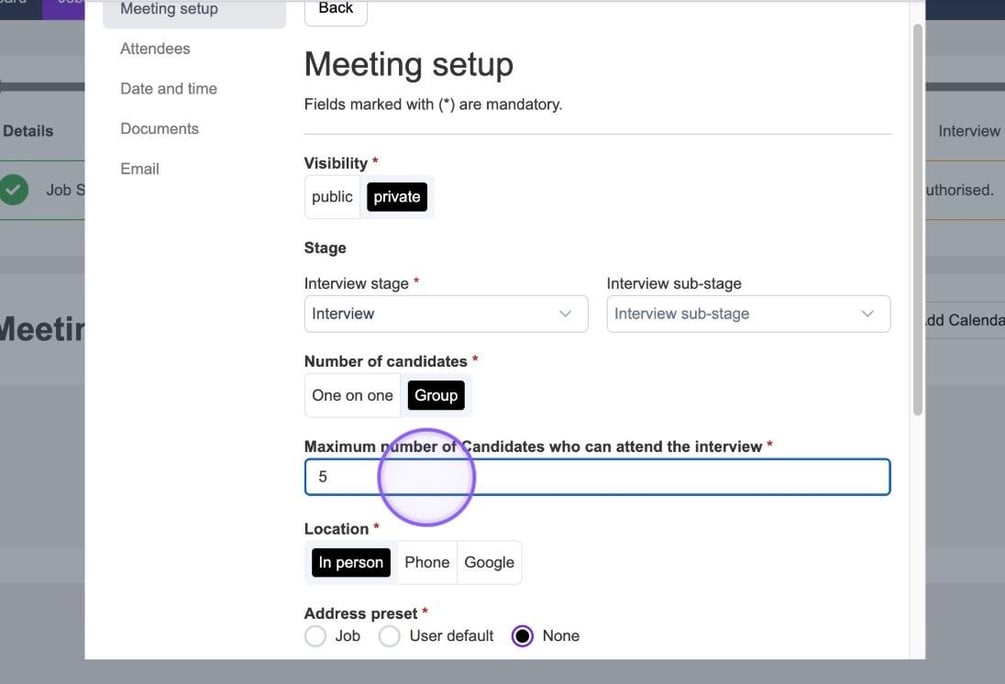
Simply type the relevant number in this box to set this.
Once you have set the above or if you chose one on one interview you will now need to set the address for your interview. You have the option to either set the address on the job, your user default or none - regardless of which you choose you are still able to amend any fields whether they have been pre-filled or not.
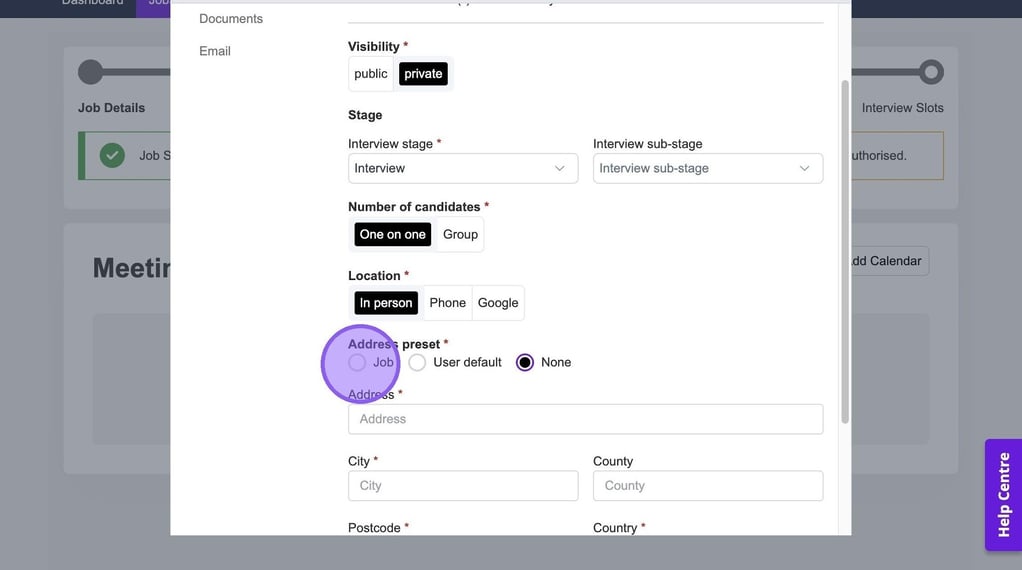
Once you are happy with all of the above, click "Continue".
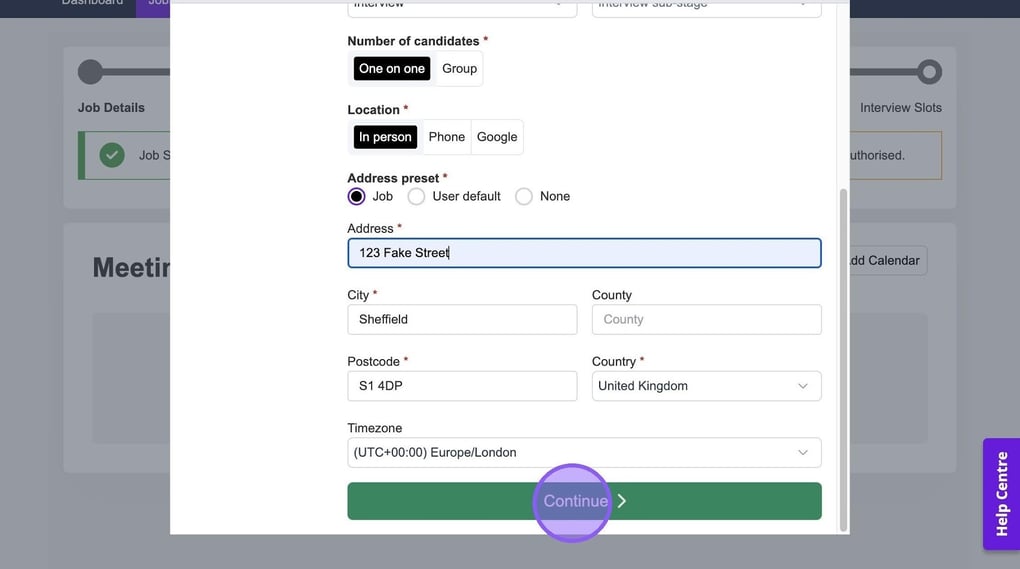
You will now be taken to the "Attendees" part of this process. To get started type in the name of who will be conducting the interview.
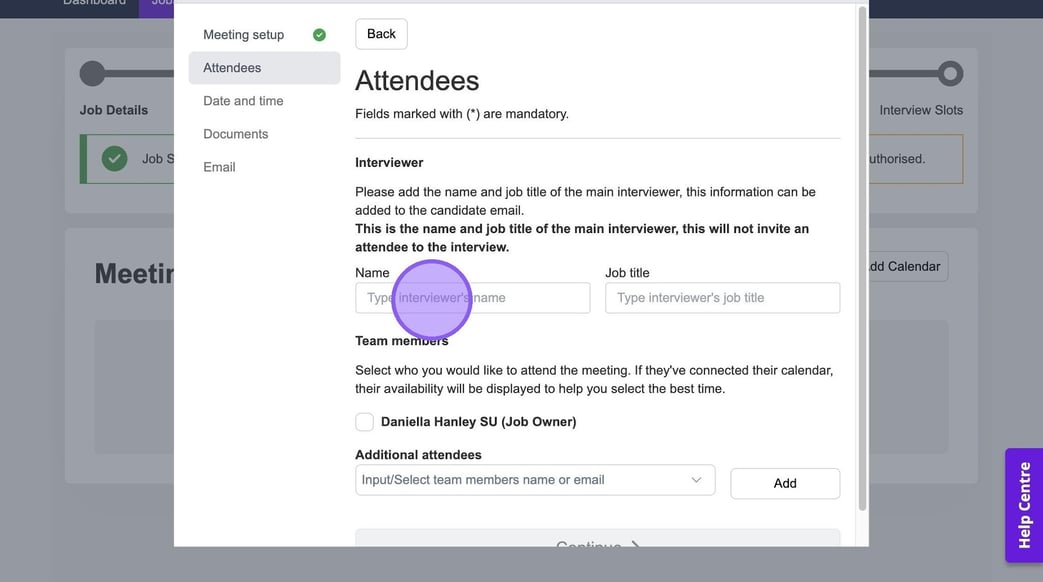
You also have the option to add a job title for the main interviewer, by typing it into this field here.
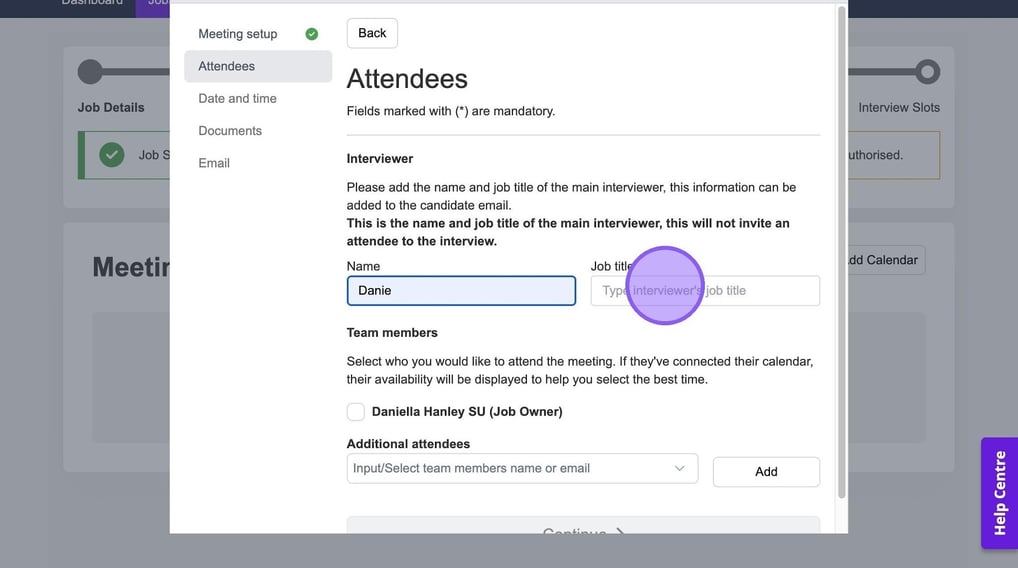
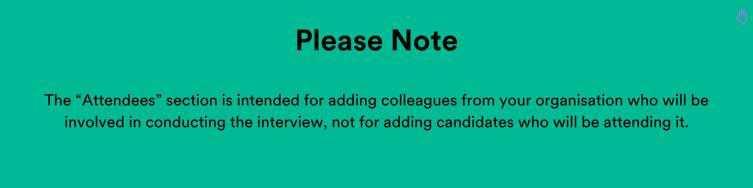
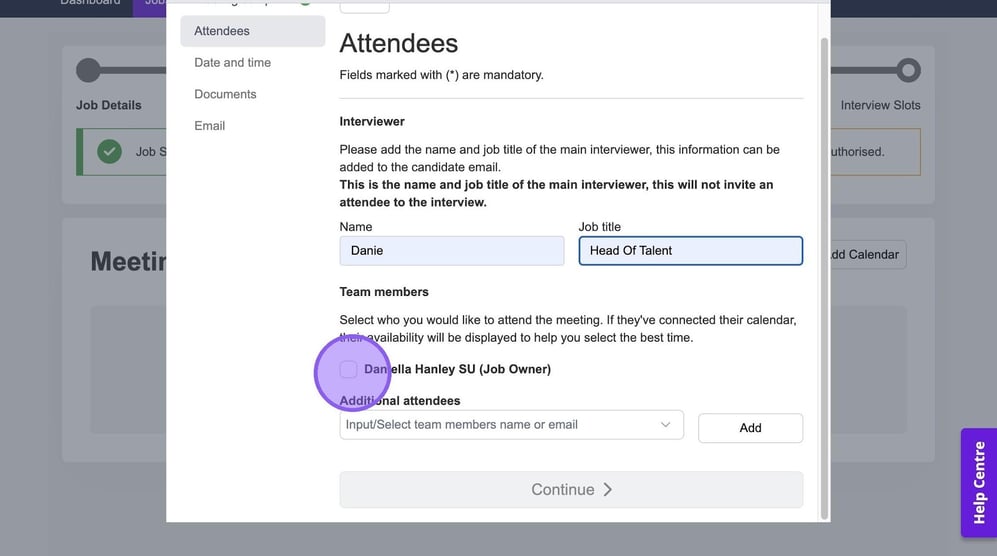
It's now time to add in any additional team members who will be attending your interview. Select the check box next to the names of any colleagues that you would like to add from the list.
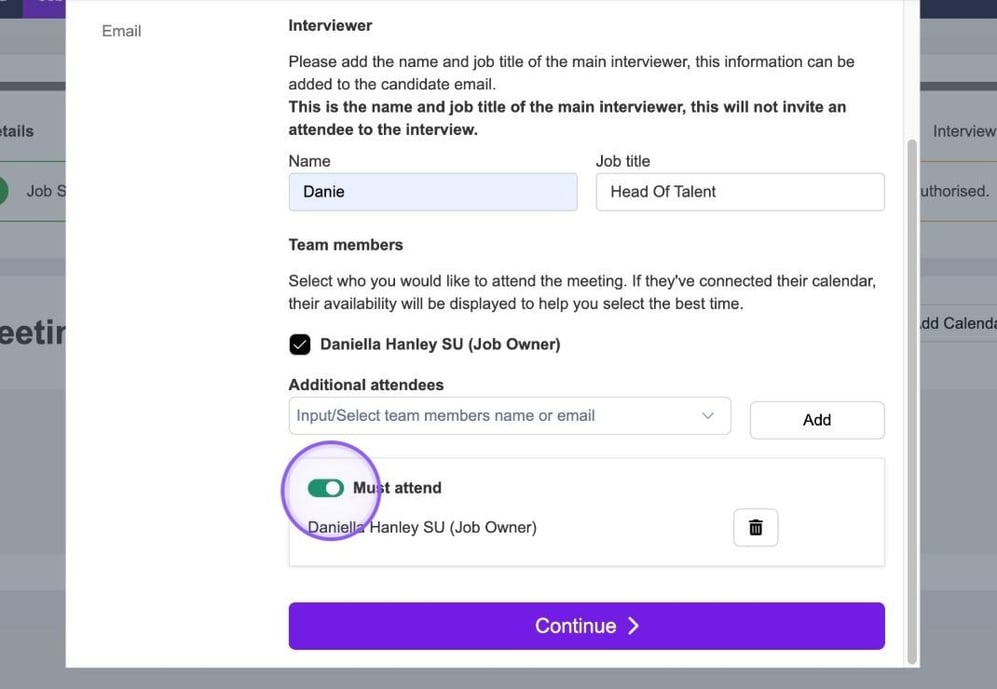
You also have the option to toggle on the "Must attend" field.
If you need to add any further team members that are not visible in the initial list, you can do this by clicking here.
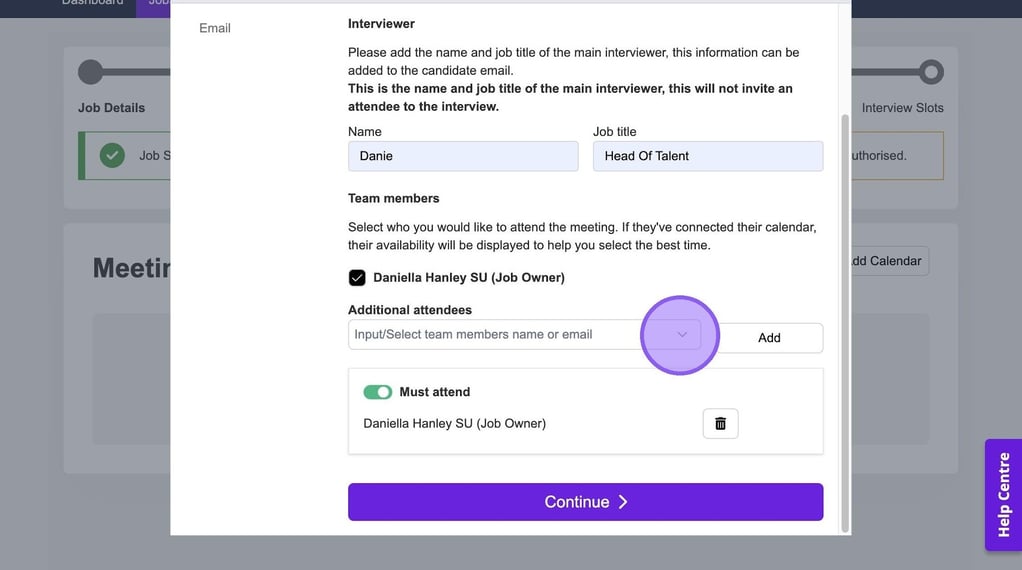
Now type in the name of your colleagues, followed by clicking the magnifying glass to search for them.
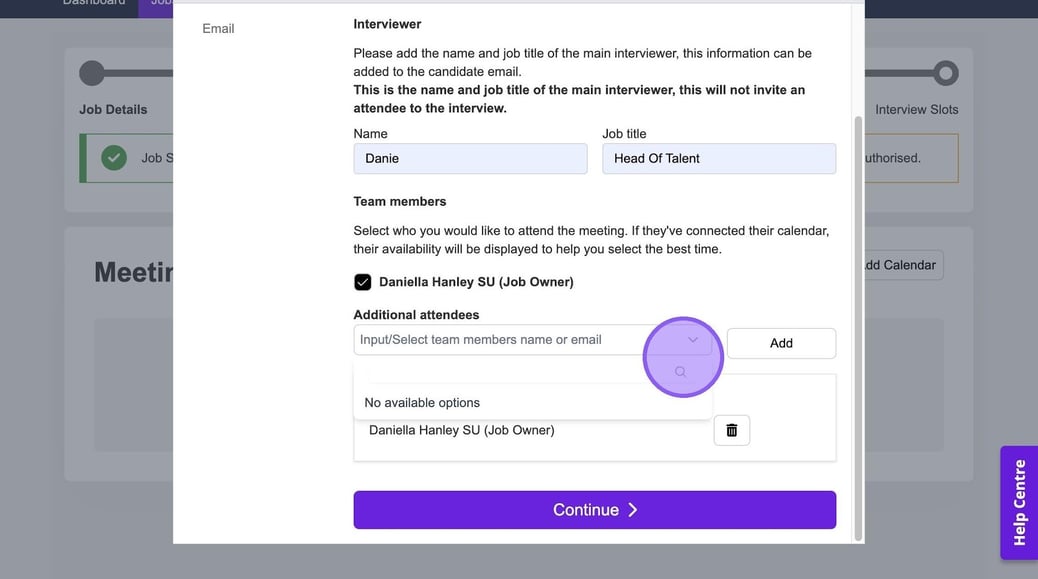
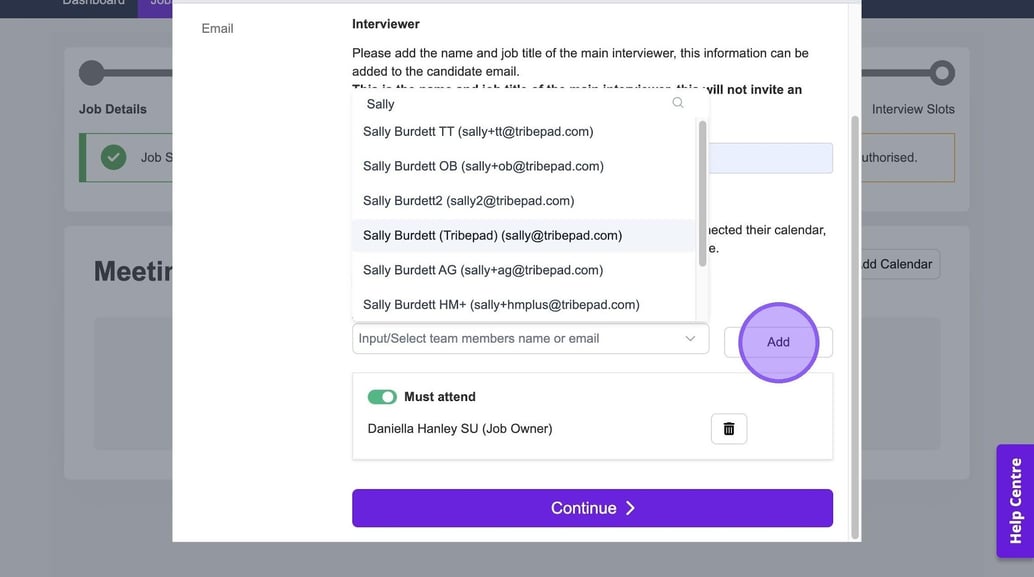
Once you have found the relevant colleague, click on their name and "Add".
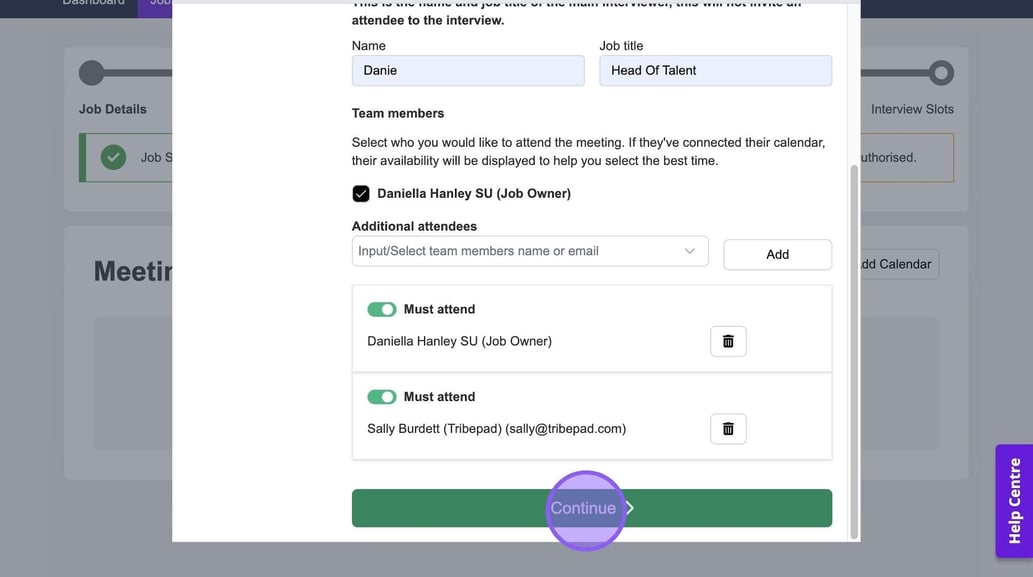
Once you are happy with all of the above, click "Continue".
You will now be taken to the following part of the process, where you are able to add blocks. To get started click this text field.
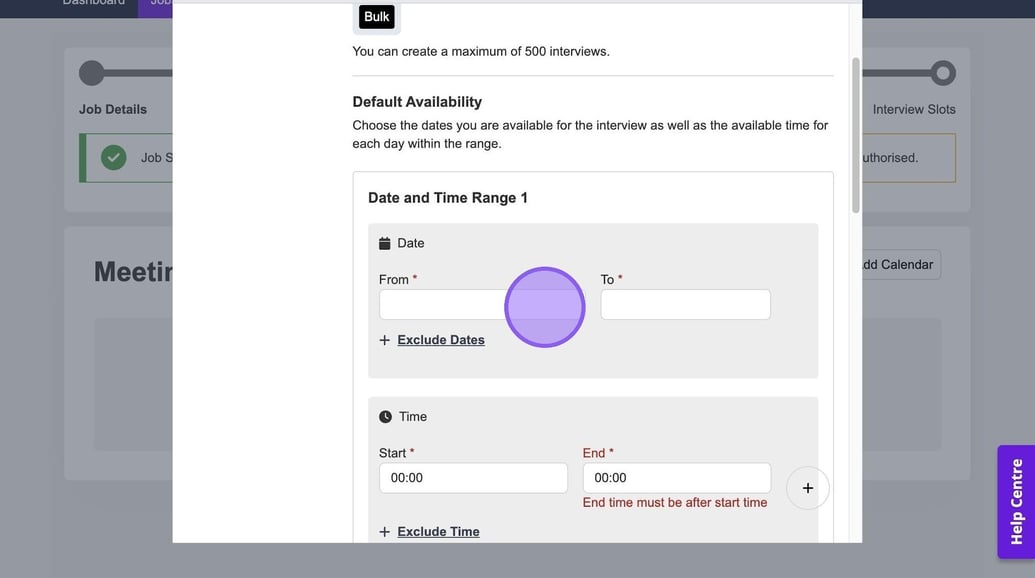
Select your relevant "from" date from the pop-out calendar.
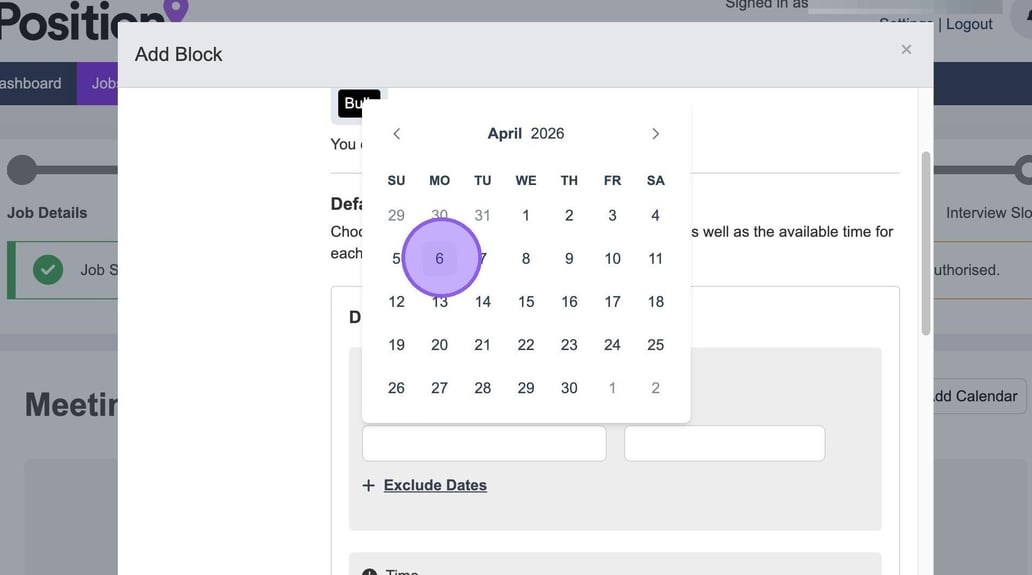
Repeat this step for the "to" date.
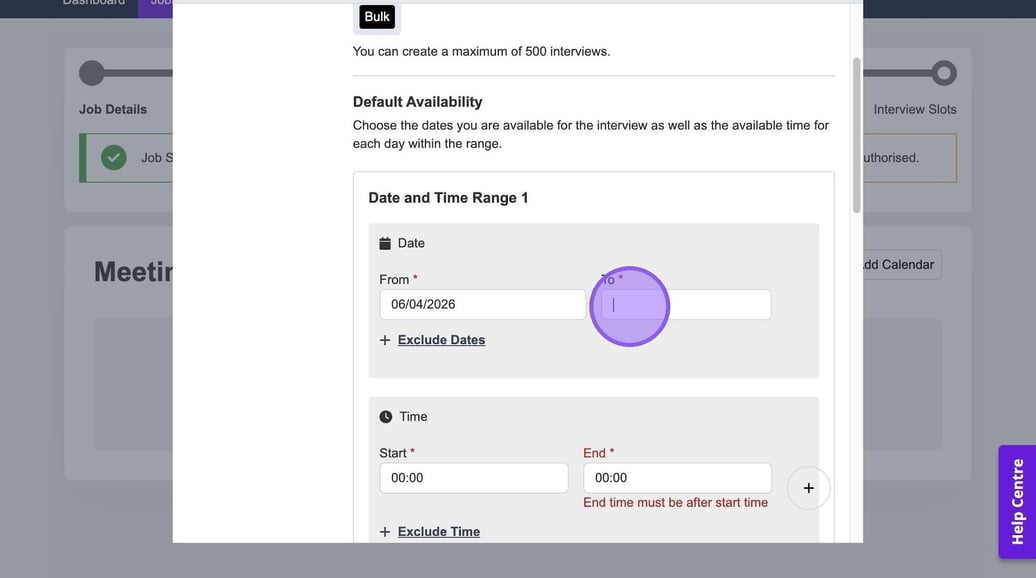
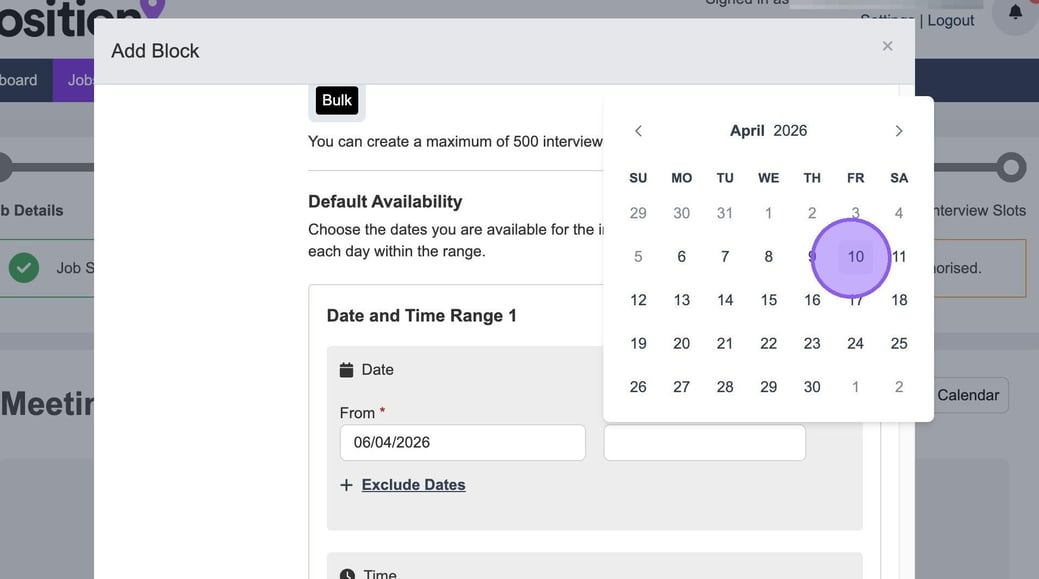
Again selecting the relevant date from the pop-out calendar.
If you would like to exclude any specific dates from your "from" and "to" block of time, click the "Exclude Dates" text here.
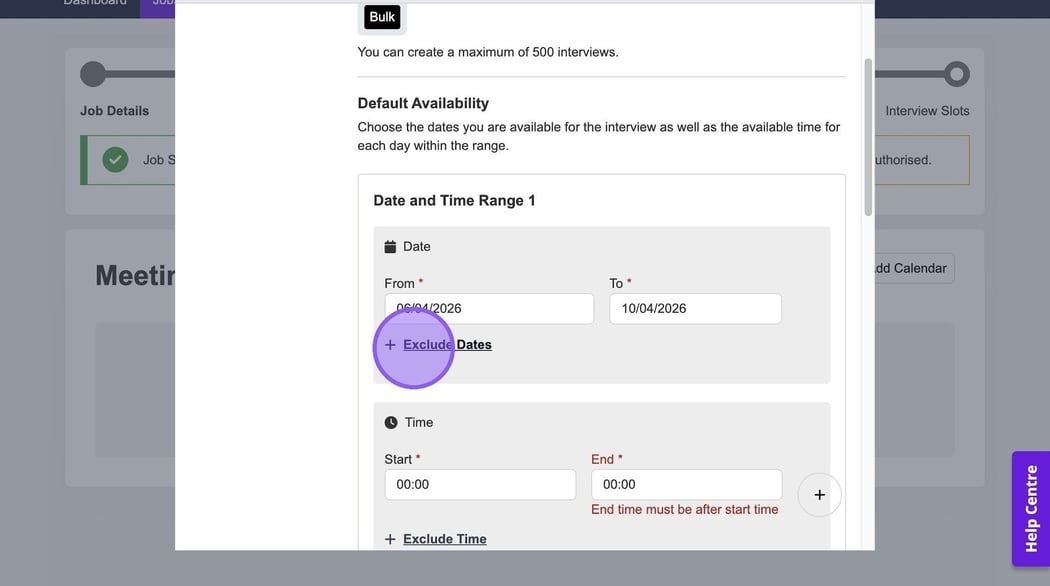
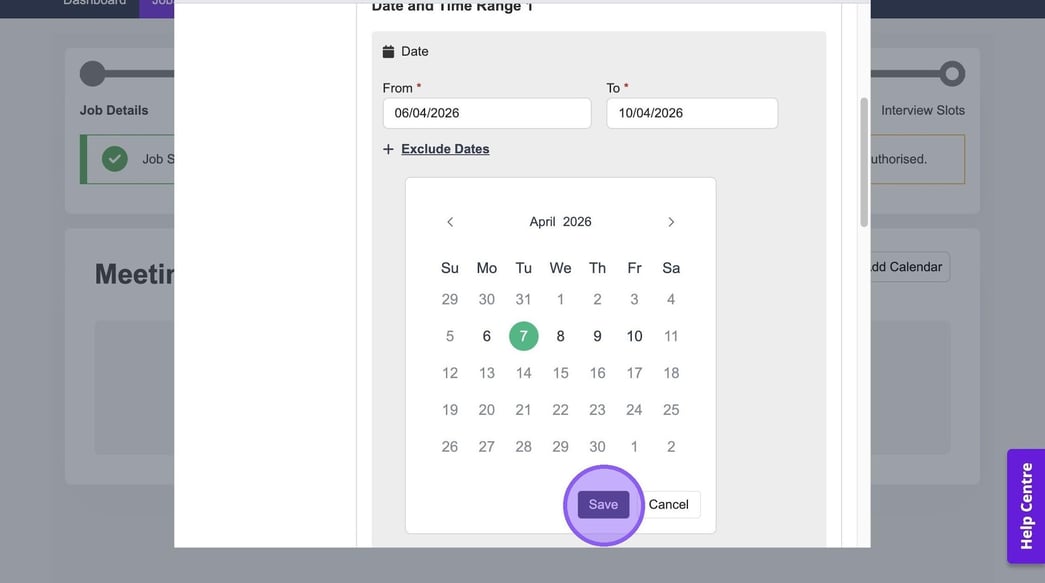
Again you will see a pop-out calendar to select from.
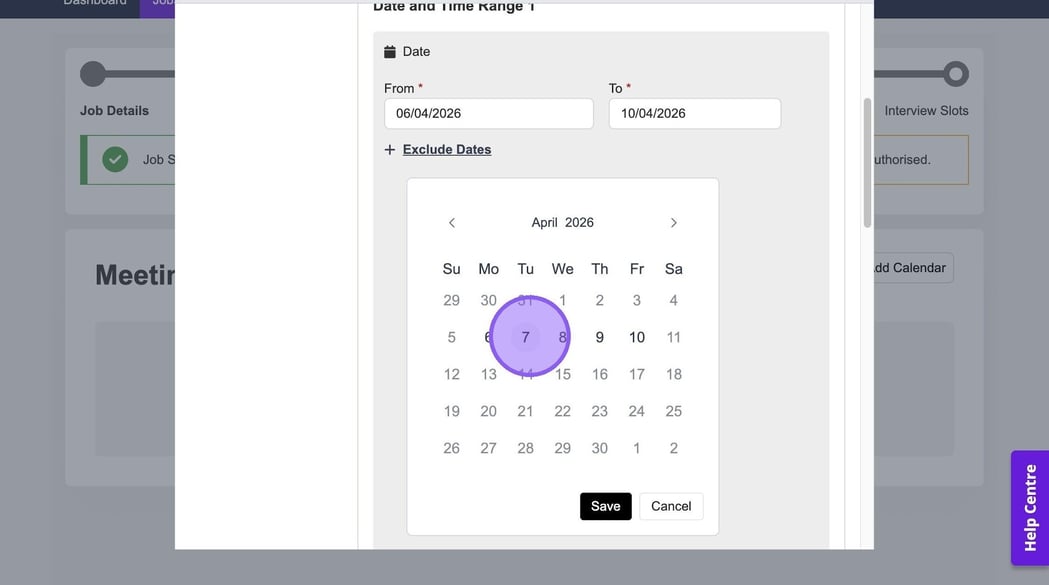
Once you are happy with your selection, click "Save".
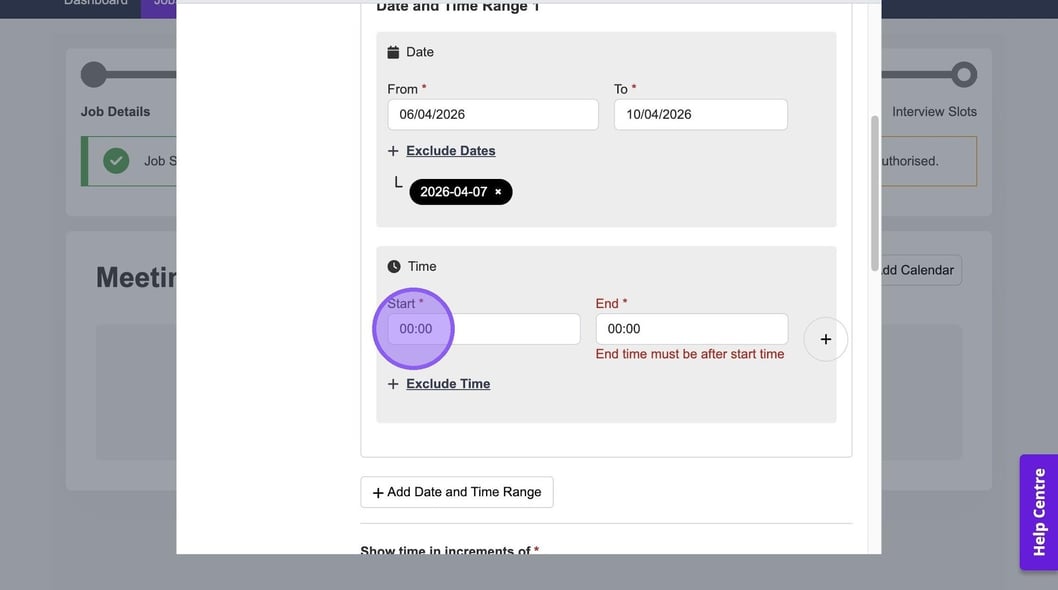
Now you will need to set your available times to interview by clicking this field.
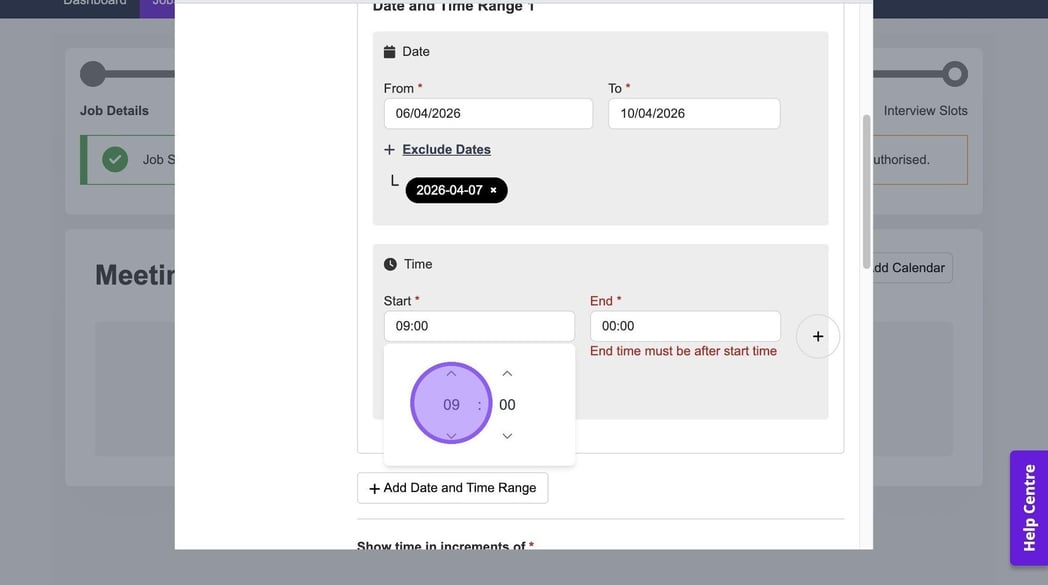
To select a time, you have the option to either type this, or to click on the arrows above & below the numbers.
Repeat this step to set your end time.
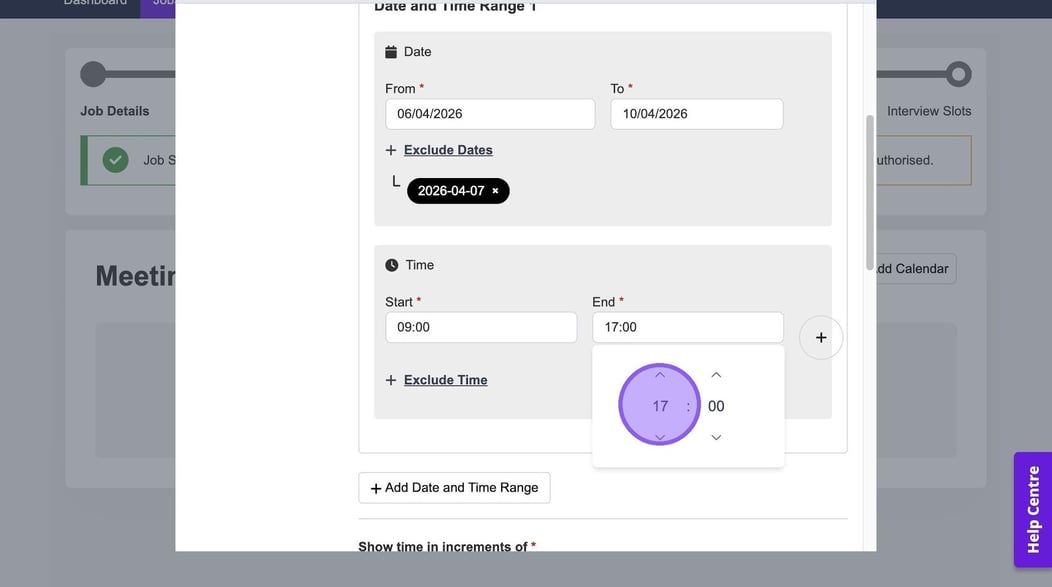
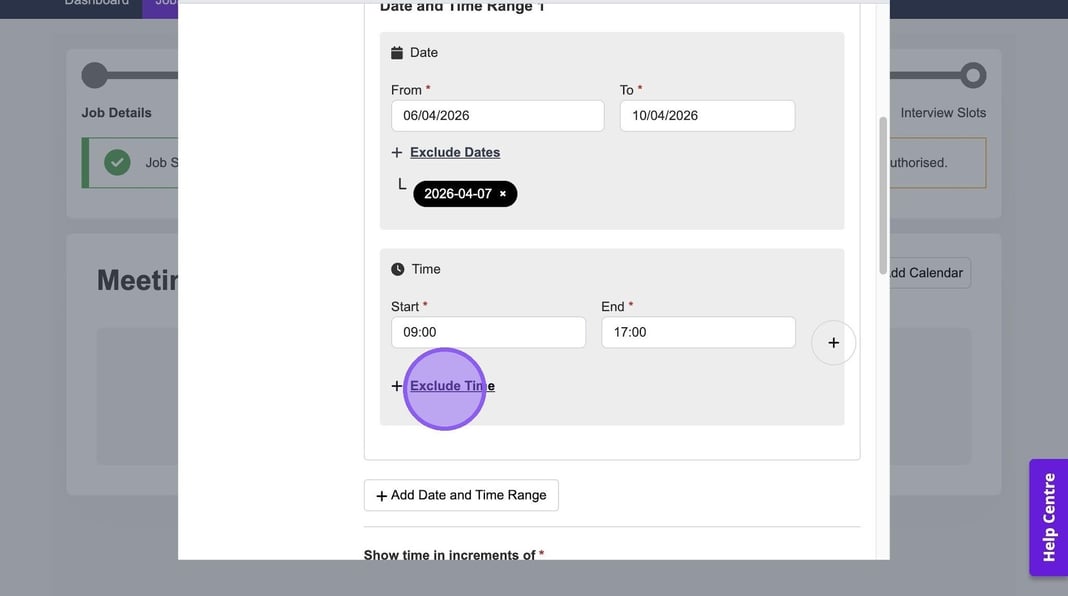
If you would like to exclude a certain time, for example your lunch break, click "Exclude Time" here.
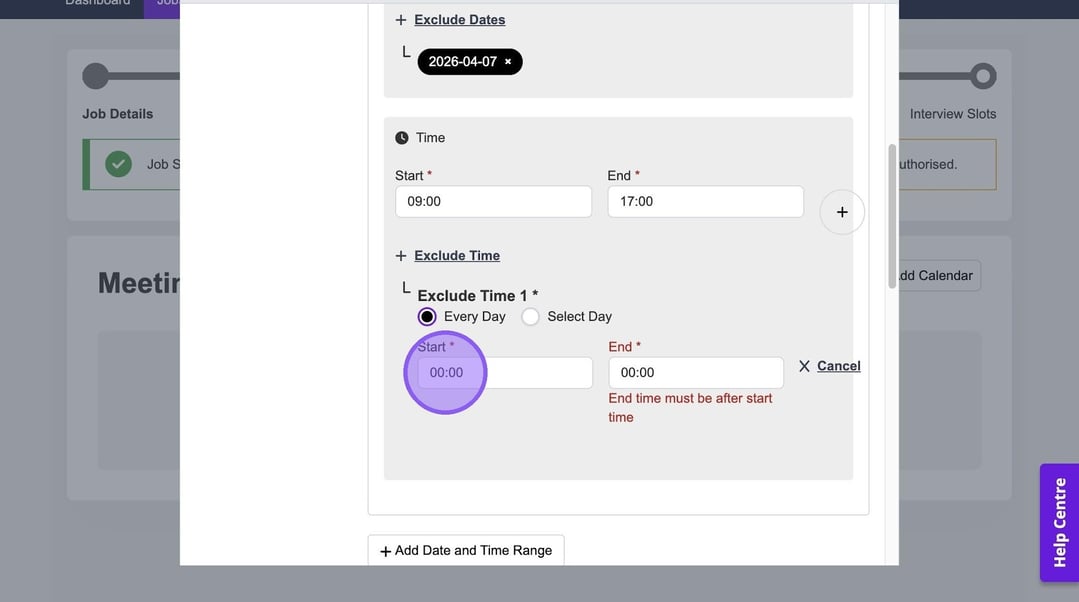
To set your excluded time, repeat the same process as setting your start and end time, by clicking this field and typing a time or using the arrows.
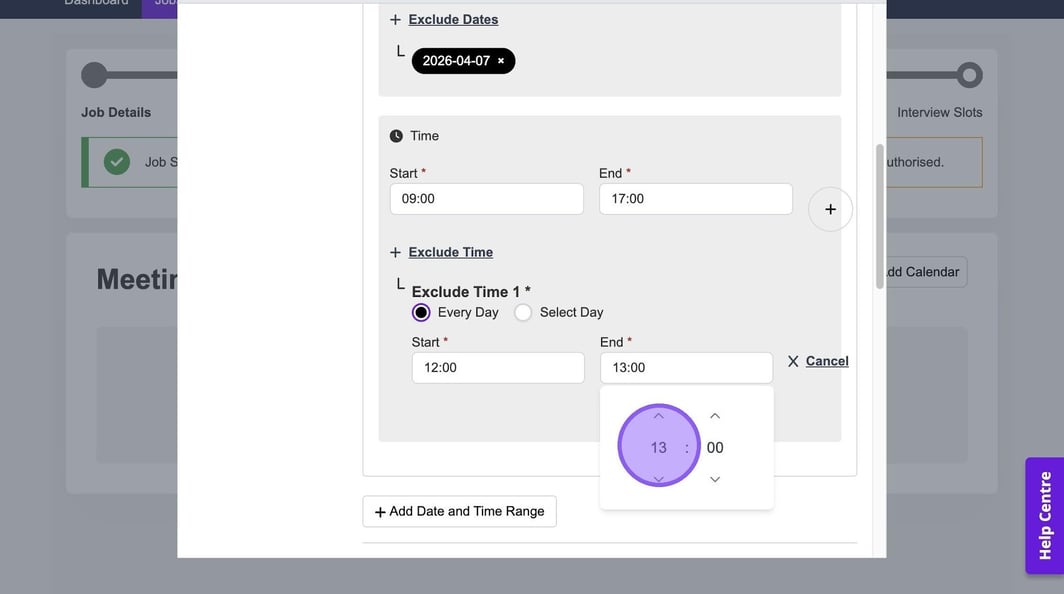
And again for your end time.
If required, you have the option to add a further date and time range by clicking this button here.
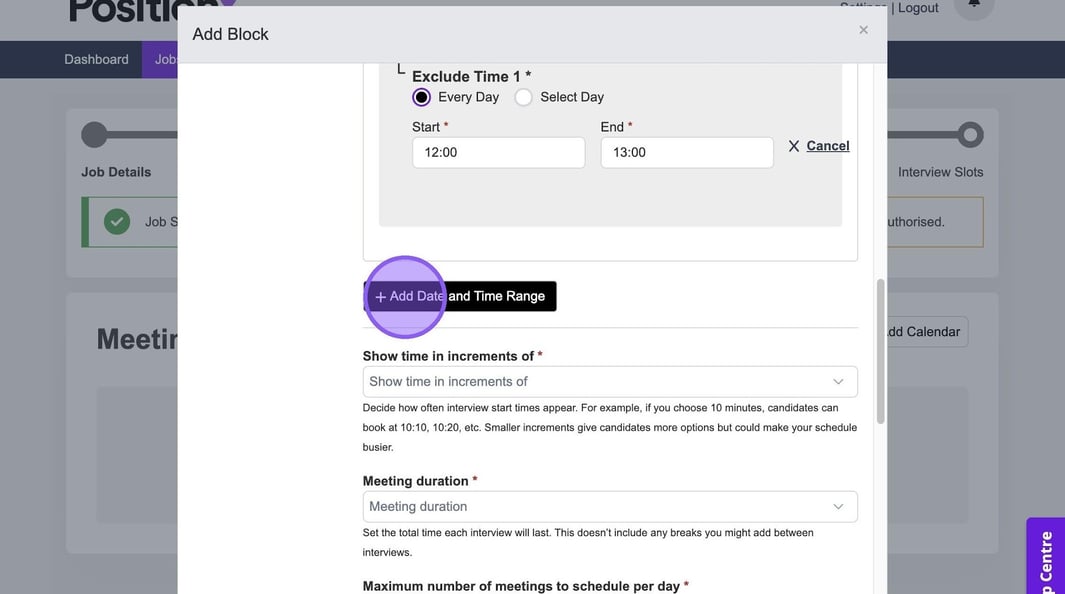
This will create a "Date and Time Range 2".
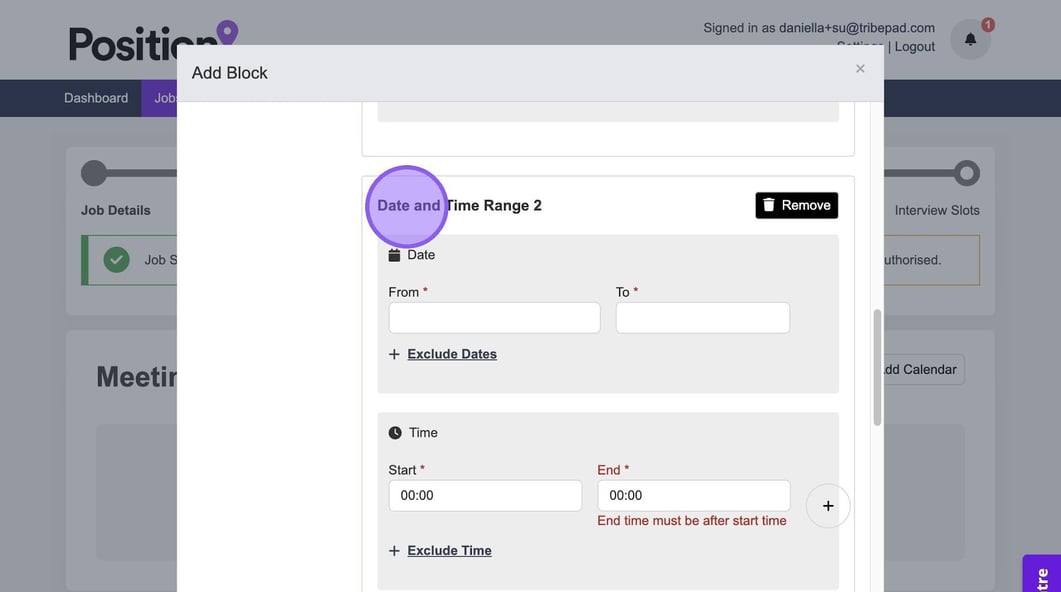
If you no longer need this, or added it in error, simply click "Remove".
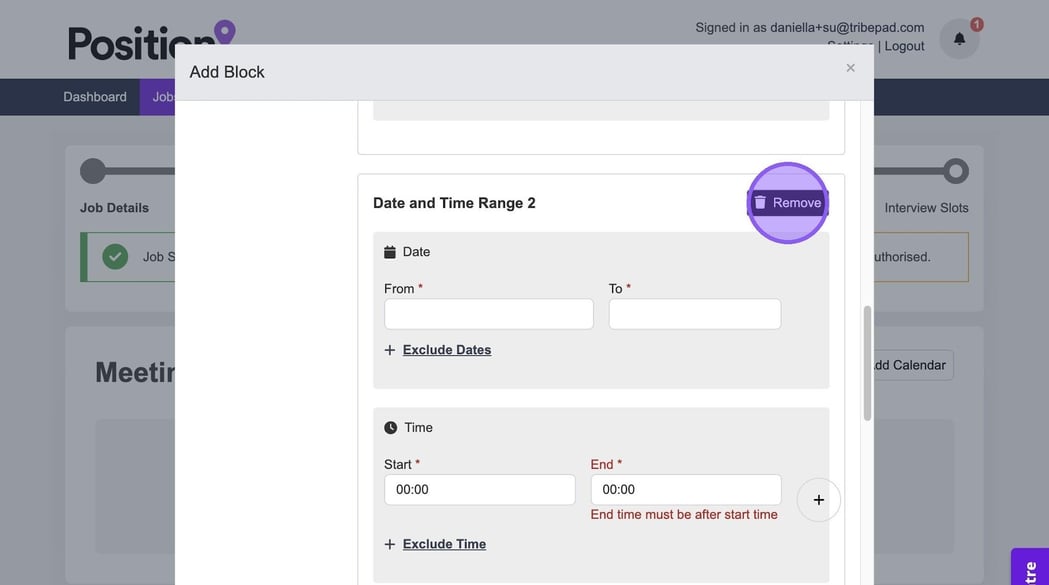
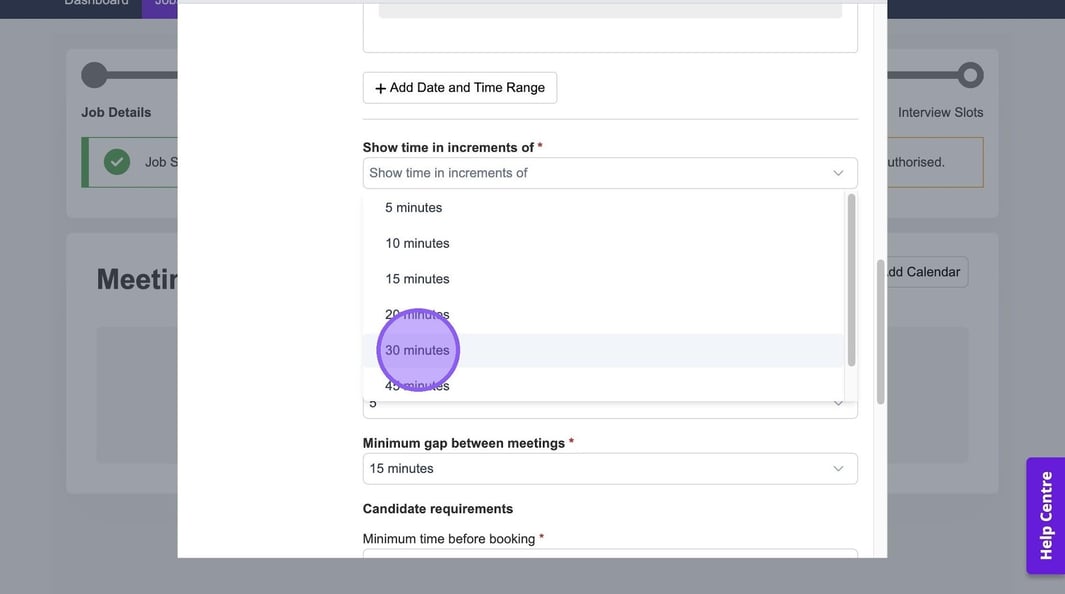
You now need to decide how you would like to show your interview start times, by clicking this drop-down here.
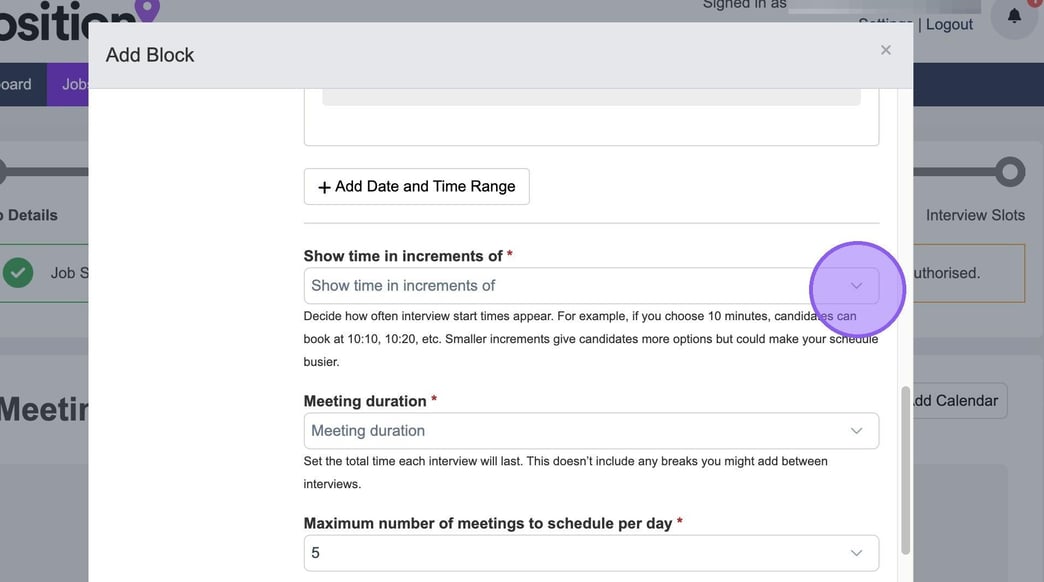
You will see a list of options to select from. For example, when choosing how often your start times will appear, be aware that a 10-minute interval allows bookings at 10:10, 10:20, and so on. Be aware that shorter intervals offer more flexibility for candidates but may result in a busier schedule for you.
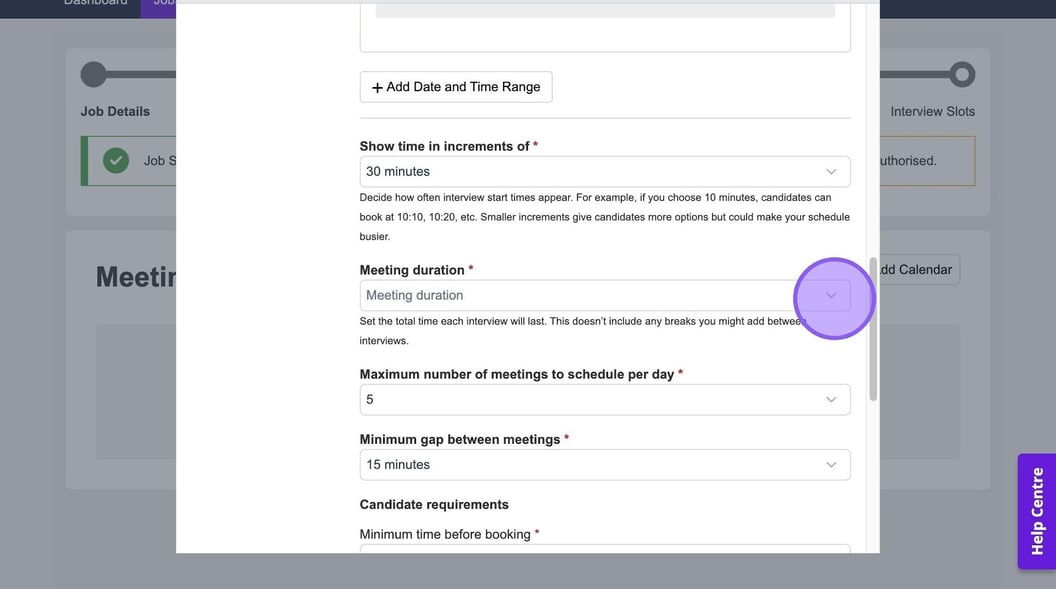
Now choose your meeting duration by clicking here.
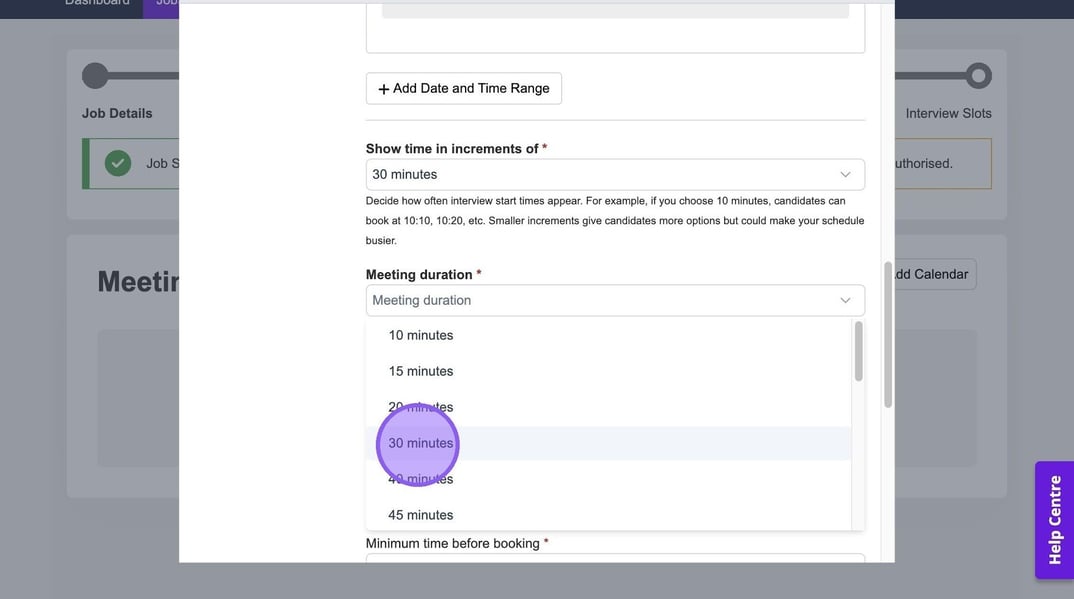
You will see a drop-down menu for you to select a duration from.
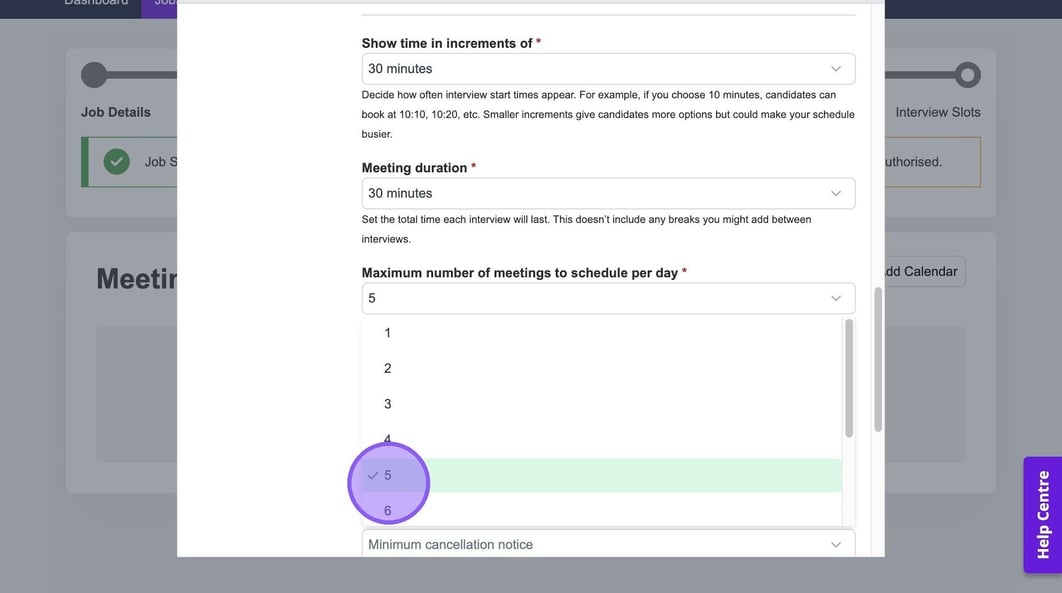
Choose the maximum number of meetings you would like to schedule per day by clicking here.
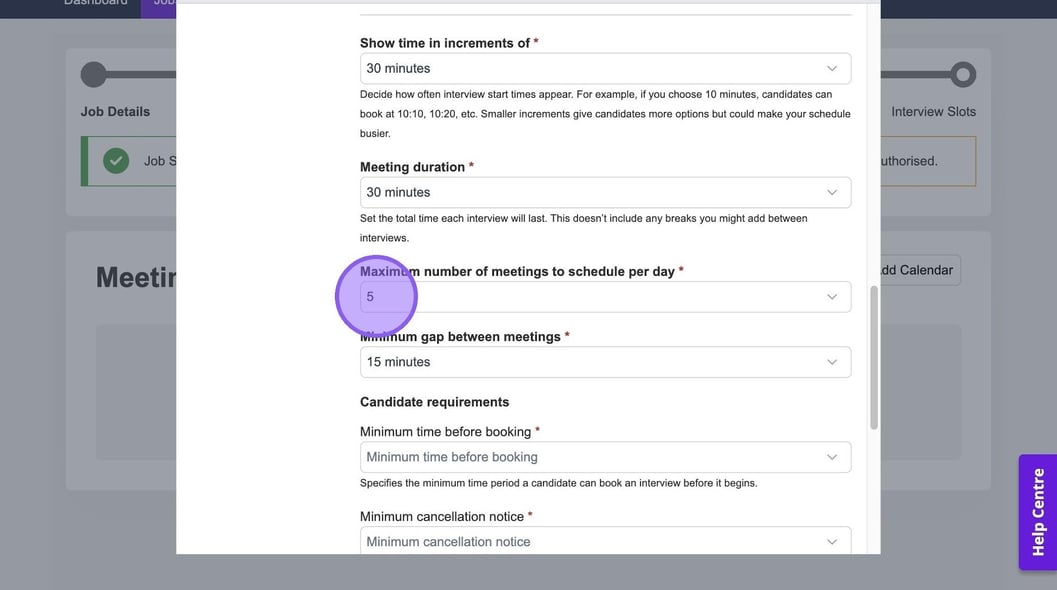
Again you will see a drop-down menu for you to select from.
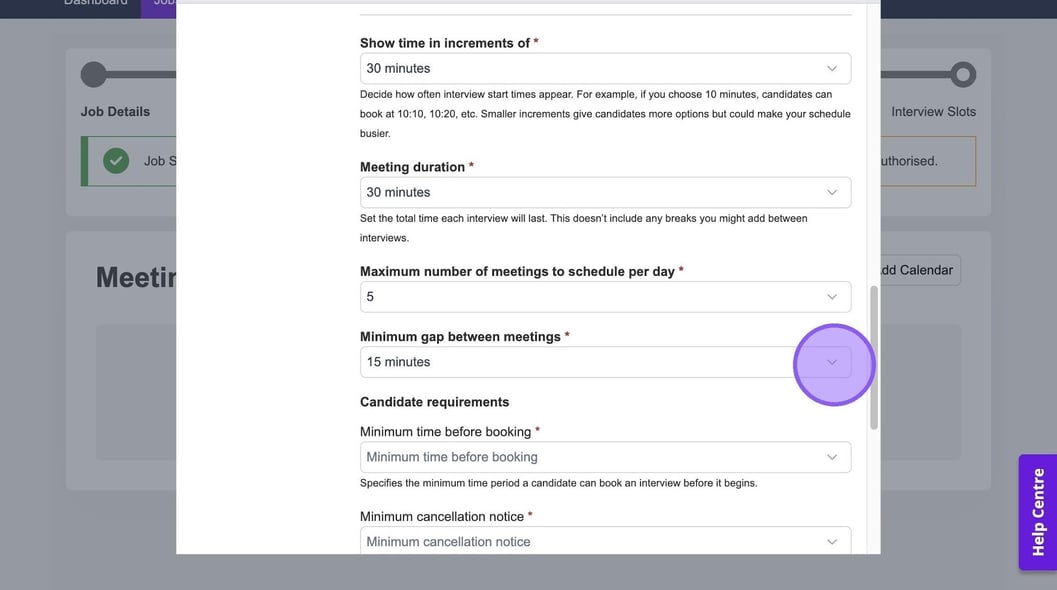
You now need to choose the minimum gap between meetings, by clicking here.
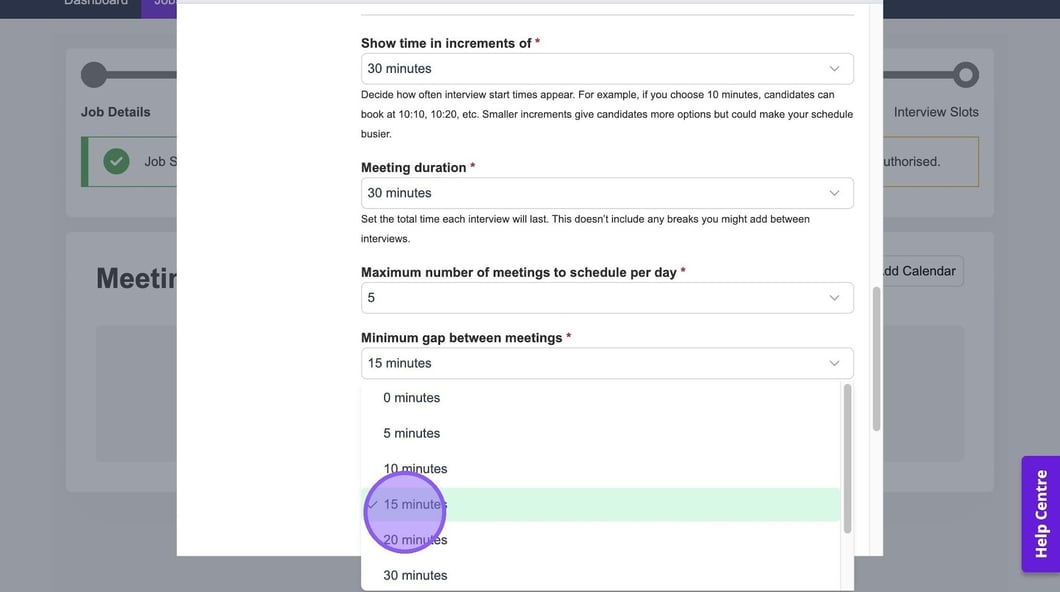
Again, you will see a drop-down menu to select from.
Click "Minimum time before booking" to specify the amount of time a candidate has to book an interview before it's due to start.
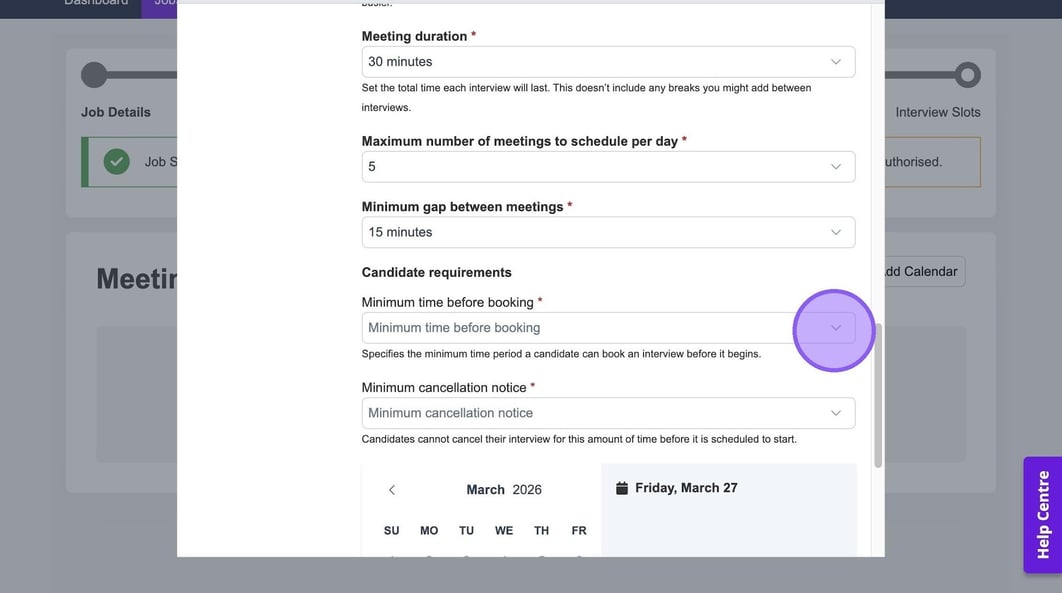
Select the relevant option from the drop-down menu.
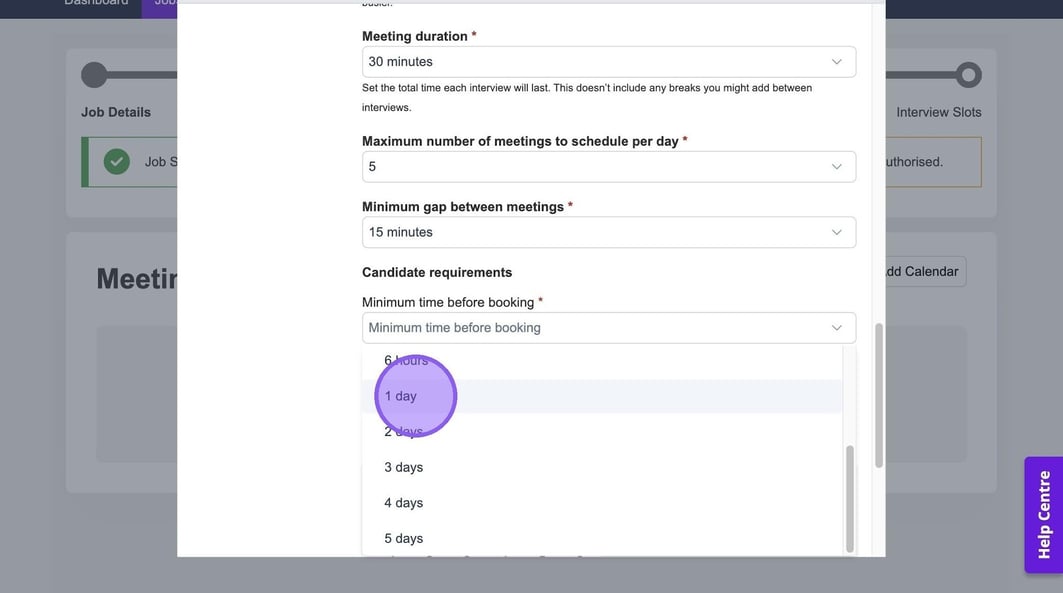
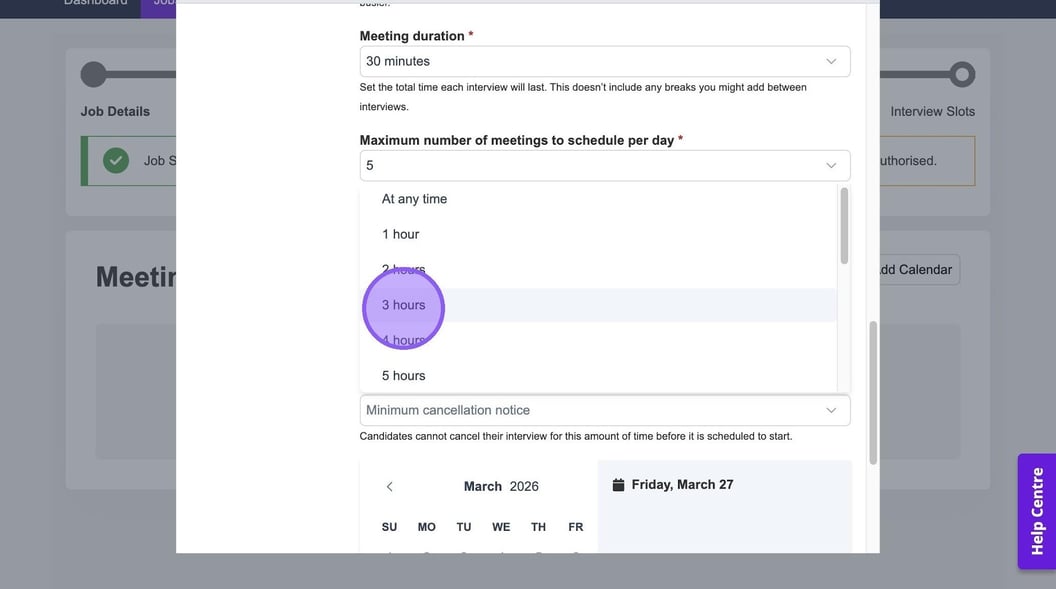
Click "Minimum cancellation notice" to set a period of time that a candidate can cancel their interview before it is due to start.
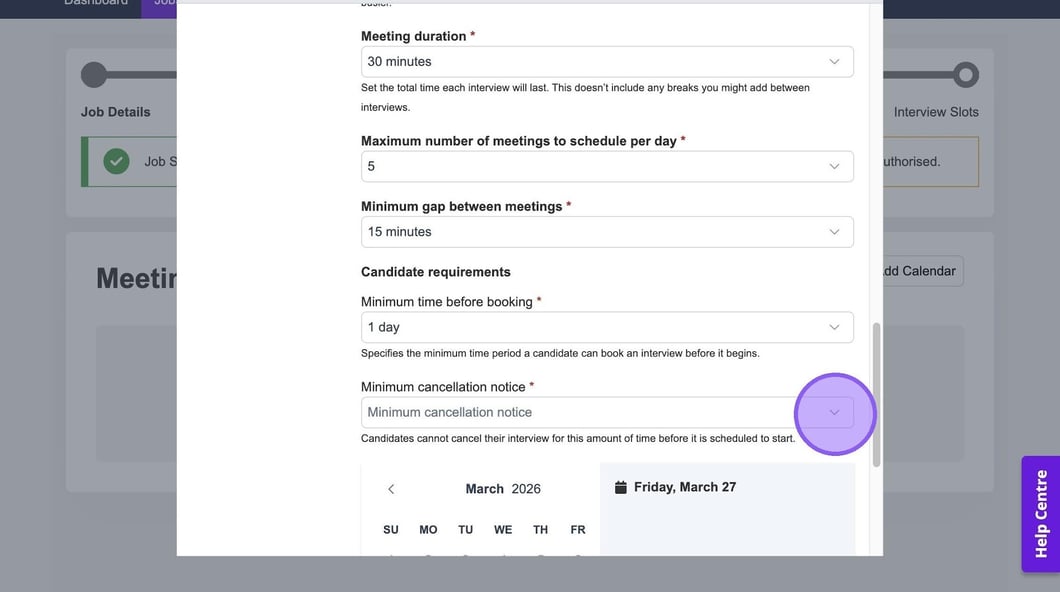
Select the relevant option from the drop-down menu.
Based on the information you have entered in the previous steps, you will now see available dates & times for you to book your interviews.
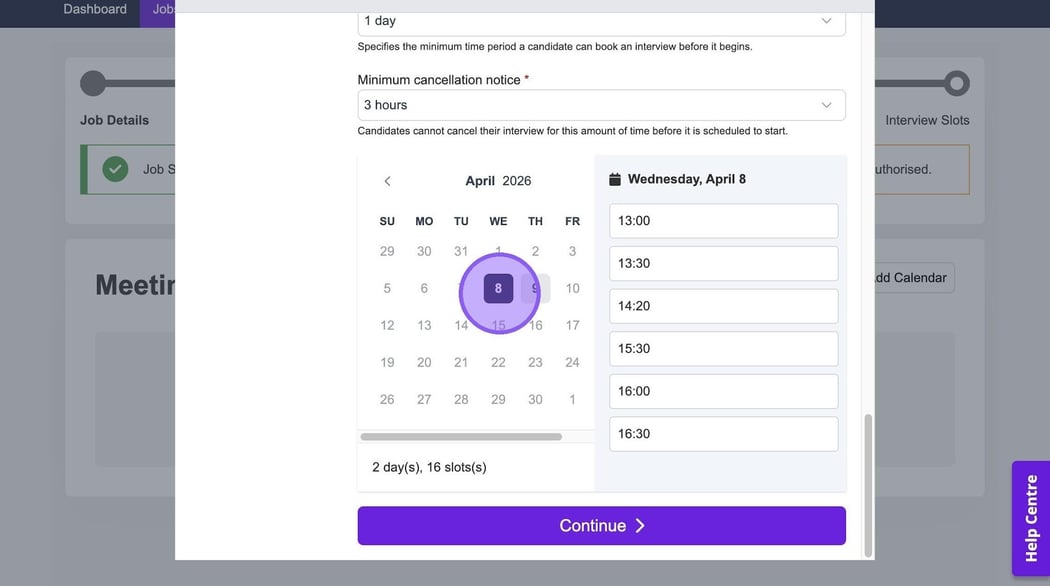
You will also see any dates that you have excluded or are blocked out within your calendar greyed out.
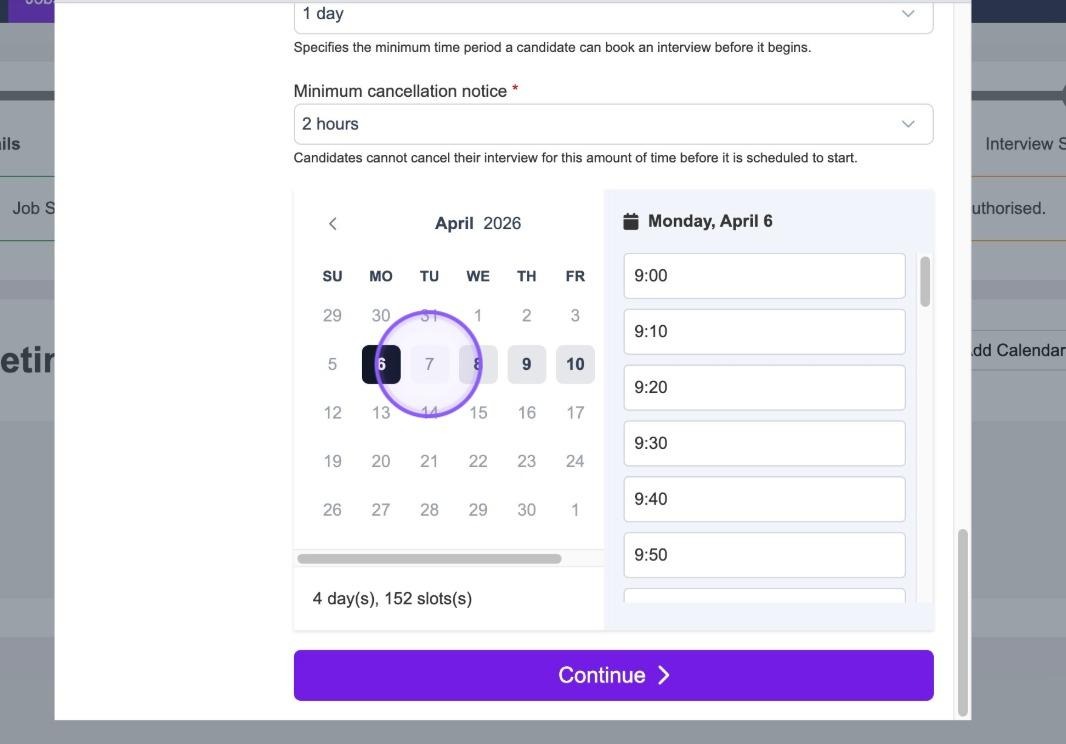
Once you are happy with your selections, click "Continue".
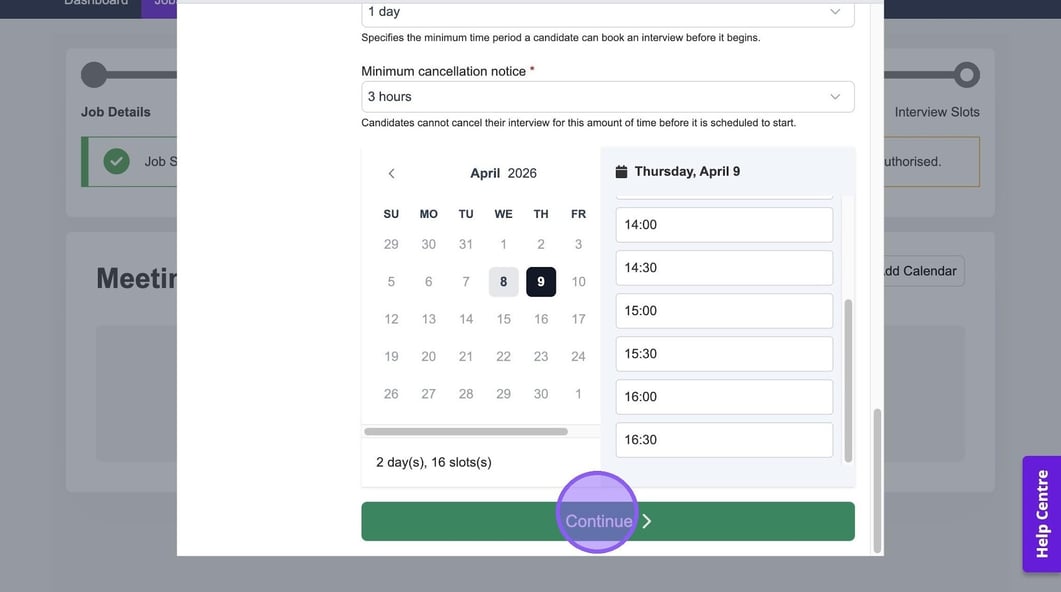
You will now be taken to the "Documents" part of the process.
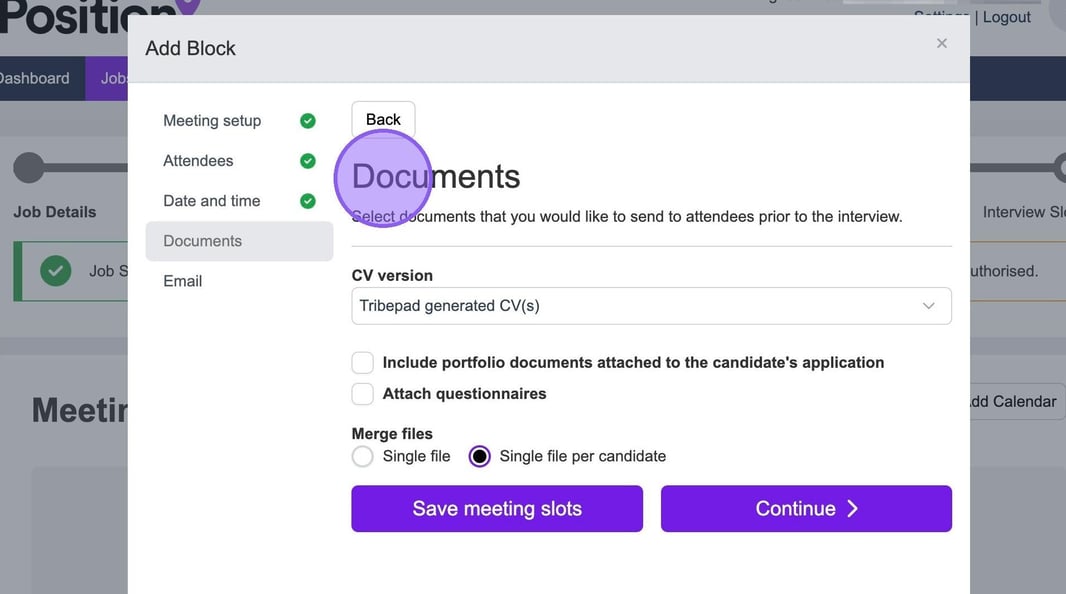
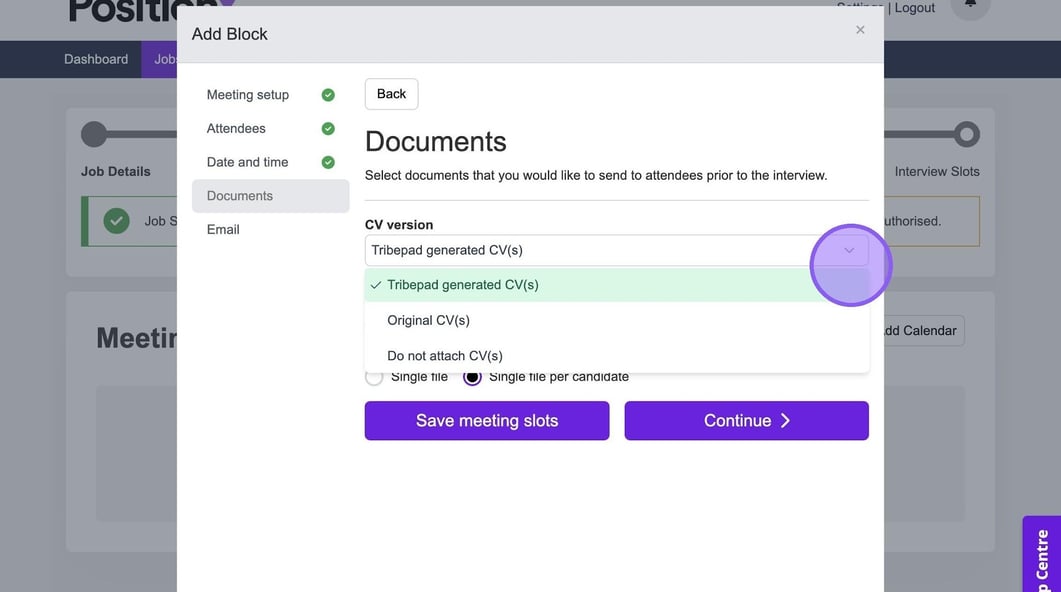
If you would like to send a candidate's CV to attendees prior to an interview, click the drop-down menu here and select the relevant option from the list.
If you would also like to include any portfolio documents and/or questionnaires simply select the relevant checkboxes here.
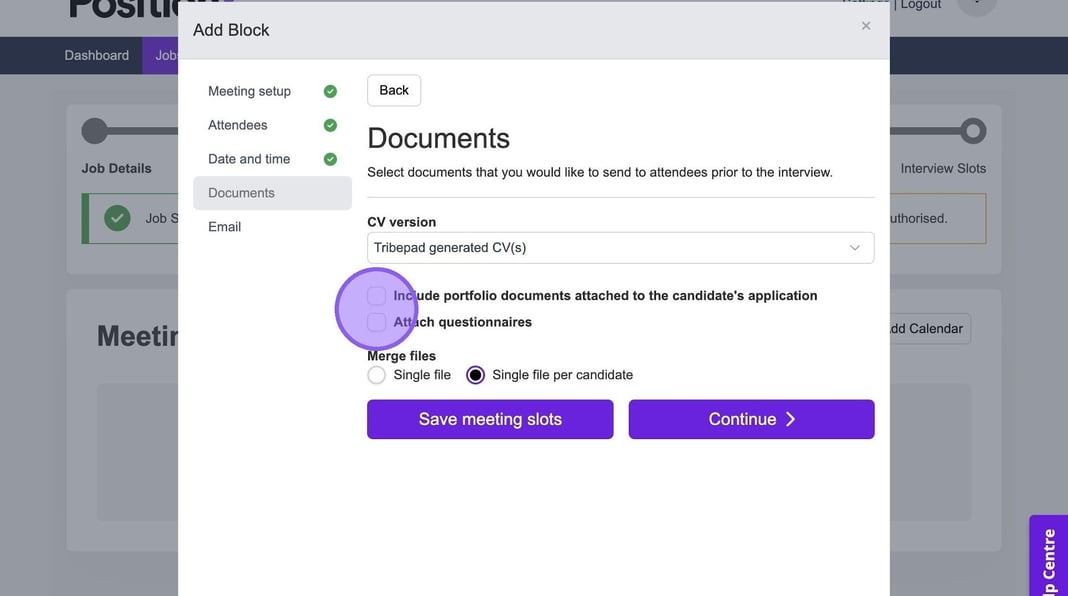
Now decide how you would like these files to be sent and downloaded by either selecting the "single file" option or "single file per candidate".
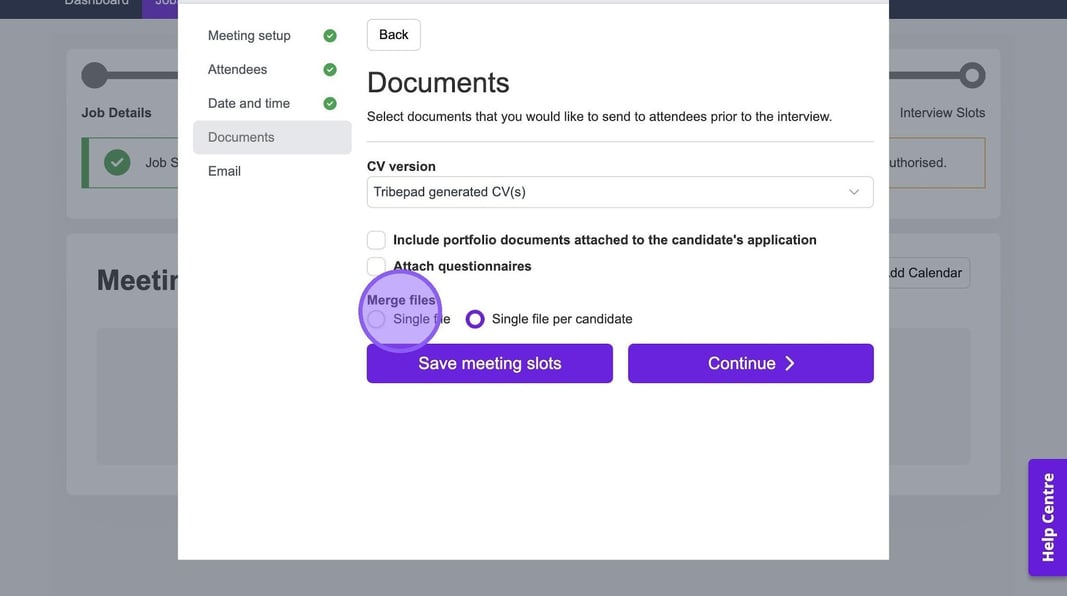
Once you are happy with the above you have the option to save your meeting slots or to continue.
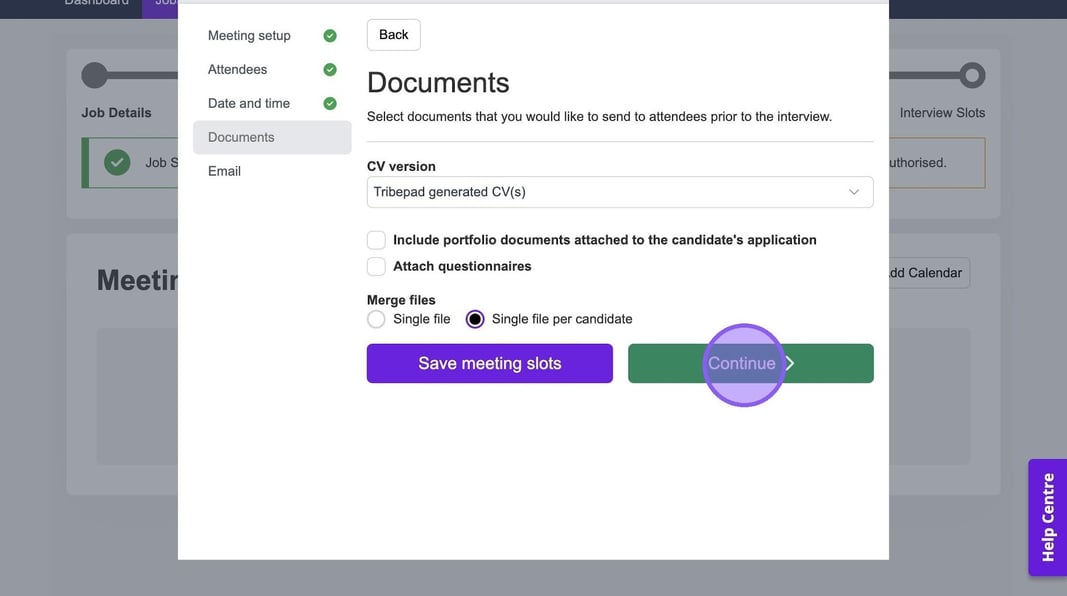
You will now be taken to the final stage of the process, where you are able to set-up any emails that will be sent to the candidate. To get started add any email addresses of any colleagues you have that will not be attending the interview, but need visibility on who you are inviting here.
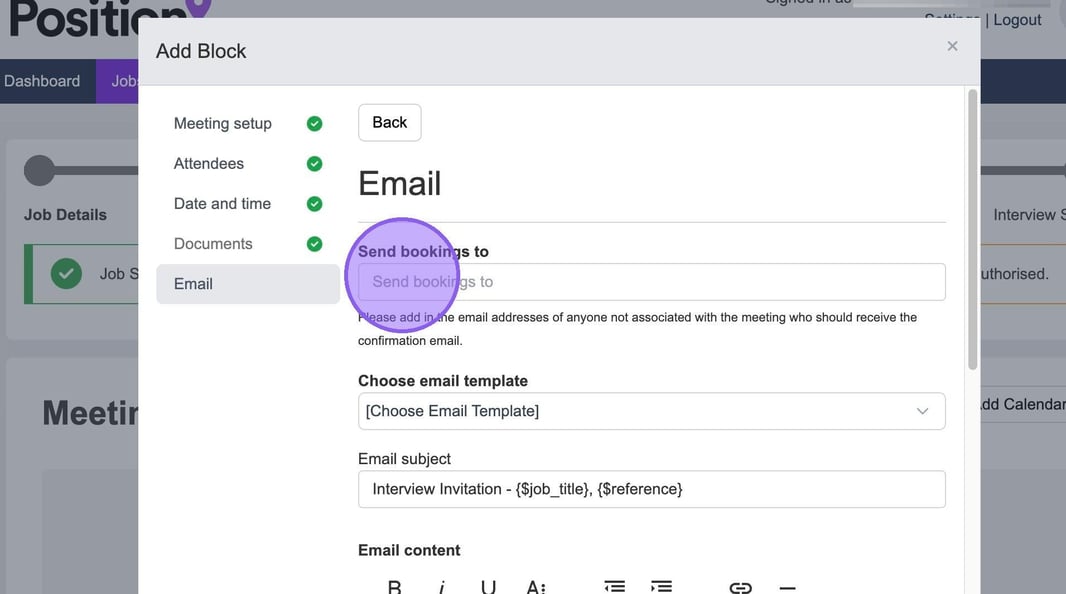
You also have the option to select an existing email template, amend the email subject and the content if required.
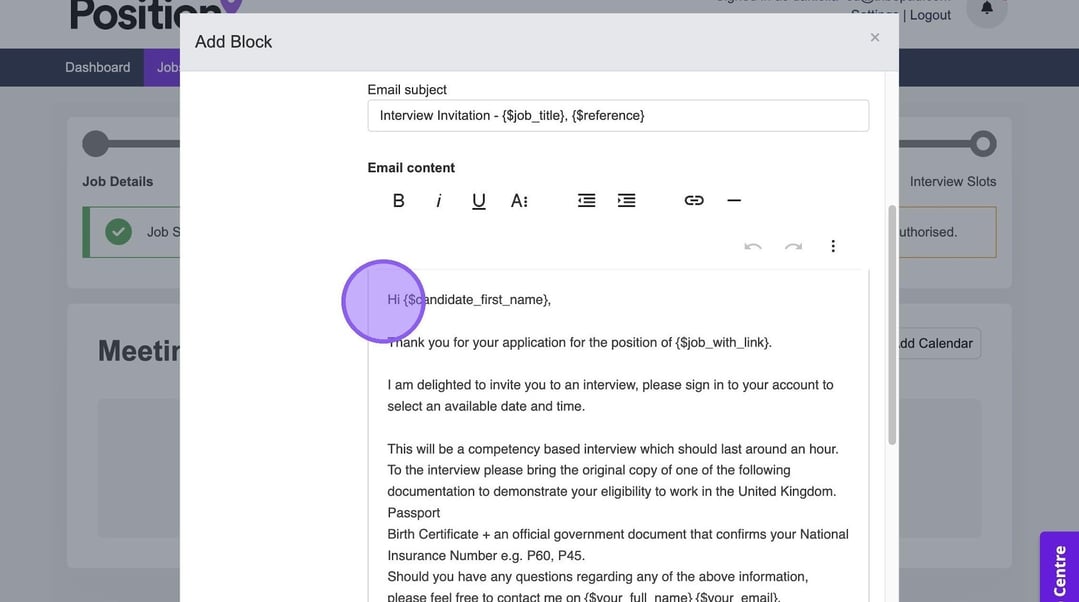
Once you are happy with all of the above, click "Save meeting block".
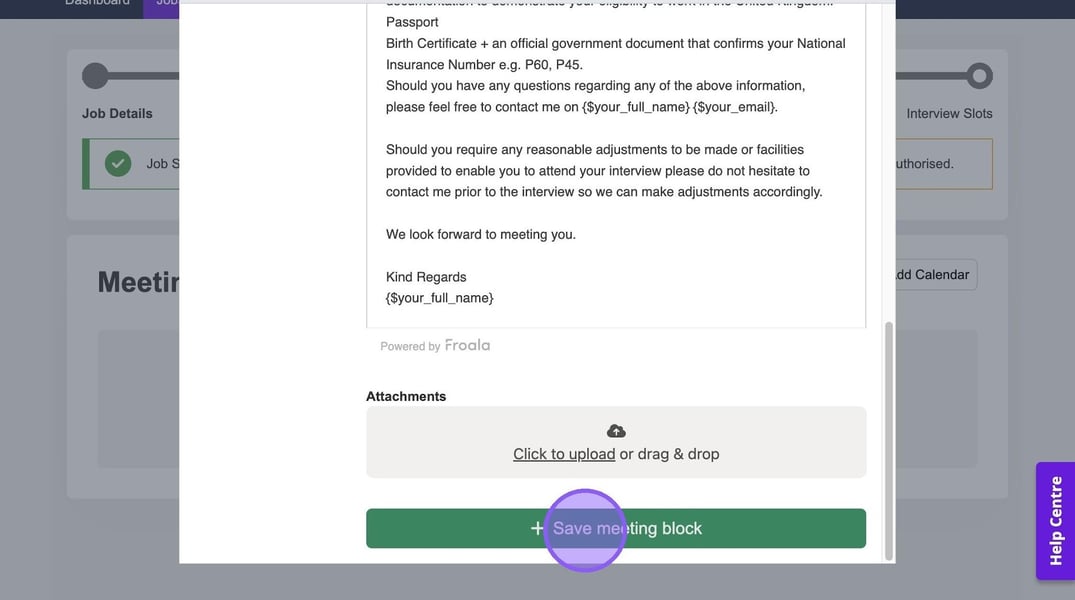
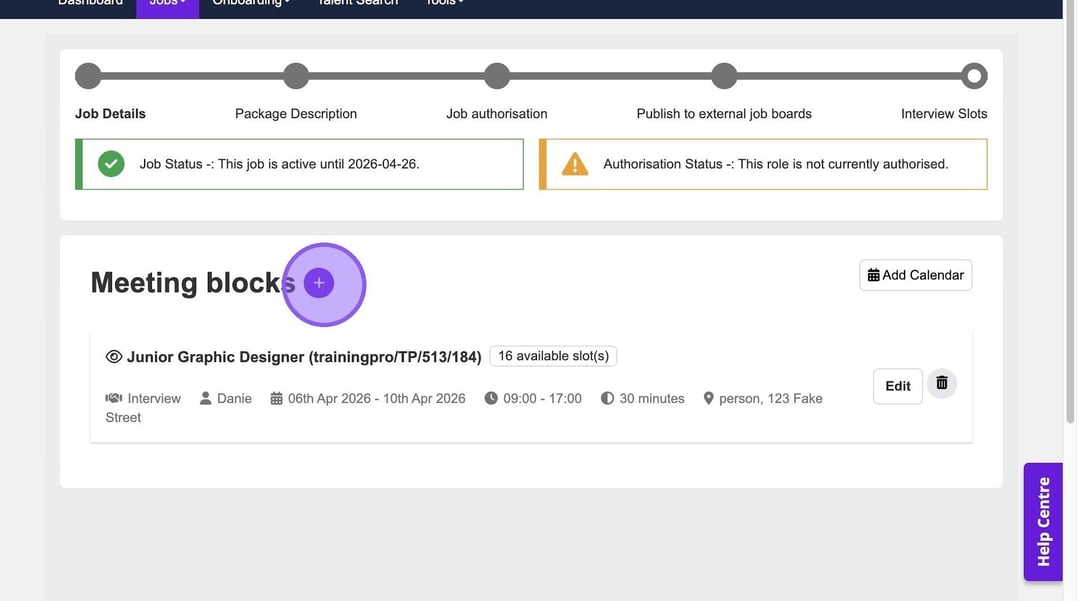
You will now be taken to the following page showing the meeting block you have just set up.
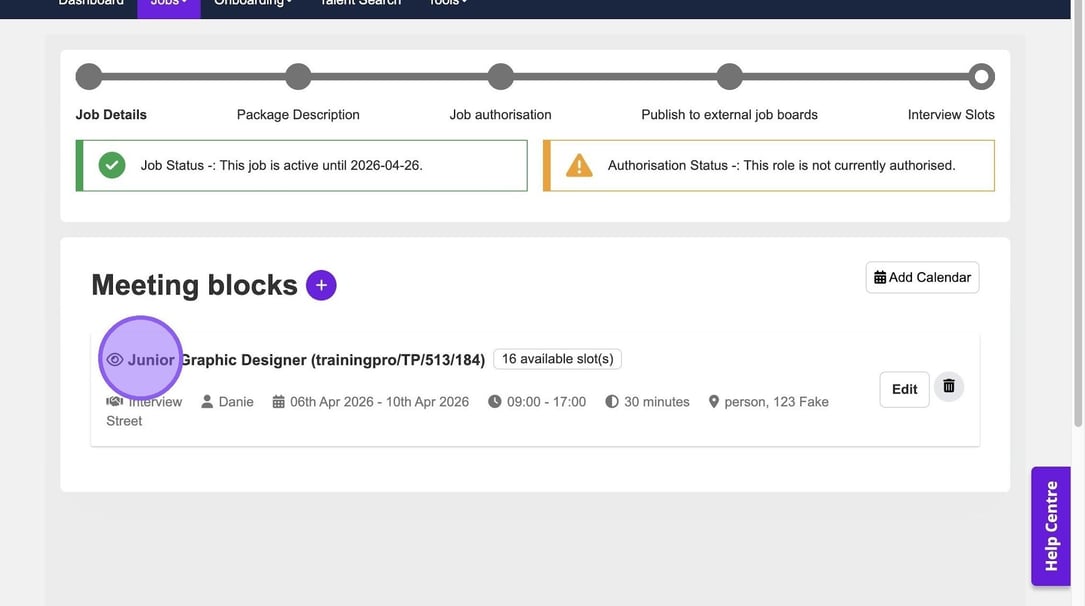
If required from this page, you have the ability to edit or delete this block using the following options.
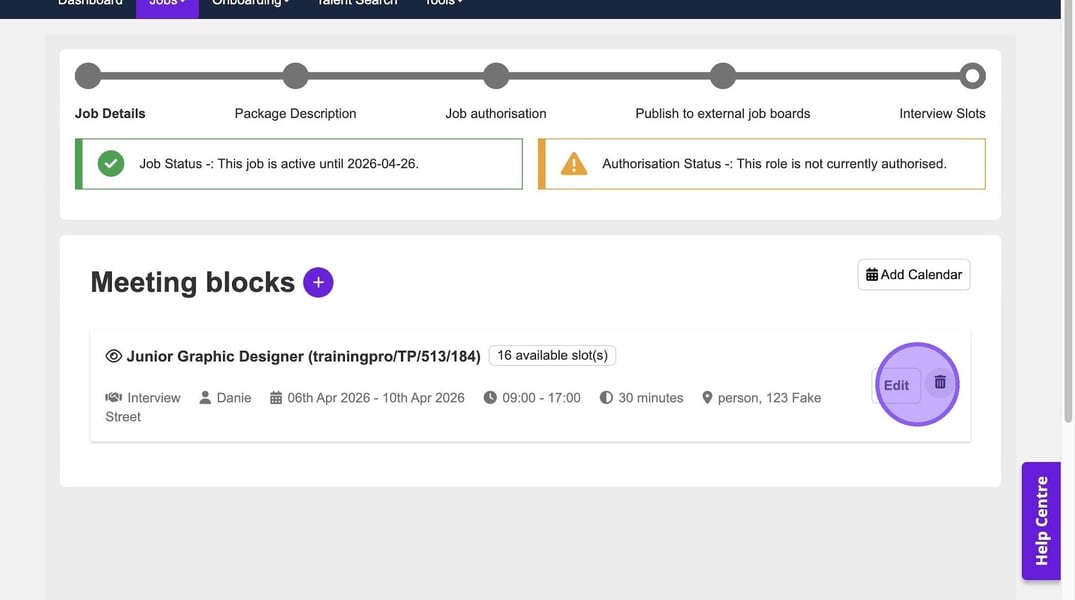
There is also the ability to create another block if needed, using the purple plus icon. If you do not need to make any further changes you have completed the process and set up your interview slots.
➡️ Candidate Selection
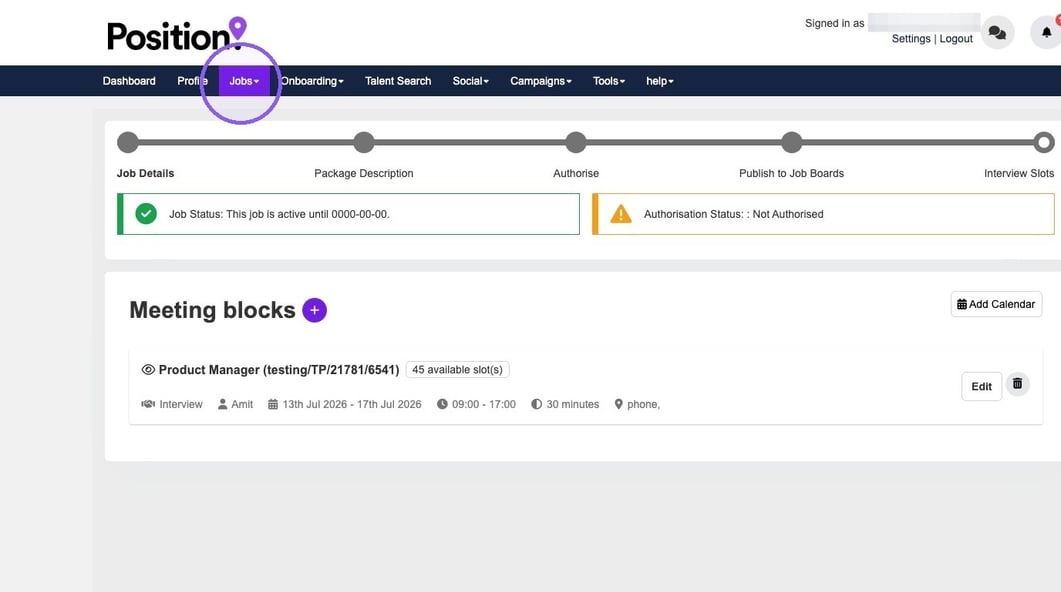
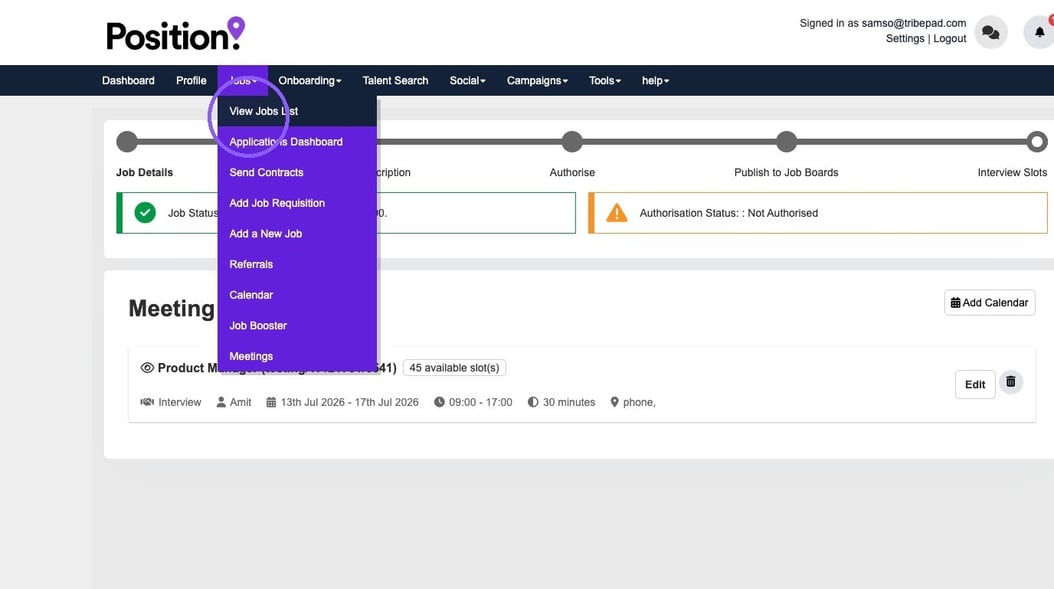
Once you have set up your meeting blocks, navigate back to the main Jobs List.
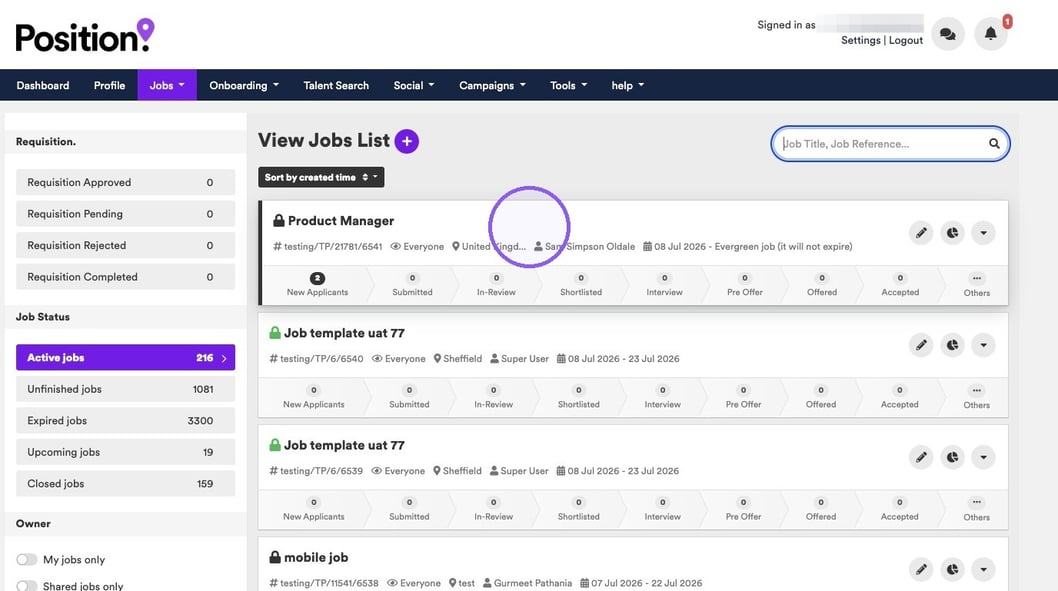
Now, select the relevant job from the job list.
Check the box next to your relevant candidate.
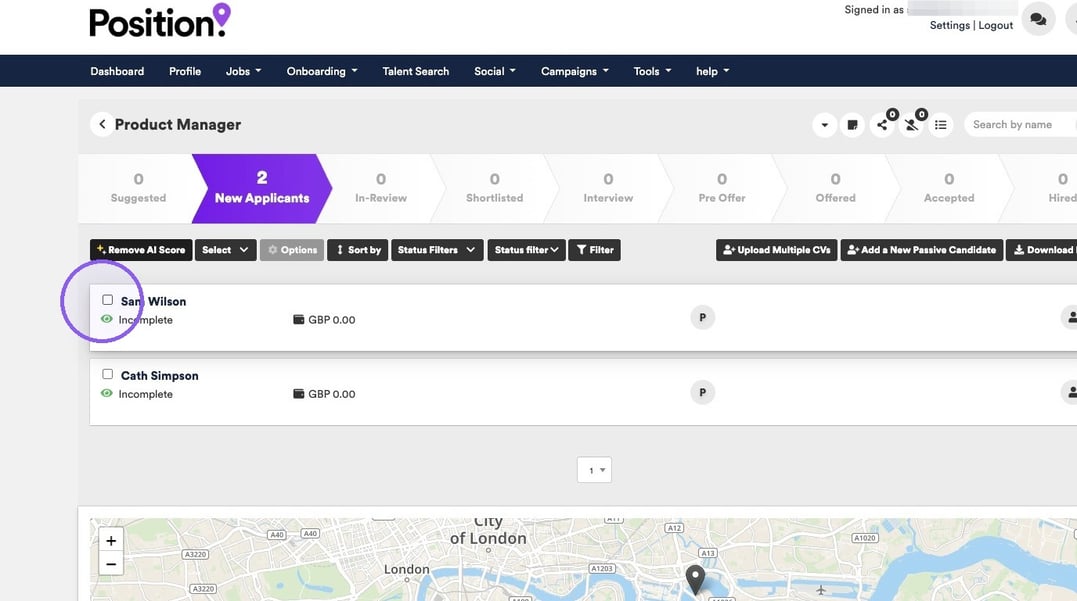
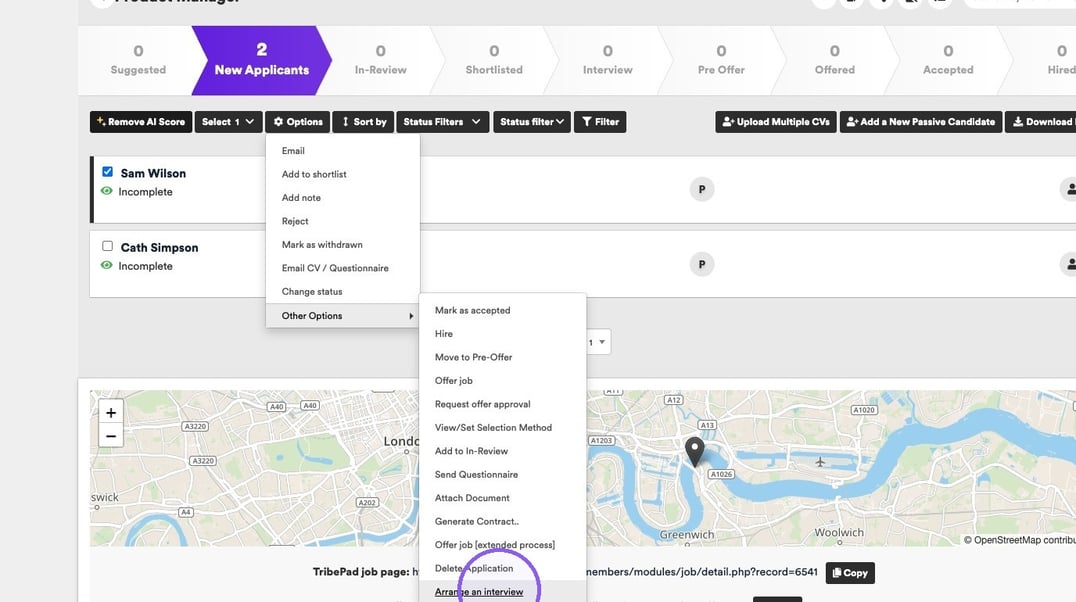
And select "Arrange an interview" from the candidate options menu.
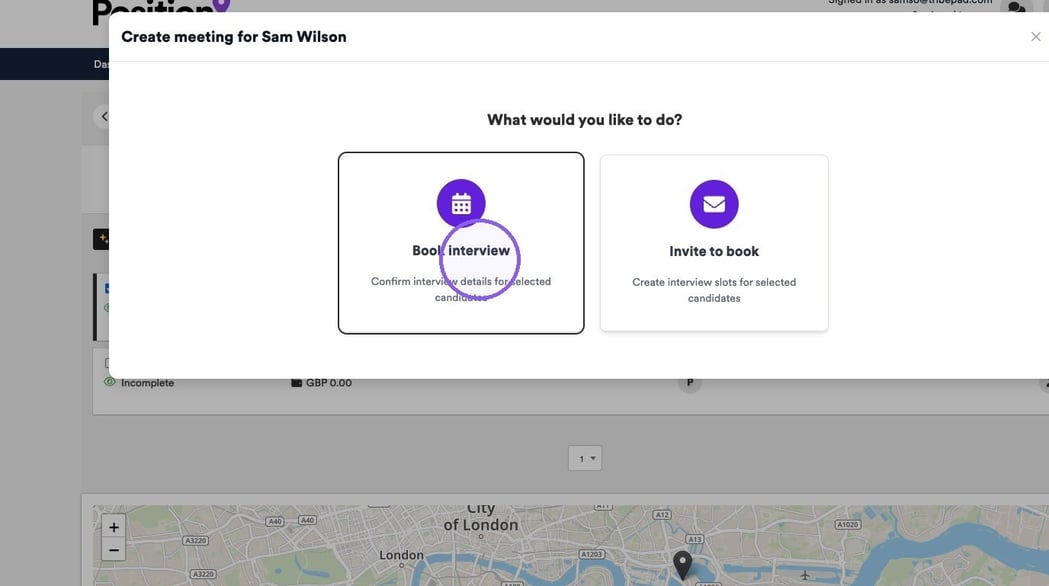
Click "Book interview".
➡️ Interview Slot Assignment
Select the newly created meeting block from the Available blocks list followed by the "Book interview" button.
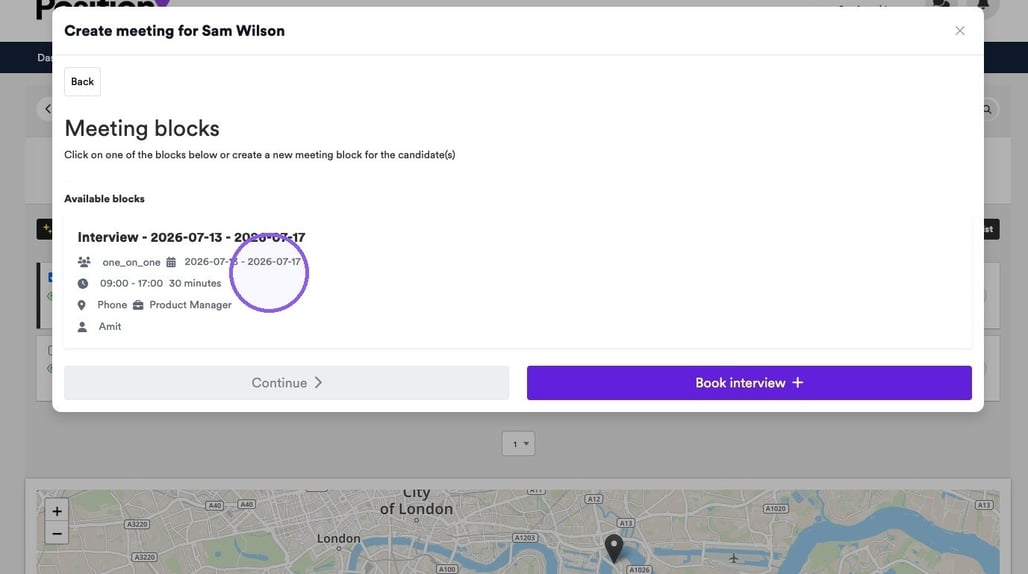
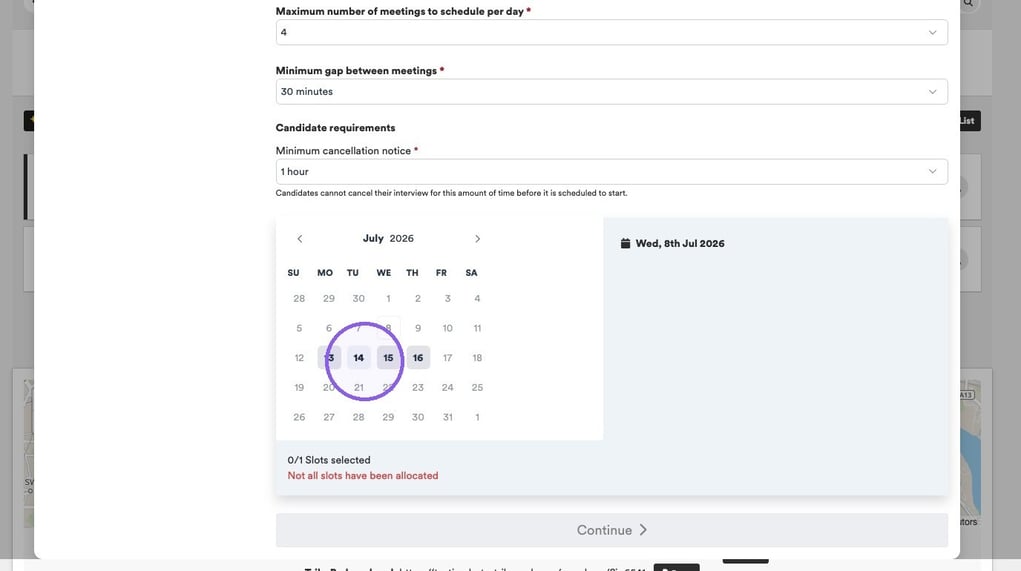
You are now able to start booking the date for your interview by selecting the desired interview date from the calendar.
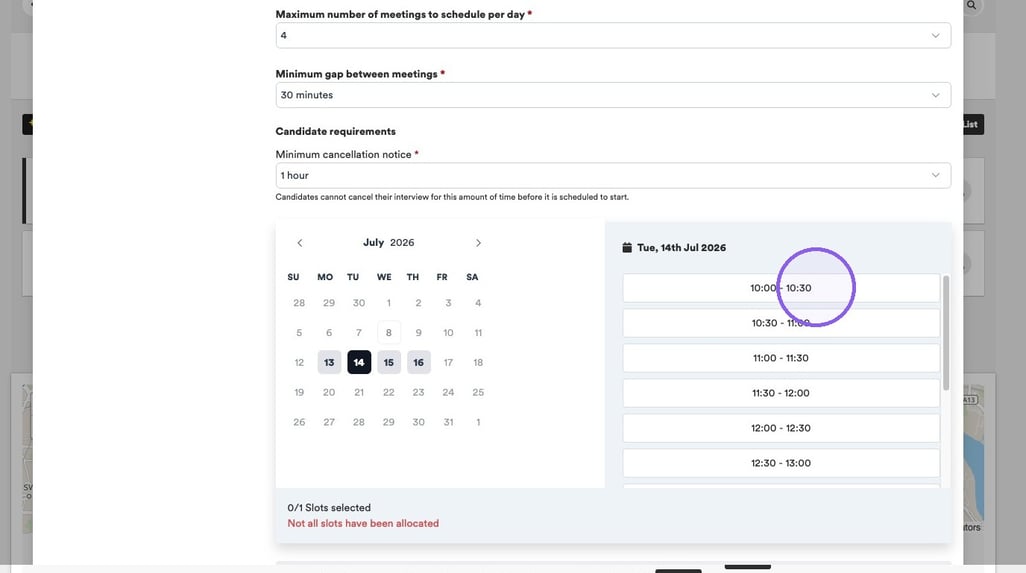
Choose a specific time slot for the interview.
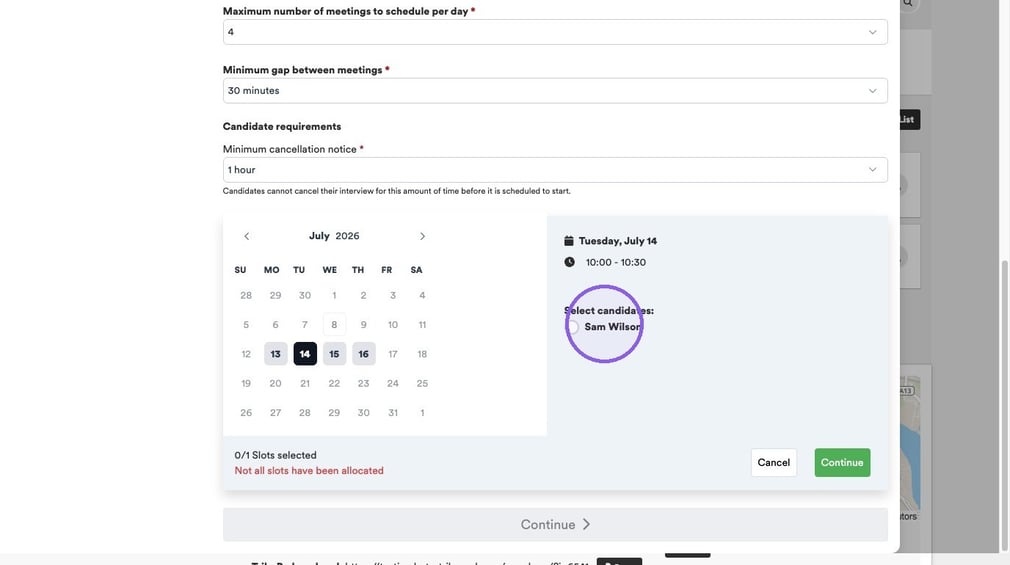
Assign the candidate to the selected time slot.
Proceed through the final booking configuration screens.
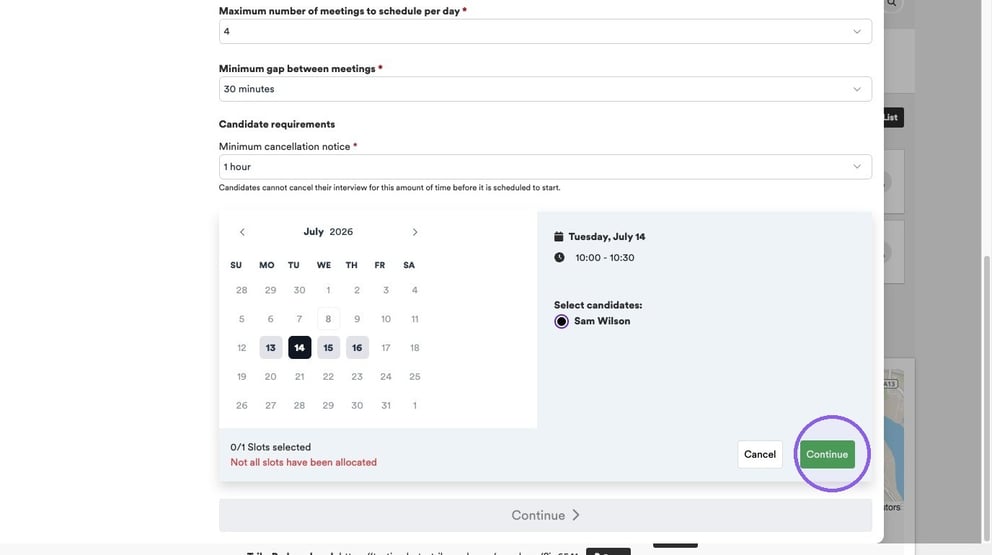
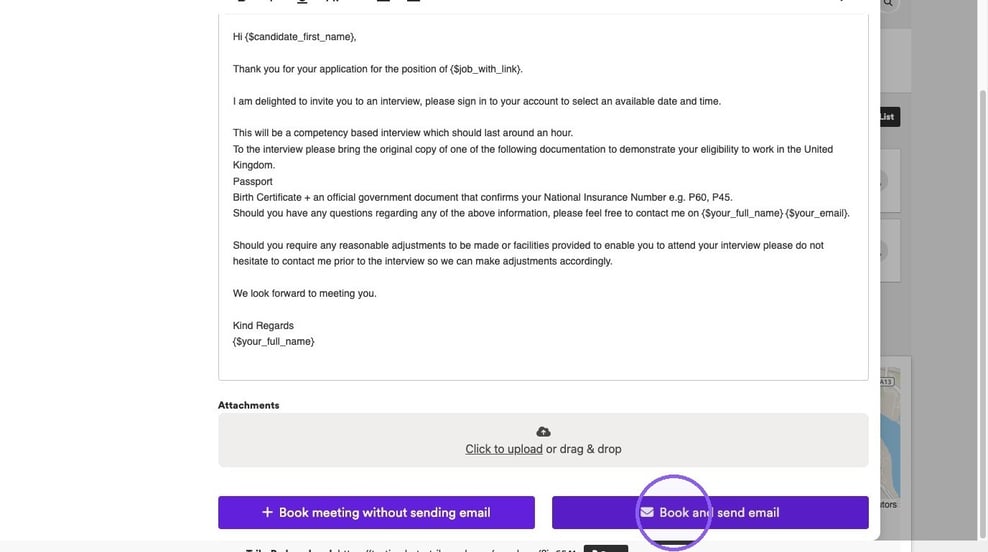
Click "Book and send email" to complete the booking and notify the candidate.