



➕ Adding Onboarding: Reference Checks To A Job
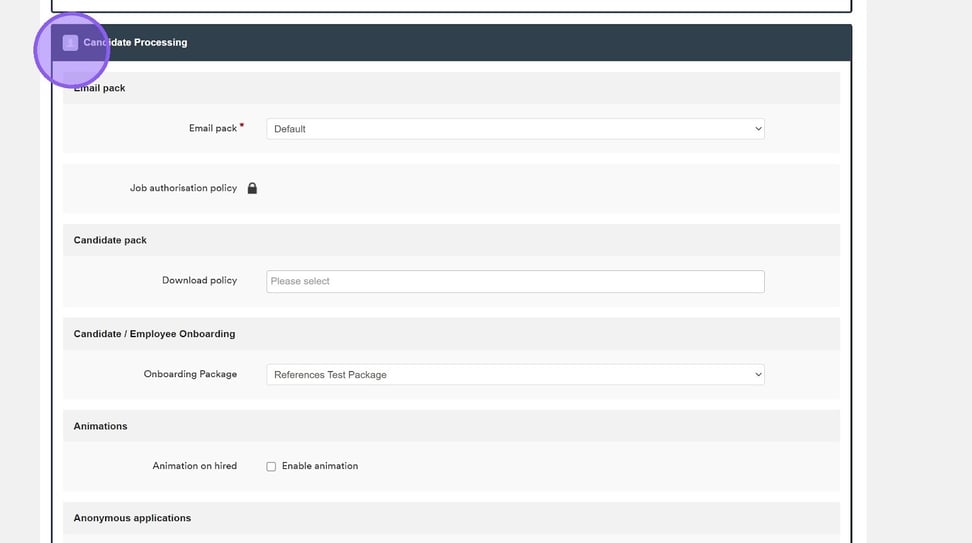
To add an onboarding package to a job, whilst on the job edit/create page, scroll down to the "Candidate Processing" section.
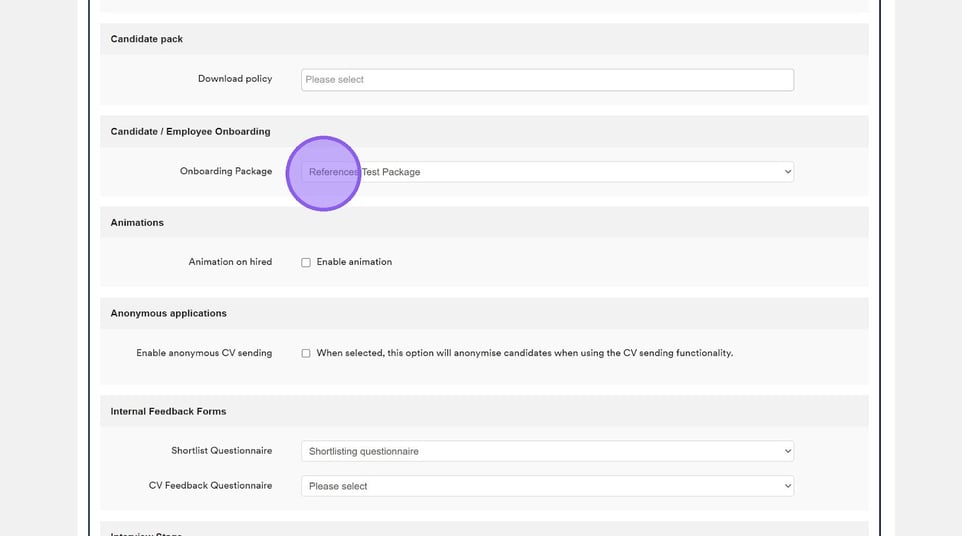
Head to the "Candidate/Employee Onboarding" sub-section and click this dropdown and select the relevant onboarding package from the list.
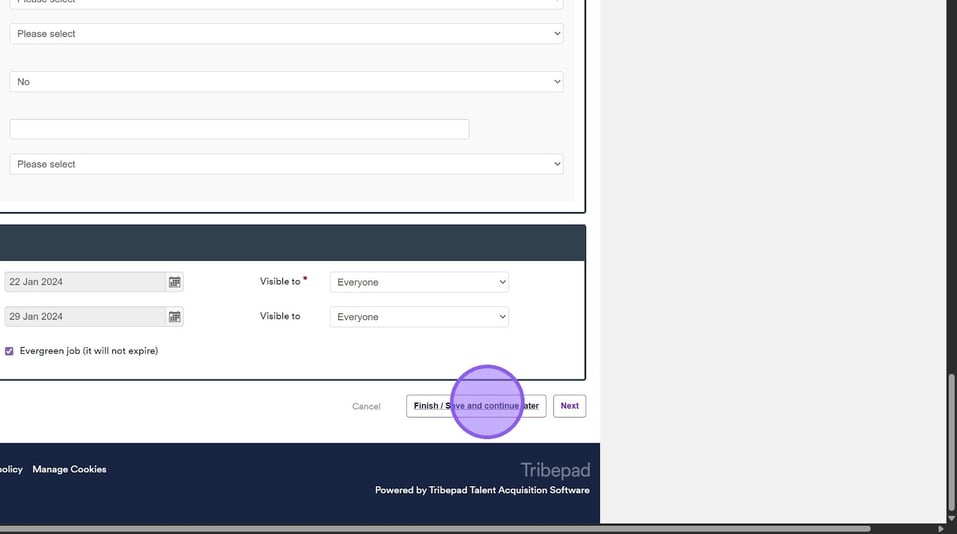
Once you are happy, scroll to the bottom of the page and click "Finish / Save and continue later".
For more information about attaching onboarding packages to a job 🖱️ see our further guidance here.
🔮 How To Trigger Reference Checks From Onboarding
Click on the relevant job, from the jobs list.
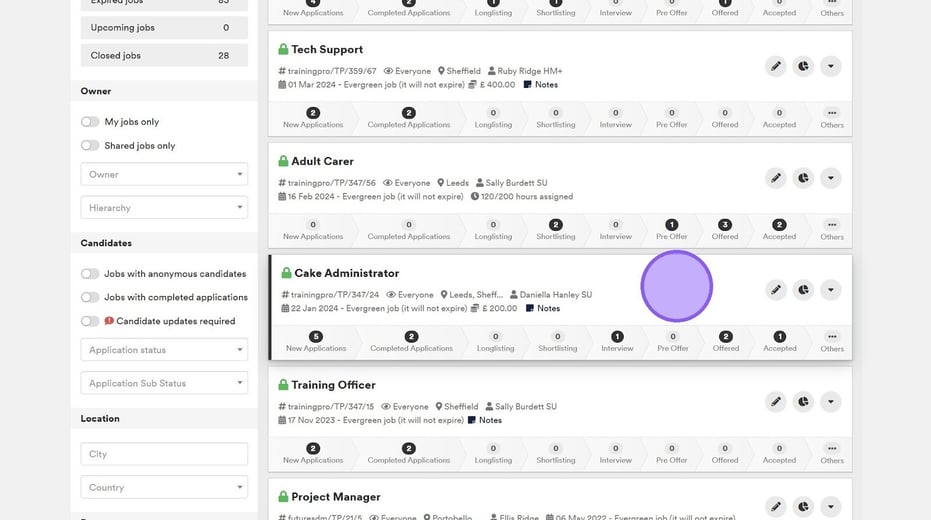
Whilst on the job, move your candidate to the relevant bucket.
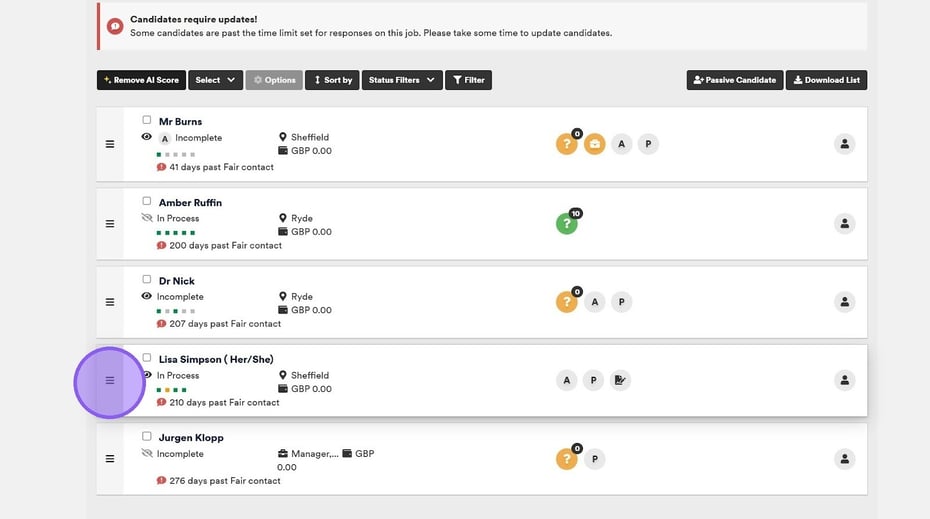
Make sure to invite your candidate to your onboarding workflow, in this example we are going to trigger reference checks.
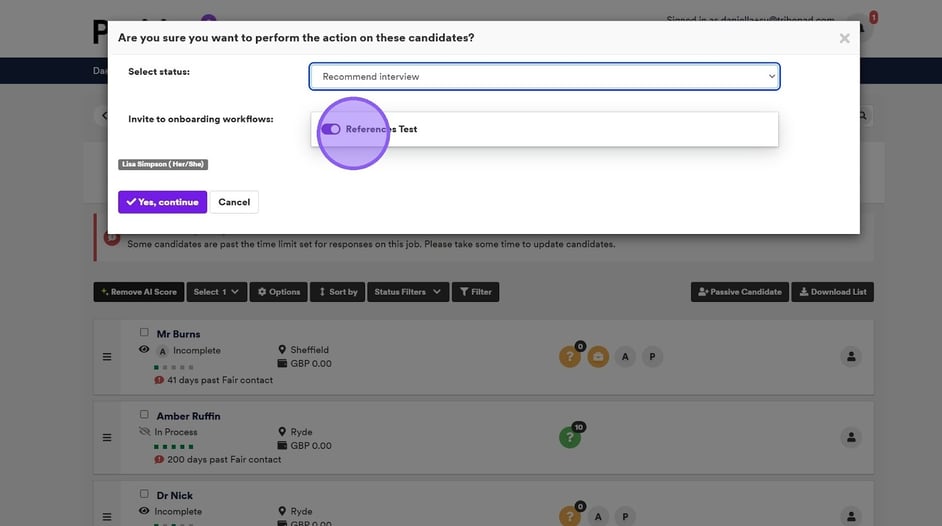
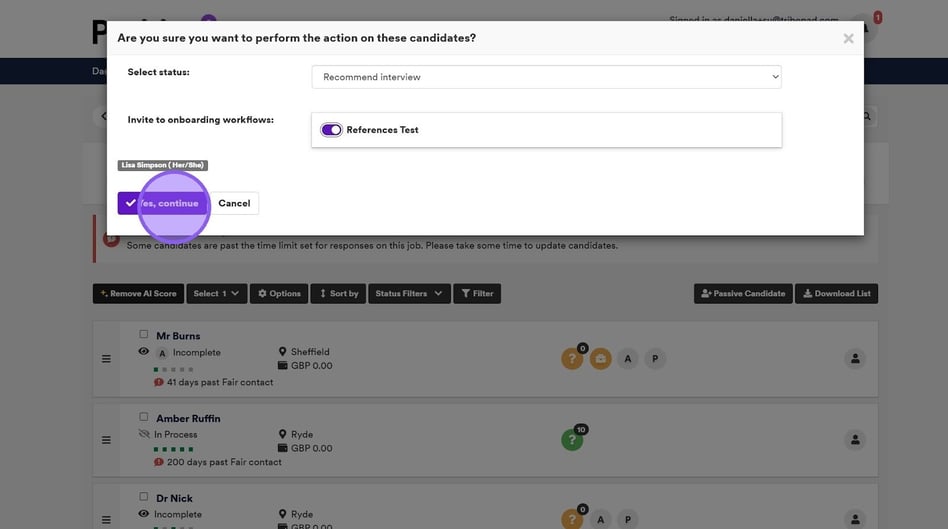
Once you are happy, click "Yes, continue".
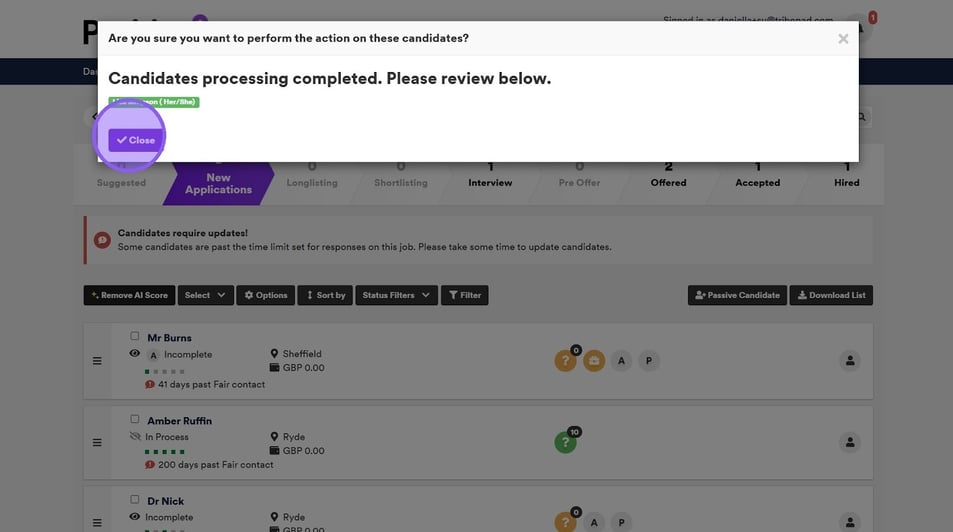
Followed by clicking "Close".
For more information about sending an onboarding workflow to a candidate 🖱️ see our further guidance here.
🔎 Candidate View Of Onboarding: Reference Checks
Once an onboarding workflow has been triggered, the candidate will receive an email, inviting them to complete these.
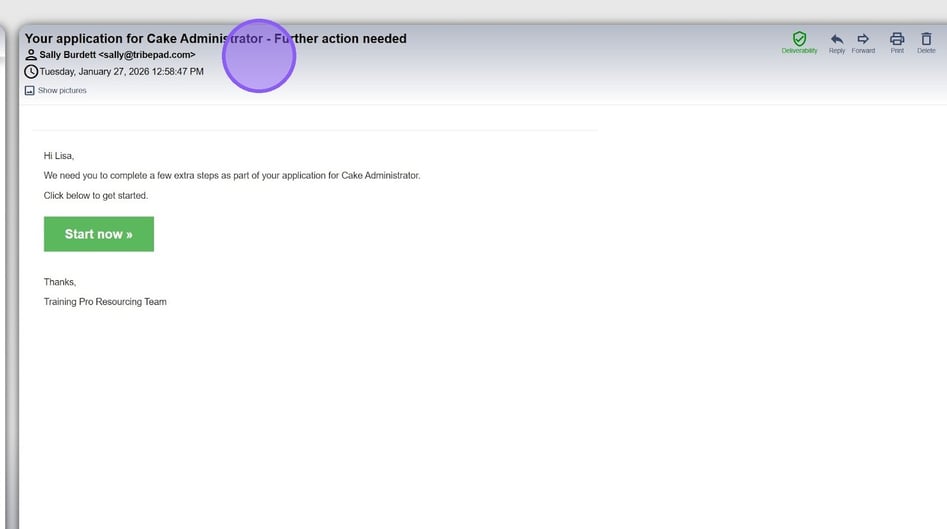
To complete the reference check, the candidate must click the "Start now" button from within their email.
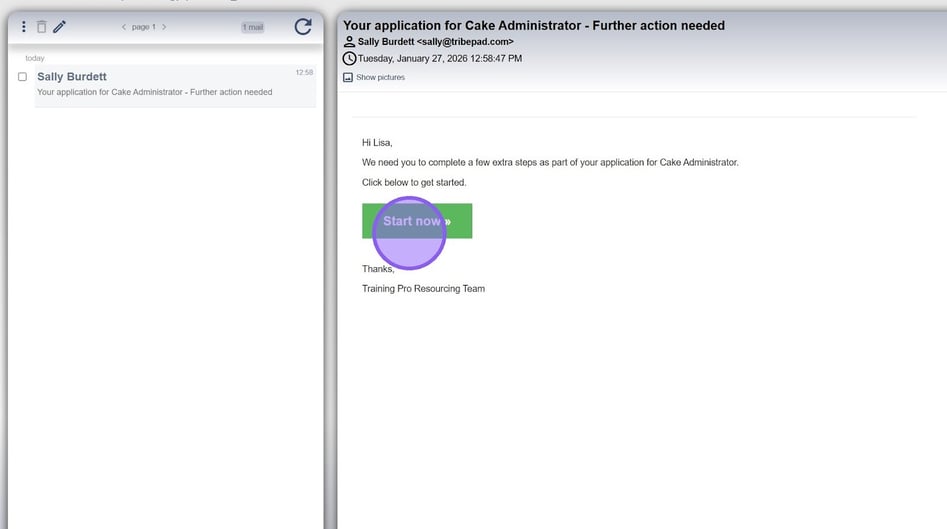
They will now be taken to the login page for their profile.

Head to the dashboard of your Candidate profile. This can be done either by logging in directly or using a link sent via email.
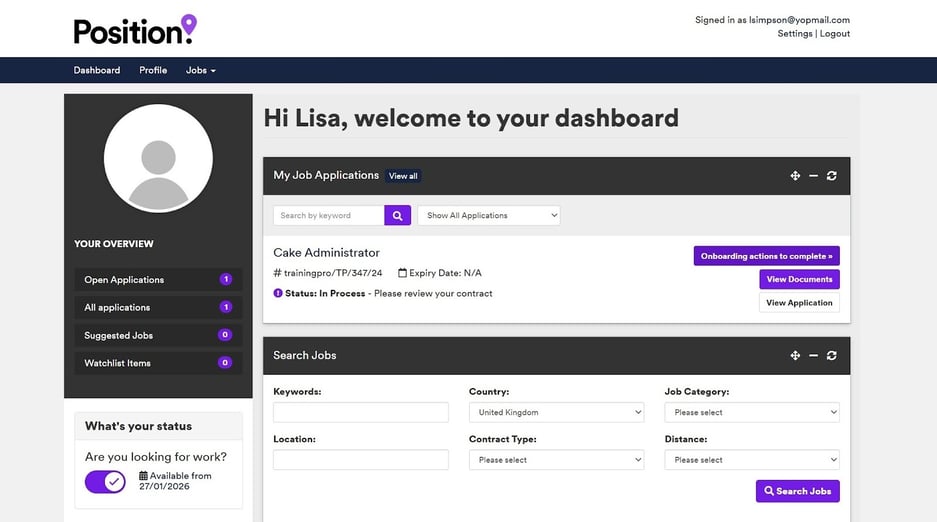
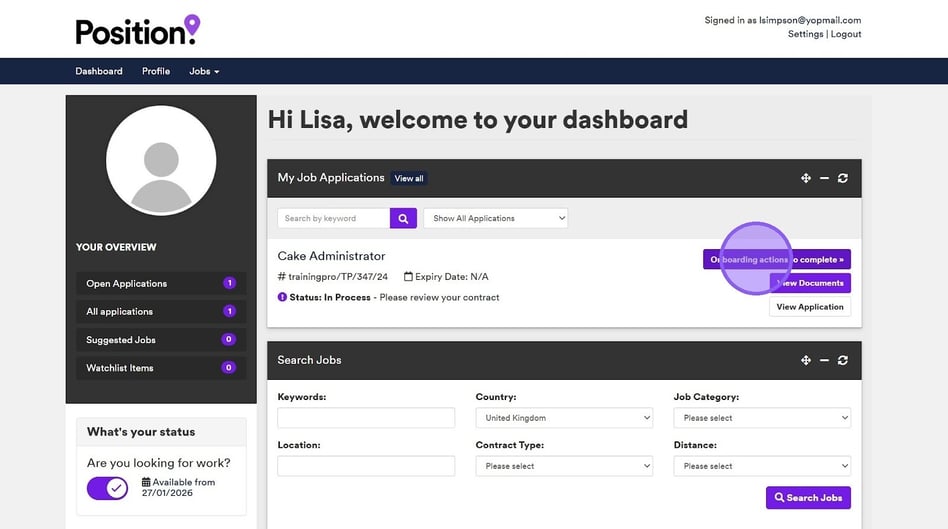
Click "Onboarding actions to complete" next to the relevant job.
Click "Continue to section".
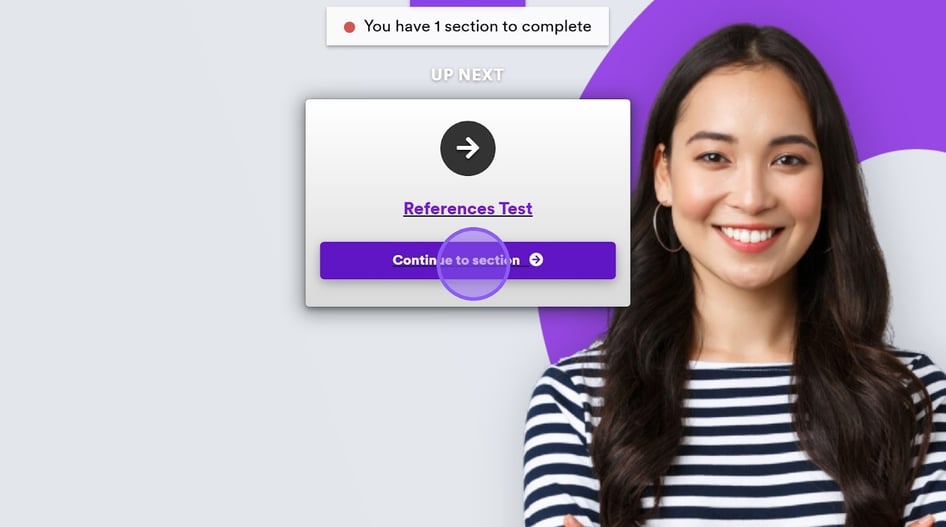
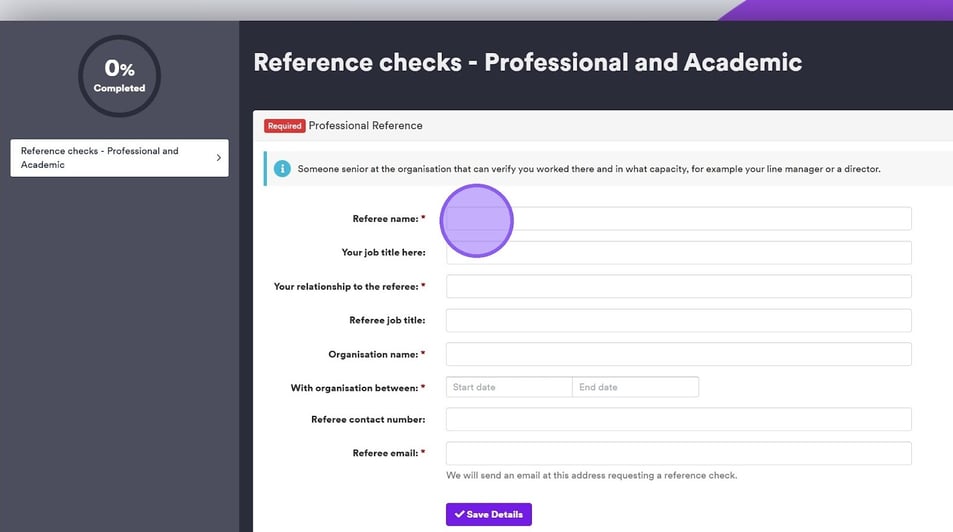
To complete your reference checks, click in each of the relevant fields and complete as requested.
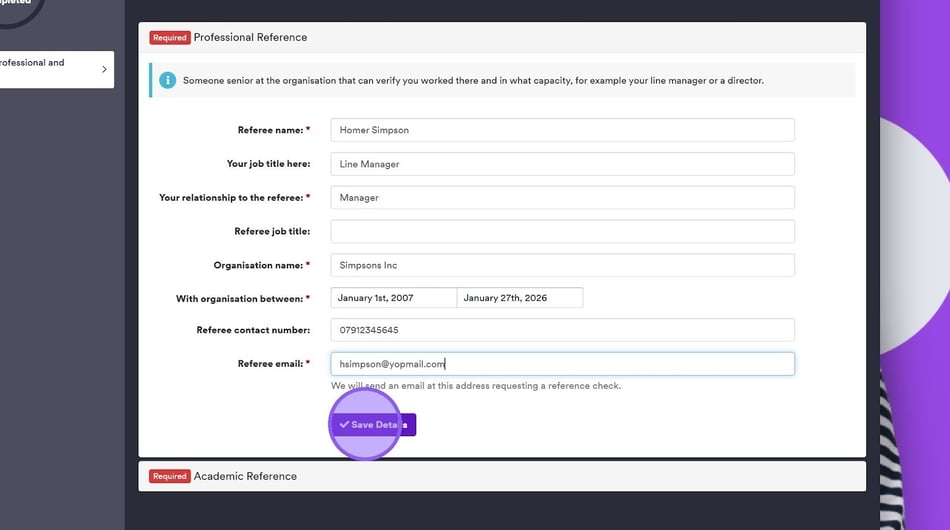
Once you have completed the form in full, it will look something like this. Once you are happy with your entries, click "Save Details".
You may be asked to provide more than one reference, for example Professional and Academic. If this is the case, you will be asked to provide further information for another reference, To do this repeat the previous steps.
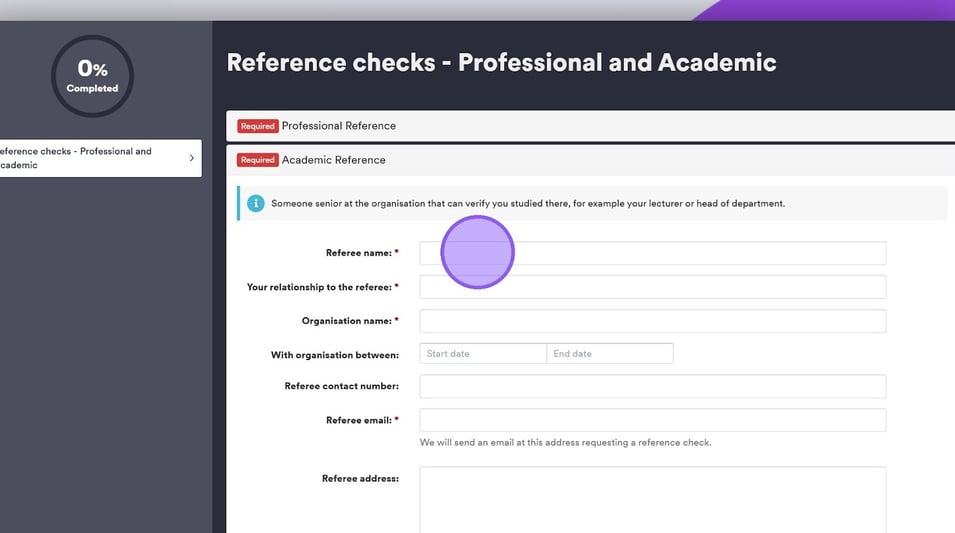
Once you are happy with the details of your additional referee, click "Save Details".
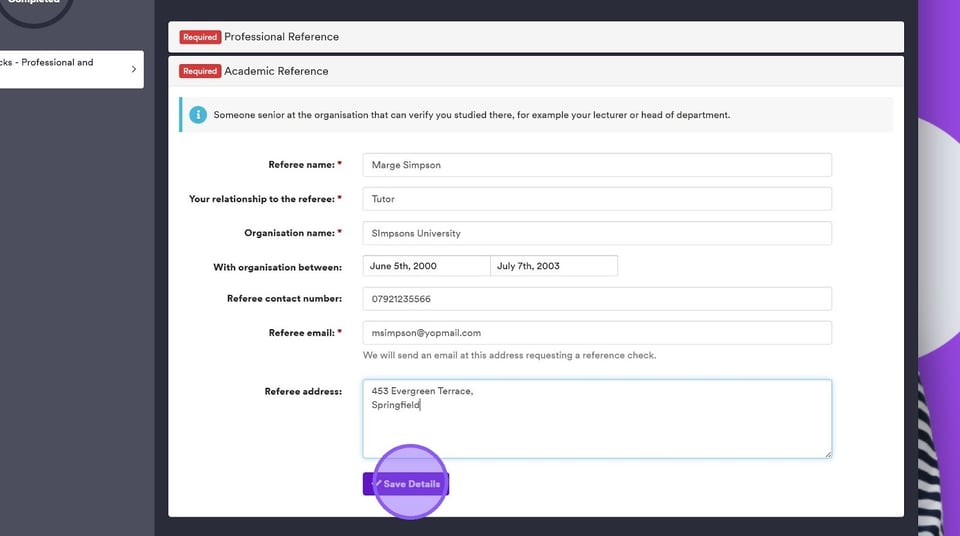
You will now be taken to the following page, where you will need to click "Confirm and Continue" to submit your reference checks.
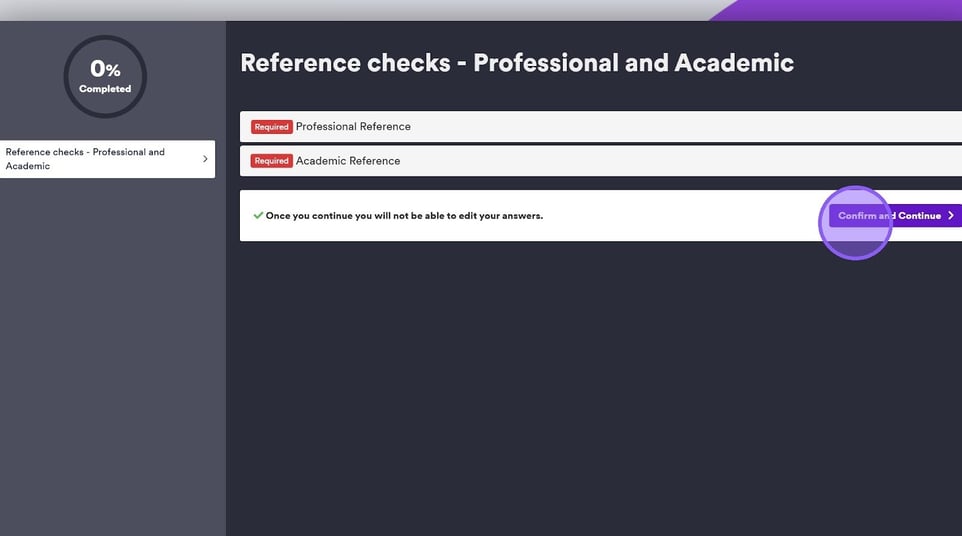
Once you have completed all outstanding onboarding tasks, you will see this screen. Click "Go to dashboard" to return to your candidate profile.
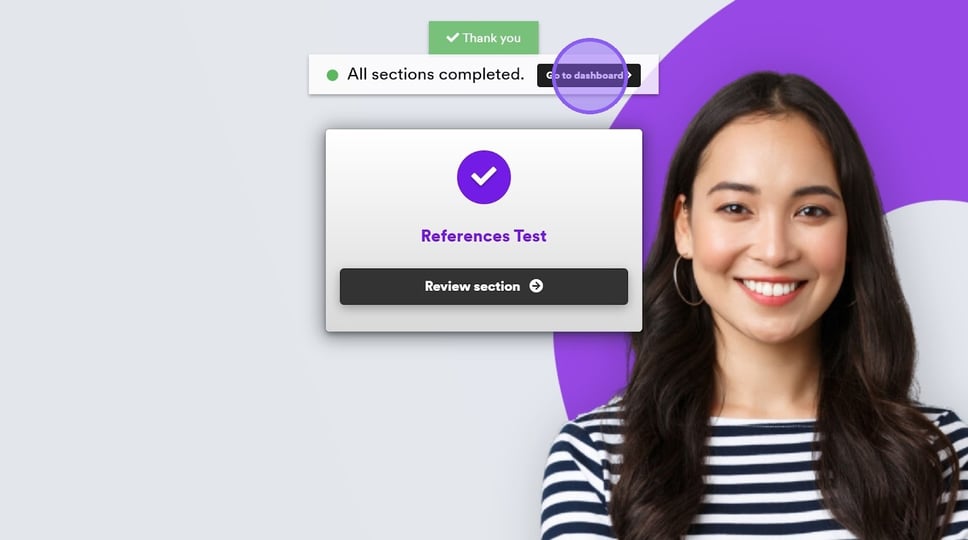
For more information about viewing your full onboarding actions as a candidate 🖱️ see our further guidance here.
✉️ Viewing & Sending Reference Checks To A Referee Within The ATS
Once a candidate has submitted their reference checks, head to the relevant job.
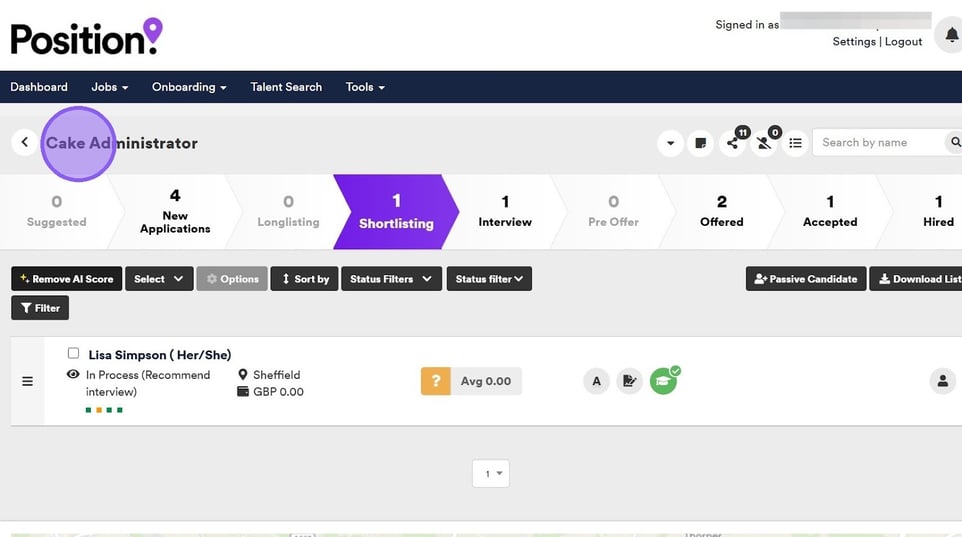
You now need to hover over the hat icon to view a pop-up with additional onboarding pack details.
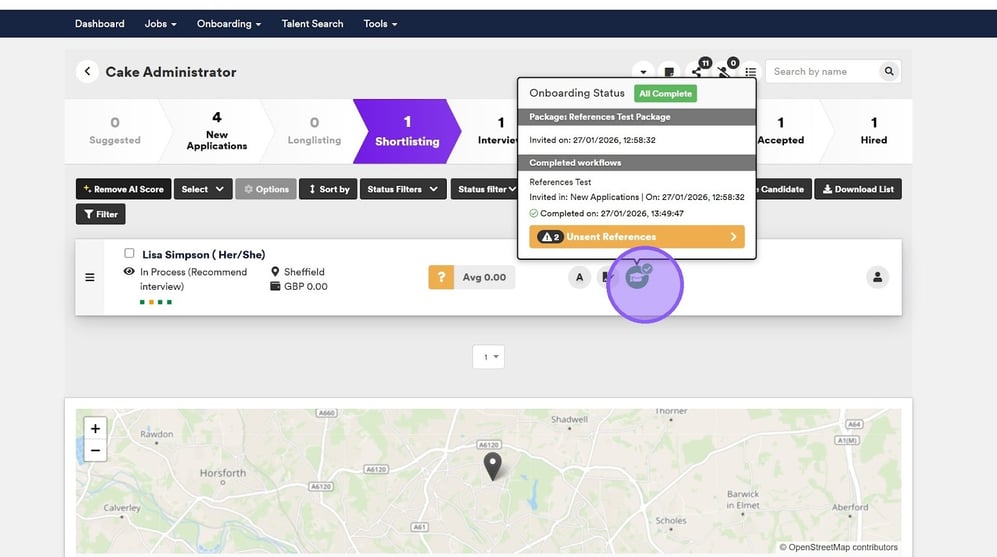
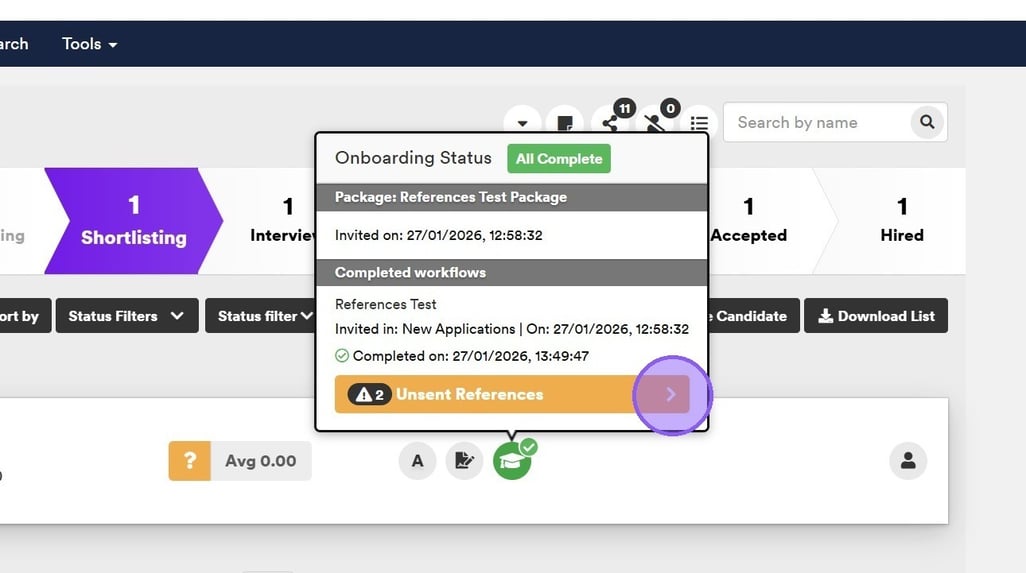
To view and send your candidates references, click this orange banner here.
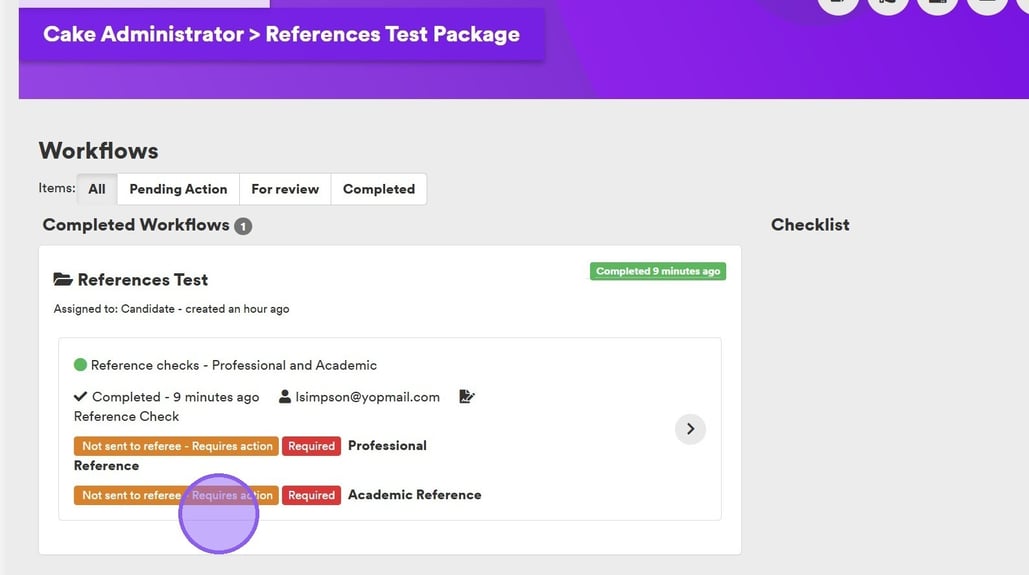
You will be taken to the following page, where you will be able to see the status of these reference checks. As you can see in this example, these have not been sent to the referee yet and require action.
Click this arrow, as shown in the image below.
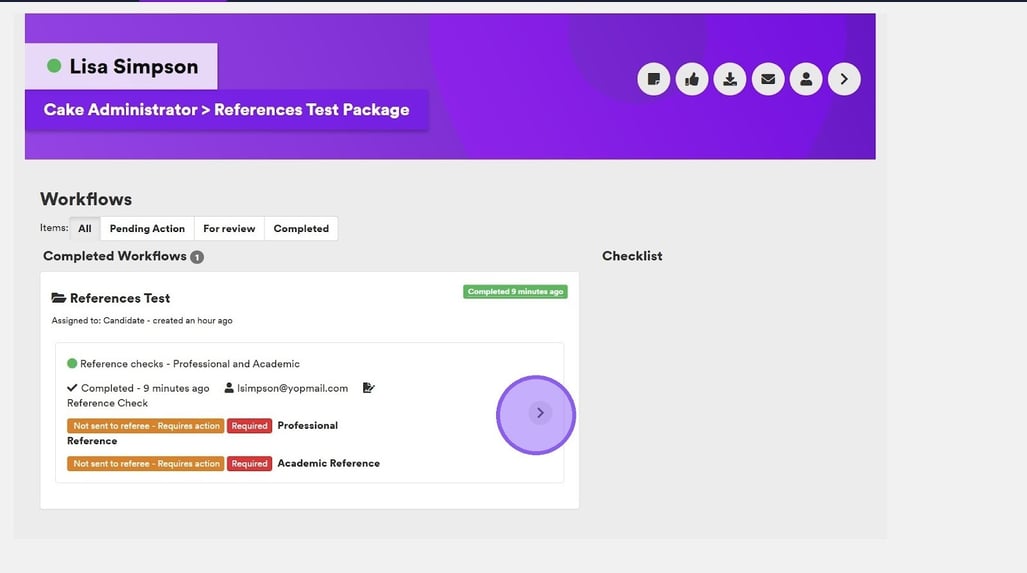
Click this button here to send these reference checks to the listed referee.
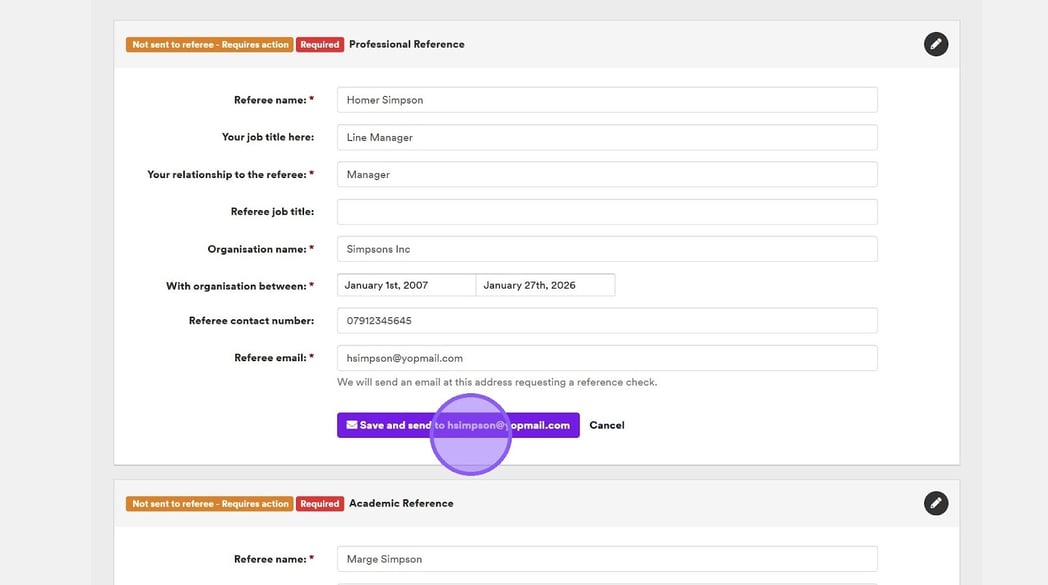
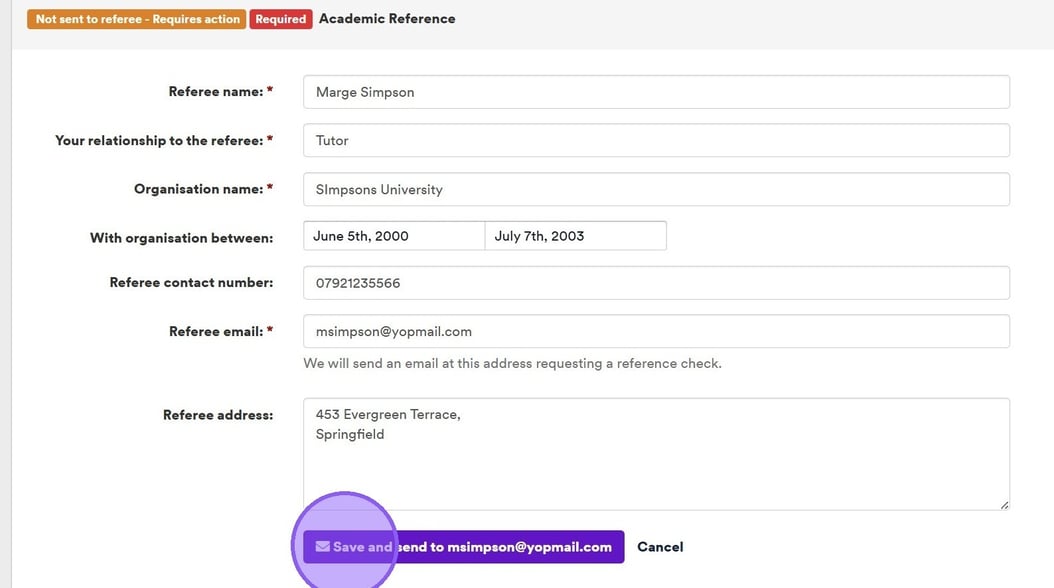
If you have multiple reference checks outstanding, repeat the following step to send to the relevant referee.
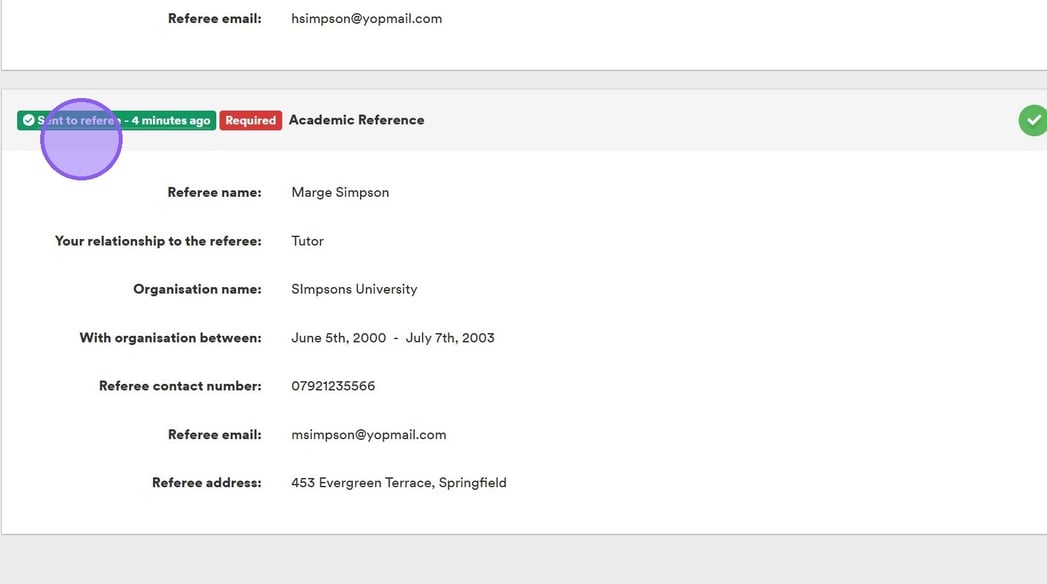
You will now see this text change to green, confirming that your reference checks have been successfully sent to the listed referees.
For more information about how to manage onboarded users 🖱️ see our further guidance here.
🔎 Referee View: Completing & Returning Requested Reference Checks
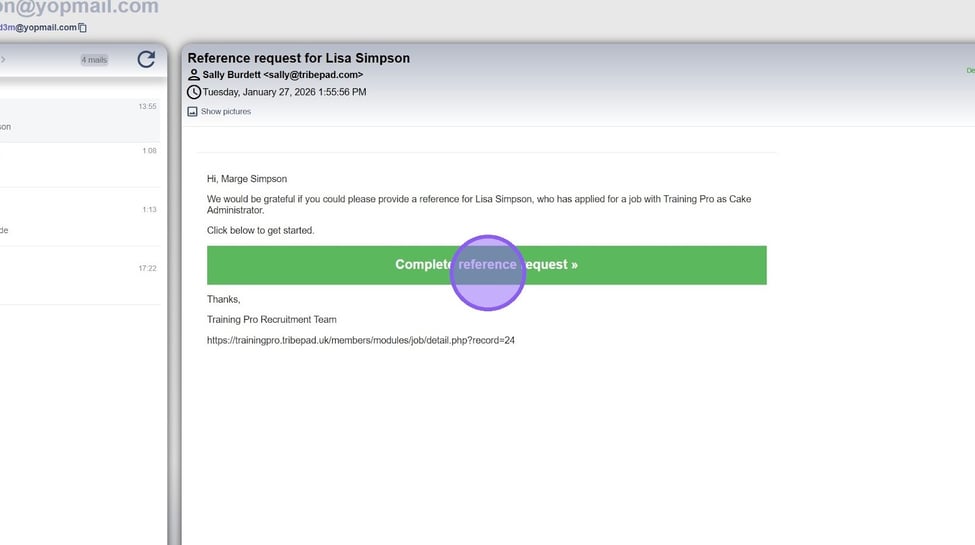
As a referee, you will receive an email requesting a reference.
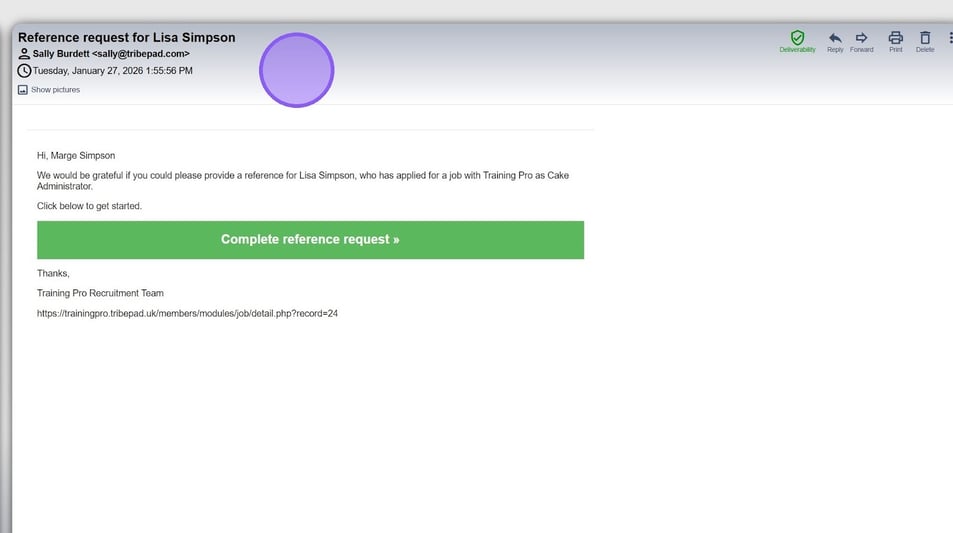
To complete the request, click the "Complete reference request" button.

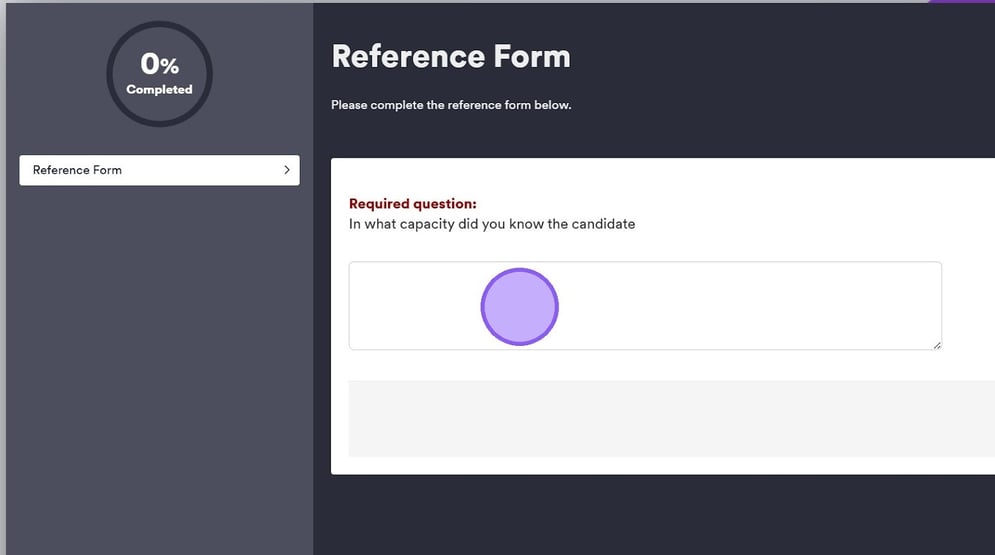
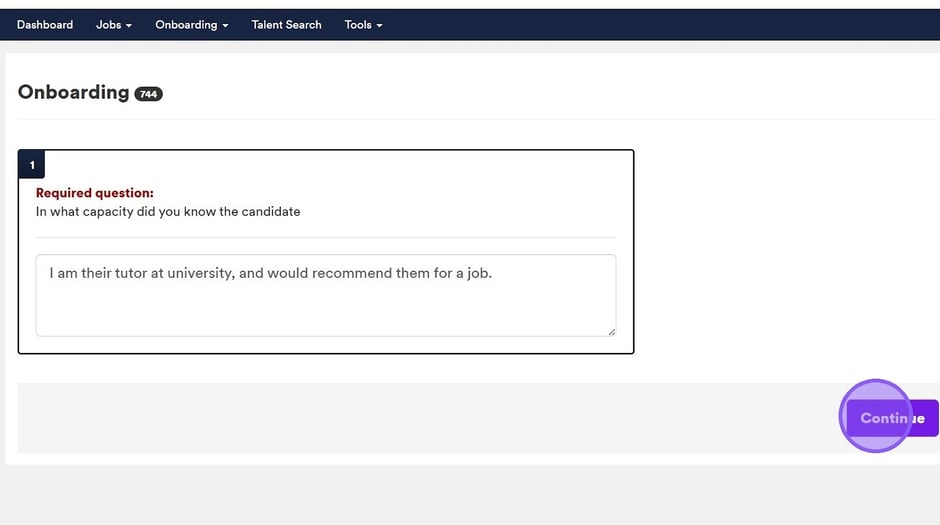
You will be taken to the next page, where you’ll see a set of questions about your relationship with the candidate that you must complete.
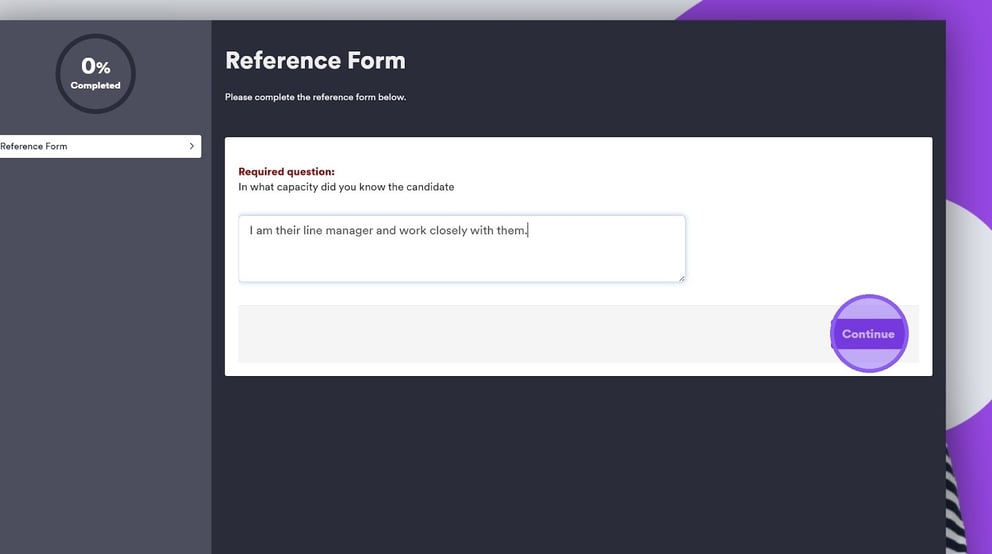
Once you are happy with your answers, click the "Continue" button.
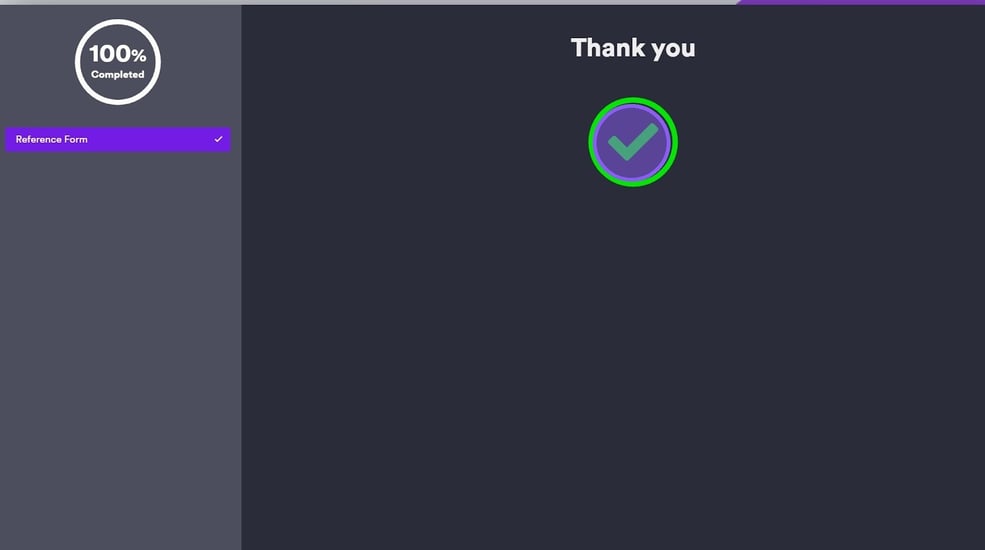
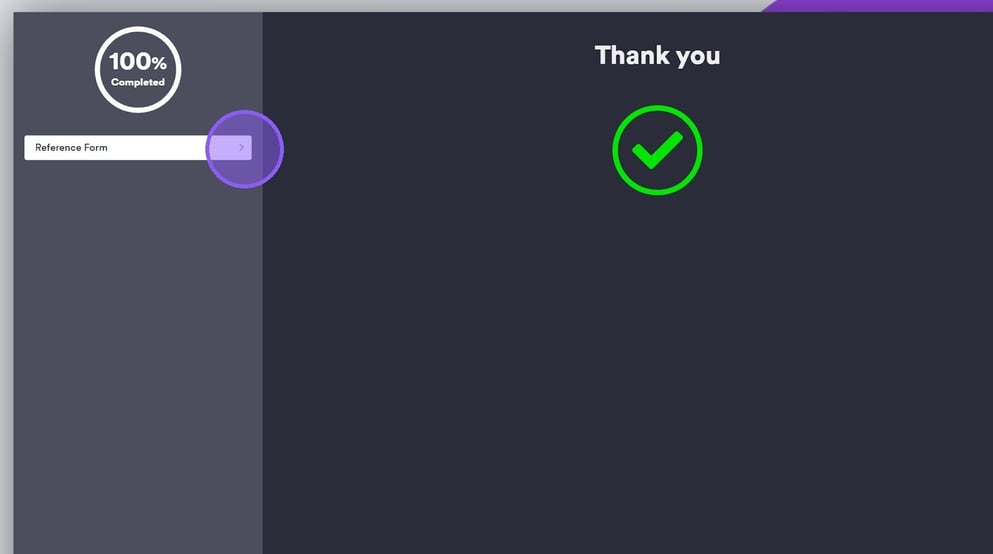
You will now see the following page, thanking you for your reference and confirming completion.
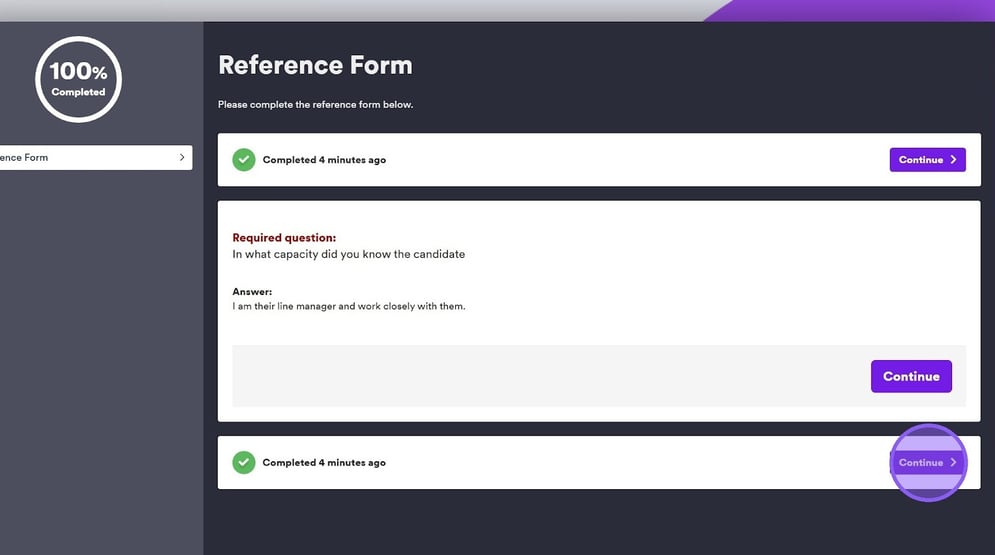
After completion, If you would like to view your submission, click here.
To close this screen, click "Continue".
✅ Viewing Final Reference Checks Within The ATS
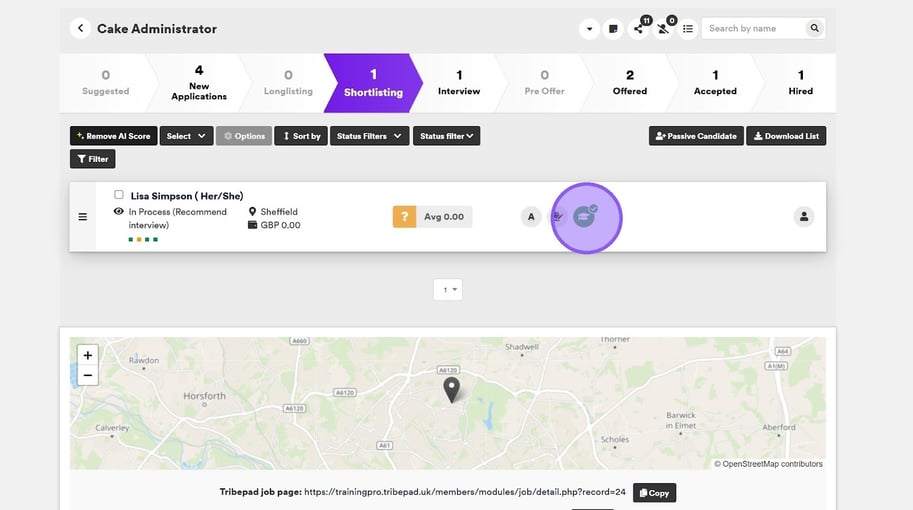
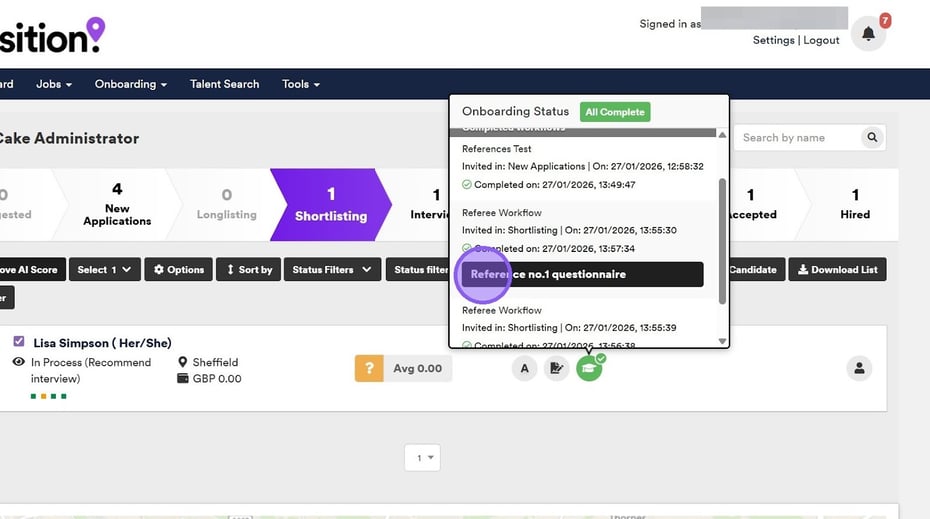
After all referee responses have been completed, review and verify the references directly within the ATS. To do this, head to your relevant job and hover over the hat icon.
You will now see the following pop-up and onboarding status.
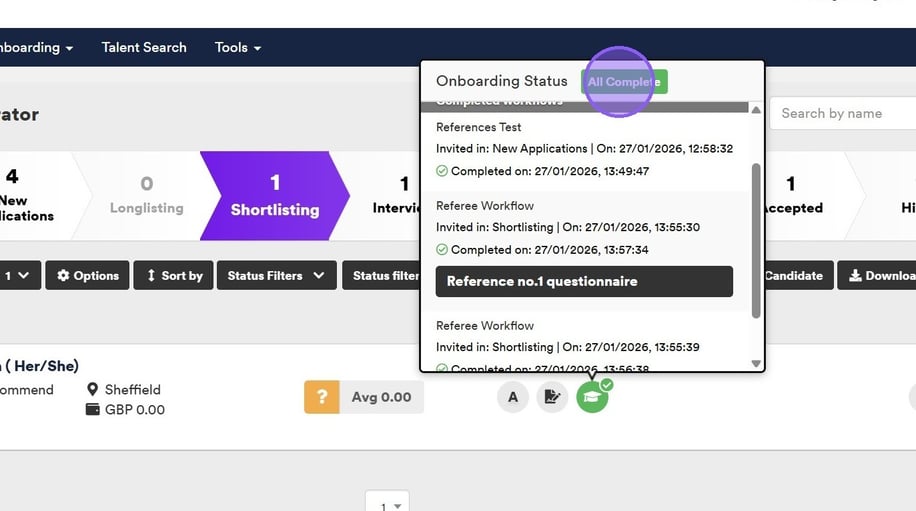
To view the responses to your reference questionnaire, click here.
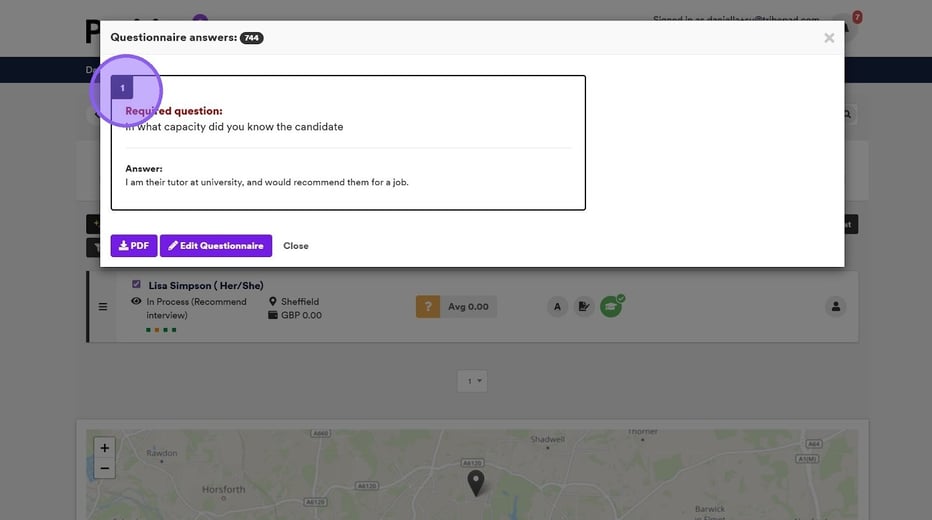
You will now see any responses.
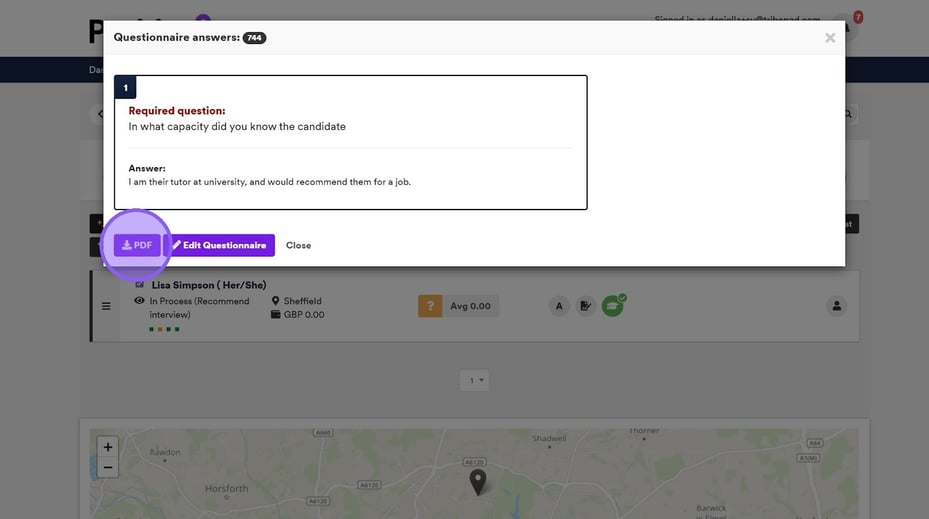
You also have the ability to download any reference questionnaires by clicking this button.
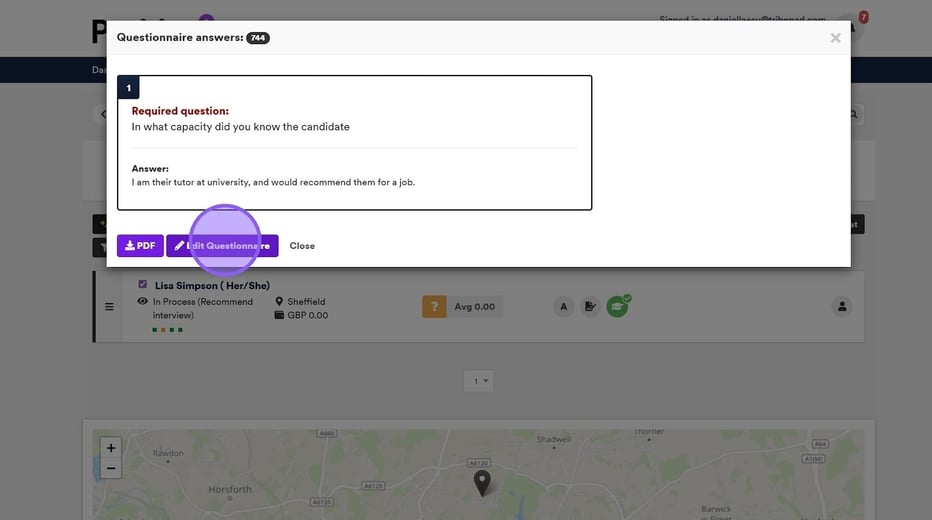
Or if you would like to edit any of the answers to include more context, click this button.
Once you are happy with all of the responses, click the "continue" button to complete this process.
For more information about how to review an onboarding status 🖱️ see our further guidance here.